

Create an Alchemy App
Register a free Alchemy account and create an App to get an API Key.
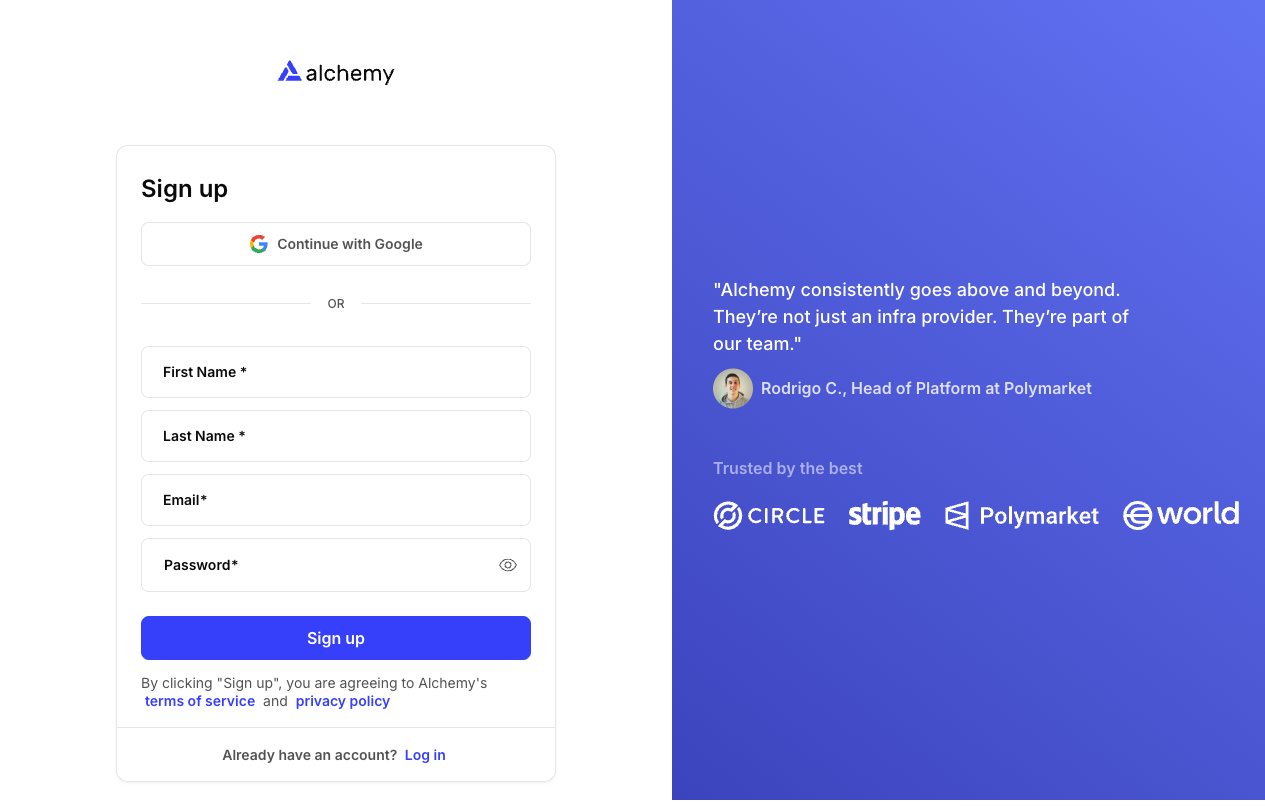
Sign up for Alchemy
Open the Alchemy Sign up page and register with First Name, Last Name, Email, and Password — or click Continue with Google. Existing users can click Log in at the bottom of the form.
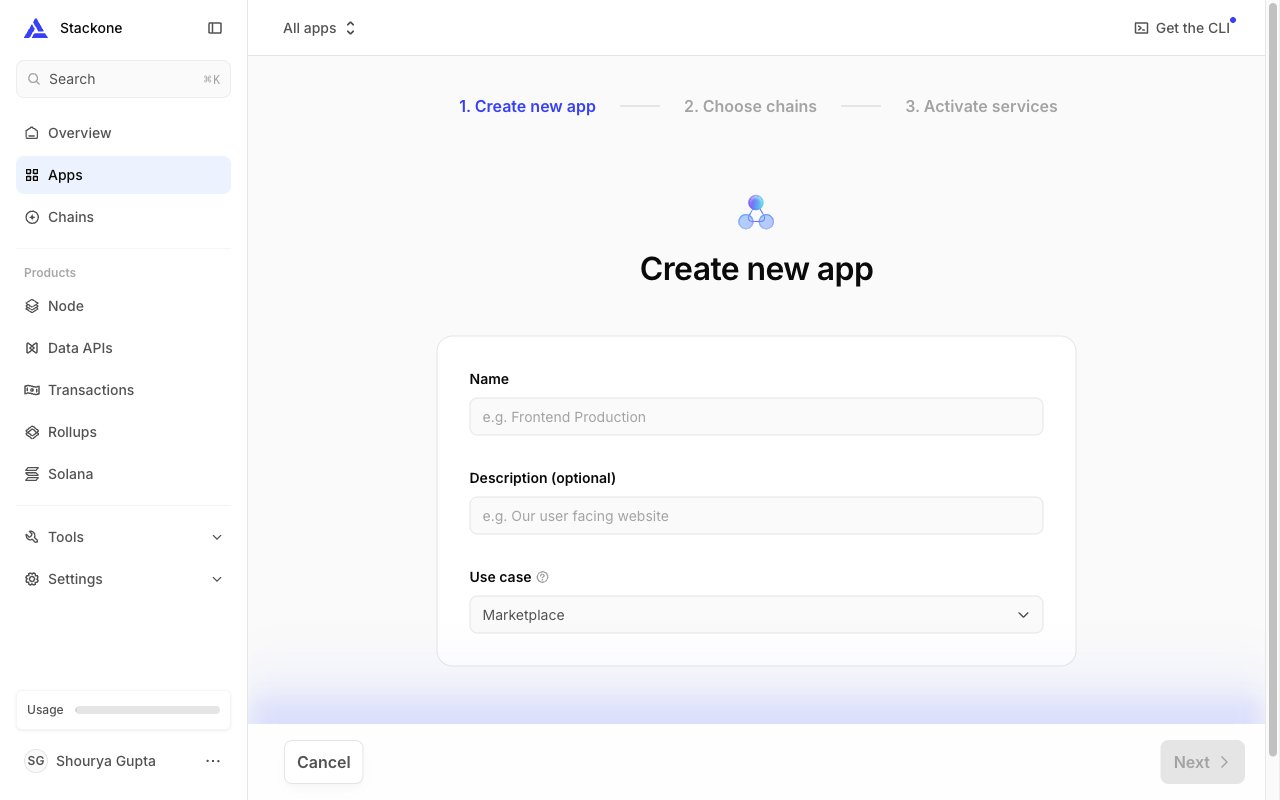
Create a new app
On the Apps page, click + Create new app in the top-right. Fill in Name, an optional Description, and pick a Use case, then click Next. On the following step choose a starter chain and network — you can enable more networks later without recreating the App.
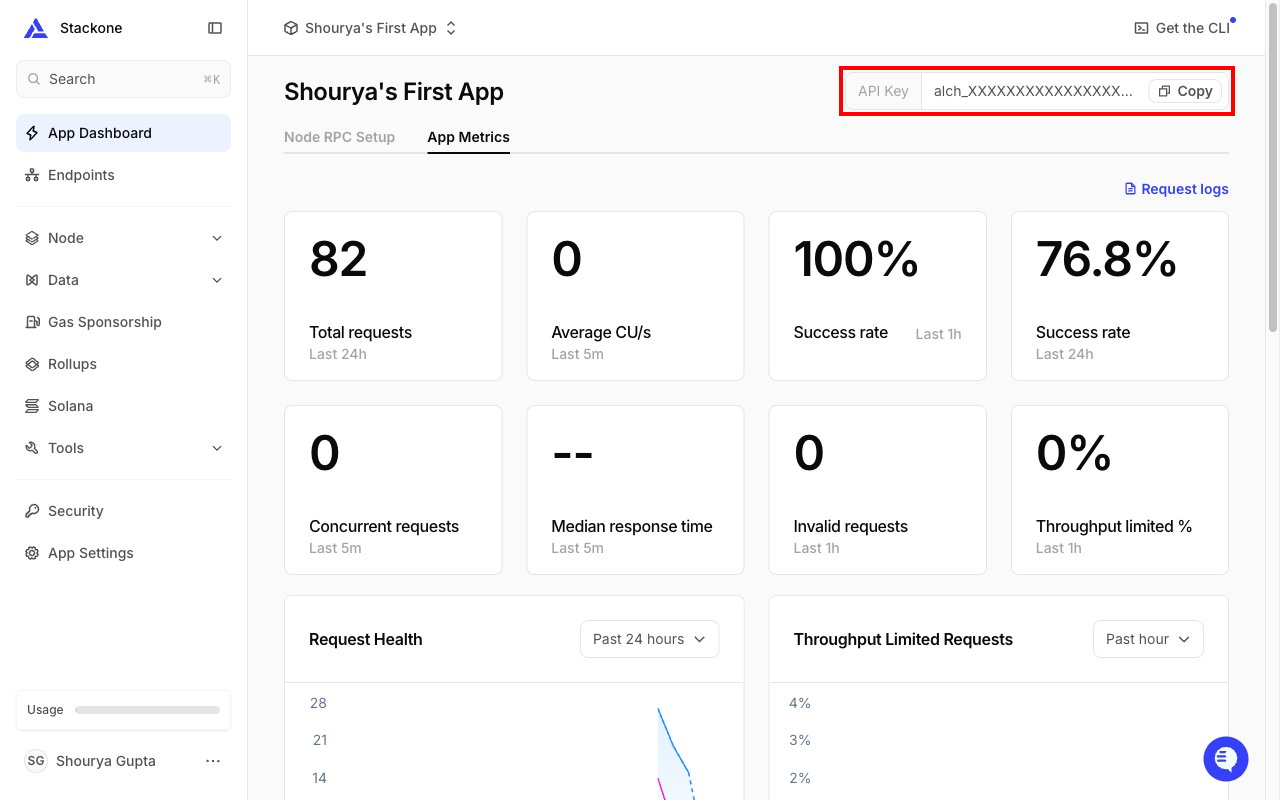
Copy the API Key
Open the App from the Apps list. The API Key field appears in the top-right of every page inside the App (App Dashboard, Endpoints, etc.), next to a Copy button. Values look like alch_XXXXXXXXXXXXXXXXXXXXX. Copy it and paste it into the API Key field in StackOne.
Enter the network subdomain
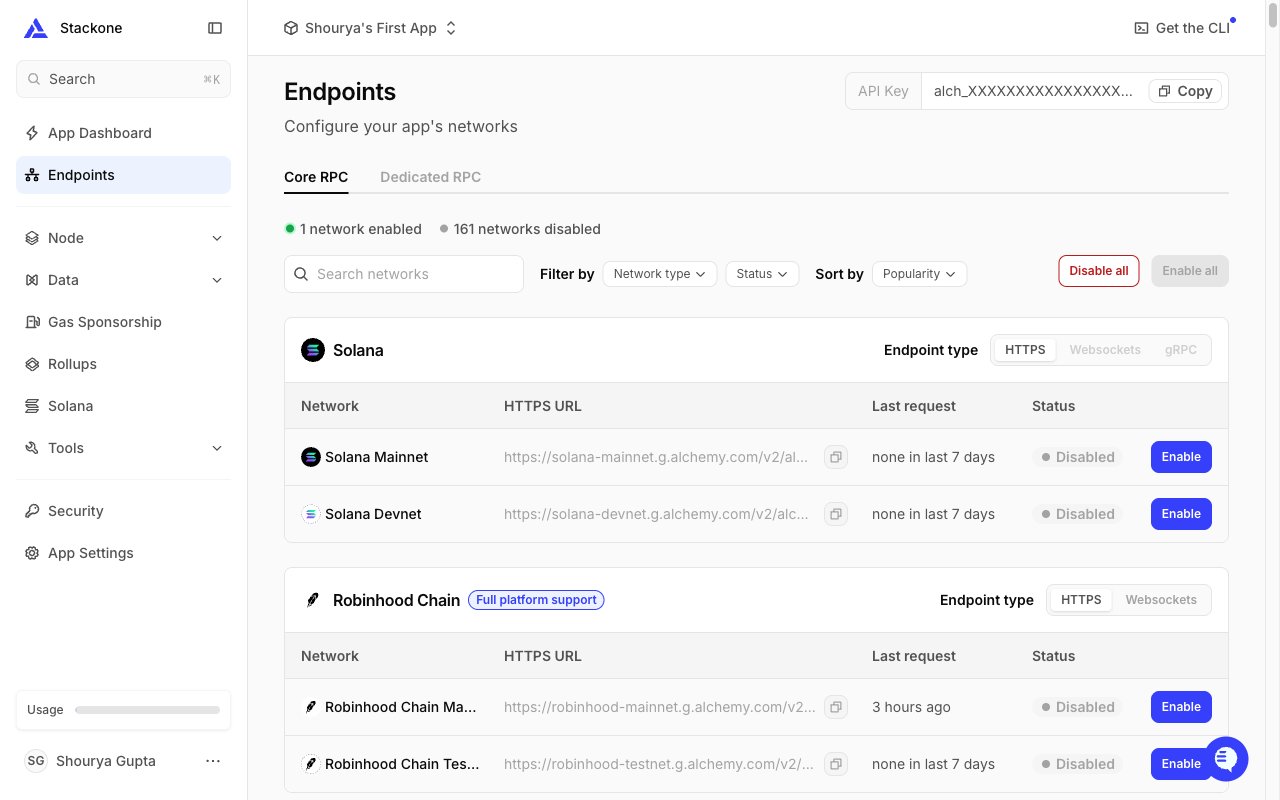
The Network Subdomain field is the chain subdomain used for chain-scoped actions (NFT, Token, Transfers, Utility, RPC). Every chain is listed on the Endpoints page with its HTTPS URL, but requests only succeed against chains whose Status is Enabled — enable the chain you want to use, then copy its subdomain.
Enable the chain on the Endpoints page
In the App’s left sidebar, click Endpoints. Under the Core RPC tab, find the chain you want (use the Search networks box if needed). Its Status column shows either Enabled or Disabled. If it is Disabled, click the Enable button in that column so the row flips to Enabled — this is required for requests to that chain to work.
Copy the subdomain from the HTTPS URL
Every row shows an HTTPS URL of the form https://{network}.g.alchemy.com/v2/<API_KEY> (e.g. https://eth-mainnet.g.alchemy.com/v2/alch_XXXXXXXXX) regardless of Enabled/Disabled status — the value you need is the {network} portion, meaning everything between https:// and .g.alchemy.com (e.g. eth-mainnet). Copy it and paste it into the Network Subdomain field in StackOne. Make sure the chain you pick is the one you Enabled in the previous step.
Linking the Account from the Hub
Navigate to the Hub
Fill out the fields
- API Key
- Network Subdomain
Connect
- Click Connect
- If applicable, the provider will redirect you to a sign-in or authorization page. Complete the provider’s authorization flow.
- Once authorization is successful, you will see a confirmation popup
If the account linking is successful, you will see the newly linked account on your Accounts page.