

Akeneo connection credentials
All five values come from one Connection in your Akeneo PIM. The connection’s Role and Group decide which products, families and attributes the integration can read and change.
Create the connection
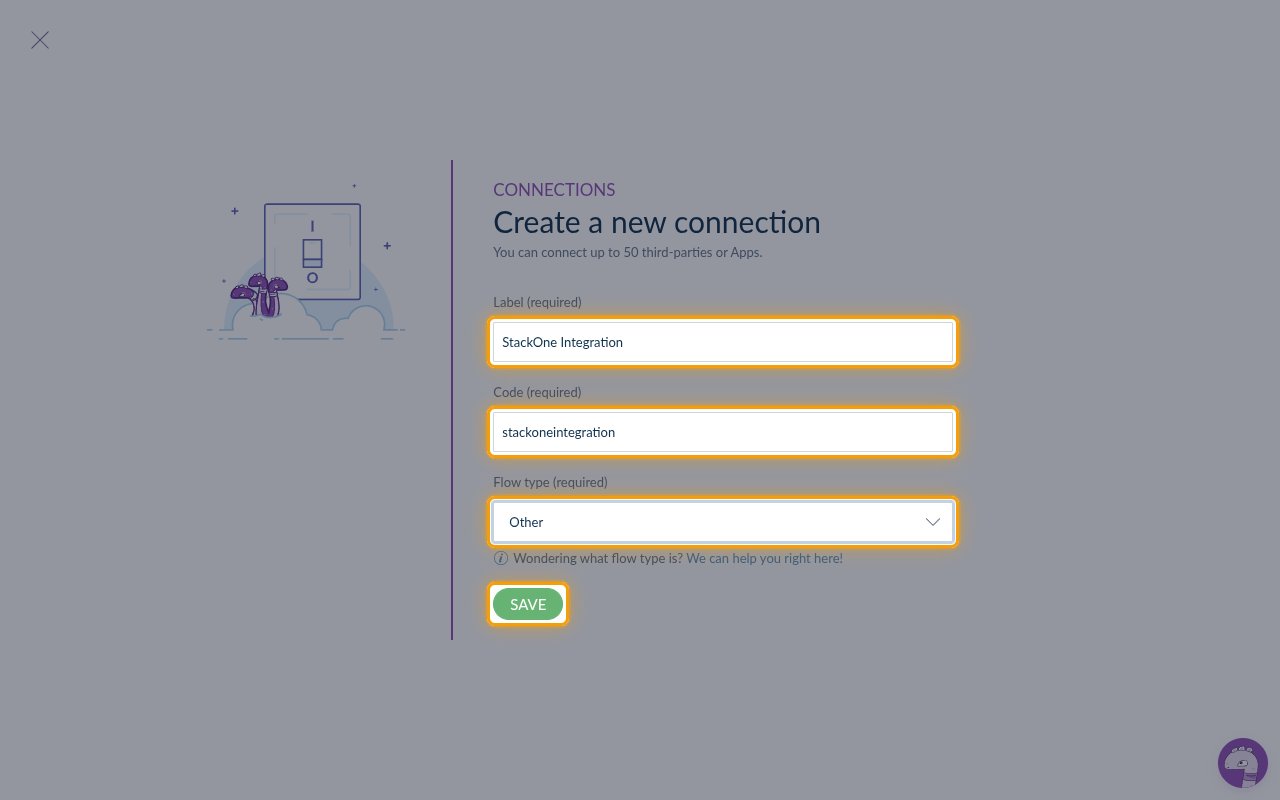
Sign in to your Akeneo PIM, then create a connection for StackOne:
- Open Connect > Connection settings.
- Click Create.
- Label (required):
StackOne Integration - Code (required): leave the value filled in from the label
- Flow type (required): Other
- Click Save.
Copy the credentials
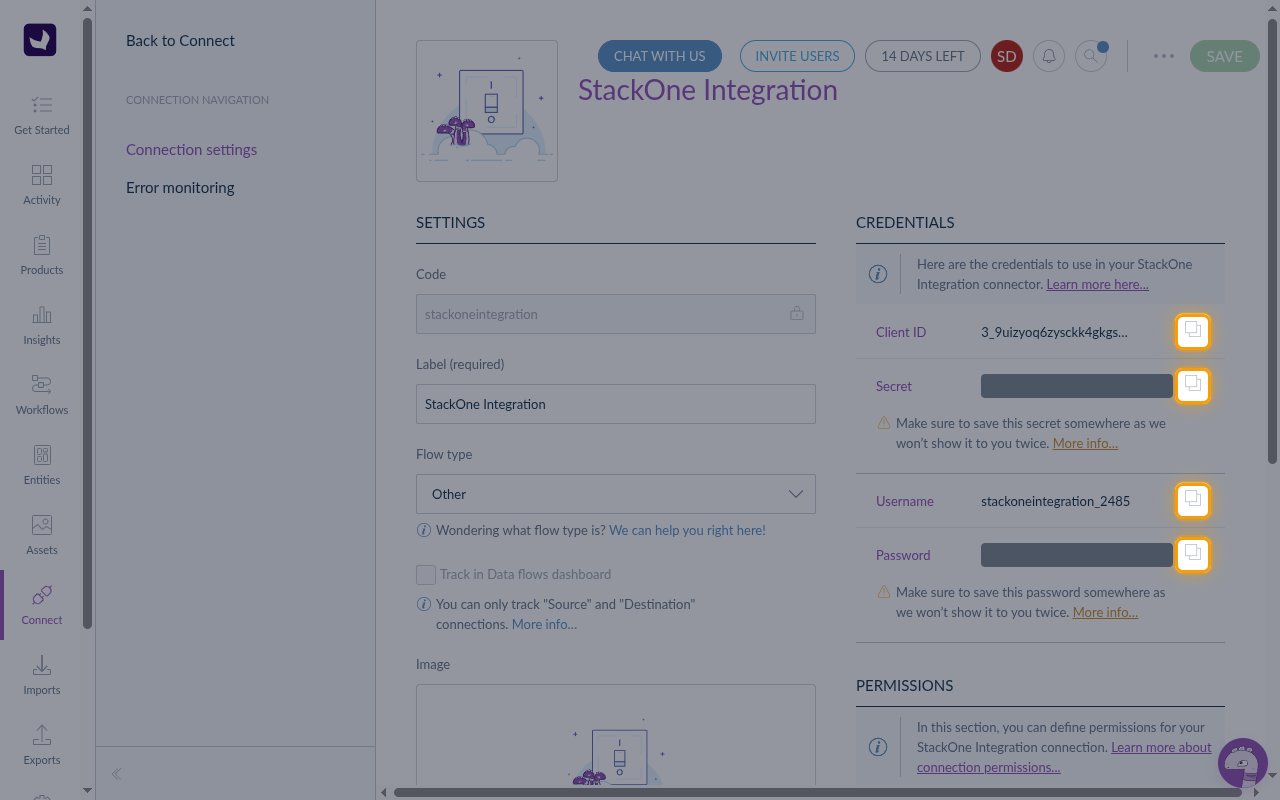
The connection opens with its Credentials section. Click Copy to clipboard next to each value and copy it across:
- Client ID
- Secret
- Username
- Password
- The Secret and Password are shown once and cannot be retrieved later, so copy them before you leave the page.
Set the permissions
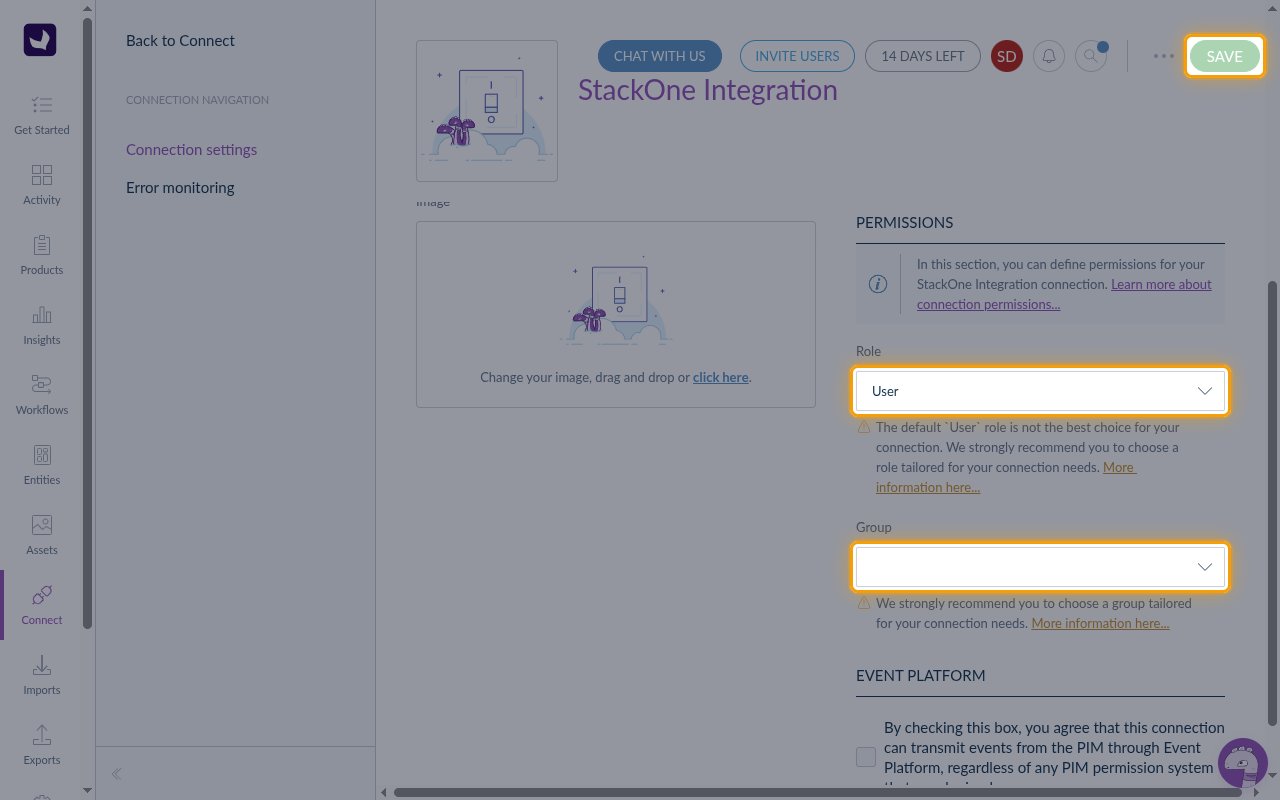
In the Permissions section, choose the access the integration gets:
- Role: a role that allows the API actions you plan to use
- Group: a user group with access to the categories and attributes the integration works with
- To receive webhook events, tick the checkbox in the Event Platform section.
- Click Save.
Find the PIM domain
The PIM domain is the host name in the address bar when you are signed in to Akeneo, without https:// or anything after it. Copy it across.
- Format:
{your-pim}.cloud.akeneo.com - Example: if your PIM opens at
https://acme.cloud.akeneo.com/#/dashboard, the PIM domain isacme.cloud.akeneo.com
Add a contact email for webhook events
Event Platform Contact Email is only needed to receive webhook events. Enter the address Akeneo should email when the event subscription is suspended or resumed; Akeneo won’t create the subscription without it.
Link the Account
Connect
- Click Connect.
- If applicable, the provider will redirect you to a sign-in or authorization page. Complete the provider’s authorization flow.
- Once authorization is successful, you will see a confirmation popup.
Use Actions
Next Steps
Webhooks setup
Configure receiving Events for Akeneo into StackOne.