

Generating an API key
An AgentMail API key lets StackOne act on your AgentMail organization’s inboxes, messages and domains.
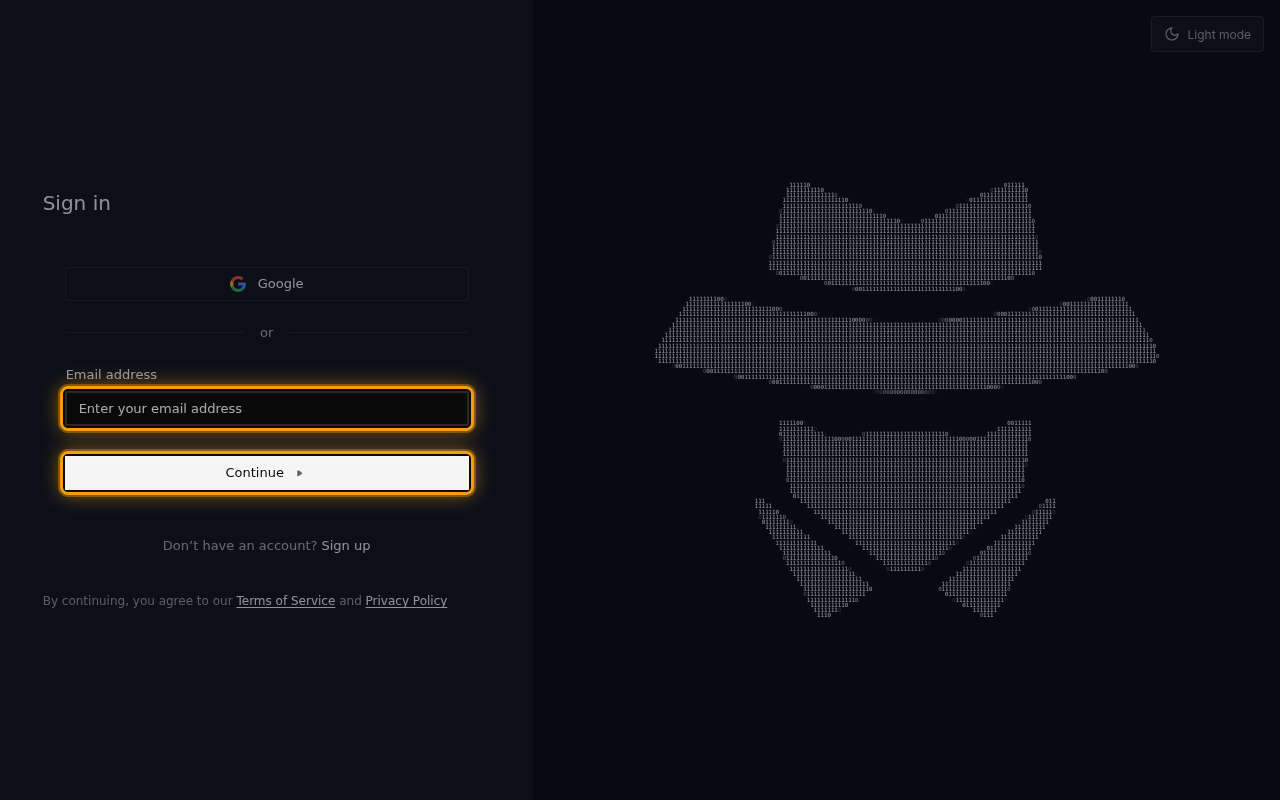
Sign in to AgentMail
Sign in to your AgentMail account.
- Enter your Email address and click Continue, or sign in with Google.
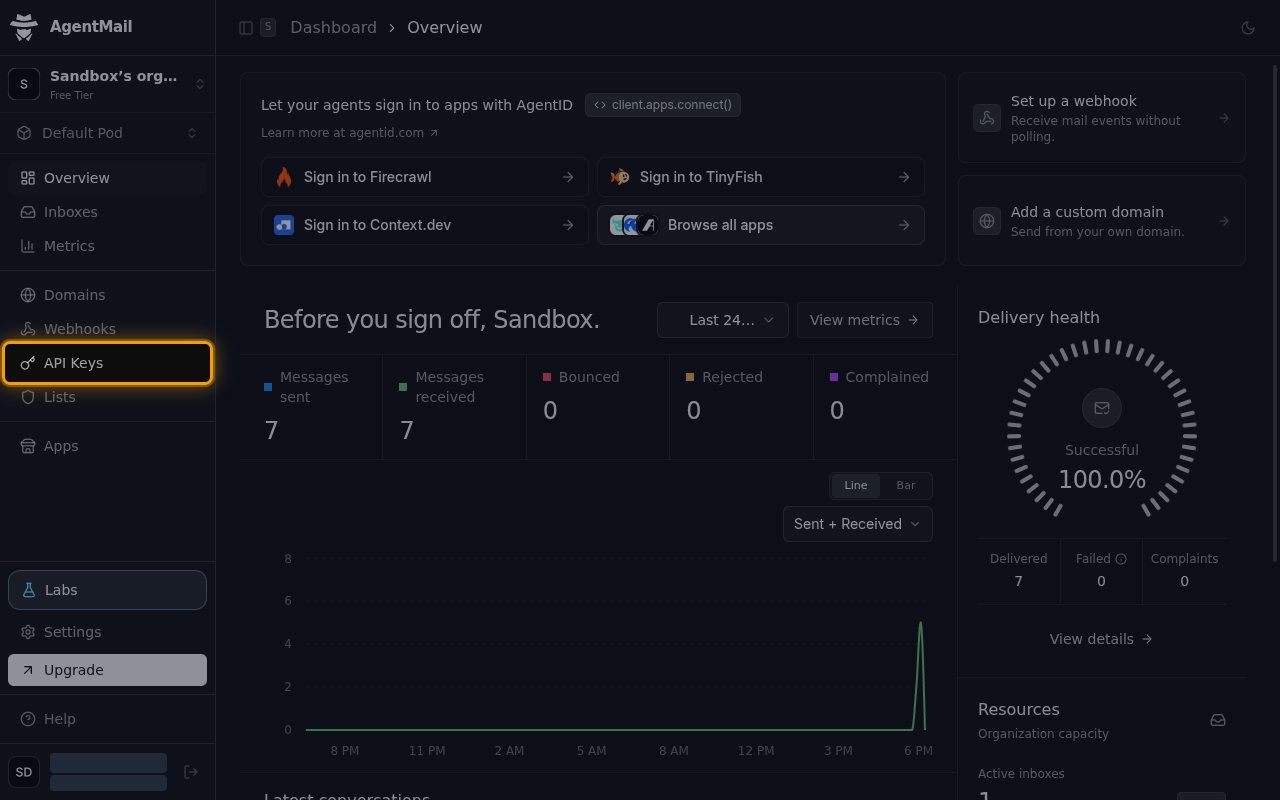
Open API Keys
In the sidebar, click API Keys.
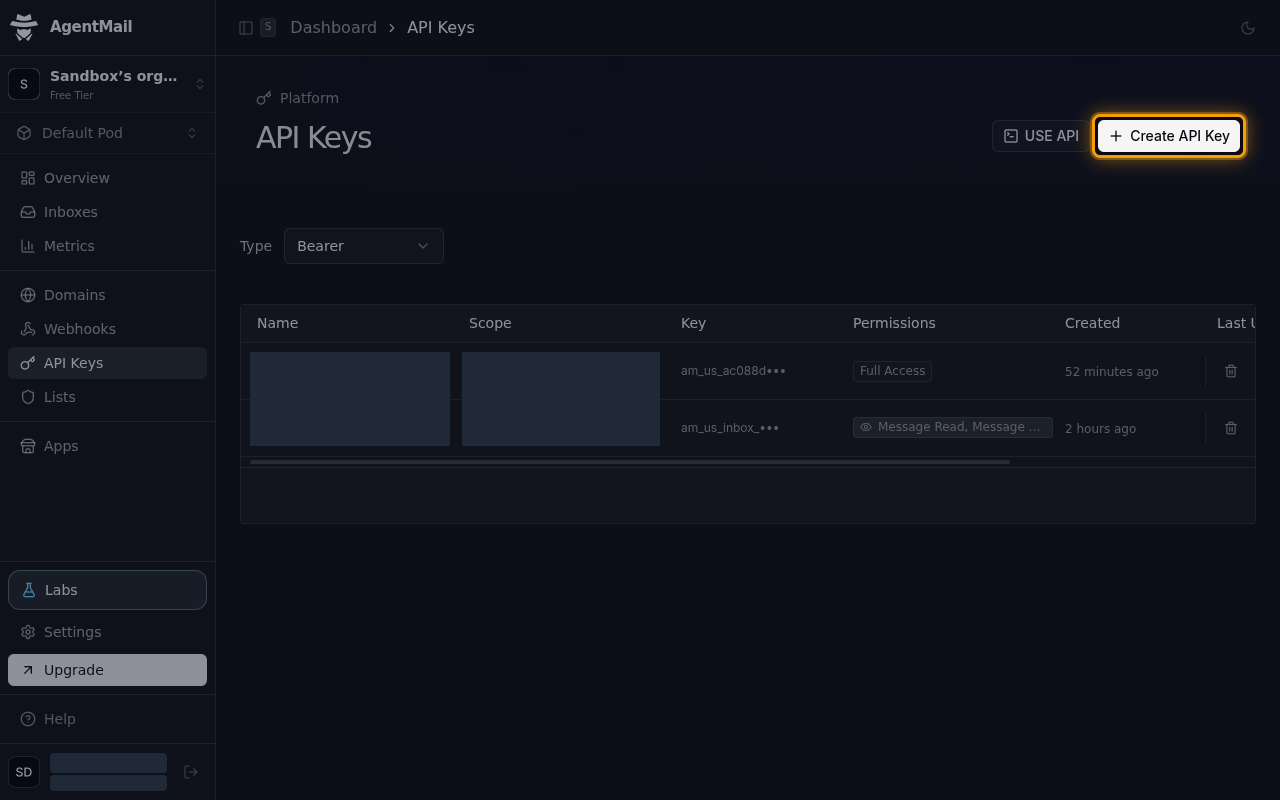
Start a new key
On the API Keys page, click Create API Key.
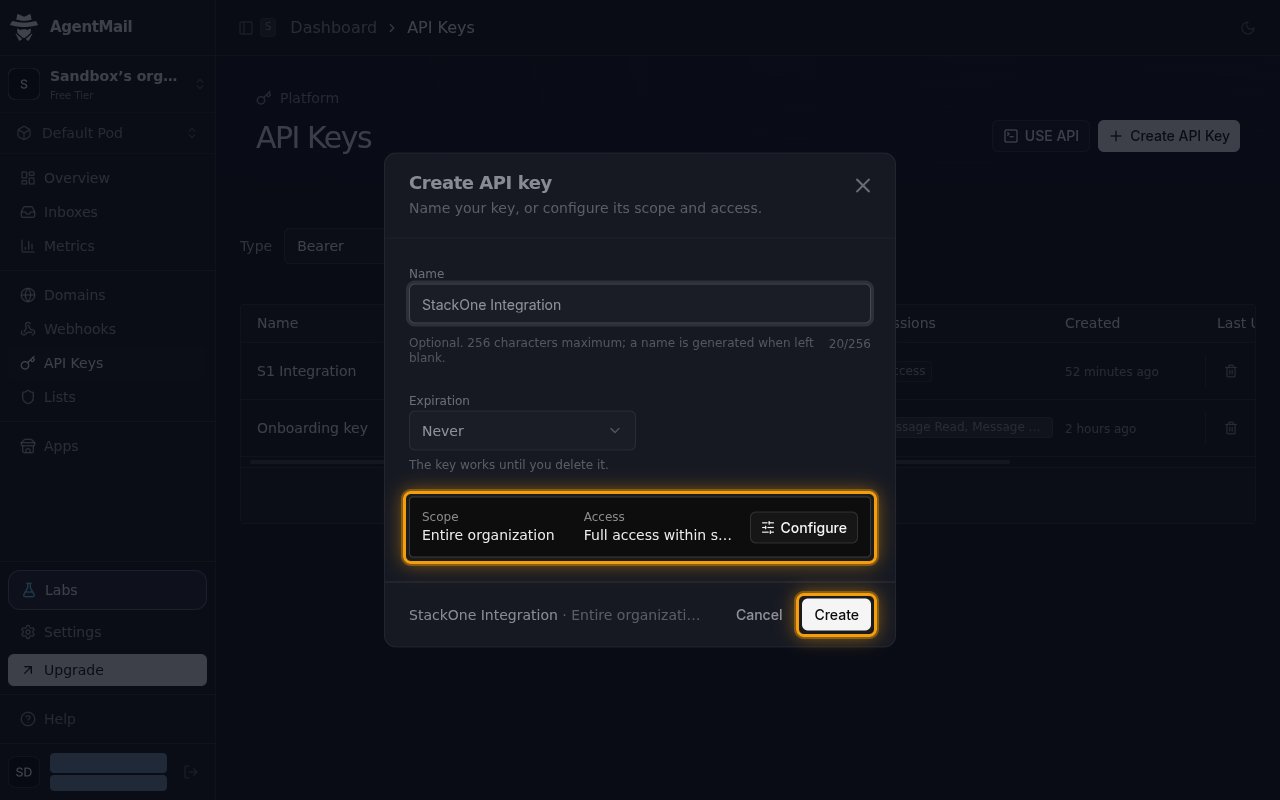
Configure and create the key
In the Create API key dialog, name the key and keep its default scope and access.
- Name:
StackOne Integration - Leave Expiration set to Never so the key works until you delete it.
- Keep Scope set to Entire organization and Access set to Full access within scope, so StackOne can manage every inbox and domain in the organization.
- Click Create.
Copy the key
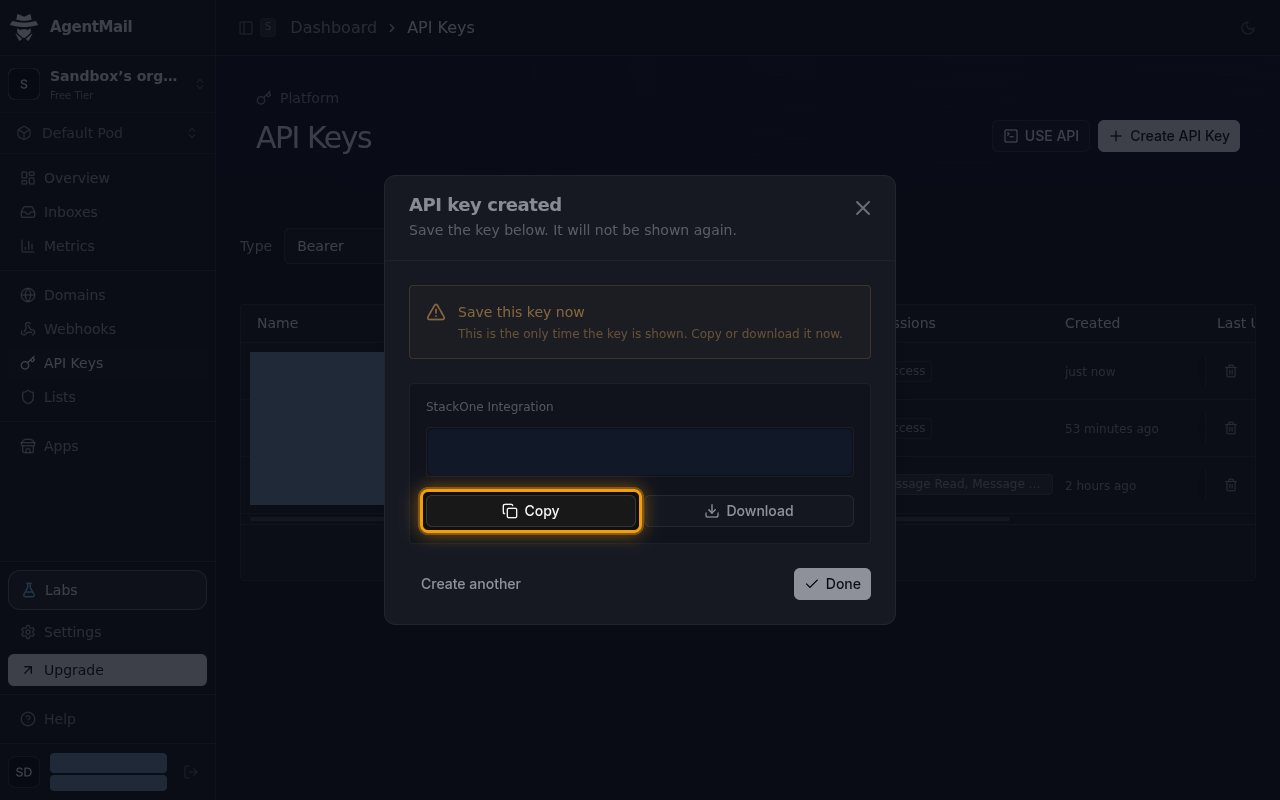
In the API key created dialog, click Copy, then paste the key into the API Key field in StackOne Hub.
- The key is only shown once and cannot be retrieved later. Store it securely for use later.
- Format:
am_us_followed by 64 characters
Select your API region
AgentMail runs separate US and EU environments. The API Region field in StackOne Hub tells StackOne which one your organization uses.
- Select US (api.agentmail.to) for organizations on the standard AgentMail service. Keys created there start with
am_us_. - Select EU (api.agentmail.eu) only if your organization was set up in AgentMail’s EU environment, which is offered on the Enterprise plan.
Linking the Account from the Hub
Navigate to the Hub
Fill out the fields
- API Key
- API Region
Connect
- Click Connect
- If applicable, the provider will redirect you to a sign-in or authorization page. Complete the provider’s authorization flow.
- Once authorization is successful, you will see a confirmation popup
If the account linking is successful, you will see the newly linked account on your Accounts page.
Next Steps
Webhooks setup
Configure receiving Events for AgentMail into StackOne.