

Creating an API credential
An Adyen API credential is a web service user whose API key authenticates requests to Adyen. Create it at company level so every merchant account under the company is visible.
Sign in to Adyen
Sign in to the Customer Area for the environment you are connecting:
- Test — Adyen test Customer Area
- Production — Adyen live Customer Area
- Check that the account switcher at the top left shows your company account, labeled Company.
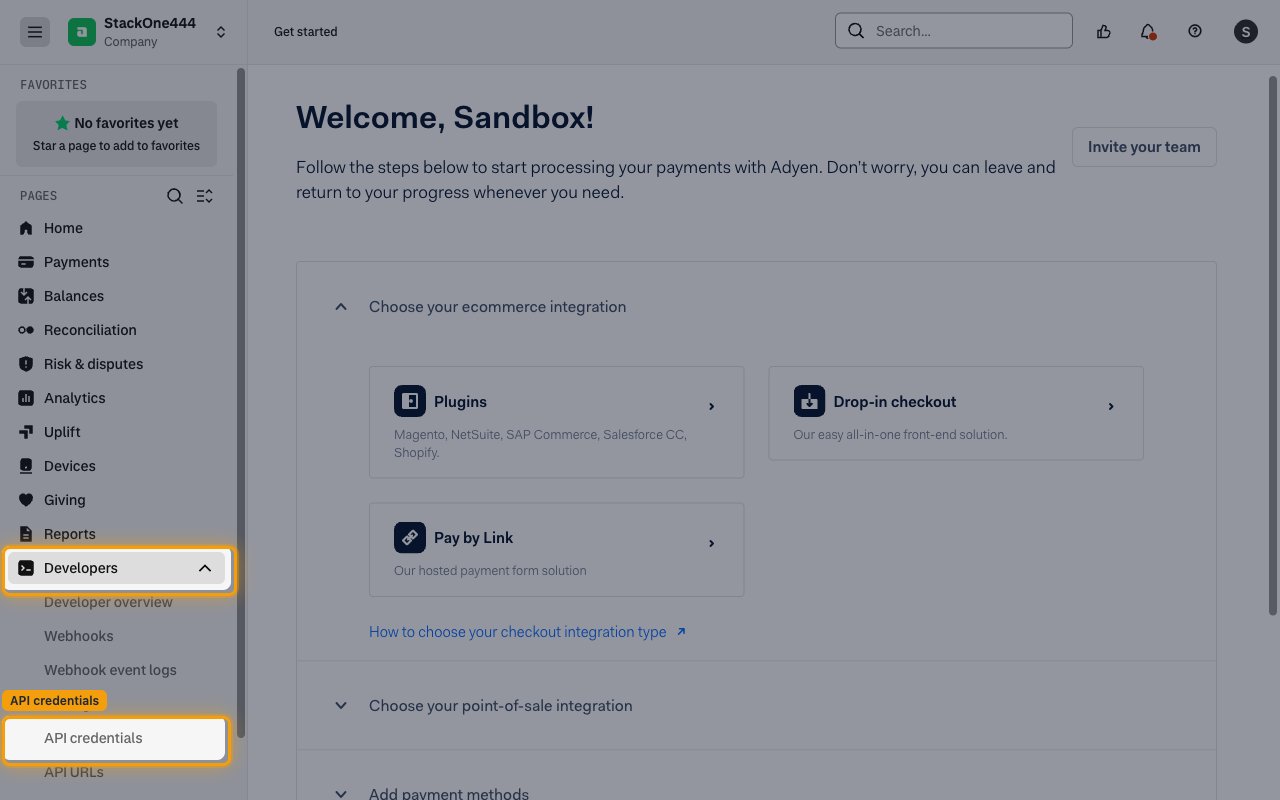
- In the sidebar, expand Developers and click API credentials.
Start a new credential
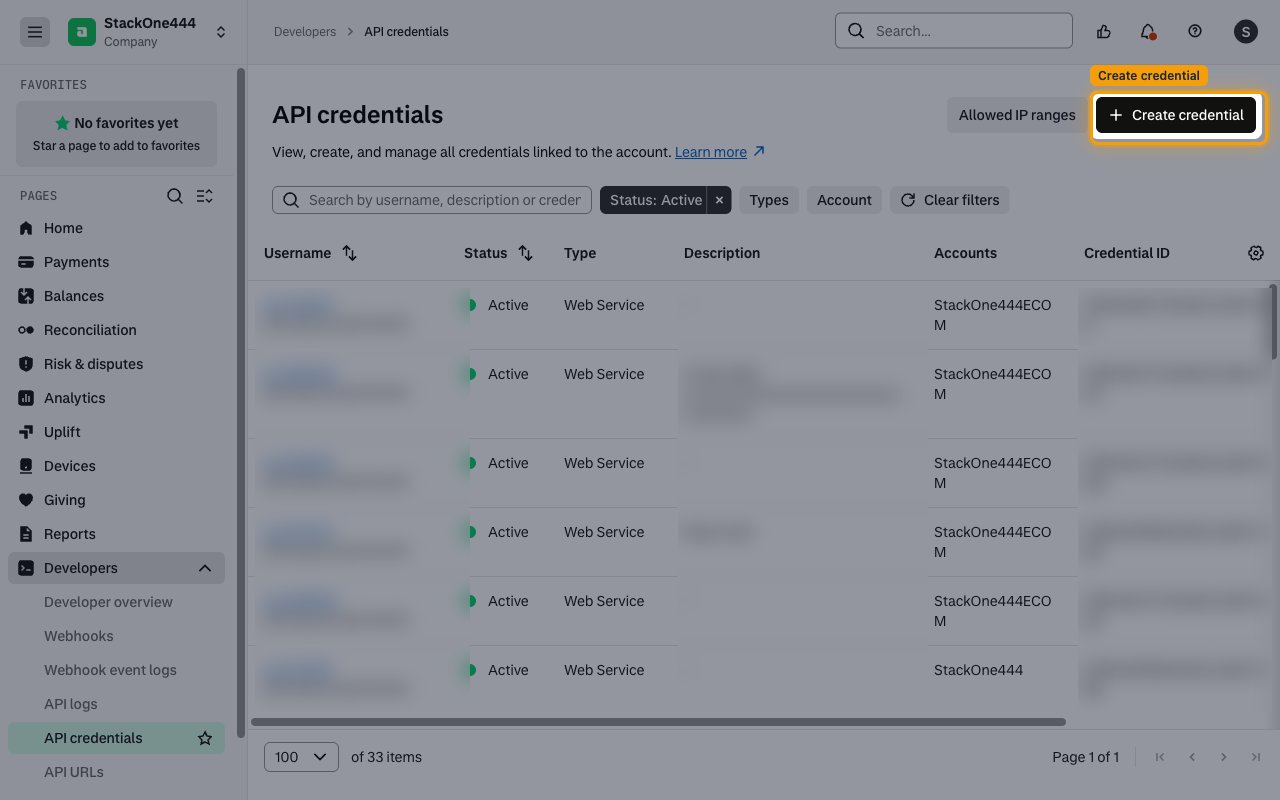
On the API credentials page, click Create credential.
Choose the credential type
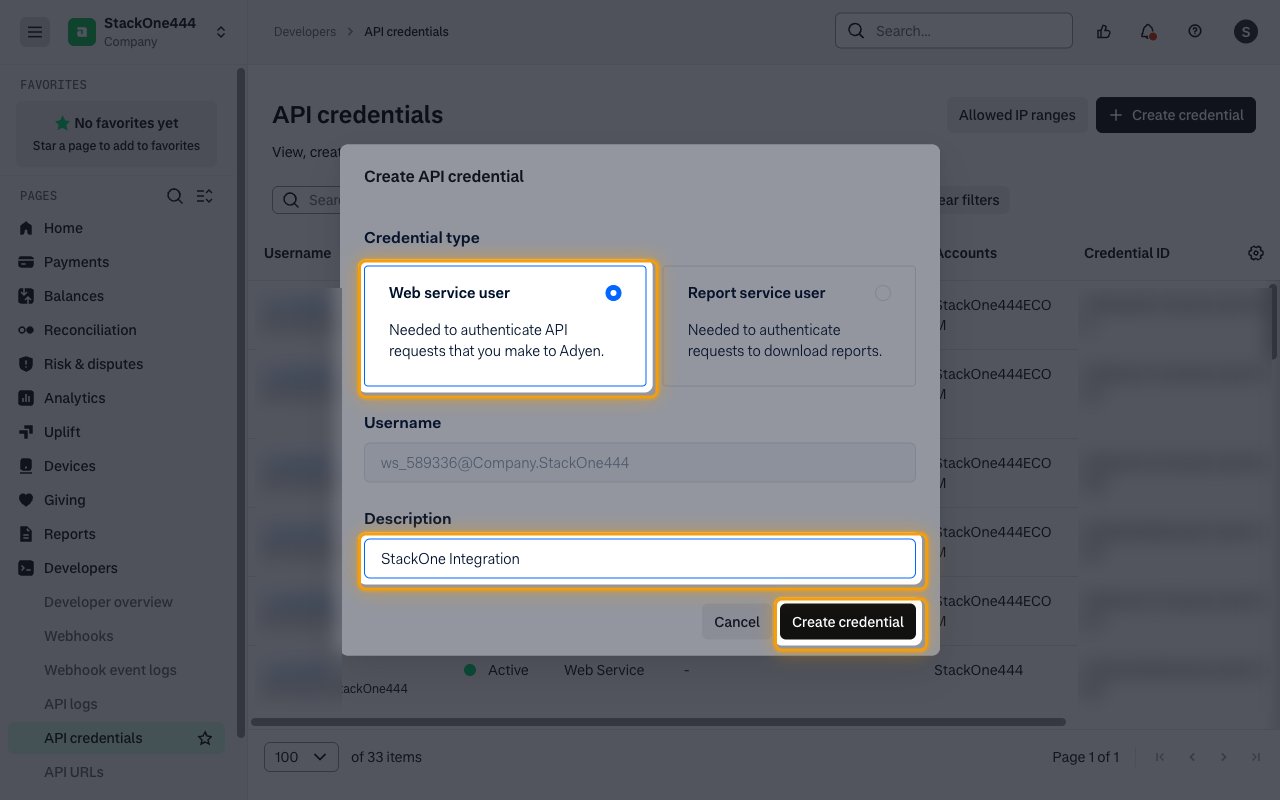
In the Create API credential window, select Web service user under Credential type.
- Adyen generates the Username automatically, in the format
ws_123456@Company.YourCompany. - Description:
StackOne Integration - Click Create credential.
Copy the API key
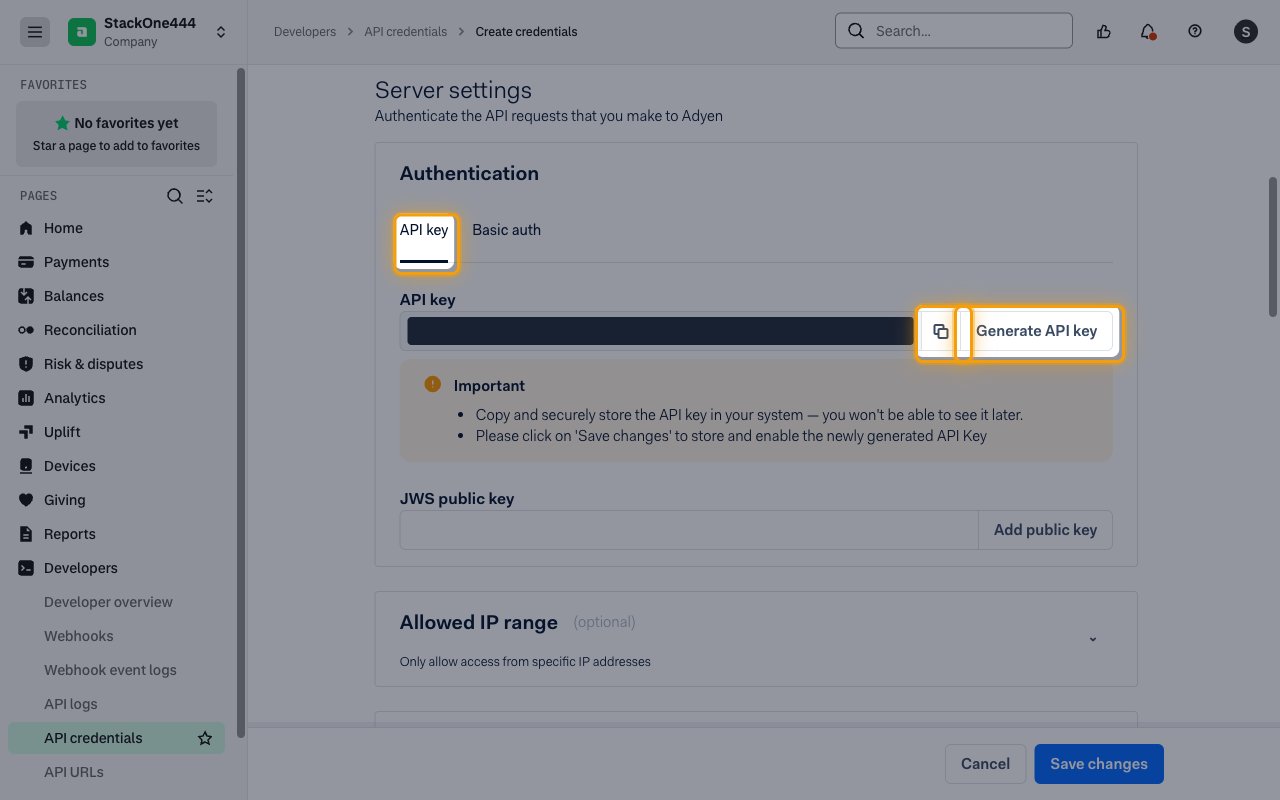
Adyen opens the Configure API credential page with an API key already generated under Server settings > Authentication > API key.
- Click the copy icon next to the key, or click Generate API key to create a new one.
- The API key is shown only once and cannot be retrieved later. Store it securely for use later.
- Paste it into the API Key field in StackOne Hub.
Assigning roles
Roles decide which Adyen APIs the API key can call. Assign the roles for the actions you plan to use on the same Configure API credential page.
Select Management API roles
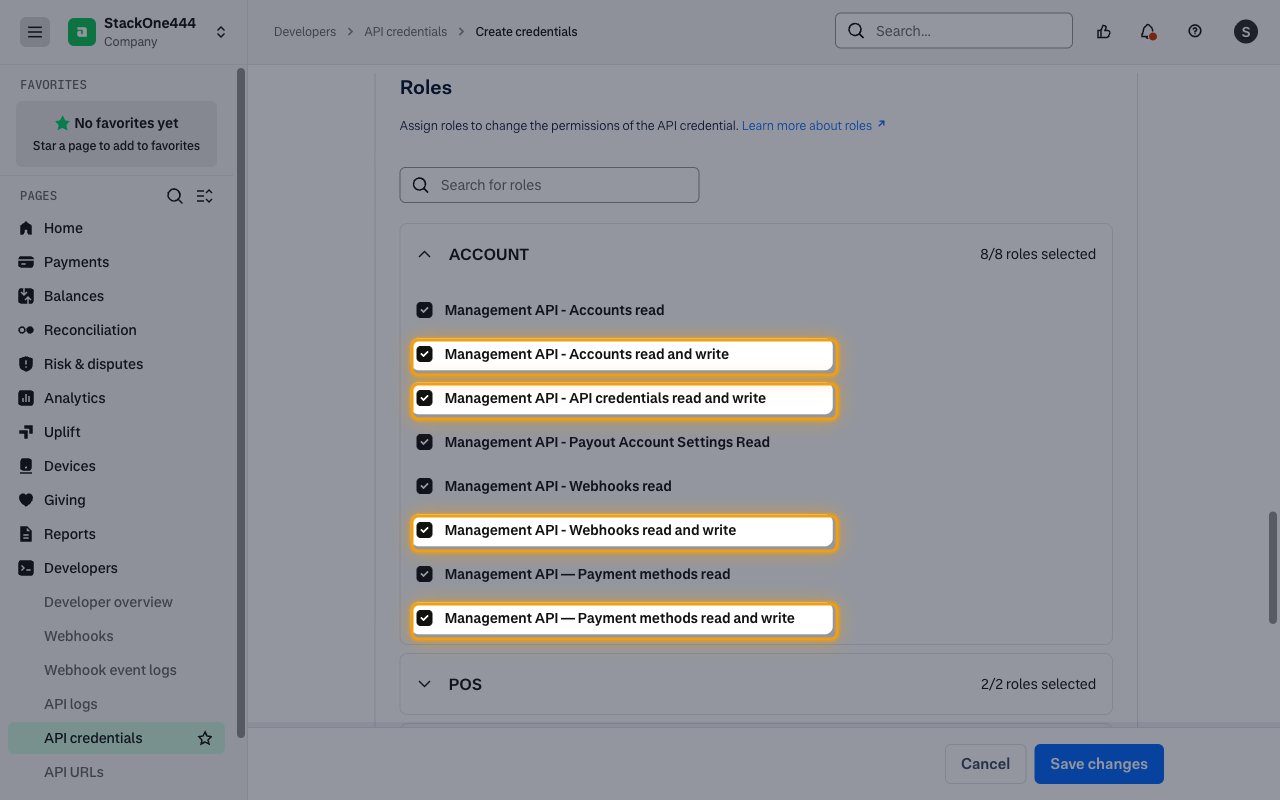
Under Permissions > Roles, expand ACCOUNT and select the roles you need.
- Management API - Accounts read and write for companies, merchant accounts and stores.
- Management API - API credentials read and write for API credentials.
- Management API - Webhooks read and write for webhooks.
- Management API — Payment methods read and write for payment method settings.
Save the credential
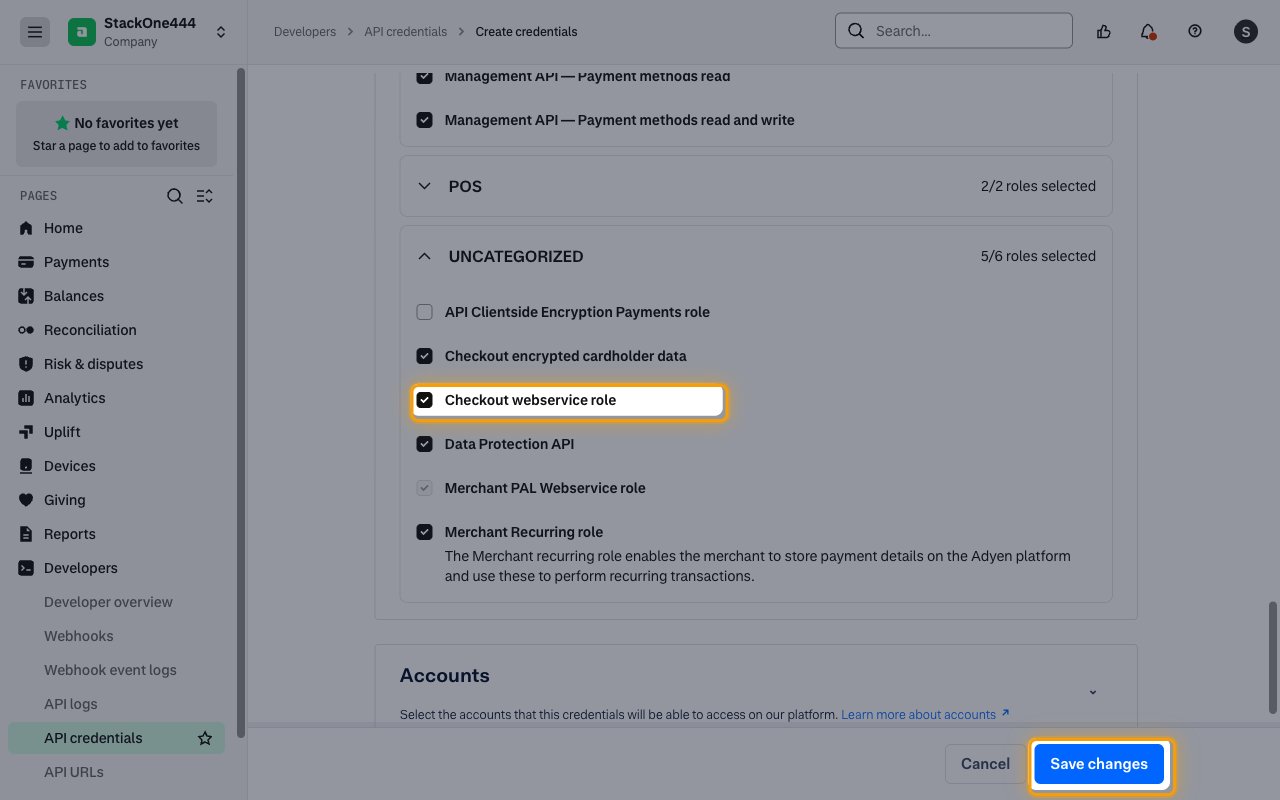
Expand UNCATEGORIZED and select Checkout webservice role to make payments, refunds and payment links.
- Click Save changes to store and enable the newly generated API key.
- Roles that are not listed, such as the ones for reading Customer Area users or terminals, must be enabled for your account by Adyen support.
Find your live URL prefix
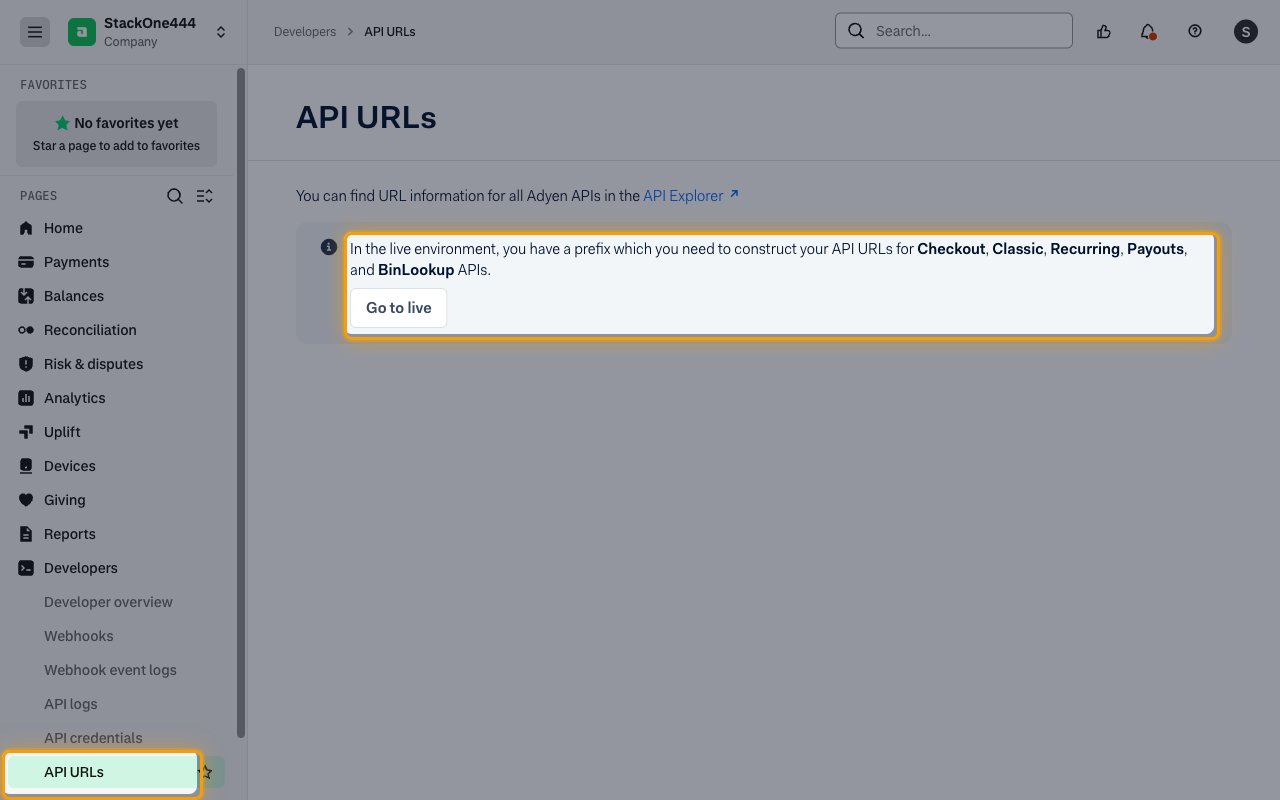
Your live URL prefix identifies your company’s live Checkout and Classic API endpoints. Leave Live URL Prefix empty for Test connections.
Copy the live URL prefix
In the live Customer Area, expand Developers and click API URLs, then copy the prefix shown on that page.
- Format:
{random}-{CompanyName} - Example:
a1b2c3-AcmeCorp - Paste it into the Live URL Prefix field in StackOne Hub.
Webhooks
The Native Webhook URL field in StackOne Hub is filled in automatically after you connect. You only need it if you also set up Adyen webhooks for this account.
Link the Account
Connect
- Click Connect.
- If applicable, the provider will redirect you to a sign-in or authorization page. Complete the provider’s authorization flow.
- Once authorization is successful, you will see a confirmation popup.
Use Actions
Next Steps
Webhooks setup
Configure receiving Events for Adyen into StackOne.