

Prerequisites
The connector should already be set up, with a Connector Profile and a Linked Account. See Getting Started on the Accurate Background connector page.Retrieve the Native Webhook URL
You can find the Native Webhook URL in the StackOne Hub, or on the account linking form when you connect an account.
- Copy the value of Native Webhook URL.
- The URL ends with a
?token=that identifies your account. Treat it as a secret and paste the full URL. - Each linked account has its own Native Webhook URL. If you link both a sandbox and a production account, paste each URL under its matching environment: Sandbox or Live.
Register the URL in the Accurate Developer Portal
Accurate stores one webhook URL per environment and sends every order status change to it.
1
Sign in to the Developer Portal
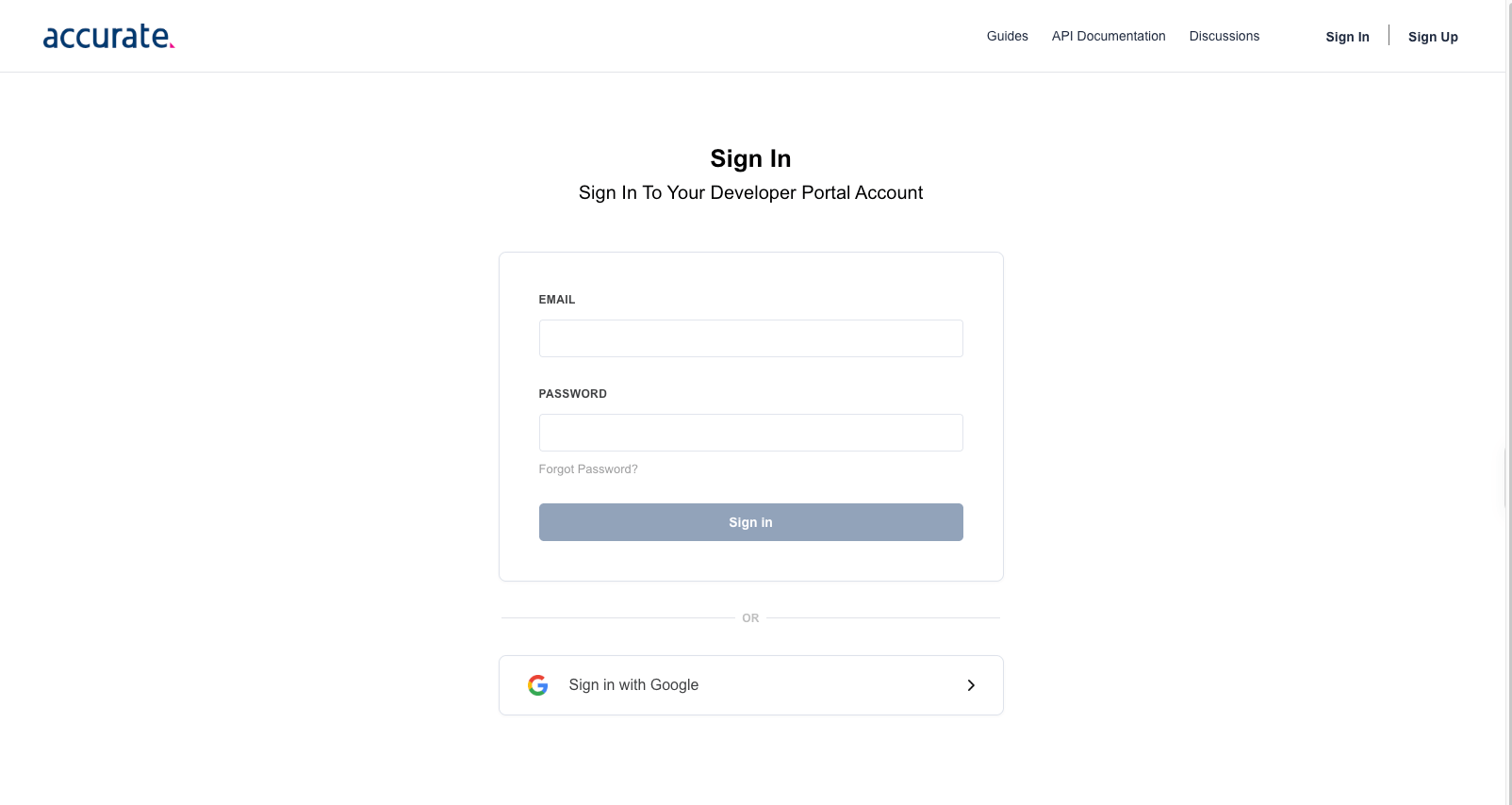
Open the Accurate Developer Portal and click Sign In. Enter your EMAIL and PASSWORD and click Sign in, or click Sign in with Google.
2
Set the webhook URL
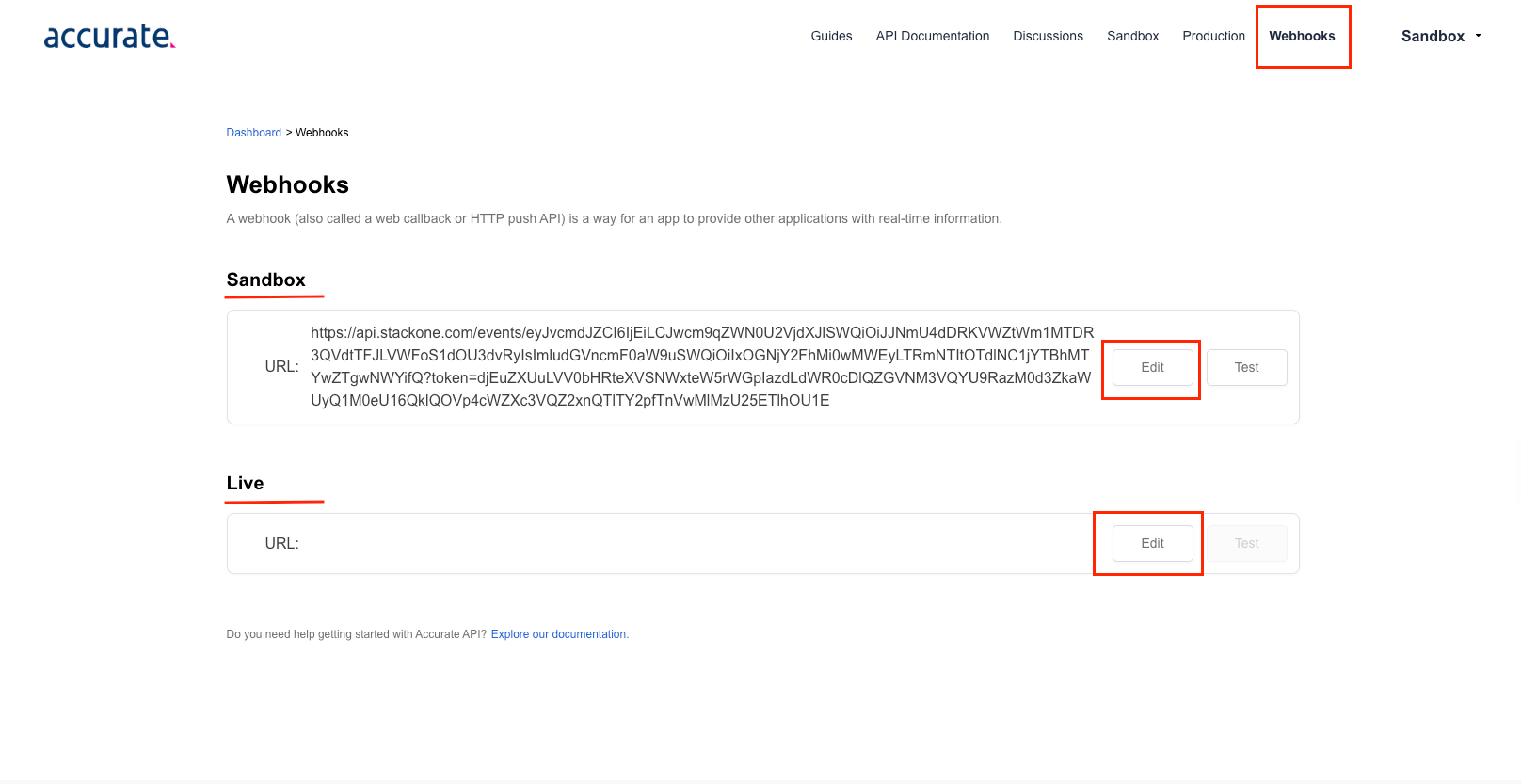
Click Webhooks in the top menu. Under Sandbox (sandbox credentials) or Live (production credentials), click Edit, paste the Native Webhook URL into the URL field and save it.
- Each environment stores a single URL. Saving a new one replaces the existing URL for that environment.
- Accurate does not support subscribing to individual events. Once you save the URL, every order status change in that environment is sent to it.
- Test sends a sample order status change notification with
"test": trueand the Order ID you enter, which can be any text. Use it to confirm that the URL is reachable. StackOne receives it in the same way as a real event. - Test remains disabled for an environment until you save a URL for it.
Available webhook events
Accurate sends a single event type for every order on the account.
- Order Status Changed (
order.status_changed) — sent when the status of a background check order changes. The payload includeseventInfo.orderId,orderStatus,orderResultandpercentageComplete. Use the get_order action to fetch the full results.