

Generate an API Key in absence.io
The API Key is created on your personal profile’s Integrations tab, not under the company-level Settings.
1
Generate the API Key
Sign in to your absence.io account and click your name in the top-right of the header.
- Click Show Profile.
- In the profile sidebar, click Integrations.
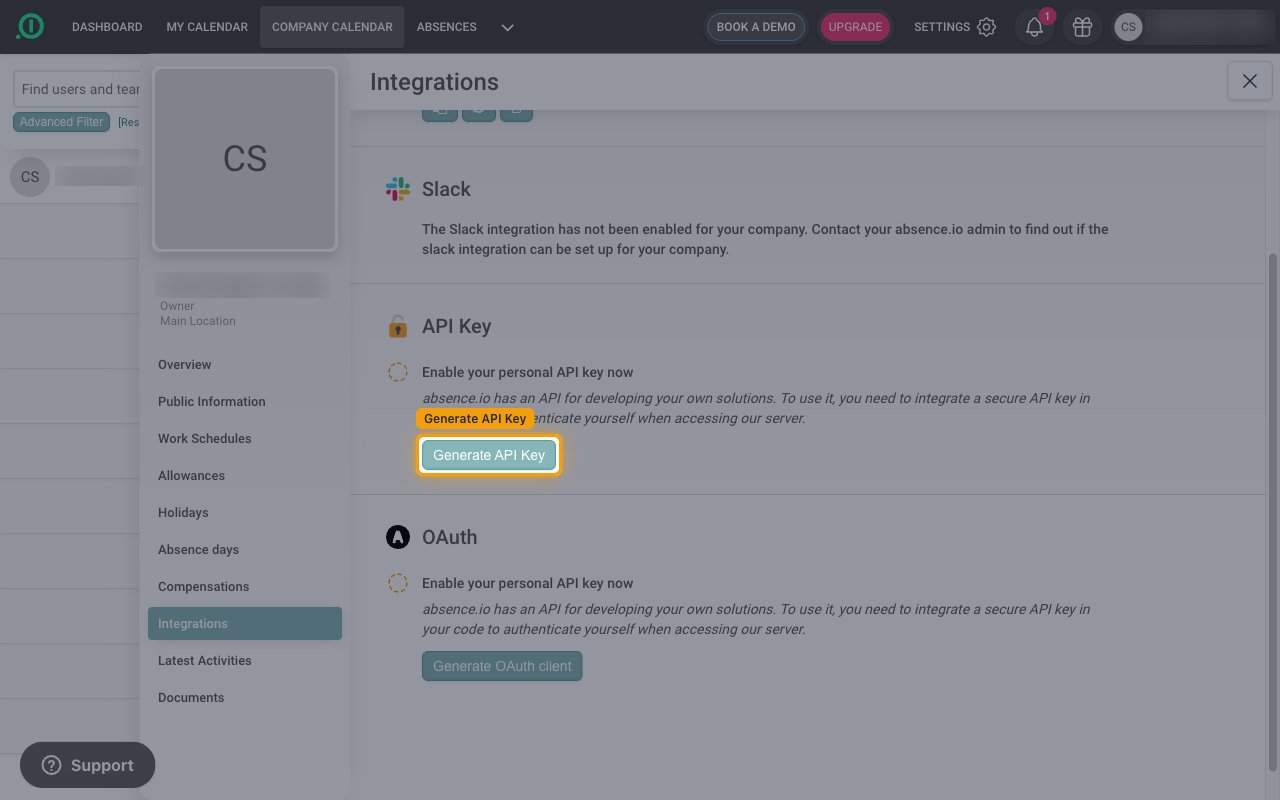
- Under API Key, click Generate API Key.
2
Copy the ID and Key
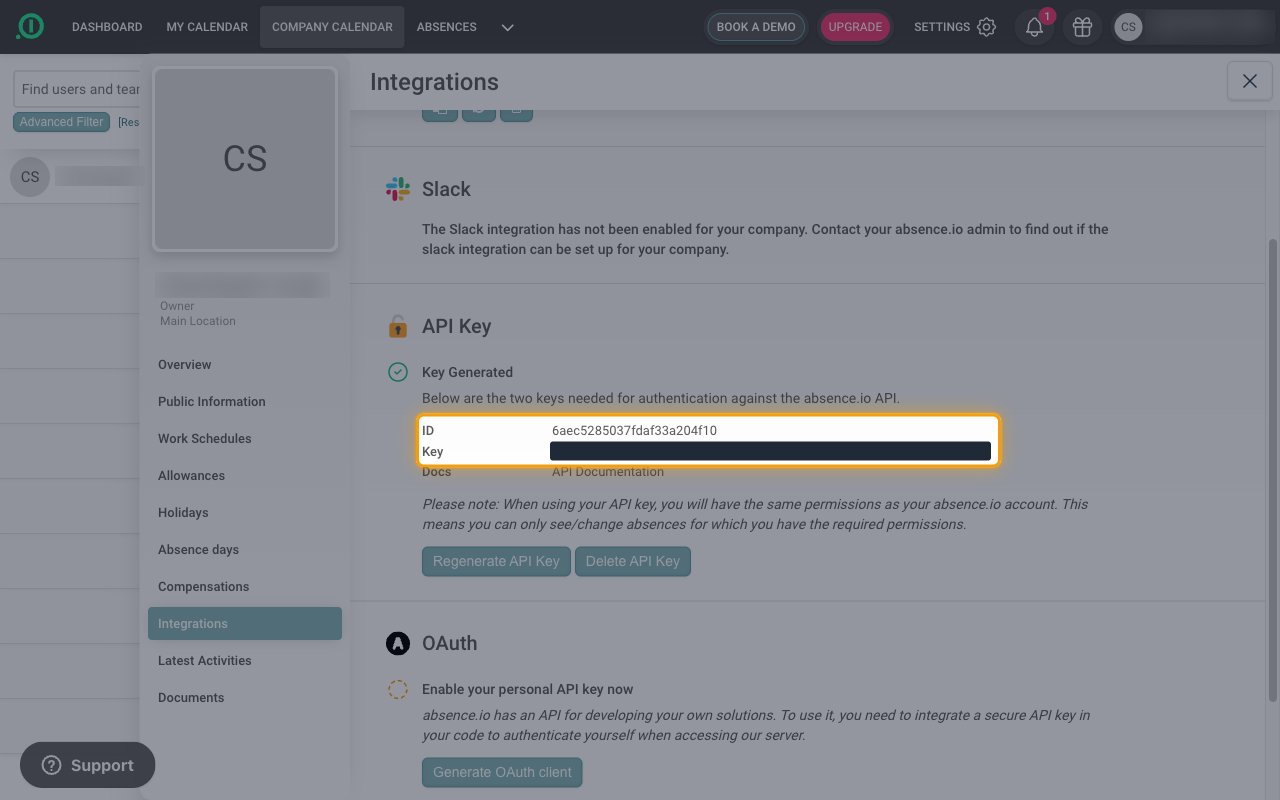
Under Key Generated, copy the ID and the Key across.
- The ID is your API Key ID
- The Key is your API Key
- Both values stay visible on the Integrations tab, where you can also use Regenerate API Key or Delete API Key.
- Regenerating or deleting the key stops the existing connection, so reconnect with the new values afterward.
Link the Account
1
Connect
- Click Connect.
- If applicable, the provider will redirect you to a sign-in or authorization page. Complete the provider’s authorization flow.
- Once authorization is successful, you will see a confirmation popup.
2
Use Actions
Connect an AI platform to the linked account’s actions. See AI Platforms.Other ways to call actions are listed in Protocols & SDKs.