

Generate Access Token
Create an Access Token in your 7shifts account to authenticate API requests.
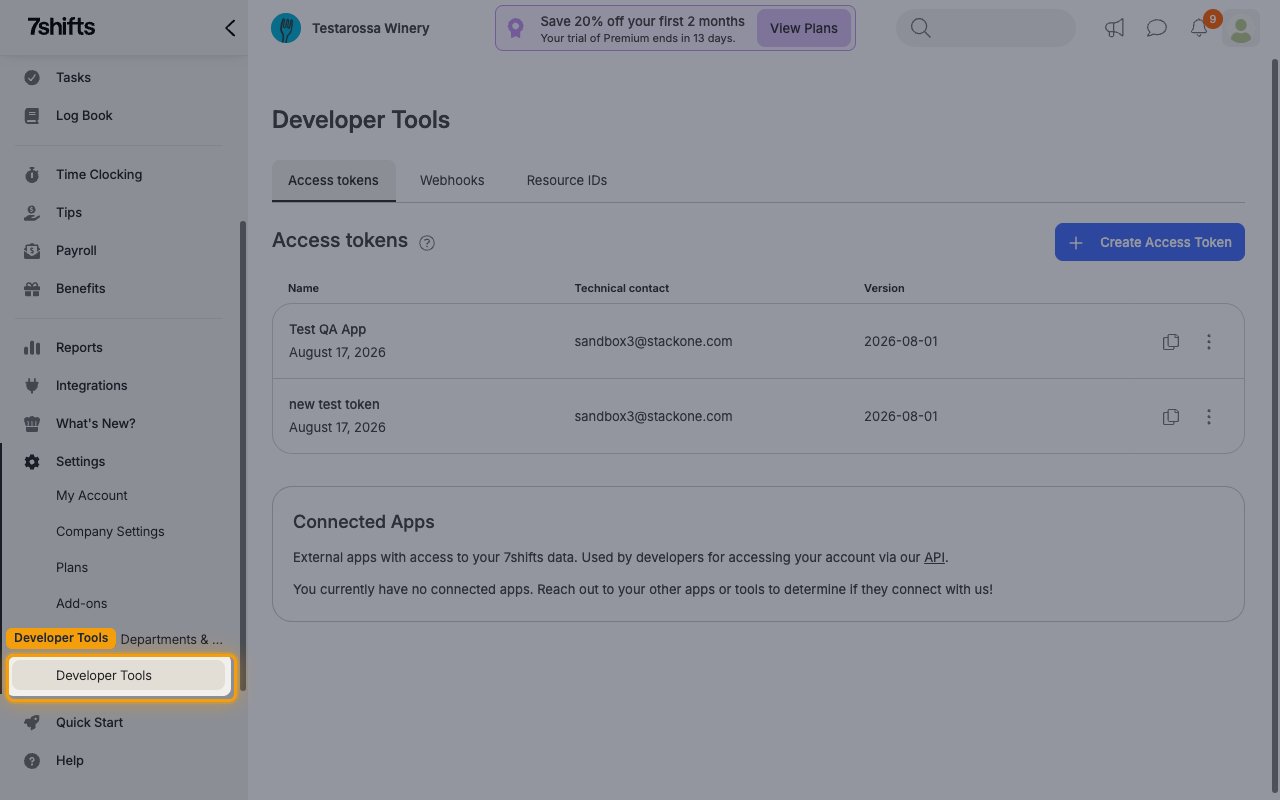
Navigate to Developer Tools
Log in to your 7shifts account. In the left sidebar, click Settings, then click Developer Tools.
Create Access Token
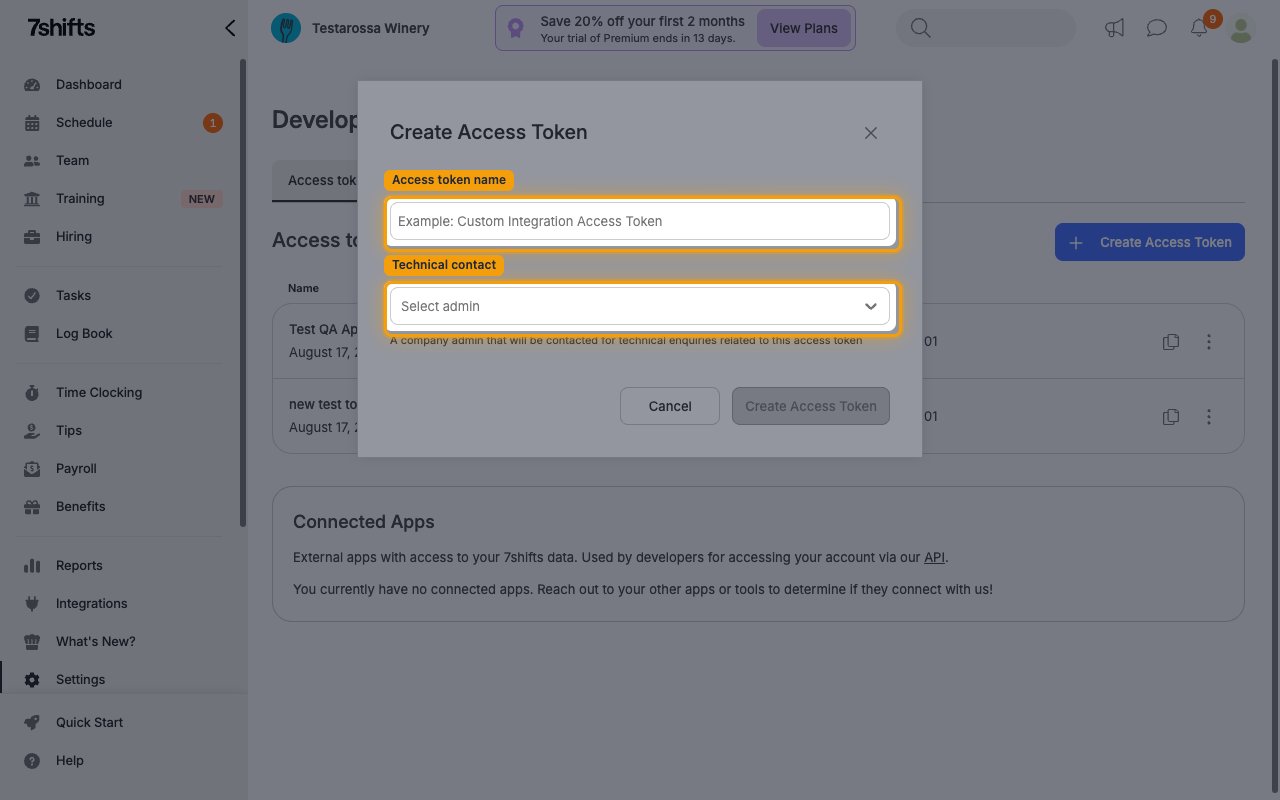
On the Access tokens tab, click + Create Access Token.
- Enter an Access token name (e.g., StackOne Integration).
- Select a Technical contact from the dropdown. This must be an active company admin who will be contacted for technical enquiries related to this access token.
- Click Create Access Token.
Copy Access Token
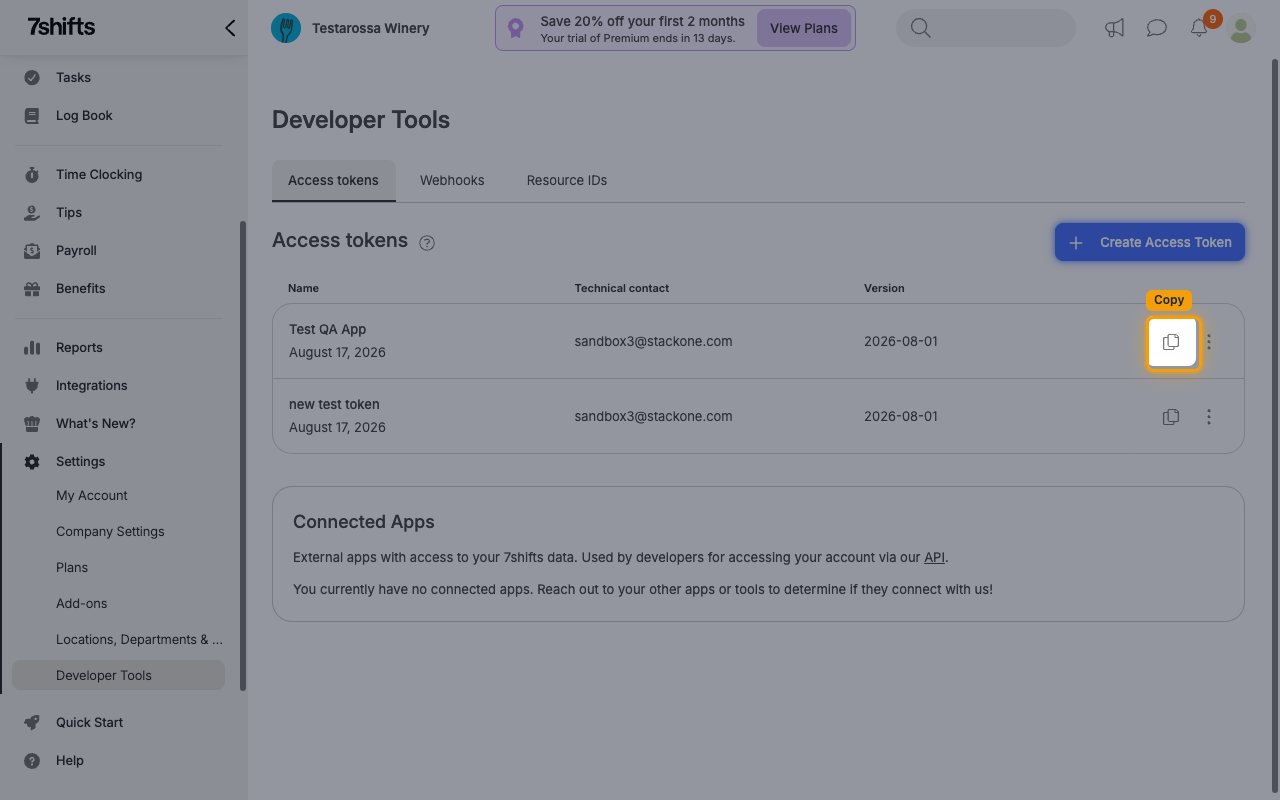
After creation, the token appears in the Access tokens list. Click the copy icon next to the token to copy it. Paste the value into the Access Token field in StackOne Hub.
- Access Token — the Bearer token used to authenticate API requests. Copy it using the copy icon next to the token in the list.
Find Your Company ID
Locate your Company ID in the 7shifts Developer Tools to complete the connection.
Navigate to Resource IDs
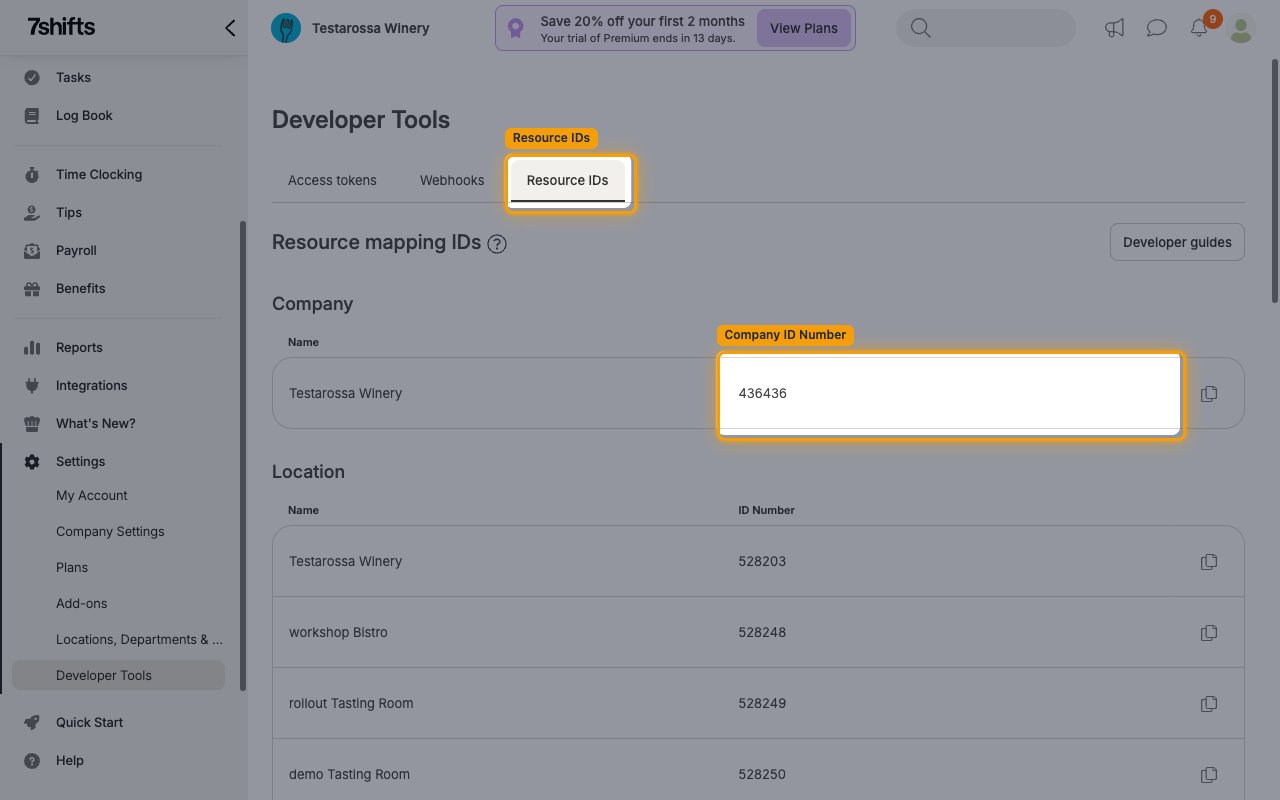
On the Developer Tools page, click the Resource IDs tab. Your Company ID Number is listed under the Company section. Paste this value into the Company ID field in StackOne Hub.
- Company ID — the numeric identifier for your 7shifts company, found under Company on the Resource IDs tab.
Linking the Account from the Hub
Navigate to the Hub
Fill out the fields
- Access Token
- Company ID
Connect
- Click Connect
- If applicable, the provider will redirect you to a sign-in or authorization page. Complete the provider’s authorization flow.
- Once authorization is successful, you will see a confirmation popup
If the account linking is successful, you will see the newly linked account in your Accounts page.