

Sign in to the Wrangle web app
Wrangle uses Slack (or Microsoft Teams) as its identity provider, so there is no separate Wrangle password.
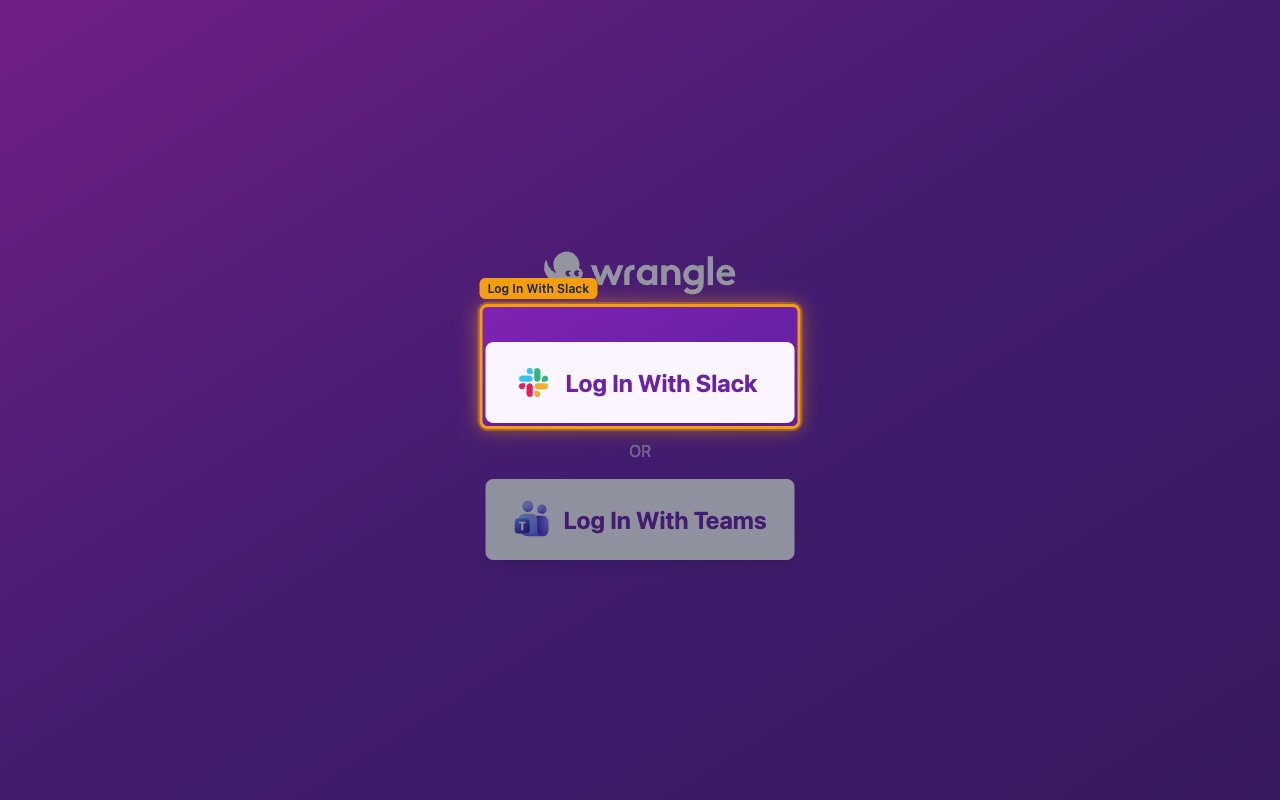
Open the Wrangle login page
Approve the Wrangle app in Slack
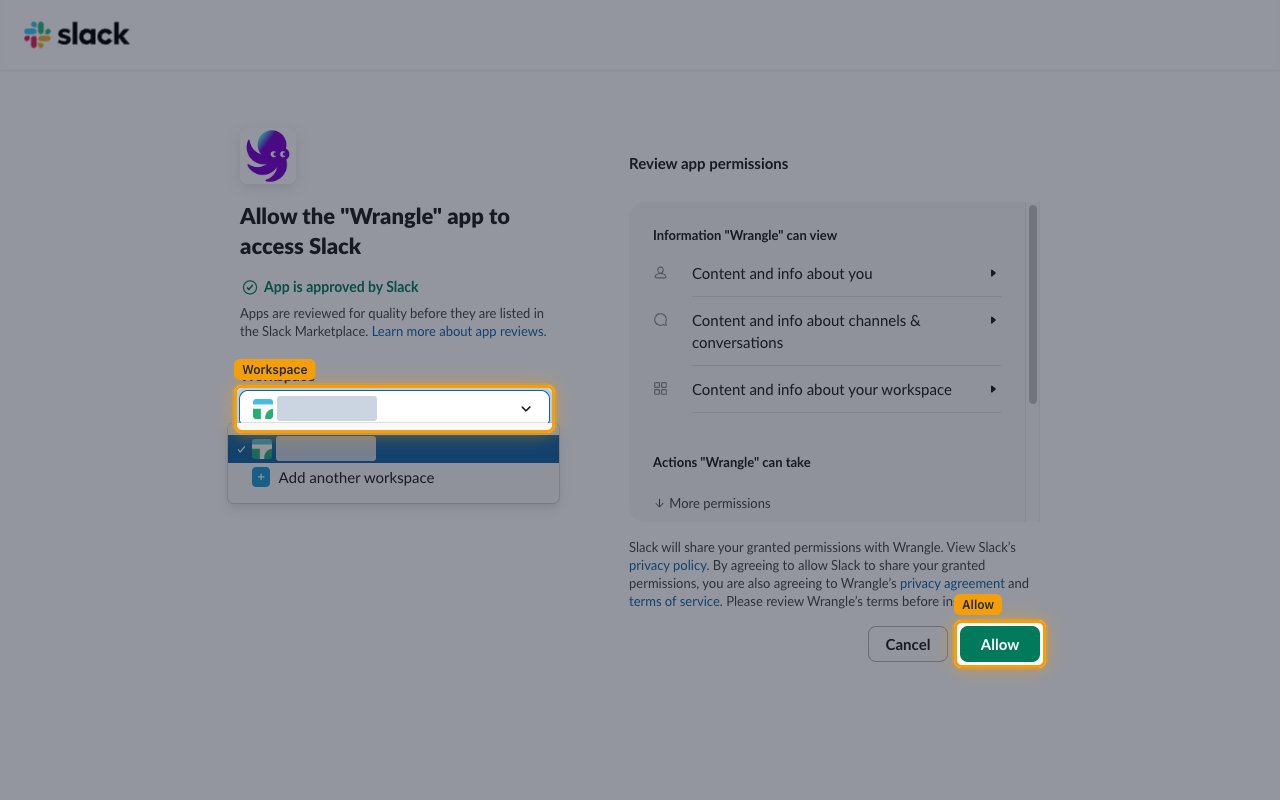
Slack shows the Allow the “Wrangle” app to access Slack consent screen listing the permissions Wrangle requests.
- Under Workspace, choose the workspace you want to connect.
- Review the entries under Information “Wrangle” can view and Actions “Wrangle” can take.
- Click Allow to finish signing in.
Copy the three API credentials
All three values this connection needs are shown on one page in the Wrangle web app. The Wrangle API is part of the Scale plan and is also available during the free trial.
Open the Wrangle API integration page
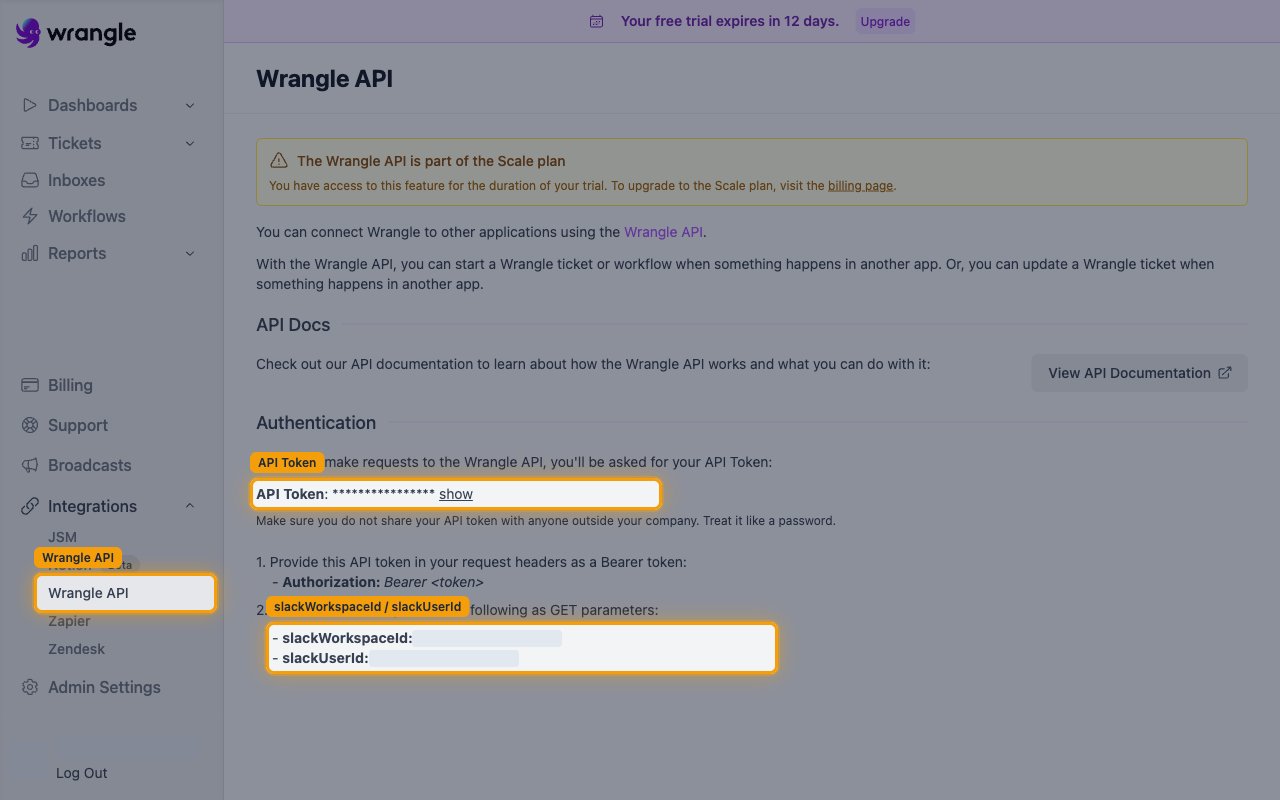
In the Wrangle sidebar, expand Integrations and click Wrangle API. The page opens on Wrangle API with an Authentication section.
- If the banner reads The Wrangle API is part of the Scale plan, you can use the API for the duration of your trial; to keep it afterwards, upgrade from the linked billing page.
Copy the API token
Under Authentication, find the line beginning API Token.
- Click show to reveal the token value, then copy it.
- Paste it into the API Token field in StackOne Hub.
- Wrangle warns to keep it private — Make sure you do not share your API token with anyone outside your company. Treat it like a password.
Copy the Slack workspace and user IDs
Below the token, Wrangle lists the two values it expects as GET parameters on every API call.
- Copy the value shown after slackWorkspaceId and paste it into the Slack Workspace ID field in StackOne Hub.
- Copy the value shown after slackUserId and paste it into the Slack User ID field in StackOne Hub. This identifies the Slack user the Wrangle API acts on behalf of.
- Format:
slackWorkspaceIdstarts withT,slackUserIdstarts withU.
Link the Account
Connect
- Click Connect.
- If applicable, the provider will redirect you to a sign-in or authorization page. Complete the provider’s authorization flow.
- Once authorization is successful, you will see a confirmation popup.
Use Actions
Next Steps
Webhooks setup
Configure receiving Events for Wrangle into StackOne.