

Before you begin
Make sure you have access to a ServiceNow instance before starting.
Check prerequisites
You need an existing ServiceNow instance and an account with sufficient permissions.
- An active ServiceNow instance. If you do not have one, request a free Personal Developer Instance from the ServiceNow Developer Program or contact your ServiceNow administrator for access.
- An account with the admin role (or roles that can manage REST API Access Policies and Inbound Authentication Profile records).
- Your instance URL, in the format
https://{your-instance}.service-now.com(for example,https://dev12345.service-now.com).
Configure the REST API Access Policy
ServiceNow gates access to the Table API behind REST API Access Policies. You need a policy covering the Table API that allows Basic Authentication.
Sign in to your ServiceNow instance
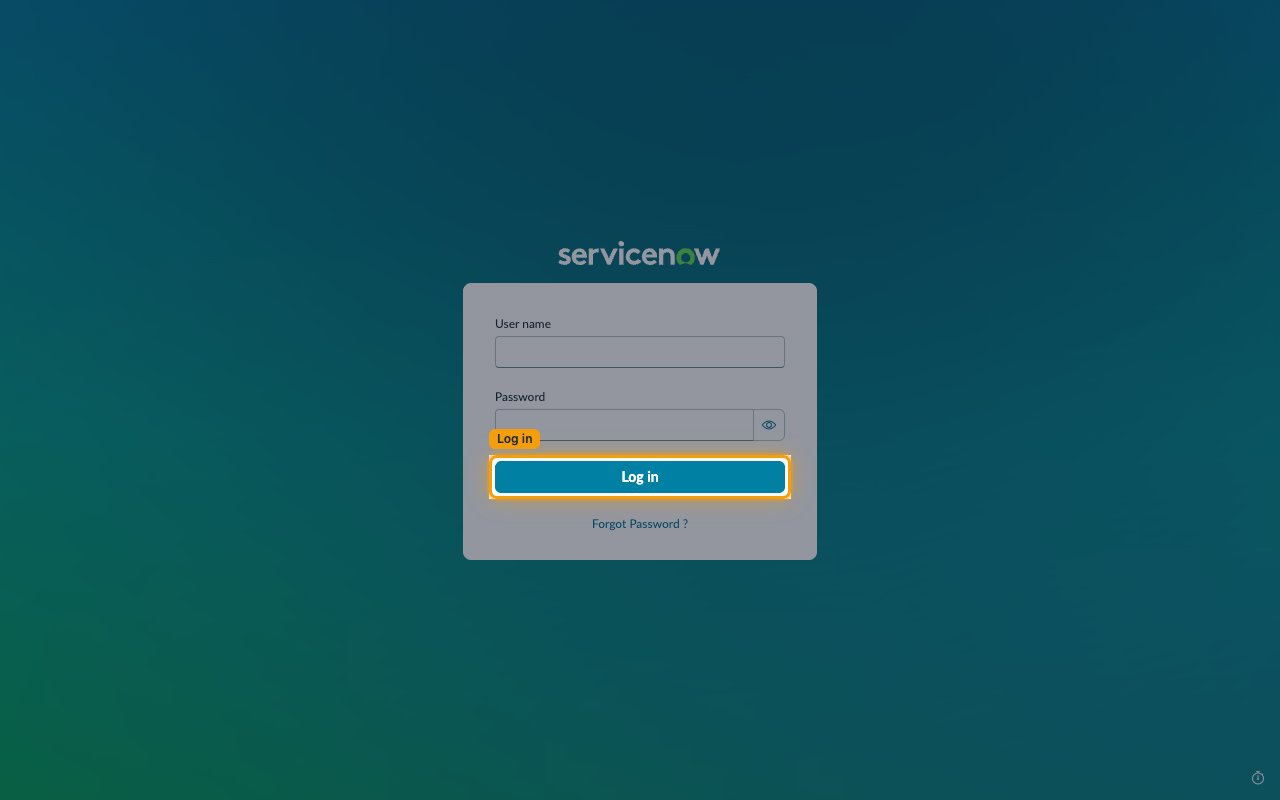
Open your instance URL and log in.
- Go to
https://{your-instance}.service-now.com - Enter your User name and Password, then click Log in
Open REST API Access Policies
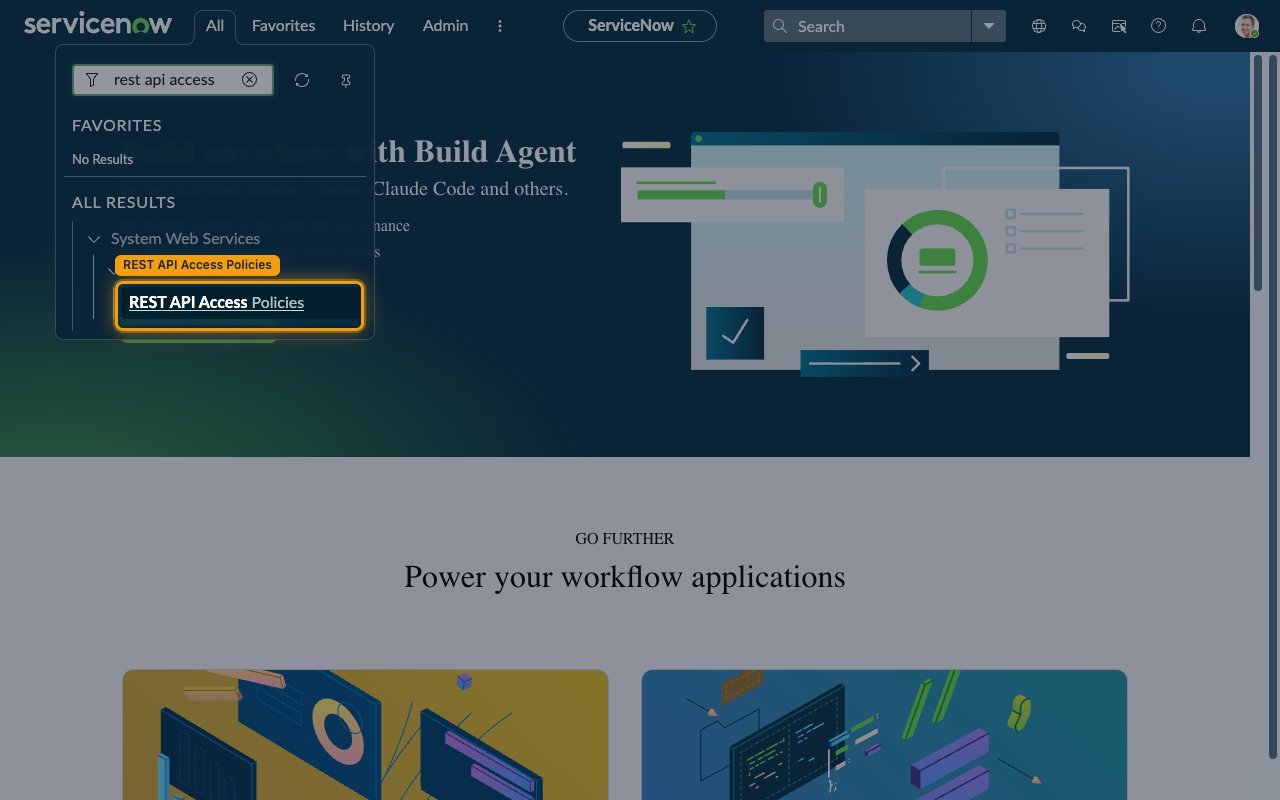
Click All in the top navigation bar, then type rest api access in the Filter box. Click REST API Access Policies under System Web Services > API Access Policies.
Identify the Table API policy
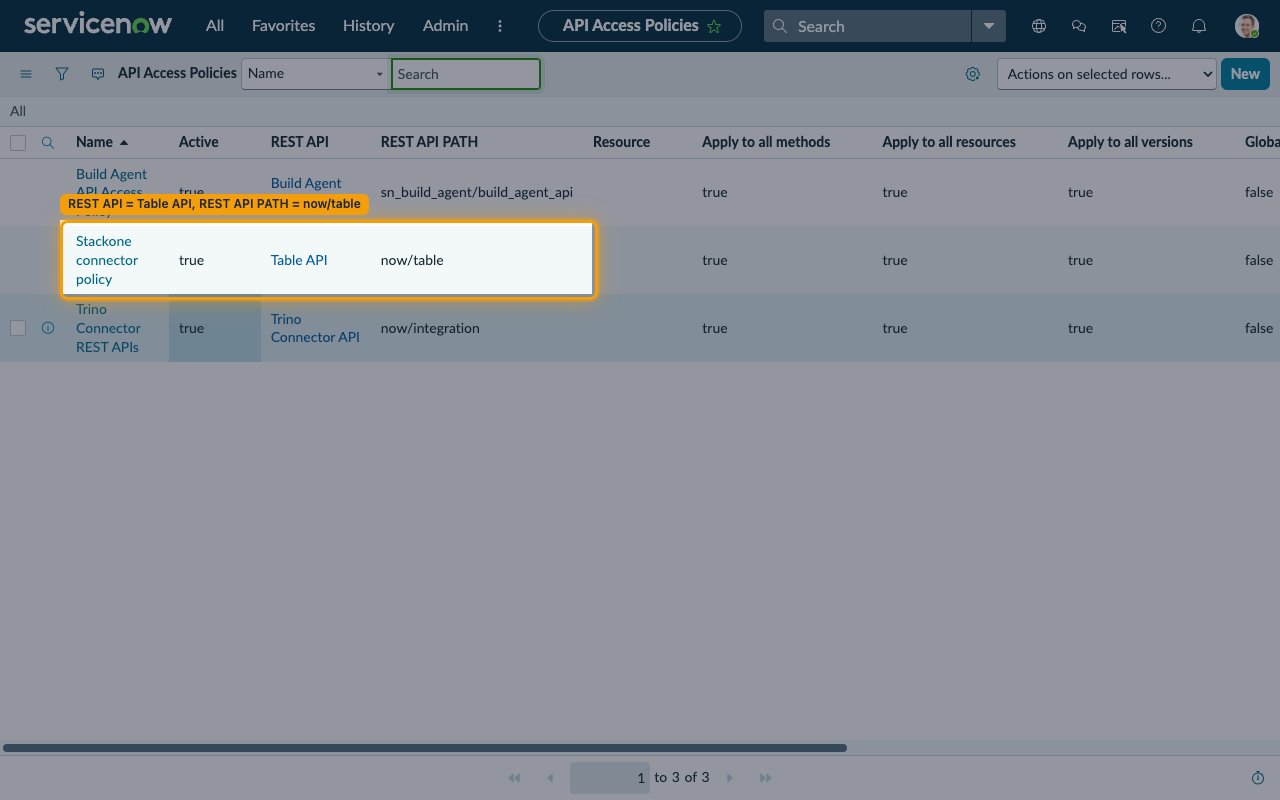
In the API Access Policies list, look for the policy that covers the Table API. Policy names vary by ServiceNow release and instance — identify it by its columns, not its name: REST API = Table API and REST API PATH = now/table.
- Depending on your ServiceNow release and instance configuration, this may be a single Table API policy or separate
Table GET API Access PolicyandTable POST API Access Policyrecords - If a Table API policy exists, continue to the next step to verify it
- If no Table API policy exists, skip ahead to the step for creating a new policy
Verify the policy is Active
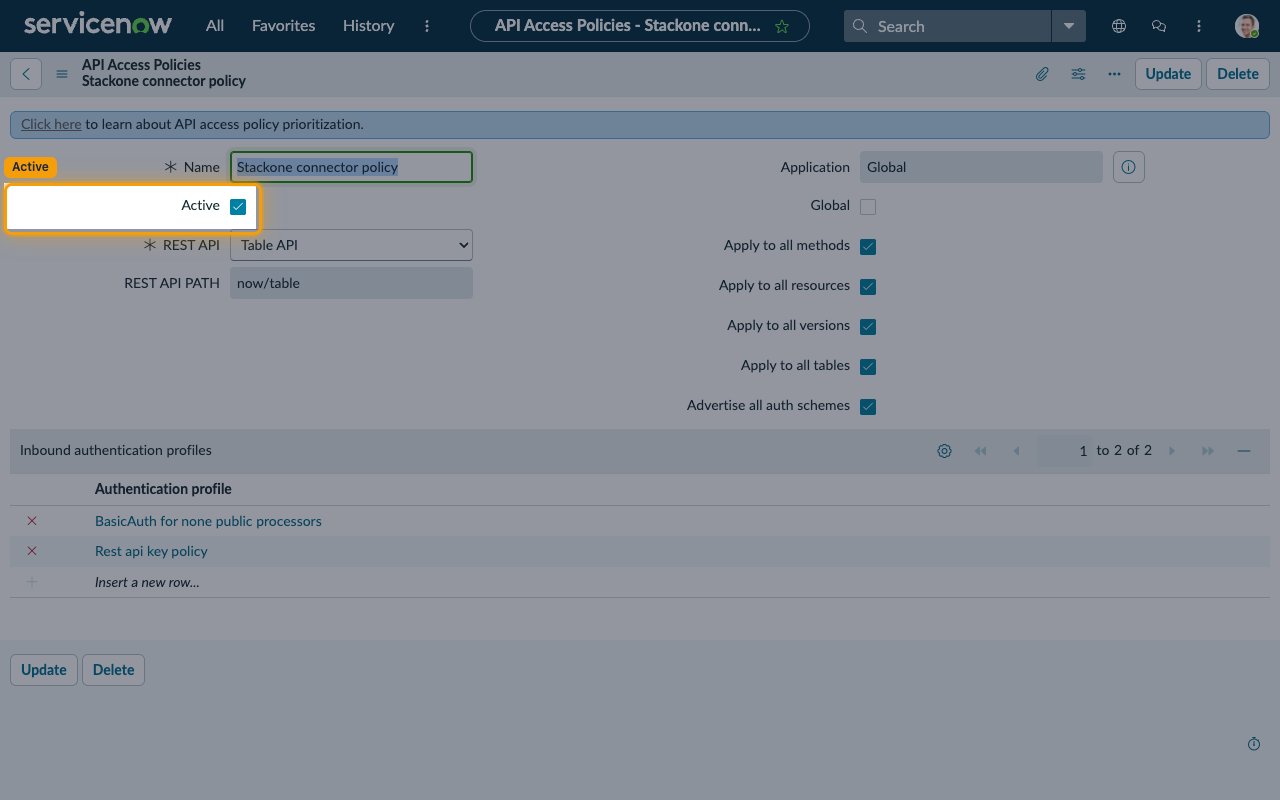
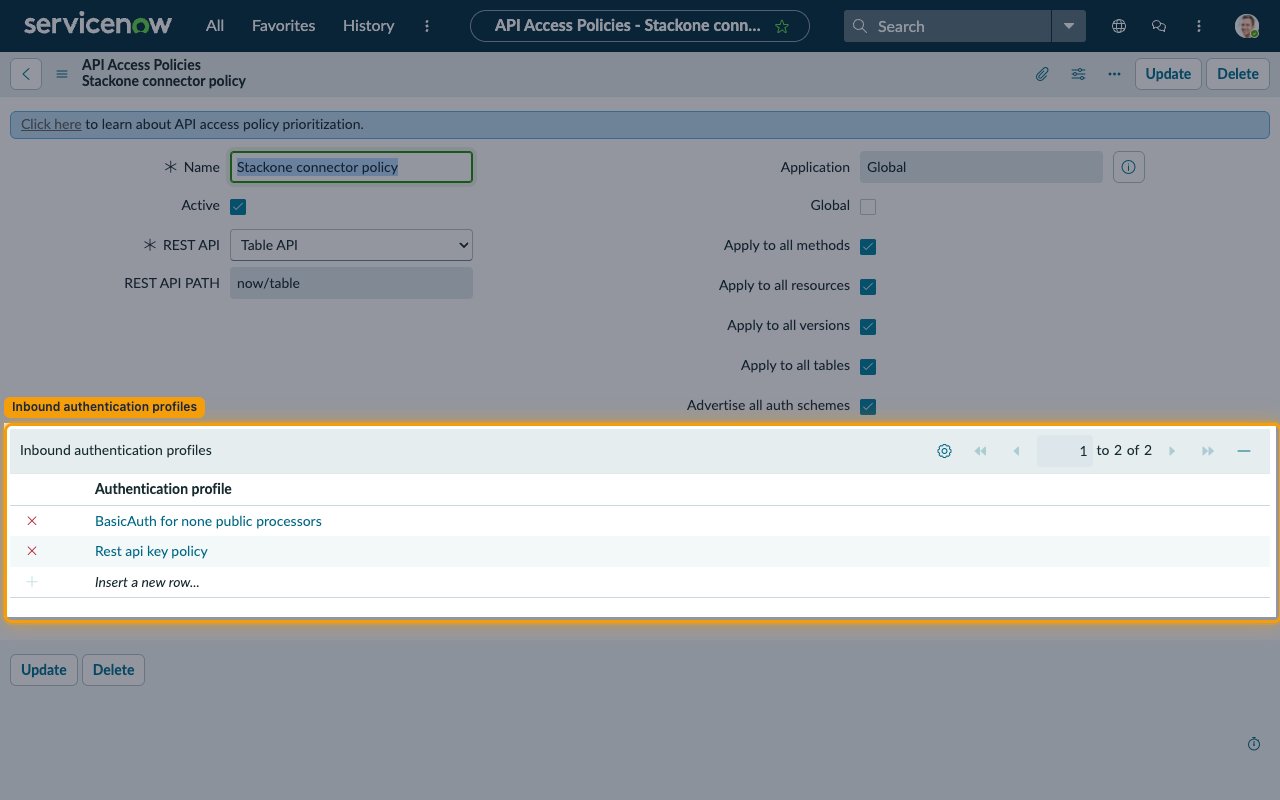
Open the Table API policy record and confirm Active is checked. Also confirm the coverage checkboxes are ticked - Apply to all methods, Apply to all resources, Apply to all versions, and Apply to all tables.
Confirm the policy allows Basic Auth
On the same policy record, Basic Auth is allowed if either of the following is true. Click Update if you changed anything.
- Advertise all auth schemes is checked, or
- BasicAuth for none public processors appears in the Inbound authentication profiles related list. To add it, click Insert a new row…, pick BasicAuth for none public processors, then click Update
Create a new policy only if none exists
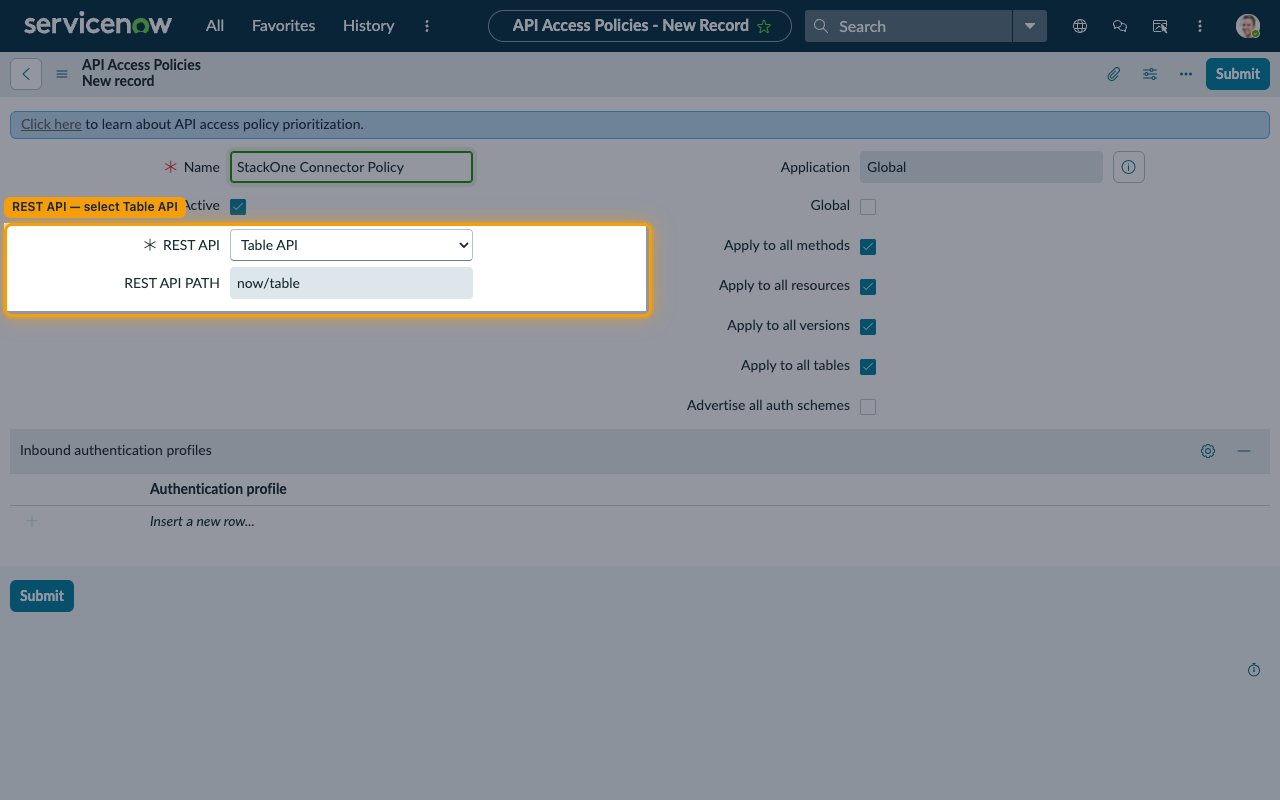
If the list has no Table API policy at all, click New and fill in the form.
- Name: enter a descriptive name (for example,
StackOne Connector Policy) - Active: leave checked
- Global: leave unchecked unless the policy should apply across all application scopes
- REST API: select Table API (REST API PATH auto-fills to
now/table) - Apply to all methods, Apply to all resources, Apply to all versions, Apply to all tables: check all four
- Advertise all auth schemes: check it to allow Basic Auth alongside any explicit profiles, or leave it unchecked and add BasicAuth for none public processors under Inbound authentication profiles via Insert a new row…
- Click Submit
Activate the BasicAuth Inbound Authentication Profile
ServiceNow ships a built-in inbound authentication profile named BasicAuth for none public processors that handles Basic Auth across all non-public REST endpoints. If it is inactive, every Basic Auth request returns HTTP 401 even with valid credentials.
Open Inbound Authentication Profile
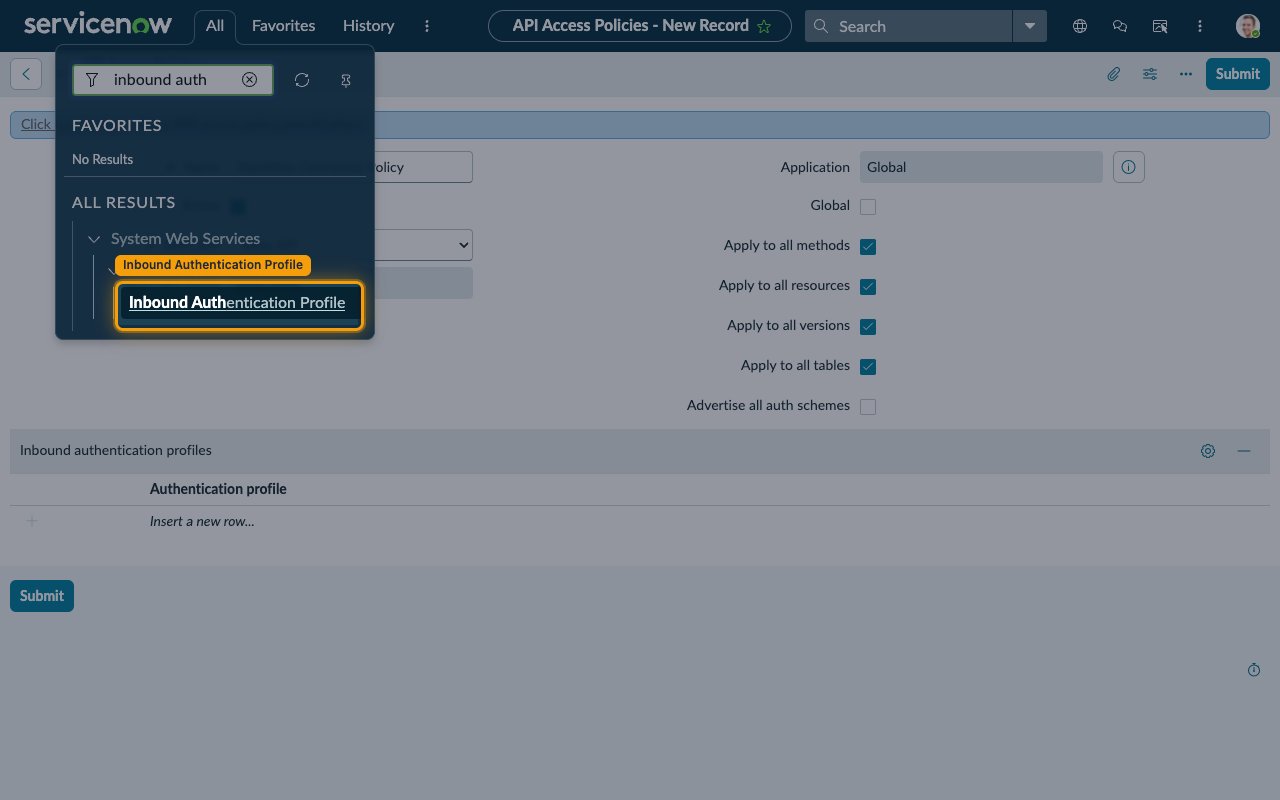
Click All in the top navigation bar, type inbound auth in the Filter box, then click Inbound Authentication Profile under System Web Services > API Access Policies.
Find the BasicAuth profile
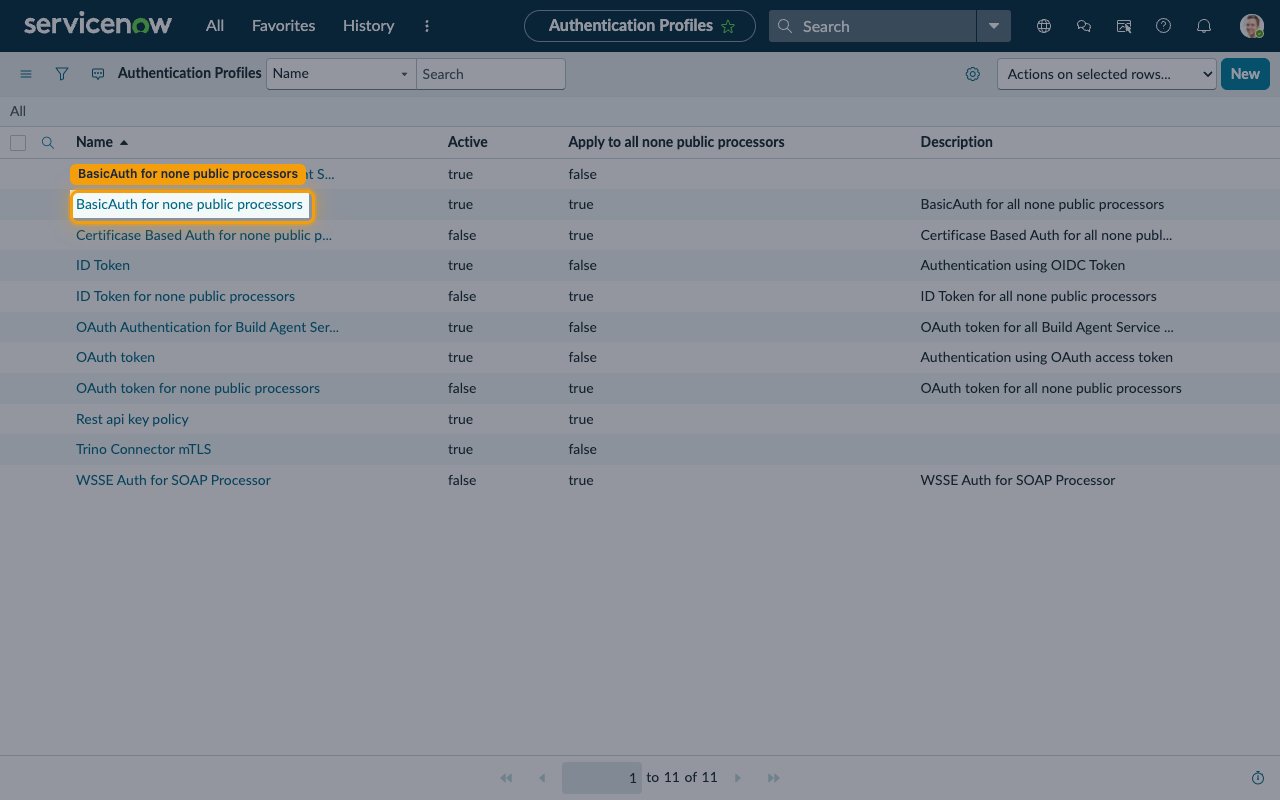
In the Authentication Profiles list, look for the row named BasicAuth for none public processors (its Apply to all none public processors column reads true).
Verify the profile is Active
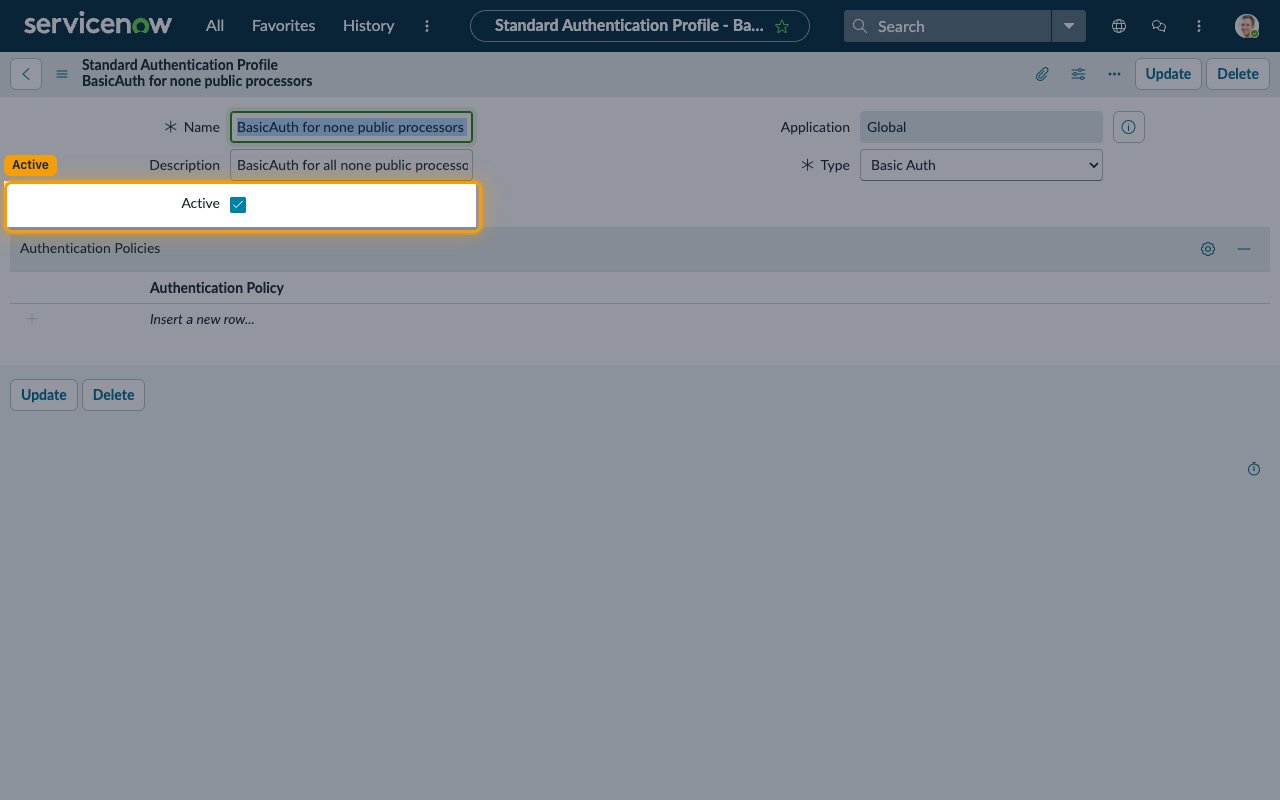
Open the record. If Active is unchecked, check it and click Update. The Type field reads Basic Auth. Because Apply to all none public processors is true, no further wiring is required.
Create the profile only if missing
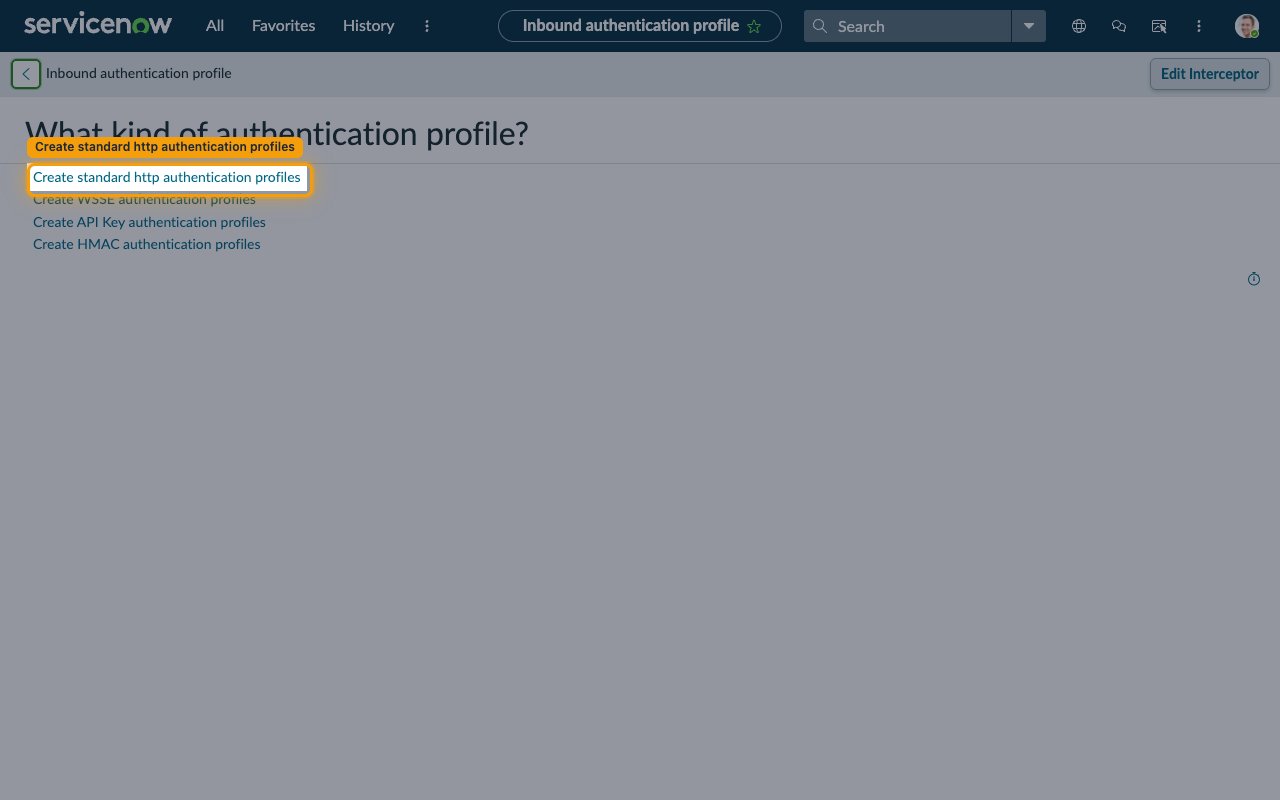
On hardened instances the profile may have been removed. From the Authentication Profiles list, click New. When the form asks What kind of authentication profile?, select Create standard http authentication profiles.
- Name: enter a descriptive name (for example,
BasicAuth for none public processors) - Active: check it
- Apply to all none public processors: check it
- Click Submit
Enter your credentials in StackOne
Collect the three values below and enter them in StackOne Hub.
Fill in the connection fields
Each field in StackOne Hub maps to your ServiceNow account details.
- Instance Name — the subdomain of your ServiceNow URL, without
.service-now.com. Format:{your-instance}. Example:dev12345(fromhttps://dev12345.service-now.com) - Username — the User name you use to sign in to ServiceNow
- Password — the Password for that account
- Native Webhook URL — read-only; StackOne fills this automatically for webhook events, no action needed
- The account must have roles that grant Table API access (such as admin or itil)
Linking the Account from the Hub
Navigate to the Hub
Fill out the fields
- Instance Name
- Username
- Password
Connect
- Click Connect
- If applicable, the provider will redirect you to a sign-in or authorization page. Complete the provider’s authorization flow.
- Once authorization is successful, you will see a confirmation popup
If the account linking is successful, you will see the newly linked account in your Accounts page.
Next Steps
Webhooks setup
Configure receiving Events for ServiceNow into StackOne.