

Create a Worker Application
Register a new Worker application in the PingOne Admin Console. Worker is the only application type that can call the PingOne Management API on StackOne’s behalf.
Sign in to PingOne
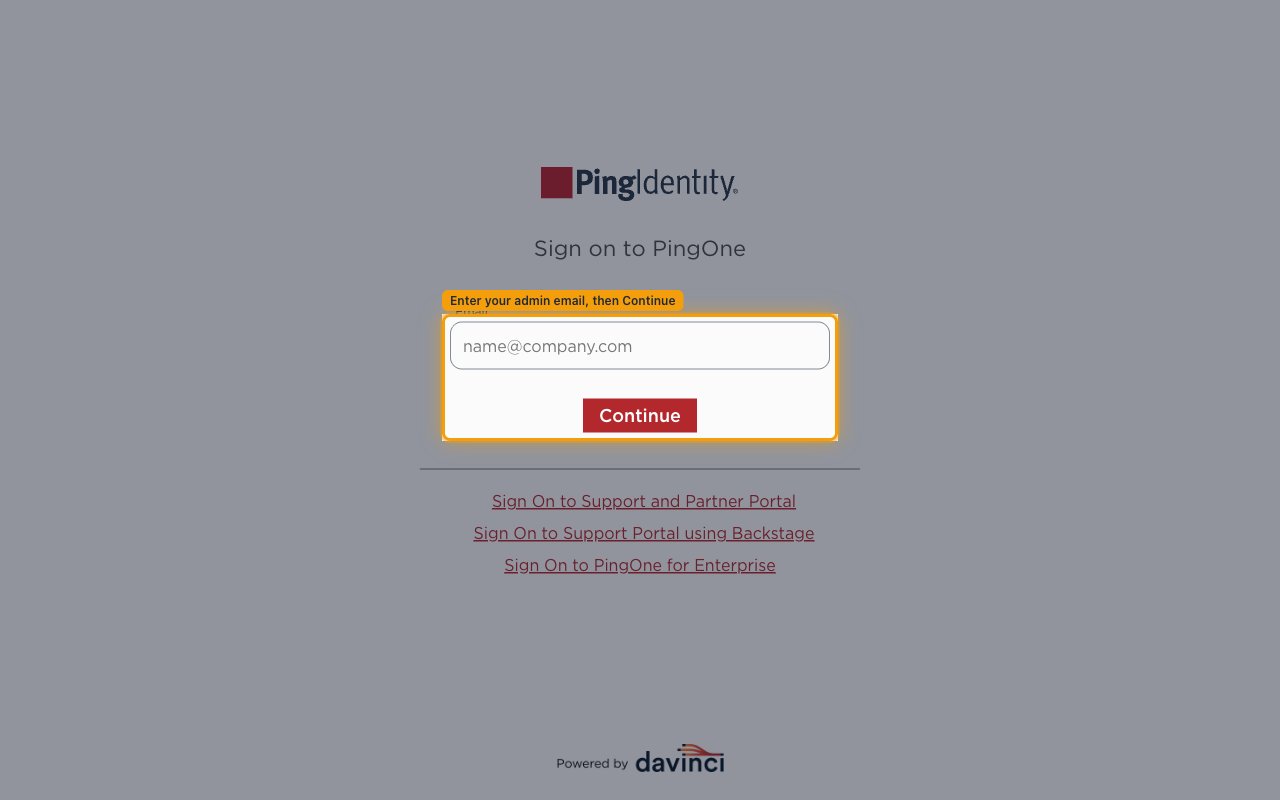
Open the PingOne sign-on page at https://signon.pingidentity.com/. On the Sign on to PingOne page, enter your admin Email, click Continue, and complete your password and any MFA prompt to reach the Admin Console.
Open the Applications page
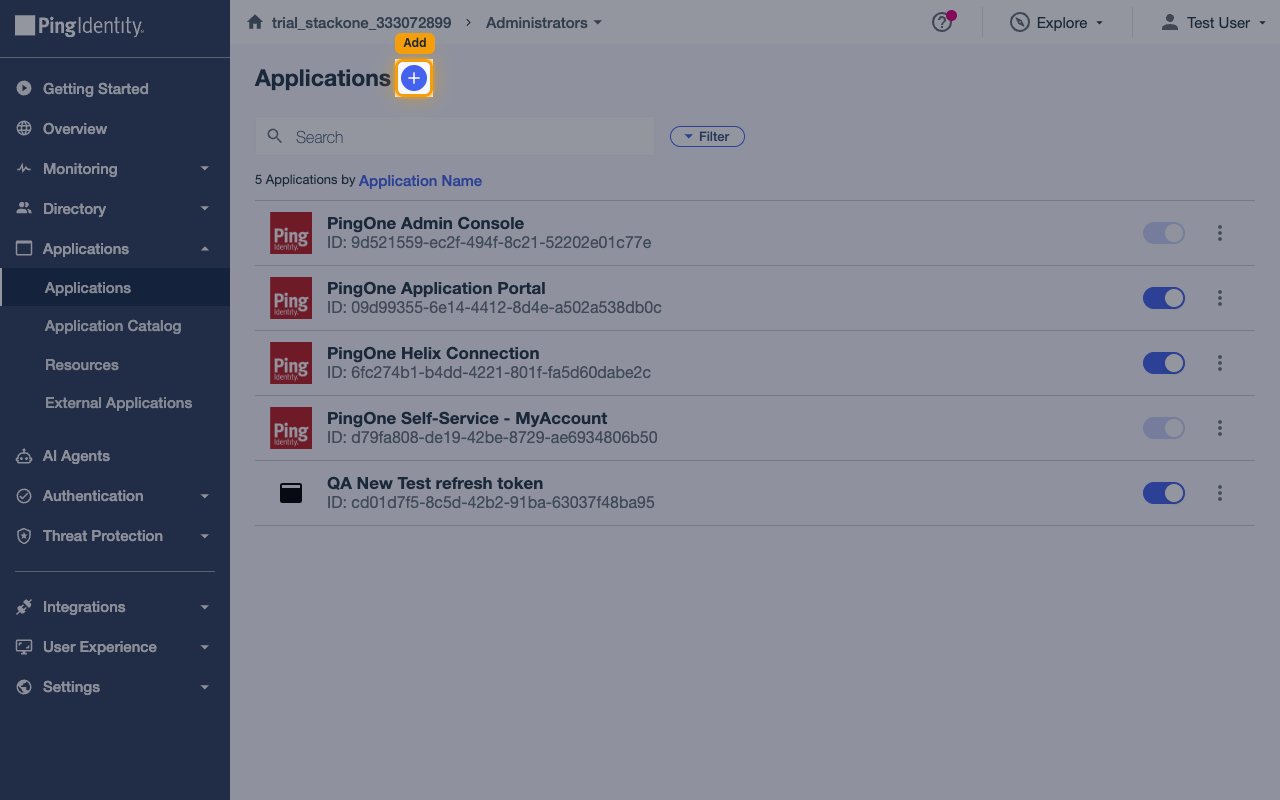
With the Admin Console open, confirm the environment shown in the breadcrumb at the top of the page is the one you want to connect.
- In the left navigation, expand Applications and click Applications.
- Click the Add (+) button in the top-right corner of the Applications page.
Create the Worker application
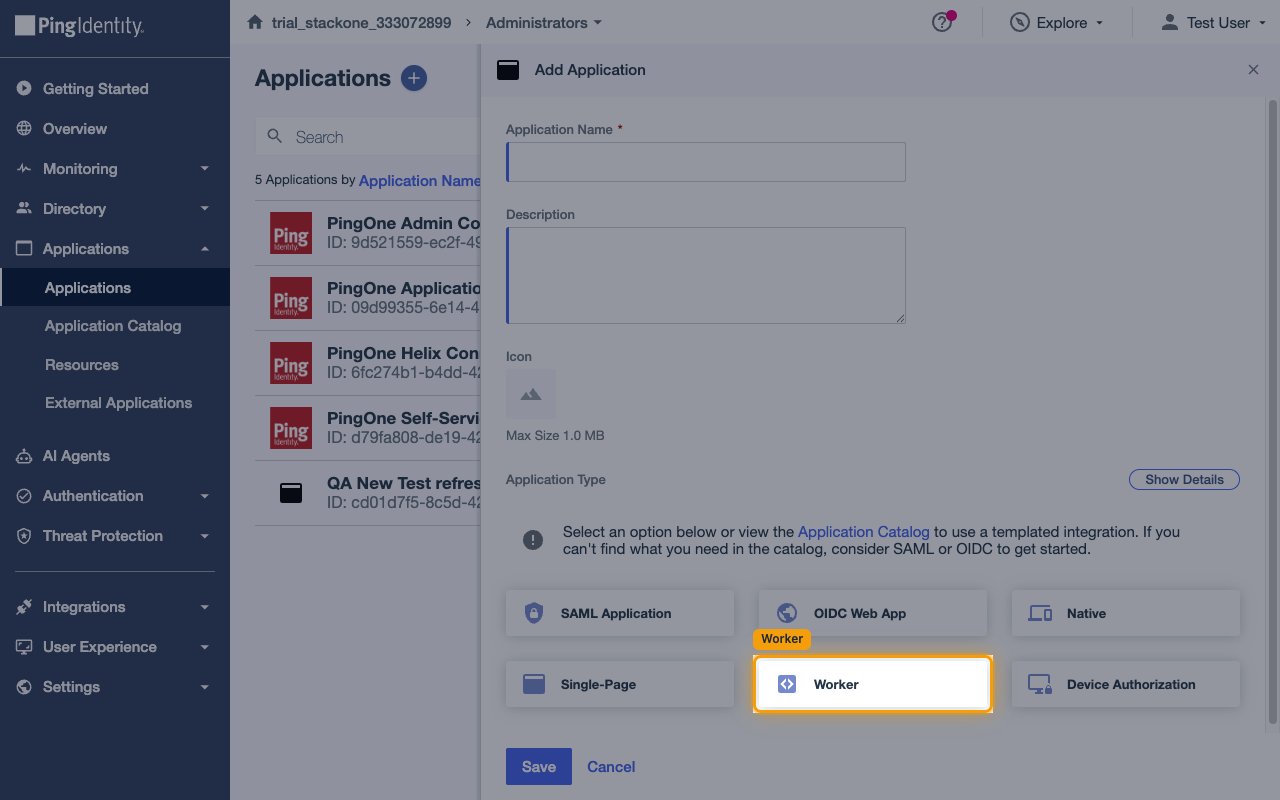
In the Add Application panel:
- Application Name (required) — enter a descriptive name, for example
StackOne Integration. - Description (optional) — add a short note, such as
StackOne delegated admin integration. - Icon (optional) — upload an image up to the size shown (1 MB).
- Under Application Type, select the Worker tile.
- Click Save.
Enable the application
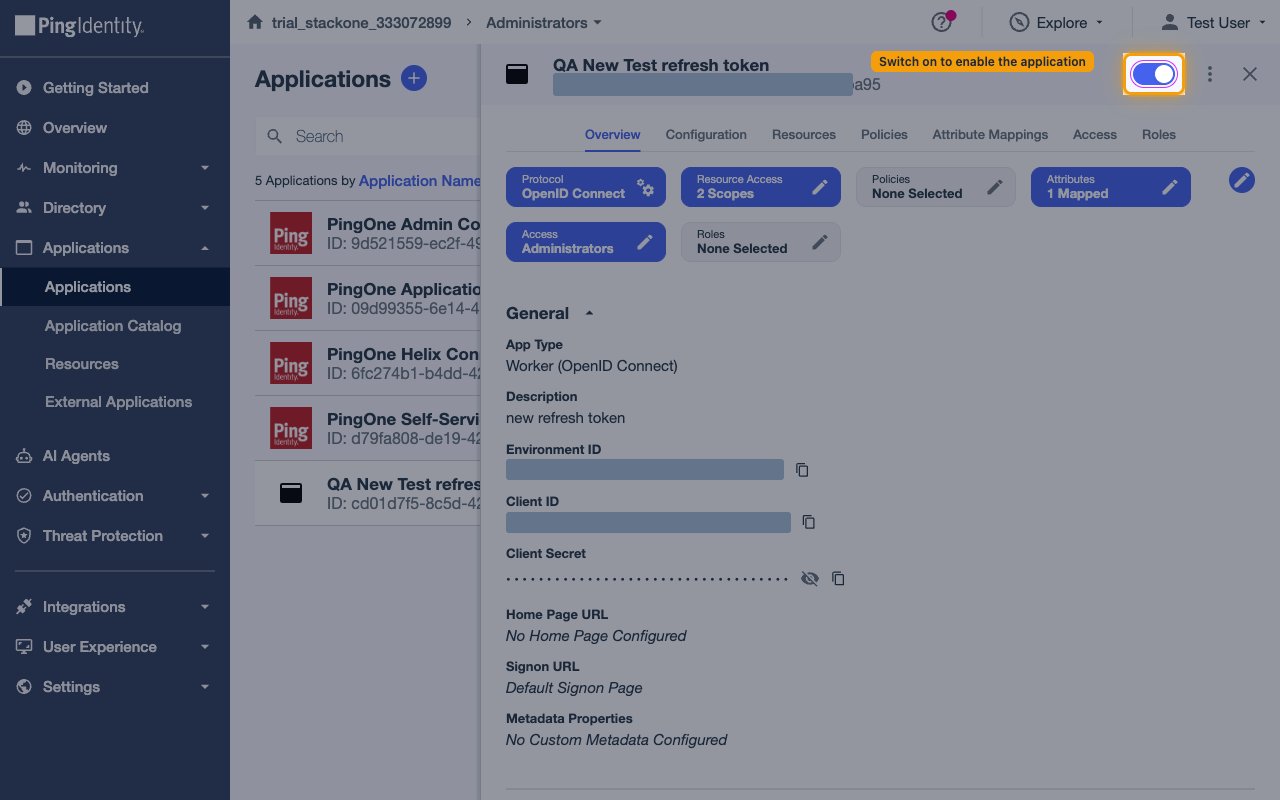
At the top of the application panel, next to the application name, switch the enablement toggle on. It turns blue when the application is enabled. A newly created Worker application is disabled by default, and a disabled application fails during the OAuth flow.
Copy the Client ID, Client Secret, and Environment ID
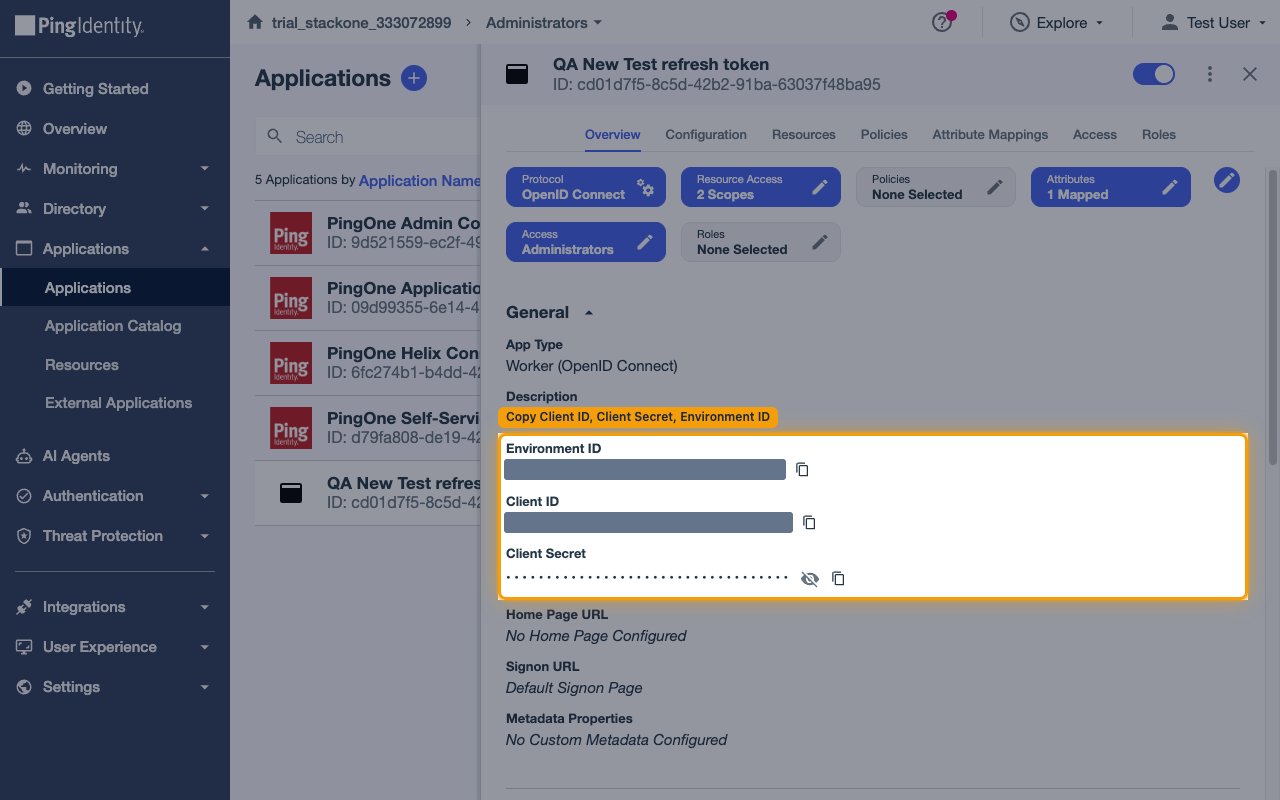
Open the Overview tab. Under General (App Type Worker (OpenID Connect)) you will find the three values StackOne needs:
- Copy the Environment ID and paste it into the Environment ID field in StackOne.
- Copy the Client ID and paste it into the Client ID field in StackOne.
- For the Client Secret, click the eye icon to reveal the value, then the copy icon, and paste it into the Client Secret field in StackOne. Store the secret securely. You can reveal it again later from this screen, or rotate it with Generate New Secret.
Configure OIDC Settings
Open the Configuration tab and click the pencil (edit) icon in the top-right to edit the OIDC Settings.
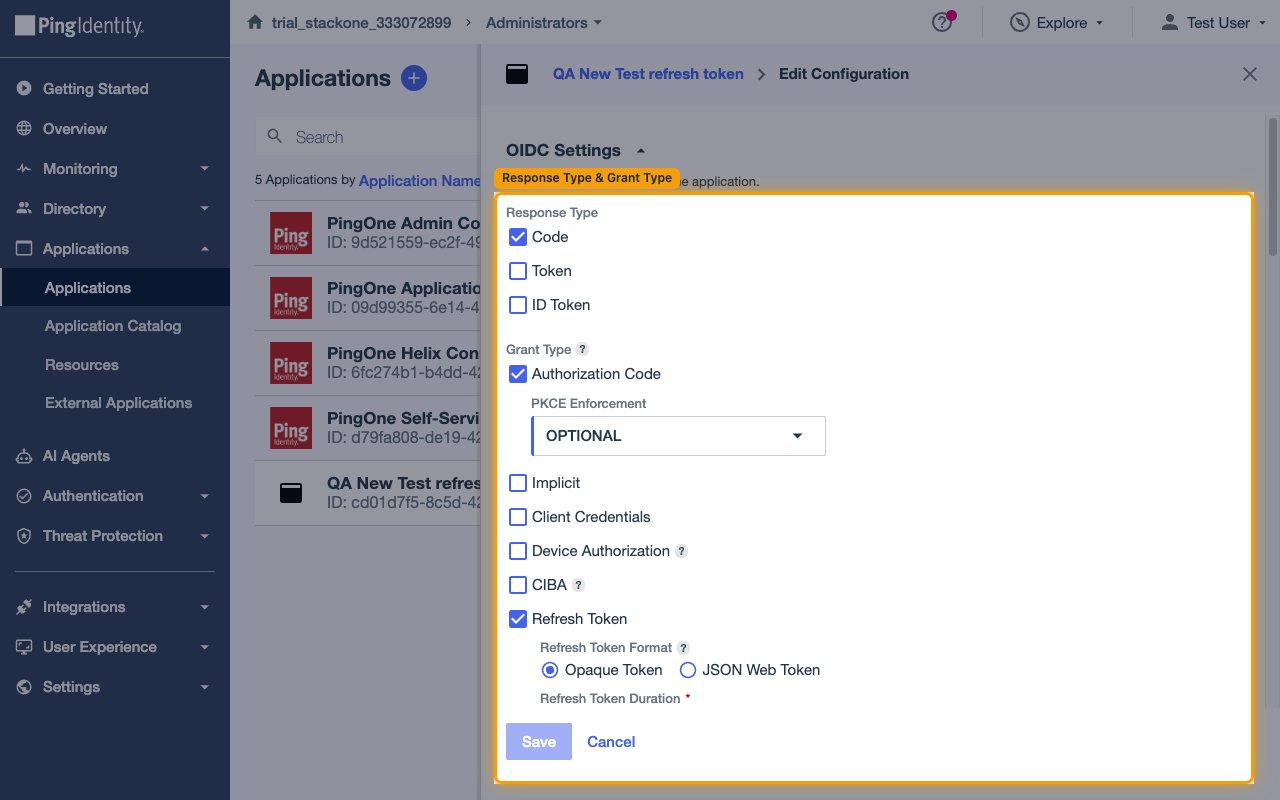
Set the Response Type and Grant Type
Under OIDC Settings:
- Response Type — check Code. Leave Token and ID Token unchecked.
- Grant Type — check both Authorization Code and Refresh Token. The Refresh Token grant lets the connector renew access tokens automatically.
- PKCE Enforcement — leave as OPTIONAL.
- Leave Implicit, Client Credentials, Device Authorization, and CIBA unchecked.
Configure the refresh token settings
The refresh token options appear once the Refresh Token grant is enabled:
- Refresh Token Format — select JSON Web Token (recommended).
- Refresh Token Duration — for example
30Days. - Refresh Token Rolling Duration — for example
180Days. - Refresh Token Rolling Grace Period — leave at the default unless you need a longer overlap window.
Set the redirect URI and token authentication method
Still in the OIDC Settings edit panel:
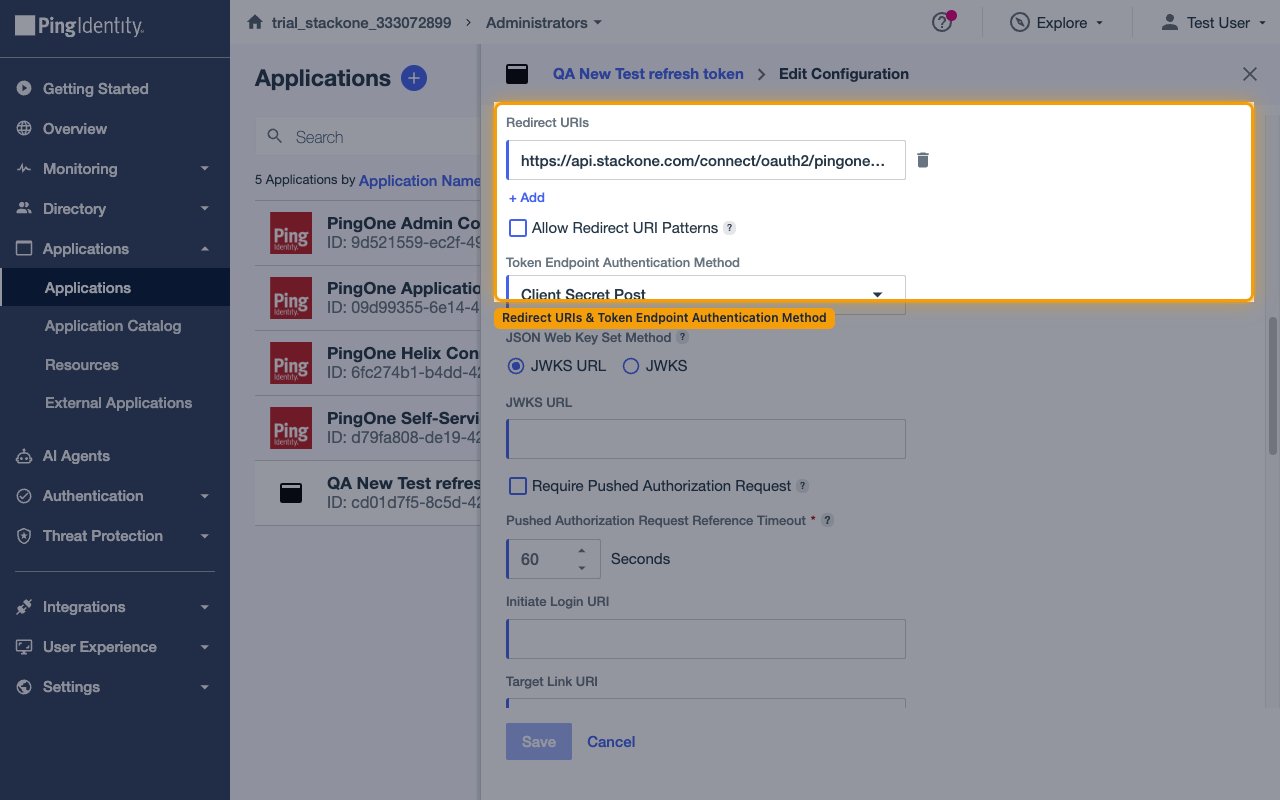
- Under Redirect URIs, click + Add and enter the exact StackOne callback URL with no trailing slash:
https://api.stackone.com/connect/oauth2/pingone/callback. - Leave Allow Redirect URI Patterns unchecked unless you specifically need wildcard matching.
- Token Endpoint Authentication Method — select Client Secret Post. StackOne sends the client credentials in the request body.
- Click Save.
Restrict Application Access
The Access and Resources tabs control who can sign in and which OIDC scopes the application requests.
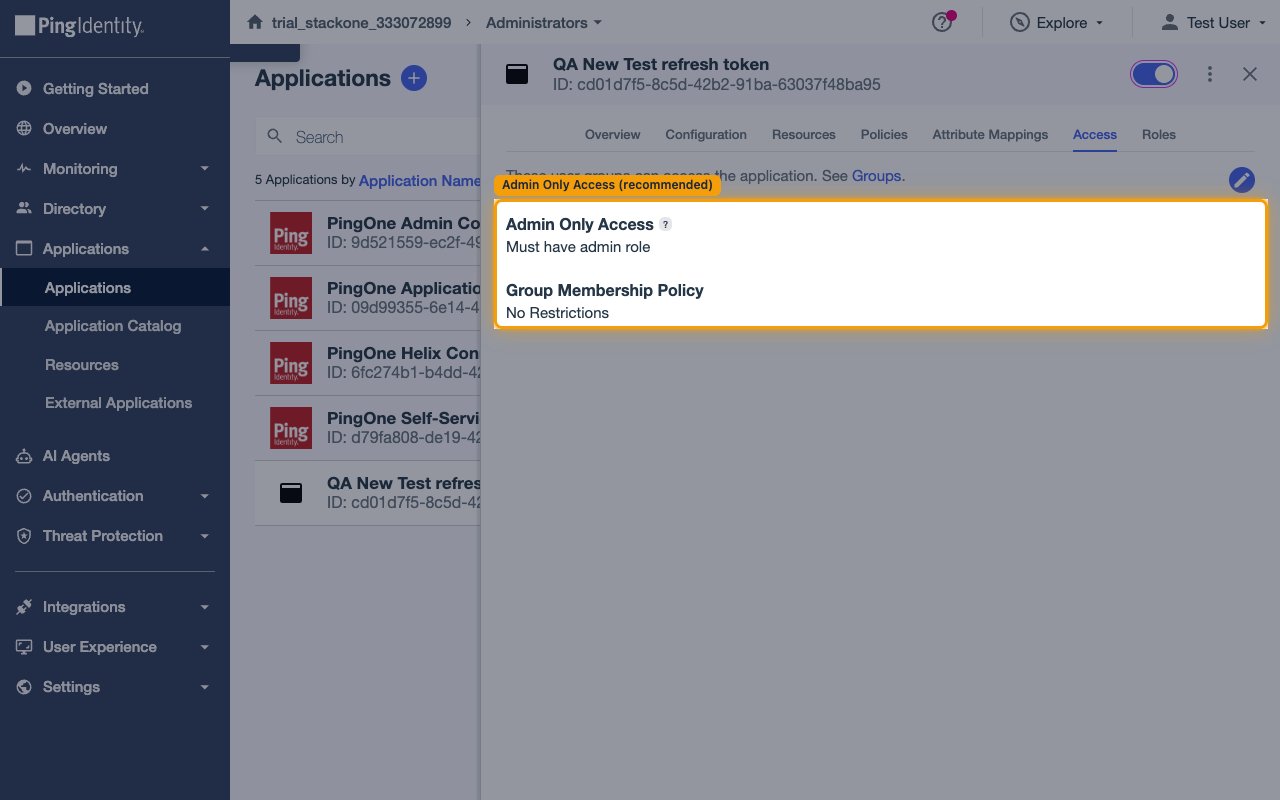
Enable Admin Only Access
Open the Access tab and click the pencil (edit) icon:
- Enable Admin Only Access so only PingOne admin users can sign in (Must have admin role). This is recommended for Management API integrations.
- Leave Group Membership Policy as No Restrictions unless you want to limit sign-in to a specific group.
Review the OIDC scopes
Open the Resources tab. The connector requests only the standard OIDC scopes openid and offline_access, which are available by default — no changes are needed here.
Assign an Admin Role to the Signing-In User
This is the step most often missed. With the Authorization Code grant, PingOne authorises Management API calls based on the signing-in user’s roles, not the application’s roles. Without a suitable role on that user, every API call returns HTTP 403.
Open the user's Roles tab
Identify the PingOne user who will sign in during the StackOne connection flow:
- In the left navigation, go to Directory and click Users.
- Select the account you plan to use, then open the Roles tab on the user panel.
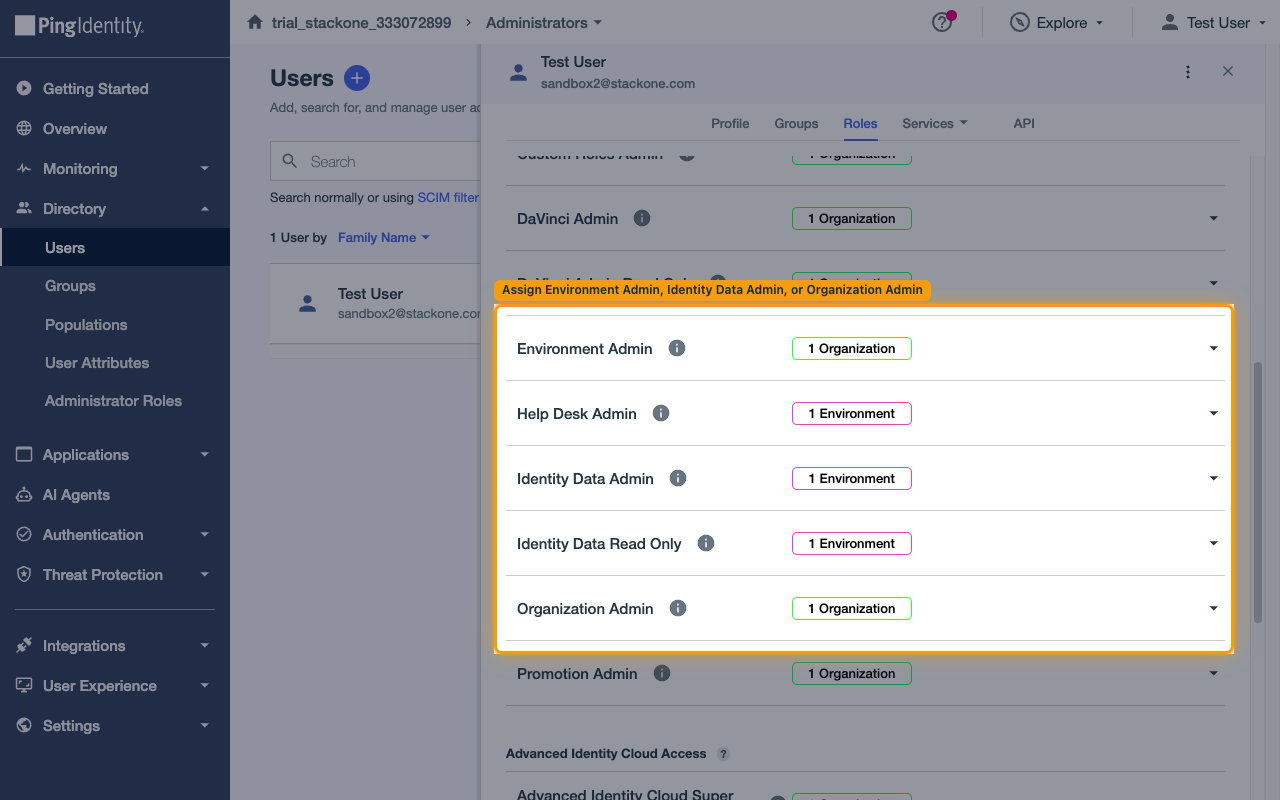
Grant an admin role
On the Roles tab, locate the role you want and assign it at the appropriate scope:
- For full Management API coverage — assign Organization Admin at the organization scope, or Environment Admin at the environment scope. Either covers all actions.
- For identity-only access — assign Identity Data Admin at the environment scope. This covers users, groups, populations, applications, and MFA devices, but not sign-on policies, password policies, identity providers, or certificates.
Creating the StackOne Connector Profile
To create the Connector Profile in StackOne for PingOne:Open the connector
Choose actions and events
- Click Add Profile.
- If the connector offers more than one authentication method, set the Auth Method filter to OAuth 2.0.
- Select the actions, and any events, to enable for this Connector Profile.
- Click Continue.
Set up authentication
- Select Authentication Type as OAuth 2.0.
- Fill out the fields using details retrieved from your provider:
- Client ID
- Client Secret
- Environment ID
- Click Create Profile.