

Sign in to the Mercury Public API developer portal
The subscription-key lives inside your Mercury Public API developer portal profile (Azure API Management). Sign in with the account Mercury provisioned for your organisation.
Open the developer portal
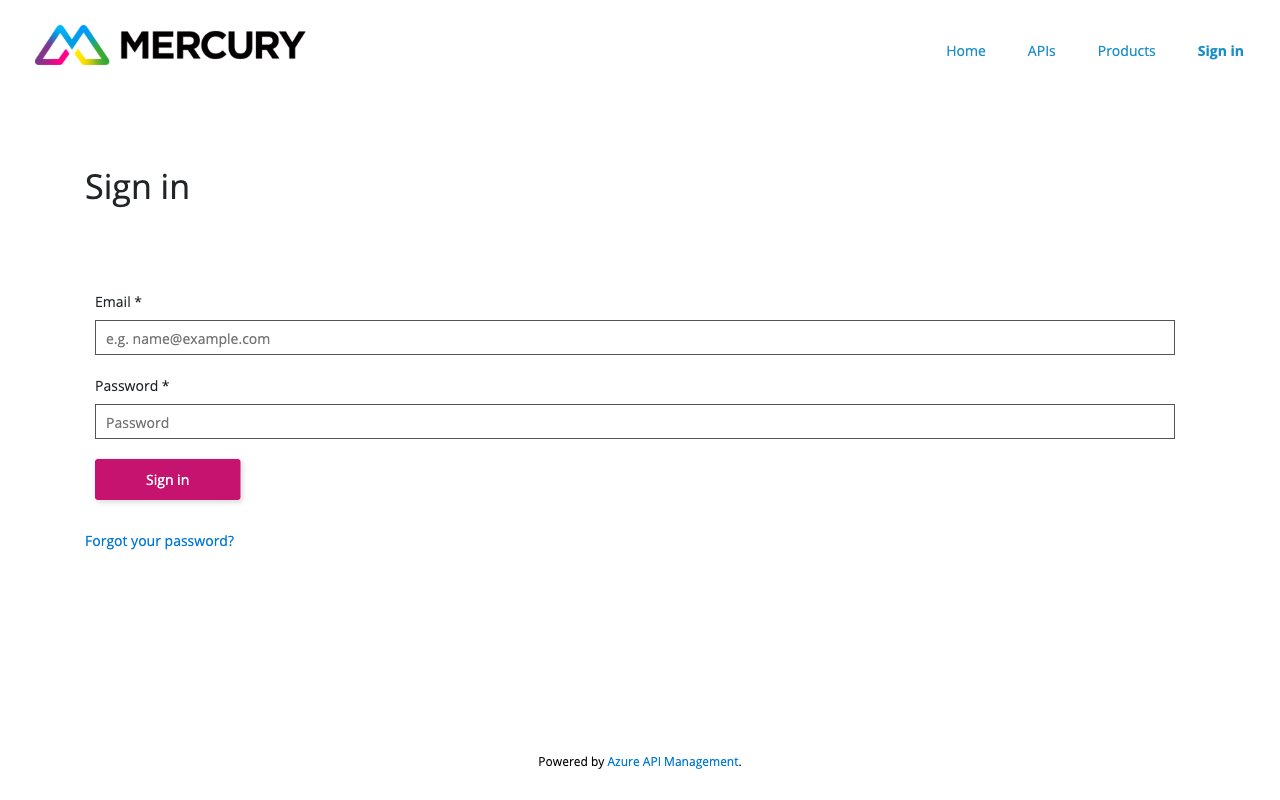
Navigate to https://apim-uks-thirdpartyintegration-prod.developer.azure-api.net/ — you will be redirected to the Sign in page.
Enter your credentials
Fill in the Email and Password fields with the credentials Mercury issued to you during onboarding, then click Sign in. If you don’t have credentials, contact your Mercury account manager to have a portal account provisioned.
Retrieve your Subscription Key
Your Mercury Public API subscription key is issued by Mercury via Azure API Management. It is the value sent as the subscription-key header on every API request.
Open your user profile
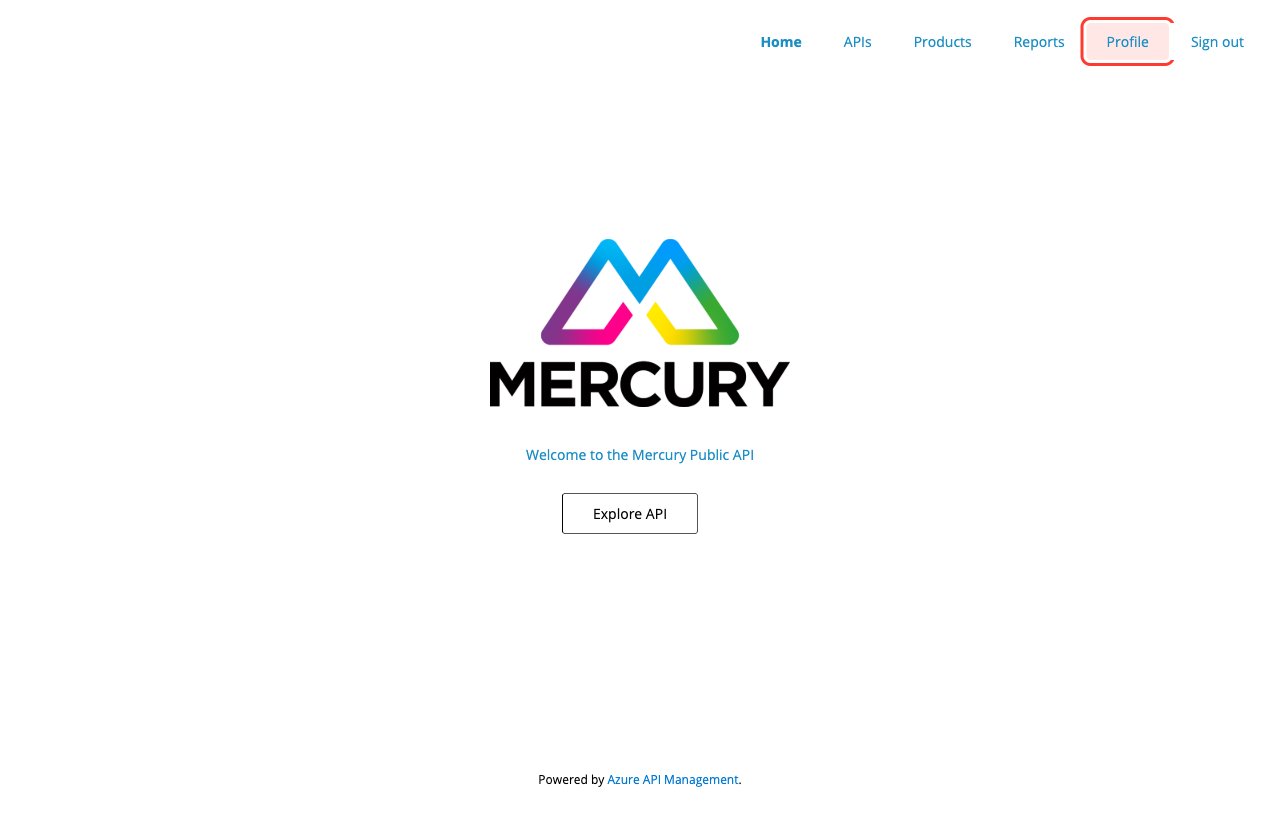
After signing in, click Profile in the top-right navigation to open the User profile page.
Locate the Subscriptions section
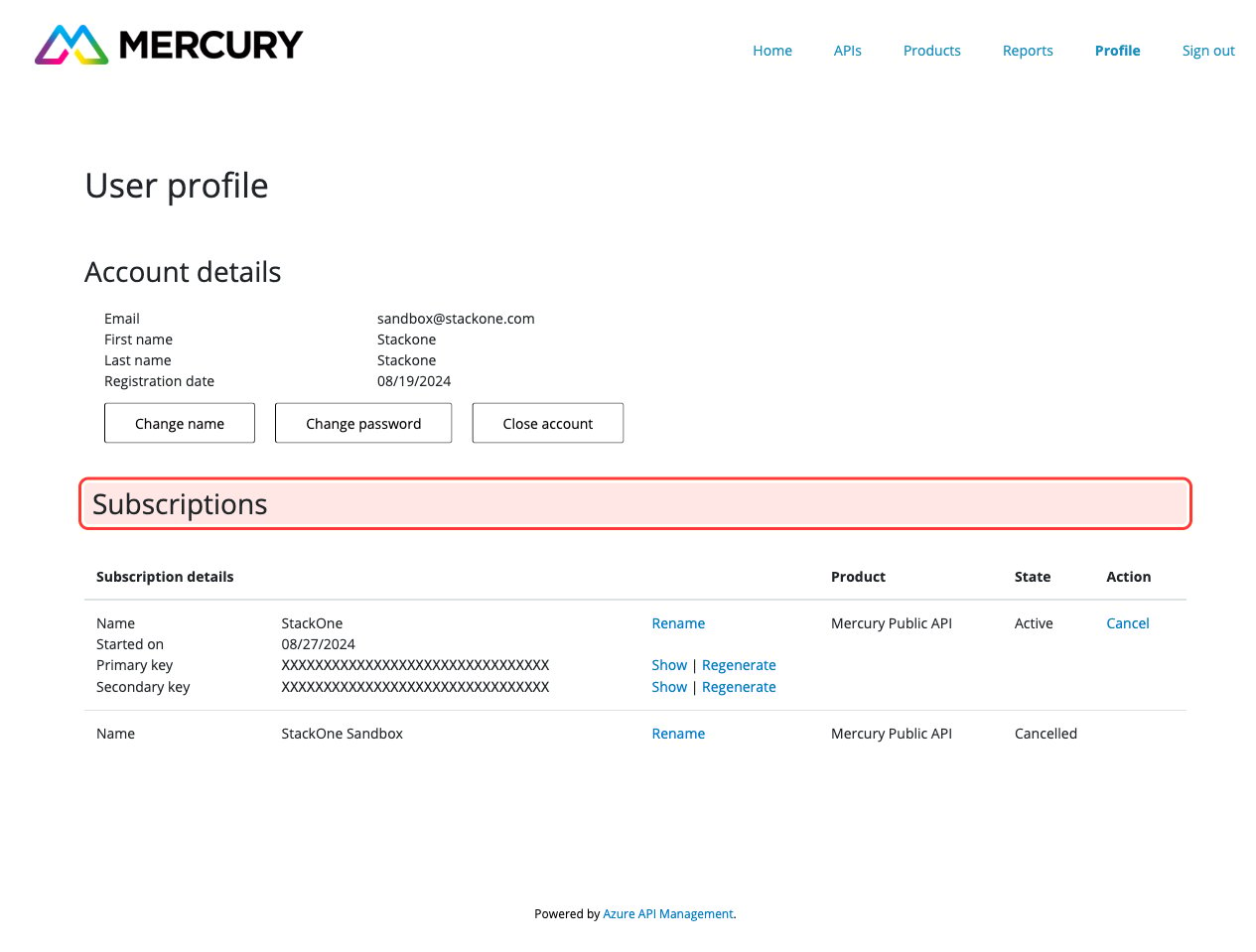
Scroll down past Account details to the Subscriptions table. Find the row whose Product column is Mercury Public API and whose State column is Active.
Click Show on the Primary key row
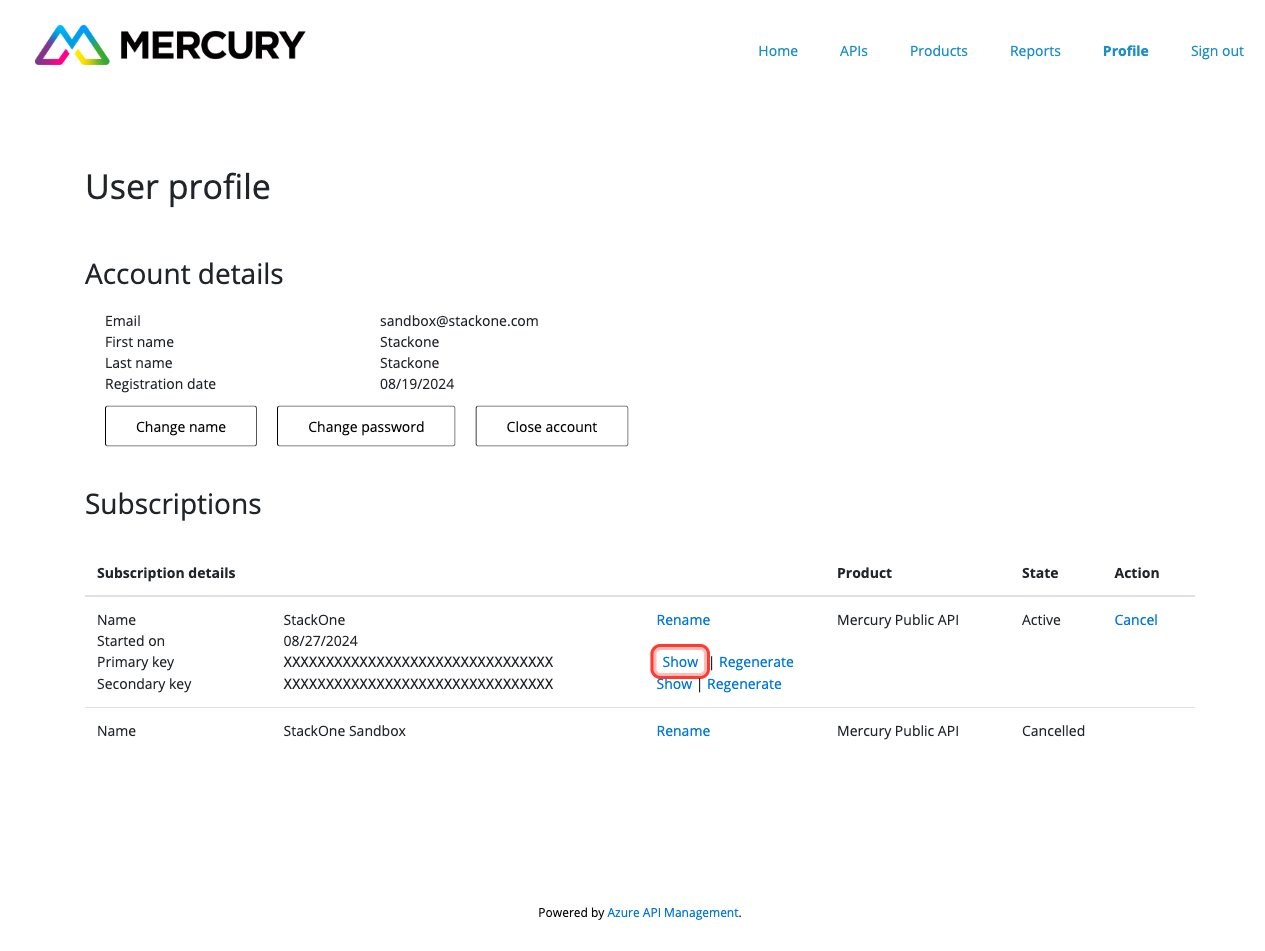
On the Primary key row, click Show to reveal the subscription-key value. Copy the full value.
- Either the Primary key or Secondary key can be used — both authenticate against the same Mercury API product.
- Do not click Regenerate unless you want to invalidate the current key and issue a new one — any downstream integration using the old key will stop working immediately.
Paste into StackOne
Paste the copied value into the Subscription Key field in StackOne.
Obtain your Tenant ID from Mercury
The tenant-id identifies which Mercury customer tenant your API calls operate against. It is a Mercury-specific value (not an Azure API Management concept) and is not visible in the developer portal.
Find the Tenant ID Mercury supplied
Mercury issues your tenant-id during onboarding — typically in the same email that delivers your developer portal credentials, or via your Mercury account manager. The value is a 32-character alphanumeric string with an unq prefix (for example unq0a4562b4117eee1181726045bdc15) — it is not a standard GUID.
Request it from Mercury if missing
Contact your Mercury account manager or Mercury support and request the tenant-id for the customer environment you are integrating with. A single subscription key can be used across multiple tenants, so make sure you are given the tenant-id that matches the data you intend to work with.
Paste into StackOne
Paste the value Mercury supplied into the Tenant ID field in StackOne.
Link the Account
Connect
- Click Connect.
- If applicable, the provider will redirect you to a sign-in or authorization page. Complete the provider’s authorization flow.
- Once authorization is successful, you will see a confirmation popup.
Use Actions