

Find your subdomain
Your subdomain is the first part of the URL you see when signed in to Gorgias.
1
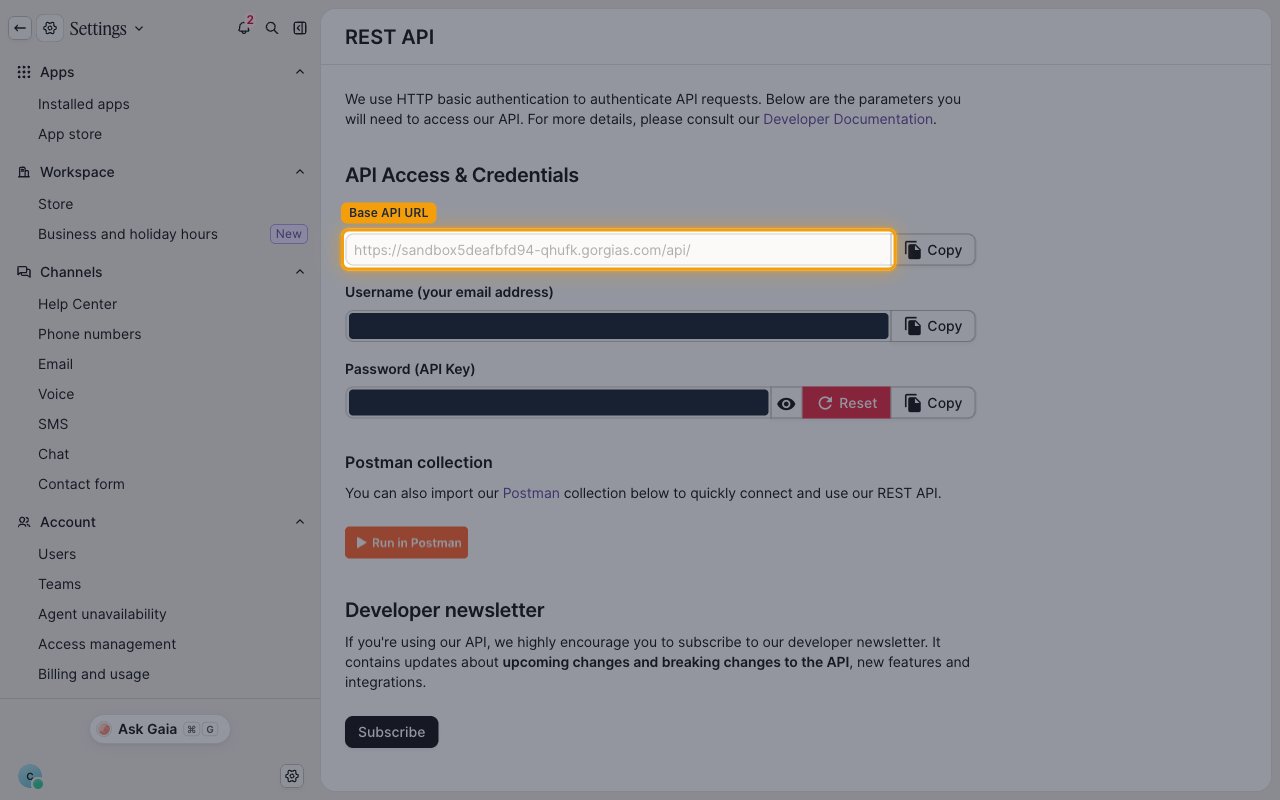
Copy the subdomain from the Base API URL
Sign in to your Gorgias account, then open Settings > REST API. The Base API URL under API Access & Credentials starts with your subdomain.
- Format:
https://{subdomain}.gorgias.com/api/ - Example: if your Base API URL is
https://mycompany.gorgias.com/api/, your Subdomain ismycompany
Authorize the app
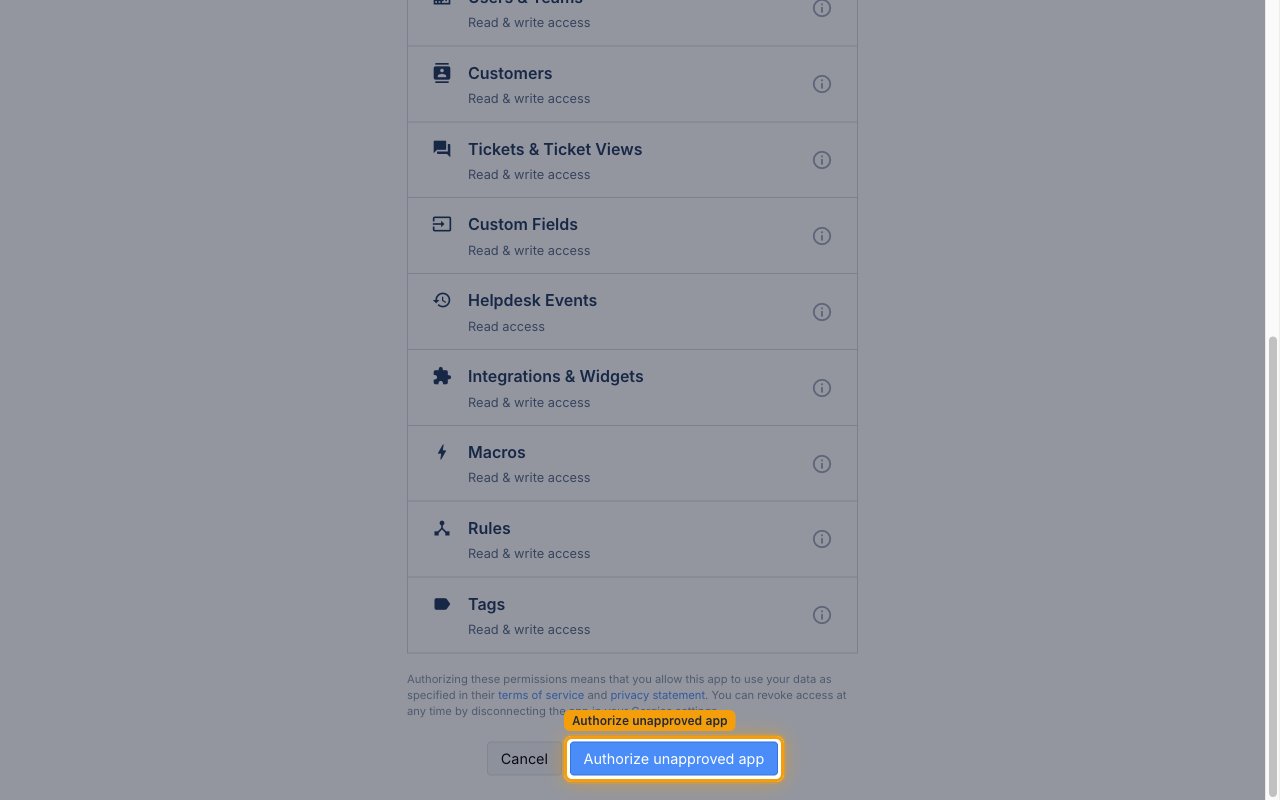
When you connect, Gorgias asks you to approve the access the app requests.
1
Approve the requested access
Sign in to Gorgias if prompted and review the listed permissions.
- Click Authorize unapproved app.
- The notice that the app has not been approved by Gorgias appears because the app is not listed in the Gorgias App Store. It does not affect the connection.
Link the Account
1
Connect
- Click Connect.
- If applicable, the provider will redirect you to a sign-in or authorization page. Complete the provider’s authorization flow.
- Once authorization is successful, you will see a confirmation popup.
2
Use Actions
Connect an AI platform to the linked account’s actions. See AI Platforms.Other ways to call actions are listed in Protocols & SDKs.
Next Steps
Webhooks setup
Configure receiving Events for Gorgias into StackOne.