Access tokens are for using your own GoCardless account with the API. To build a partner integration that manages other users’ accounts, use OAuth 2.0 instead. Tokens are environment-specific — a sandbox token only works with the Sandbox environment and a live token only with Production.

Create a GoCardless access token

GoCardless authenticates API requests with a Bearer access token created from the dashboard.

1

Sign in to GoCardless

Sign in to the GoCardless dashboard for the environment you are connecting:

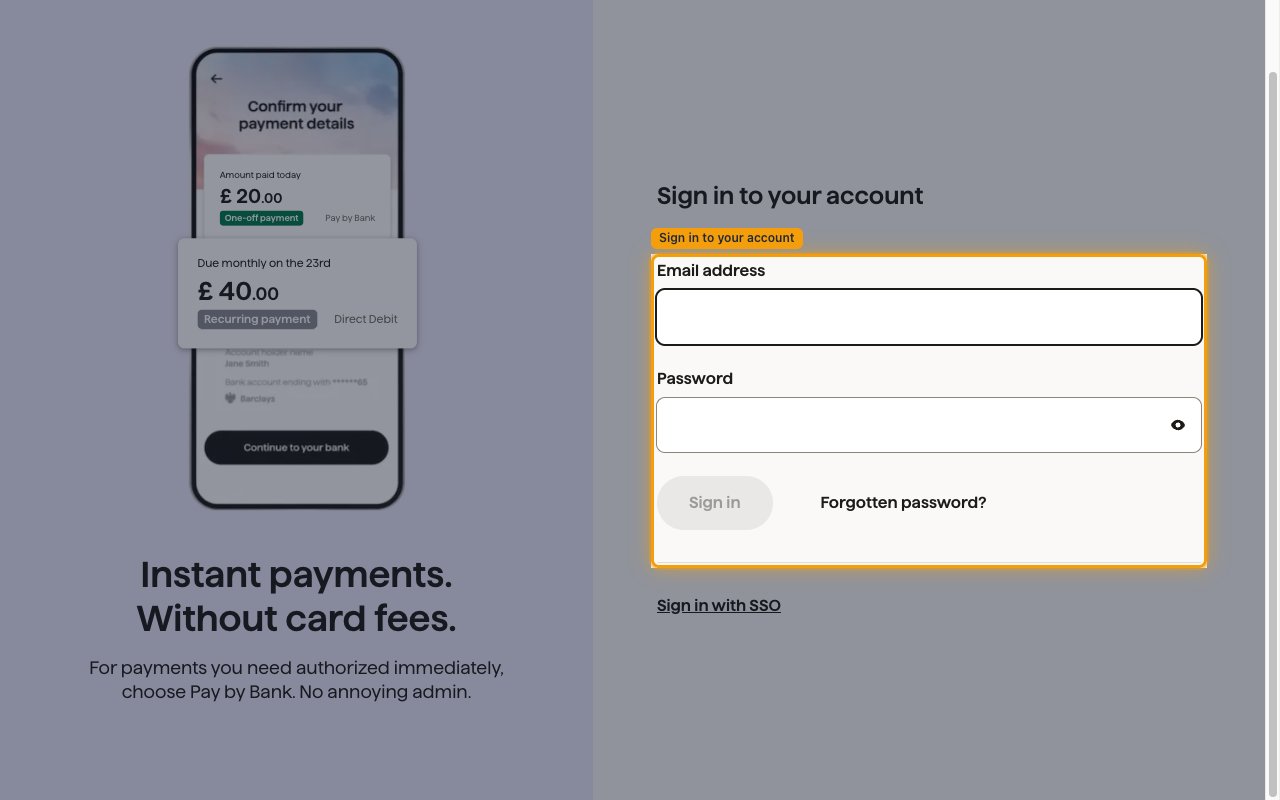
GoCardless sign in page with the Email address and Password fields
2

Open API settings

In the left sidebar, click Developers, then select API settings. The Access tokens section lists your existing tokens.
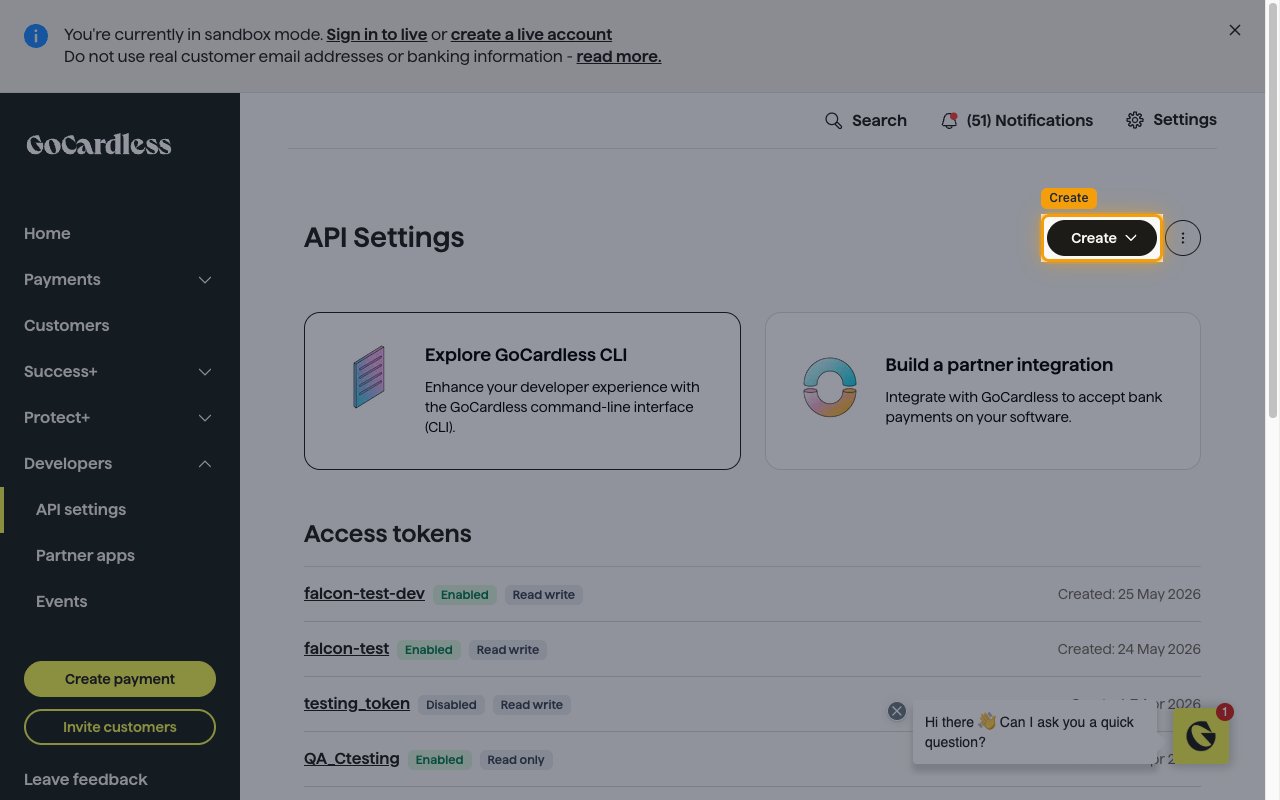
The API Settings page with the Access tokens section and the Create dropdown in the top right corner
3

Create an access token

On the API Settings page, click the Create dropdown in the top right corner, then select Access token from the menu.
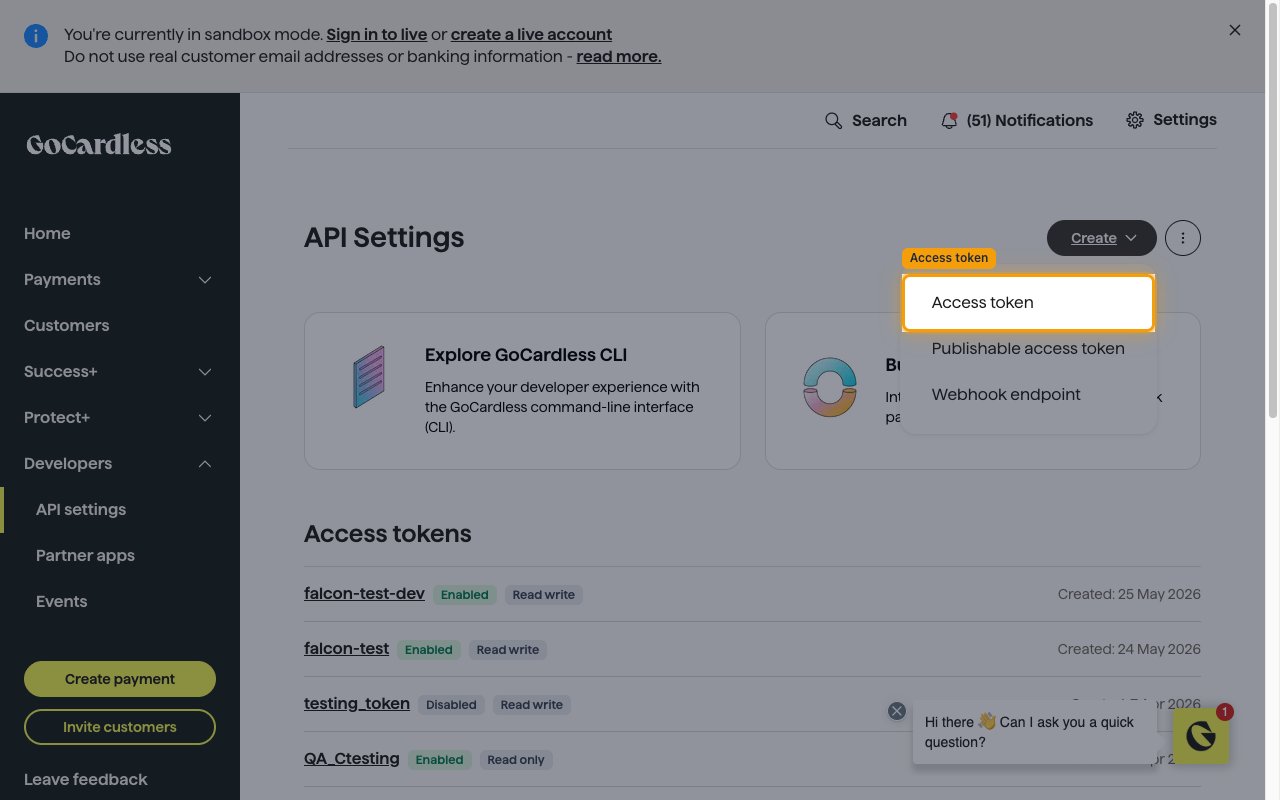
The Create dropdown on the API Settings page with the Access token option highlighted
4

Configure the token

Enables actions: Cancel A Mandate, Cancel A Payment, Cancel An Instalment Schedule, Cancel Billing Request, Cancel Subscription, Collect Bank Account For Billing Request, Collect Customer Details For Billing Request, Confirm Payer Details For Billing Request, Create A Creditor Bank Account, Create A Customer, Create A Customer Bank Account, Create A Mandate, Create A Payment, Create Billing Request, Create Billing Request Flow, Create Instalment Schedule With Dates, Create Instalment Schedule With Schedule, Create Refund, Create Subscription, Disable A Creditor Bank Account, Disable A Customer Bank Account, Fallback Billing Request To Direct Debit, Fulfil Billing Request, Get A Single Creditor, Get A Single Creditor Bank Account, Get A Single Customer, Get A Single Customer Bank Account, Get A Single Instalment Schedule, Get A Single Mandate, Get A Single Payment, Get A Single Payout, Get A Single Tax Rate, Get Billing Request, Get Event, Get Refund, Get Subscription, List Billing Requests, List Creditor Bank Accounts, List Creditors, List Customer Bank Accounts, List Customers, List Events, List Instalment Schedules, List Mandates, List Payments, List Payout Items, List Payouts, List Refunds, List Subscriptions, List Tax Rates, Notify Billing Request Customer, Pause Subscription, Reinstate A Mandate, Remove A Customer, Resume Subscription, Retry A Payment, Run Scenario Simulator, Update A Creditor, Update A Customer, Update A Customer Bank Account, Update A Mandate, Update A Payment, Update A Payout, Update An Instalment Schedule, Update Refund, Update Subscription

In the Create access token dialog, provide the token details, then click Create:

  • Name — enter a descriptive name for the token (for example, StackOne Integration).
  • Scope — select Read-write access for full API access (required to create, update, and cancel payments, mandates, subscriptions, and customers), or Read only access if you only need read operations.
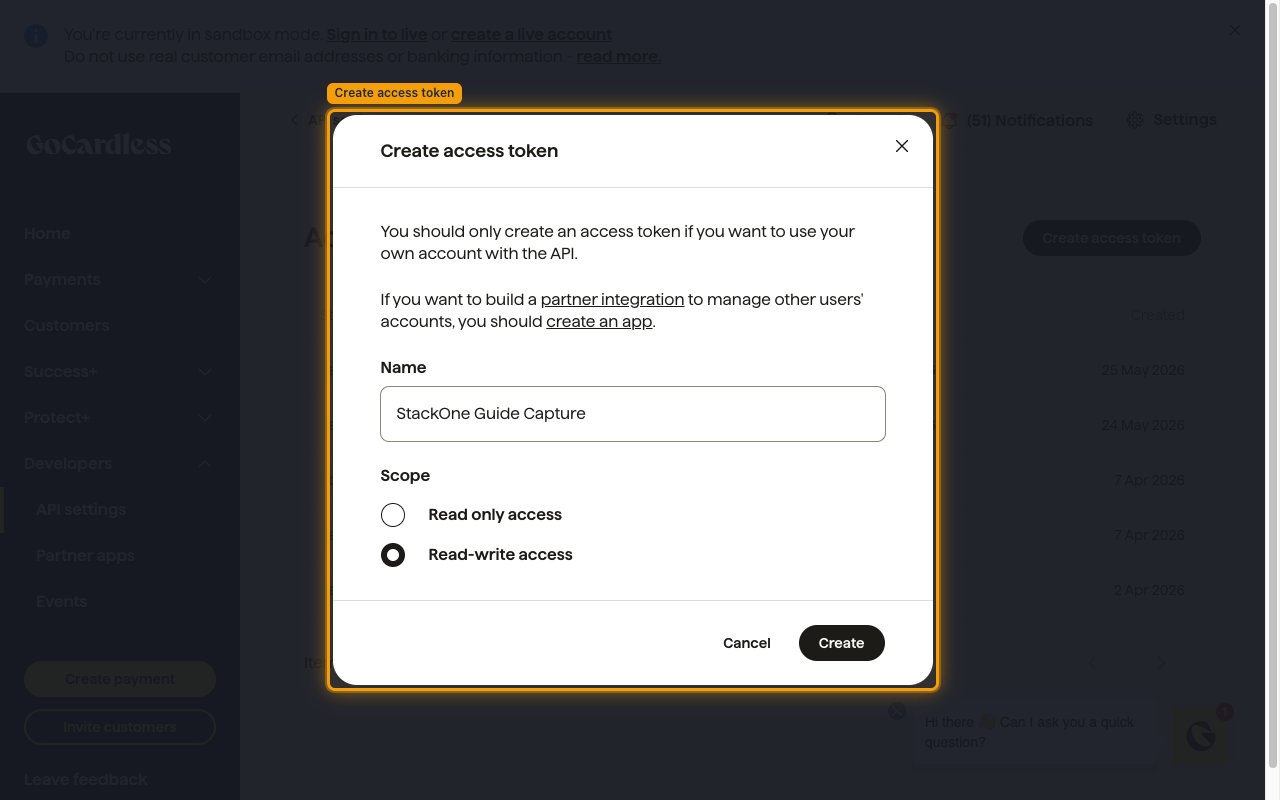
The Create access token dialog with the Name field and the Scope options Read only access and Read-write access
5

Copy the access token

An Access token successfully created dialog appears with your new token in the Token field. The dialog warns: Your access token can only be viewed once.

  • The token cannot be retrieved after this dialog is closed — copy it immediately and store it securely.
  • Paste the copied value into the Access Token field in StackOne Hub.
  • Click I’ve copied this access token to dismiss the dialog.
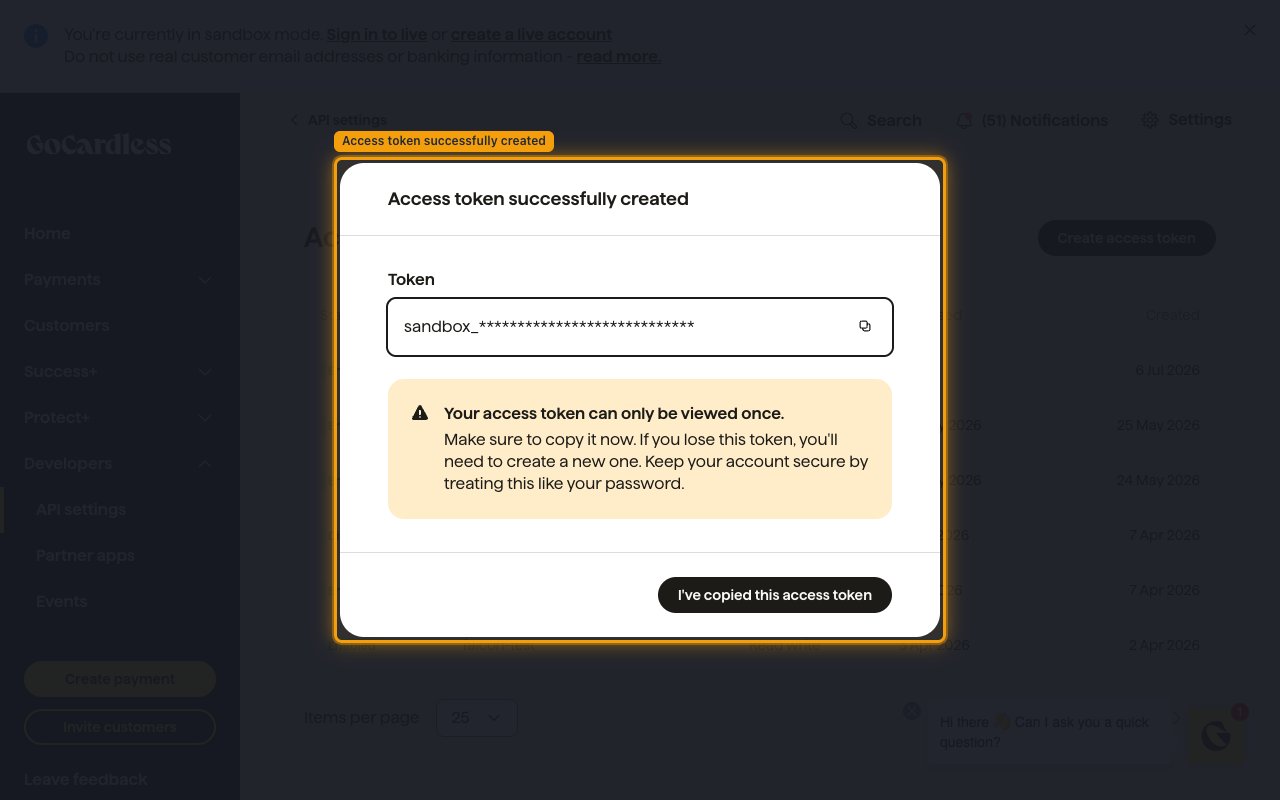
The Access token successfully created dialog showing the Token field, the view-once warning, and the I've copied this access token button

Linking the Account from the Hub

1

Navigate to the Hub

Use one of the three Linking Account Methods to access the Hub.
2

Fill out the fields

Fill out the following fields using details from your provider:
  • Access Token
3

Connect

  • Click Connect
  • If applicable, the provider will redirect you to a sign-in or authorization page. Complete the provider’s authorization flow.
  • Once authorization is successful, you will see a confirmation popup

If the account linking is successful, you will see the newly linked account in your Accounts page.