

Create an API Client
To authenticate with the Brainier Elan REST API using OAuth 2.0, you must first create an API Client.
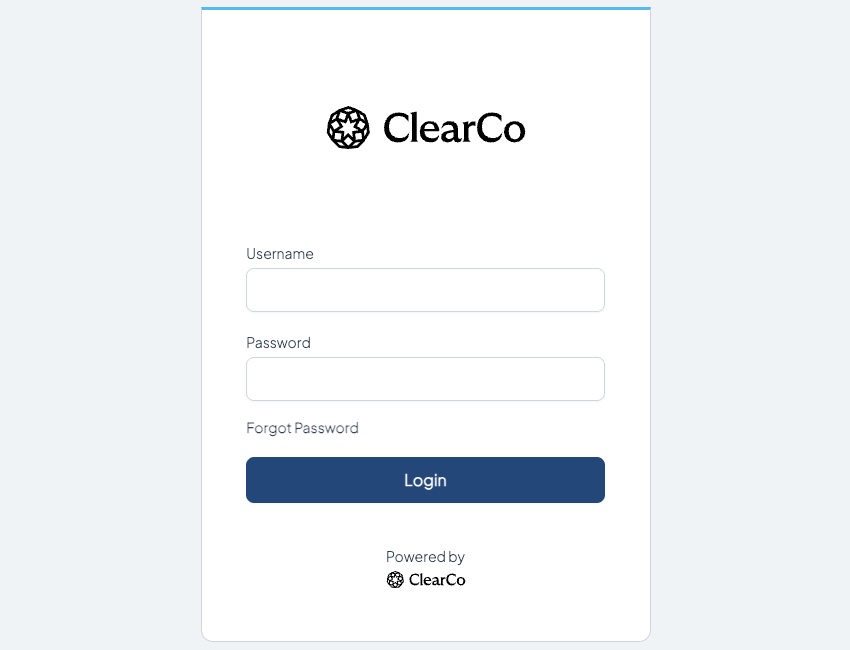
Log in to Brainier LMS
Log in to your Brainier LMS site with an account that has Administrator privileges.
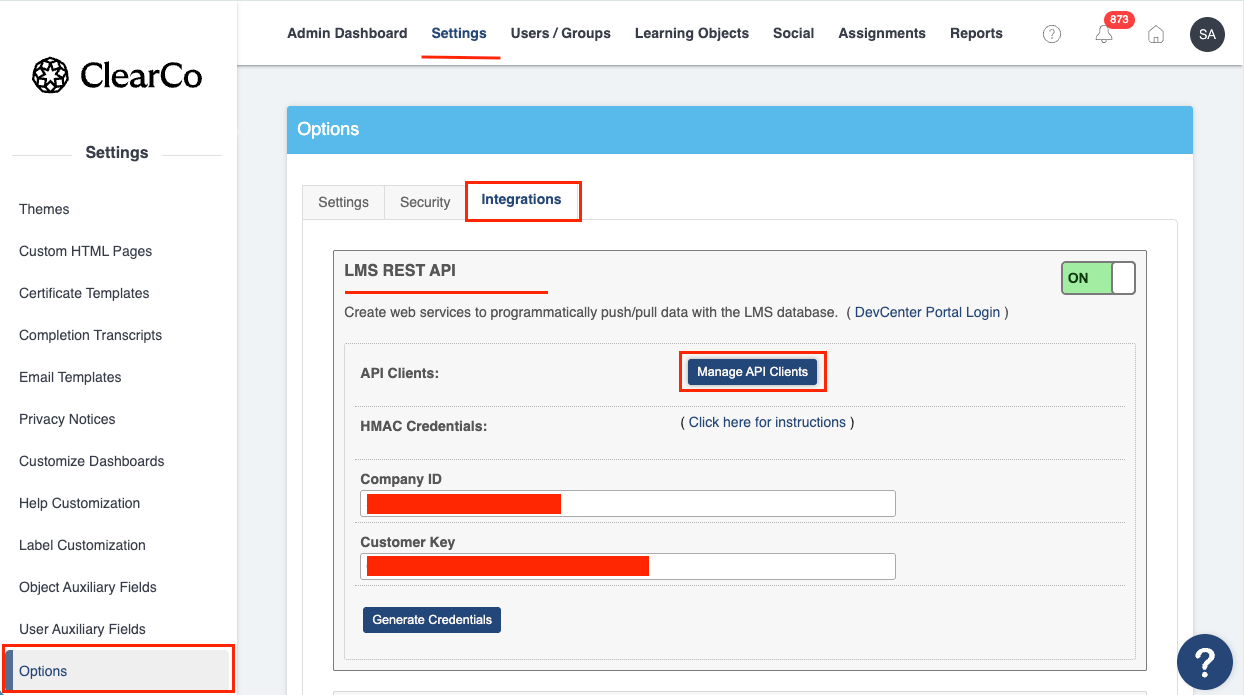
Access API Client Management
Navigate to ⚙️ Administration (top right corner) > Settings > Options > Integrations > Elan/LMS REST API, then click the Manage API Clients button.
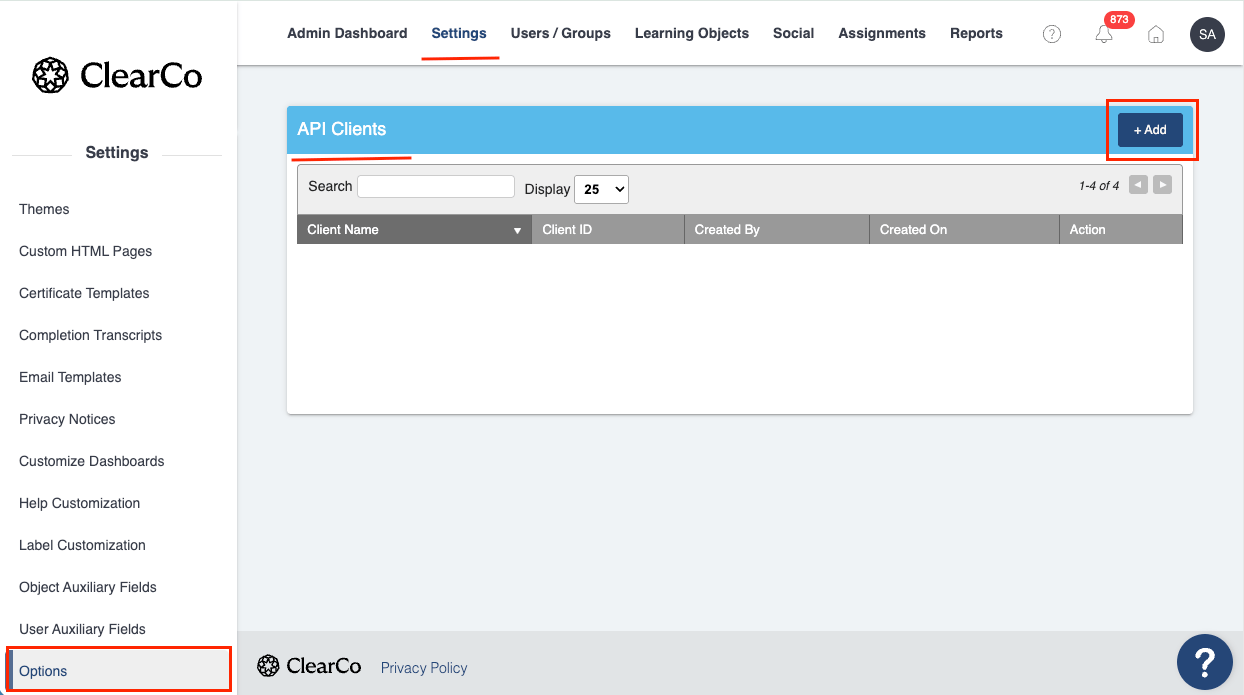
Create New API Client
Click the Add button in the top right corner of the screen.
Configure API Client Settings
Fill in the following fields.
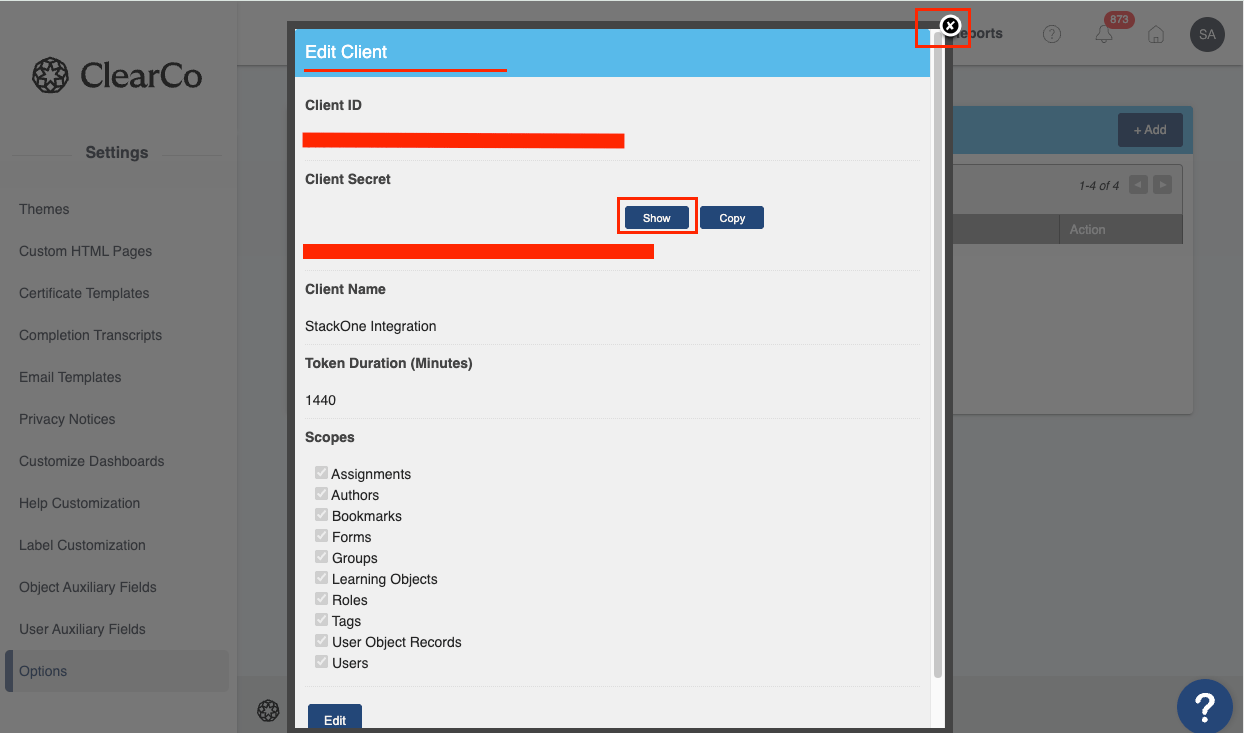
- Client Name: Enter a descriptive name (e.g., StackOne Integration)
- Token Duration (minutes): Set the access token validity period. Maximum: 1440 (24 hours)
- Scopes: Select the scopes required for your integration.
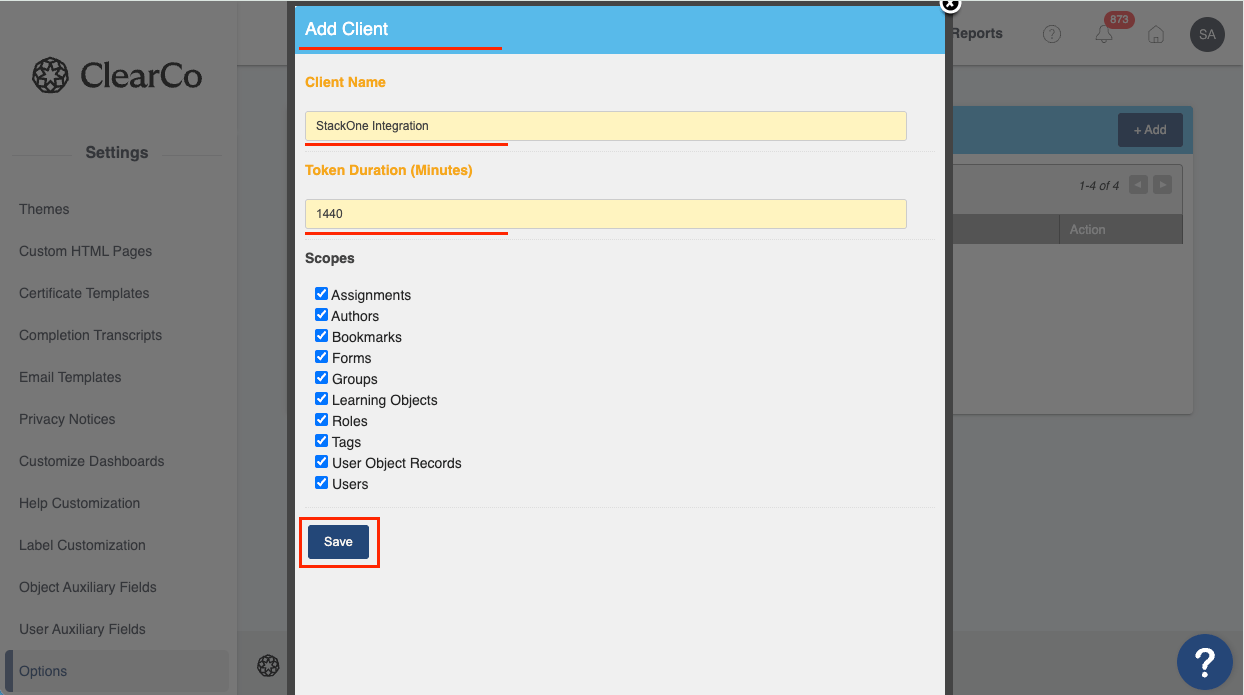
Save and Retrieve Credentials
Click Save to create the API Client. After saving, two new fields will appear: Client ID and Client Secret. Copy both values and store them securely for later use. The Client Secret will not be shown again.
Gather Required Information
Collect the following information to link your Brainier account with StackOne.
Find Your Subdomain
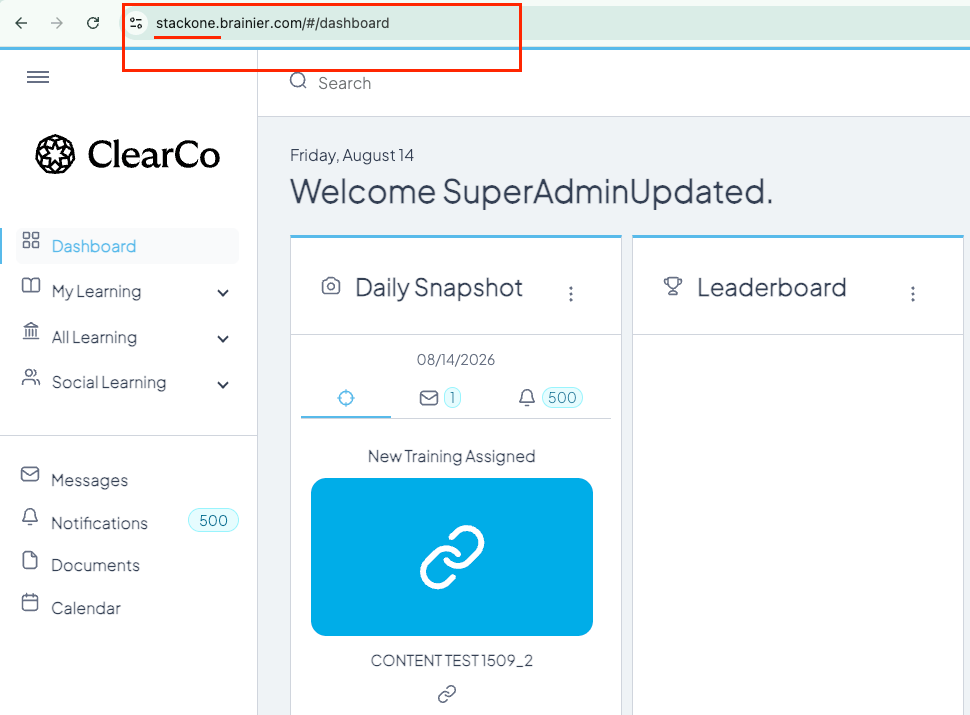
Your Brainier subdomain is the first part of your Brainier URL.
- Format:
https://{subdomain}.brainier.com - Example: If your URL is
https://mycompany.brainier.com, your subdomain ismycompany - Note: Do not include
.brainier.comin the subdomain field
Identify Username (Optional)
Identify the username of the account you would like to associate with this connection. This is typically a SuperAdmin account or a dedicated service account with the appropriate permissions.
- Note: If left blank, the connection will use the default SuperAdmin account.
Linking the Account from the Hub
Navigate to the Hub
Fill out the fields
- Client ID
- Client Secret
- Subdomain
- Username (Optional)
- API Client IP (Optional)
Connect
- Click Connect
- If applicable, the provider will redirect you to a sign-in or authorization page. Complete the provider’s authorization flow.
- Once authorization is successful, you will see a confirmation popup
If the account linking is successful, you will see the newly linked account in your Accounts page.