

 MCP
MCP A2A
A2APrerequisites
- A linked account for the connector you want to use. See Embedding the StackOne Hub or Auth Links to add one.
How to get your MCP config
1
Open a connector
Go to Connectors in the left nav, then click any connector to open its detail page.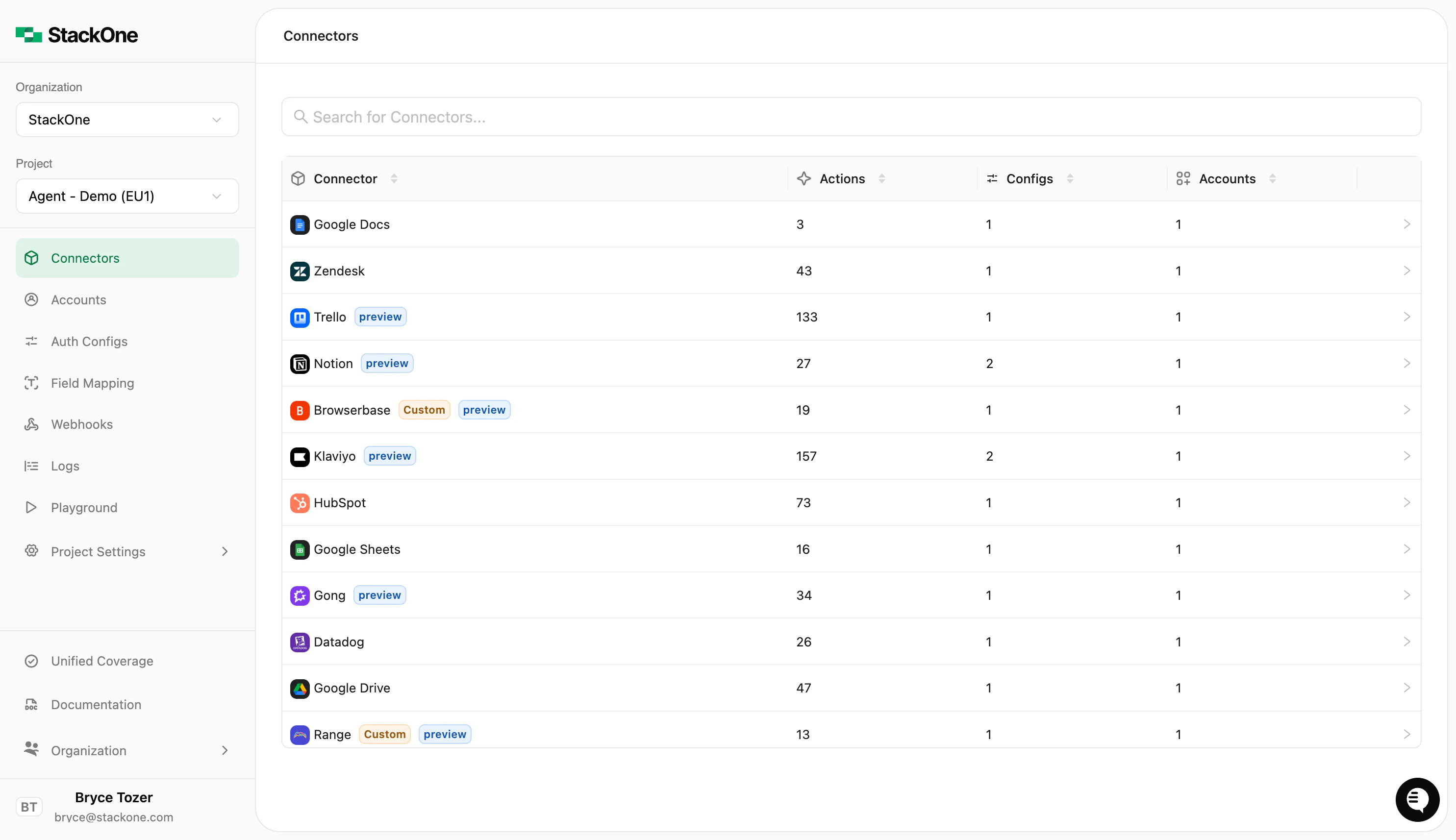
2
Click 'Use Connector'
Click the Use Connector button in the top-right of the connector detail page. This opens the “Get Started with Connector” panel.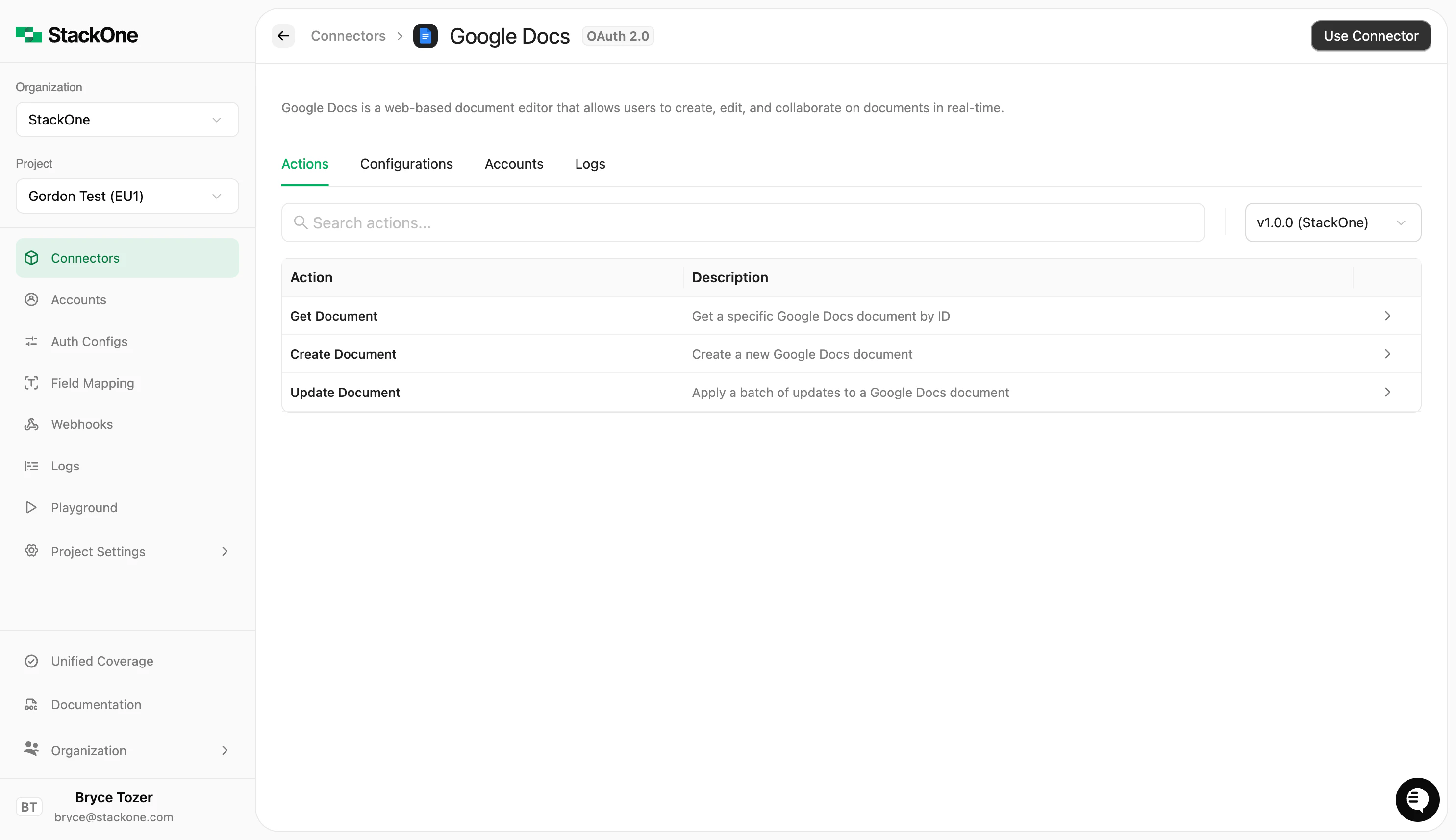
If the connector isn’t configured yet, you’ll see a setup wizard instead. Complete both steps — create a connector profile, then link an account — and the Use tab with the MCP tile will appear.
3
Select your account
On the Use tab, click MCP Server under “Use with Agent Client” to expand the tile.Select a linked account from the dropdown. StackOne generates a token for that account automatically.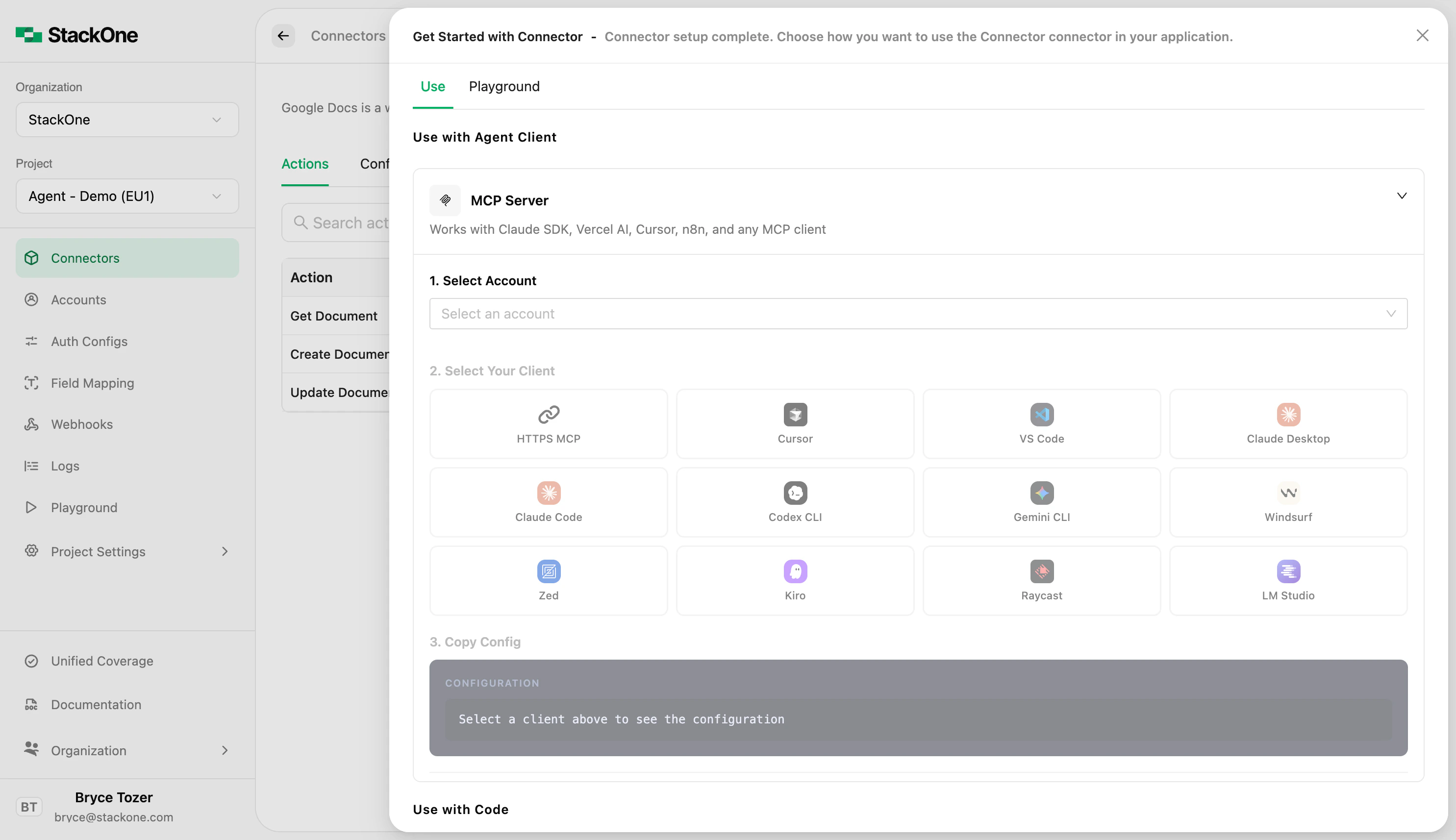
4
Choose your client
Pick the client you want to connect. Supported options: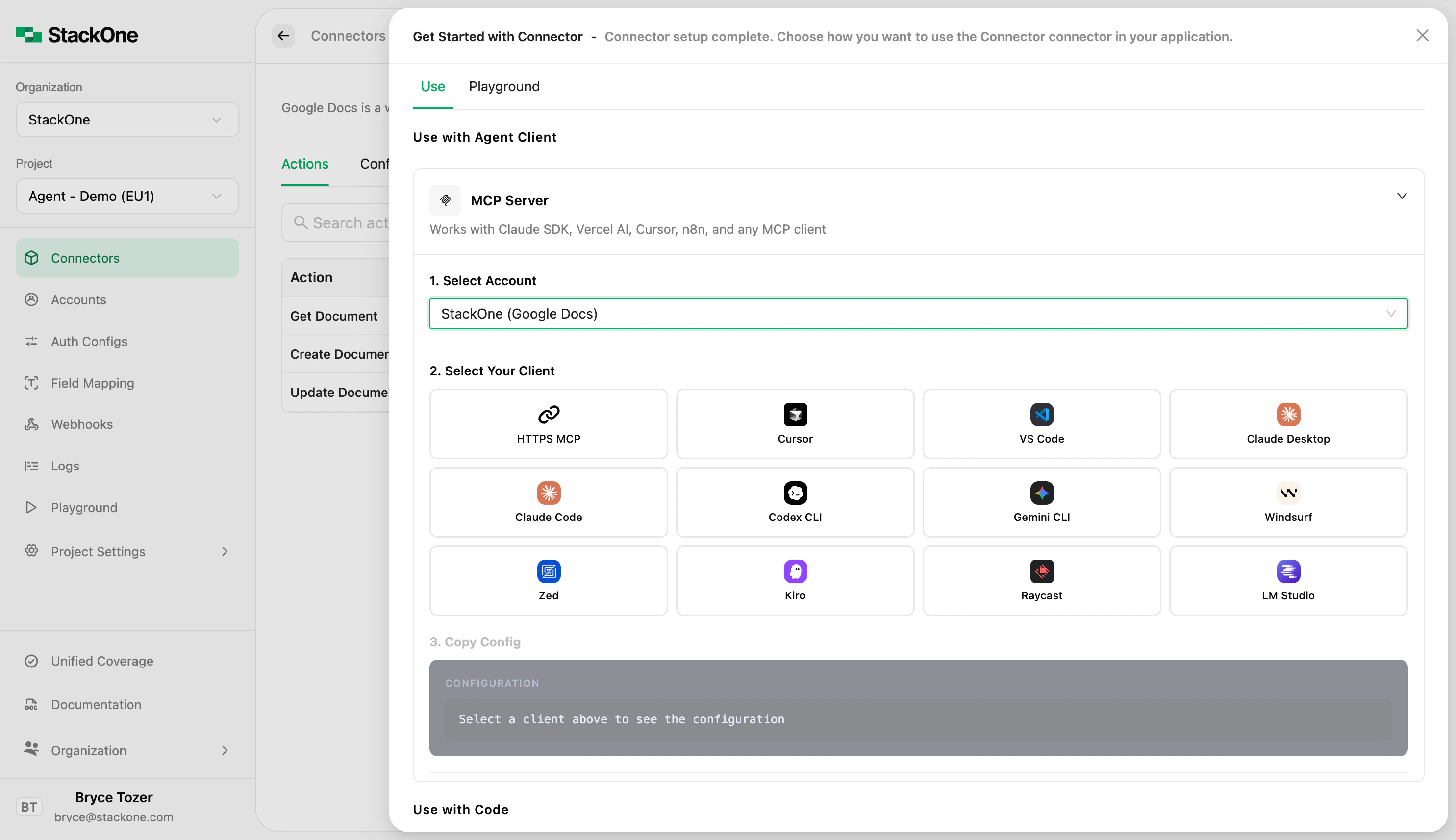
5
Copy the config
The panel shows the config in the right format for your client, with a copy button.For clients that use a config file (Claude Desktop, Gemini CLI, etc.), the panel also shows the exact file path to paste it into.For Cursor and VS Code, you can skip the copy step entirely and click Add to Cursor or Add to VS Code to install it directly via deep link.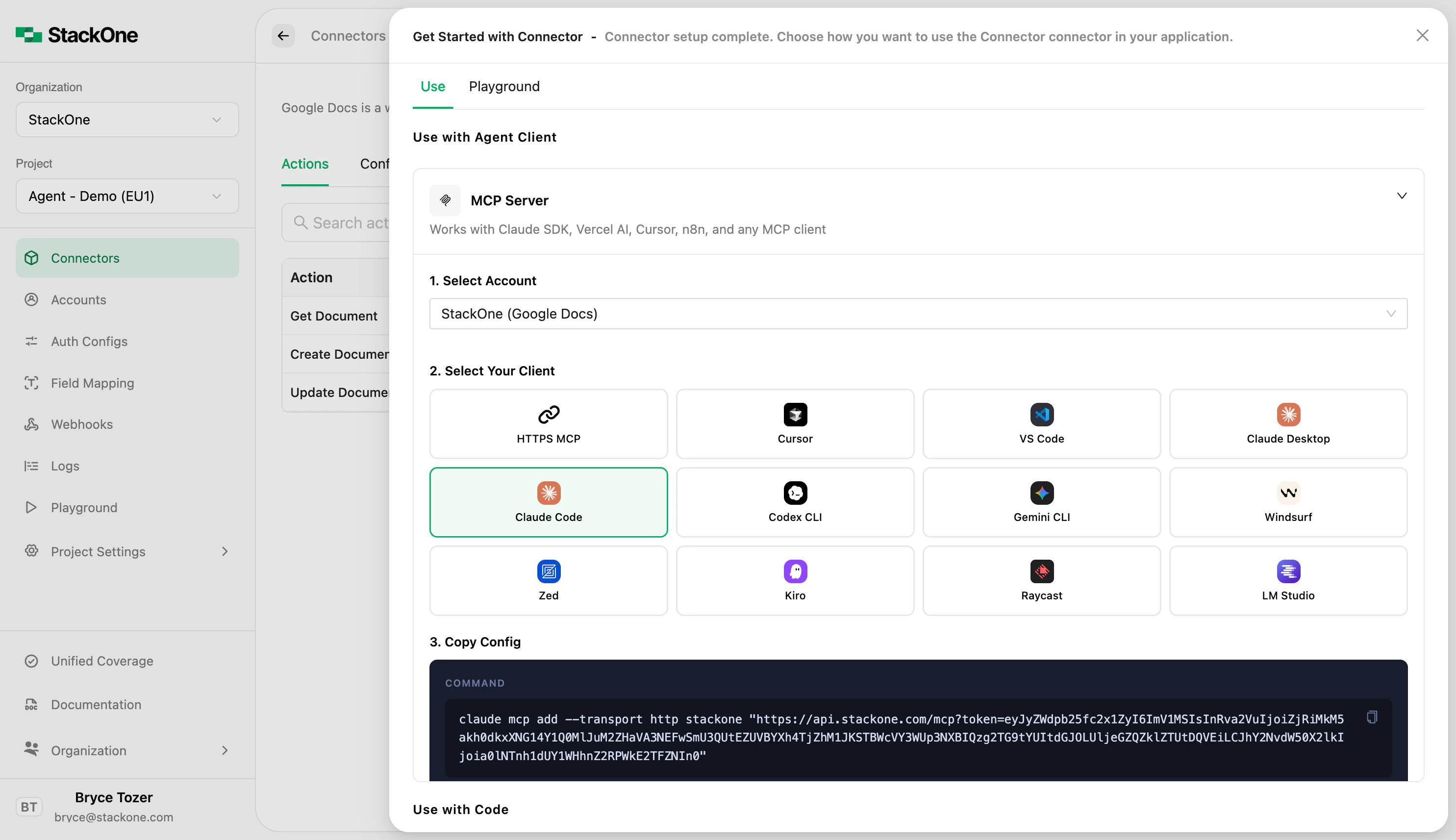
What the MCP URL looks like
The generated URL follows this format:Next steps
MCP Quickstart
Full endpoint reference and authentication options
Authentication & Security
Token types, expiry, and production auth patterns