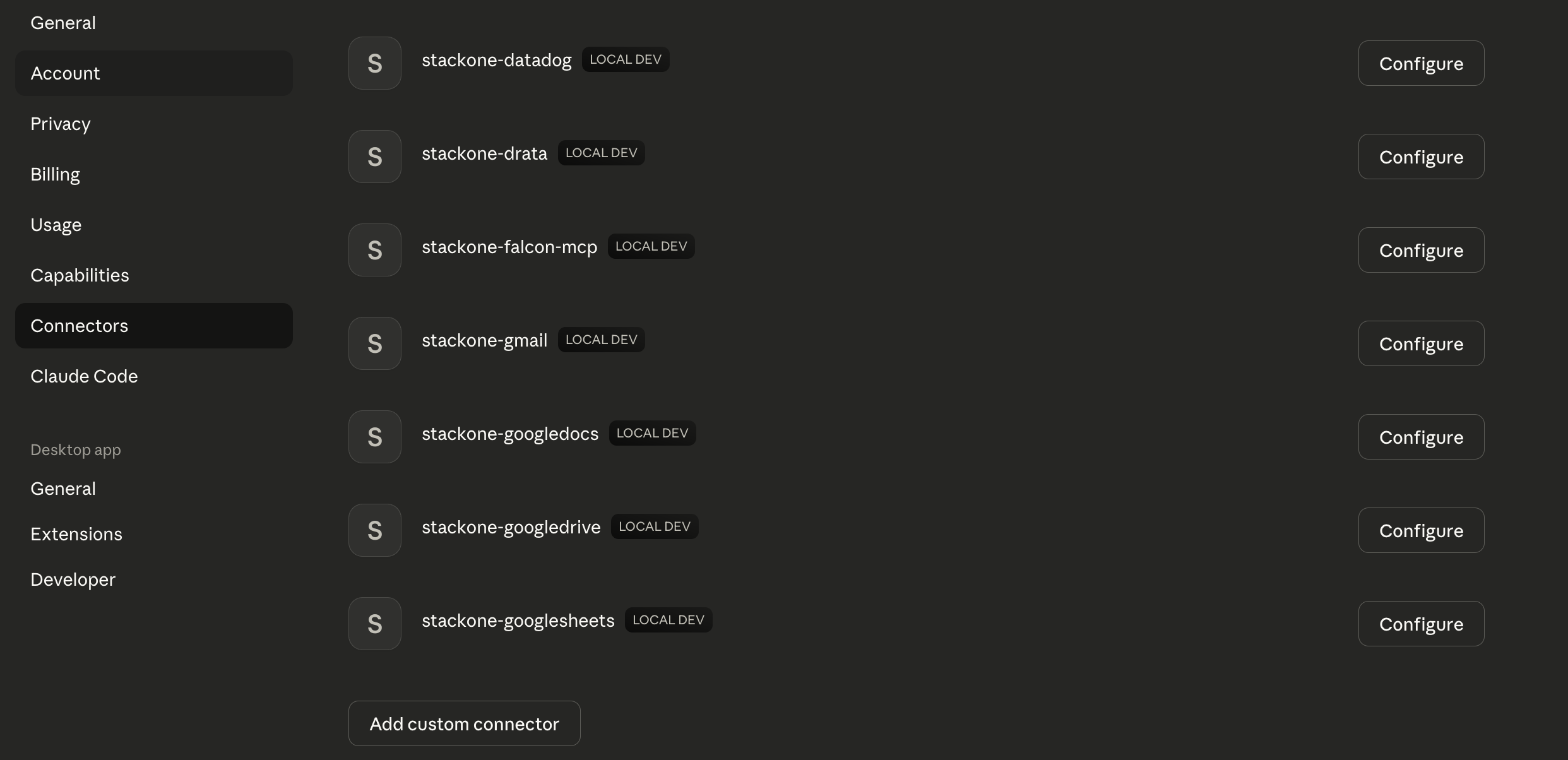
Claude connects to remote MCP servers as custom connectors, running the OAuth flow itself, with no config file and no mcp-remote wrapper. A connector is added once against your account and is then available in Claude on desktop, web and mobile.
Custom connectors are available on Free, Pro, Max, Team and Enterprise plans, with Free limited to one. See Anthropic’s guide to custom connectors for the current flow.
How you add the connector depends on your Claude plan. On Pro and Max you add it yourself, and on Team and Enterprise an Owner adds it for everyone.
Pro and Max
Team and Enterprise
Go to Customize → Connectors.
Open the Add dropdown and select Add custom connector.
Set the name (e.g. StackOne) and the Remote MCP Server URL:
https://mcp.stackone.com/mcp
Leave the OAuth client ID and secret fields empty (Claude discovers the endpoints and registers itself).
Click Add.
Go to Organization settings → Connectors.
Click Add, hover over Custom, then select Web.
Set the Remote MCP Server URL:
https://mcp.stackone.com/mcp
Leave the OAuth credentials under Advanced settings empty (Claude discovers the endpoints and registers itself).
Click Add.
2
Connect
Under Customize → Connectors, click Connect on the StackOne connector.
3
Approve the consent screen
Claude opens StackOne in your browser.Sign in, pick the project and the linked accounts the connector should reach, then Authorize.
Walk through the consent screen
Sign in to StackOne. If you are already signed in to the dashboard you skip straight to the next step.
Check where the connection returns. The line under the client’s logo shows where it goes after you approve. If it names localhost or an app on this device, only continue if you started the connection from that client.
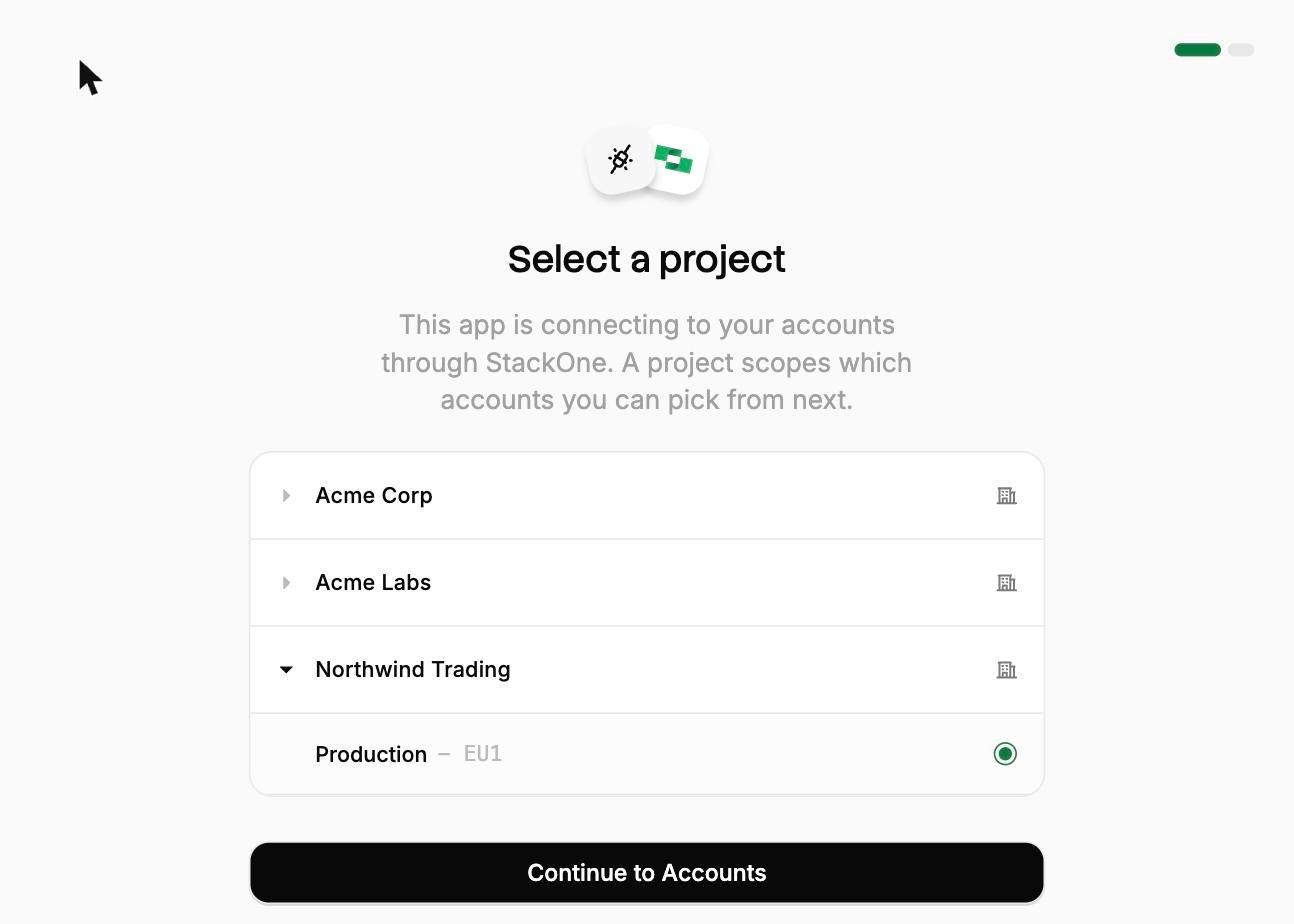
Select a project. Select the project you would like to associate the connection with.
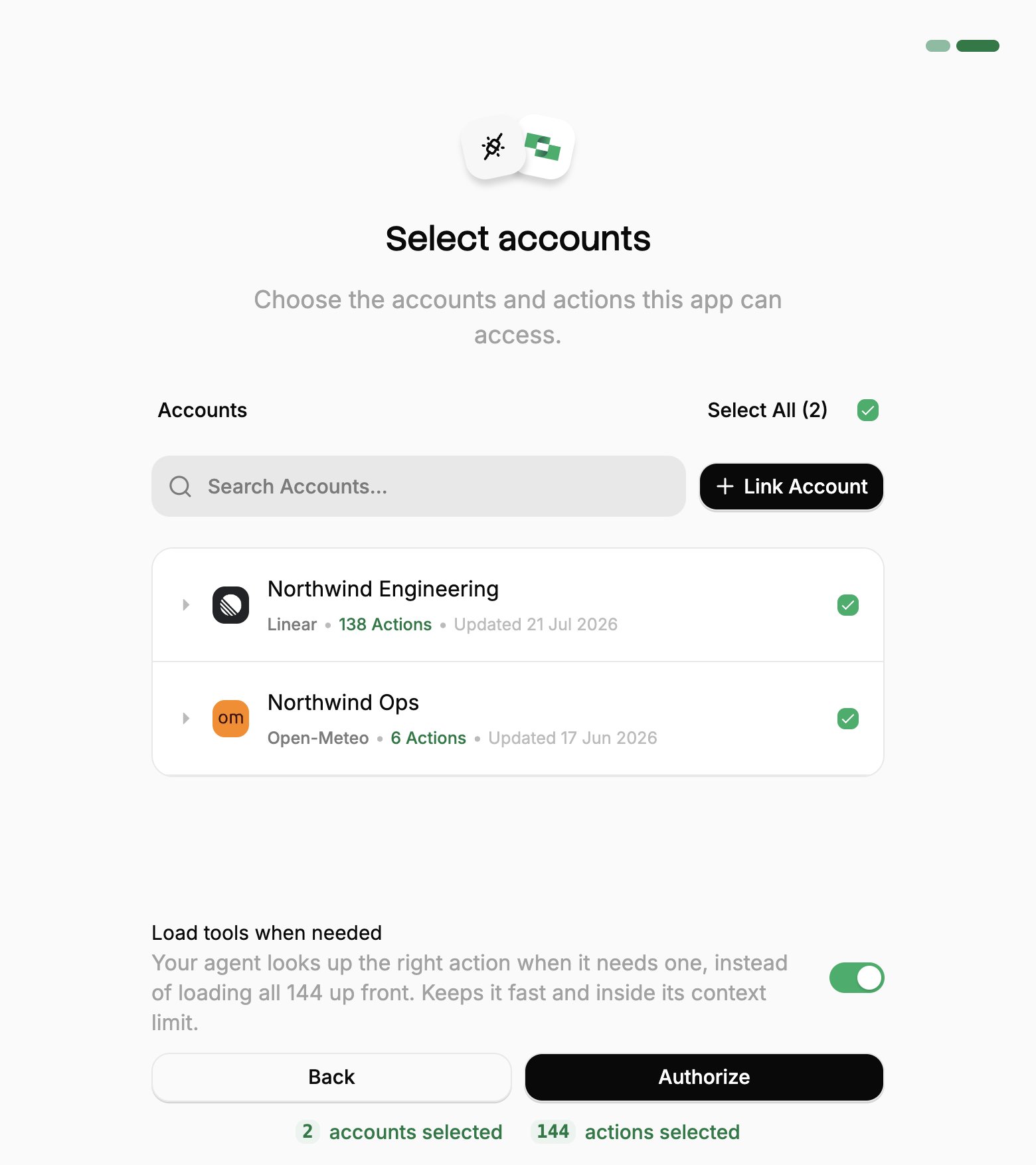
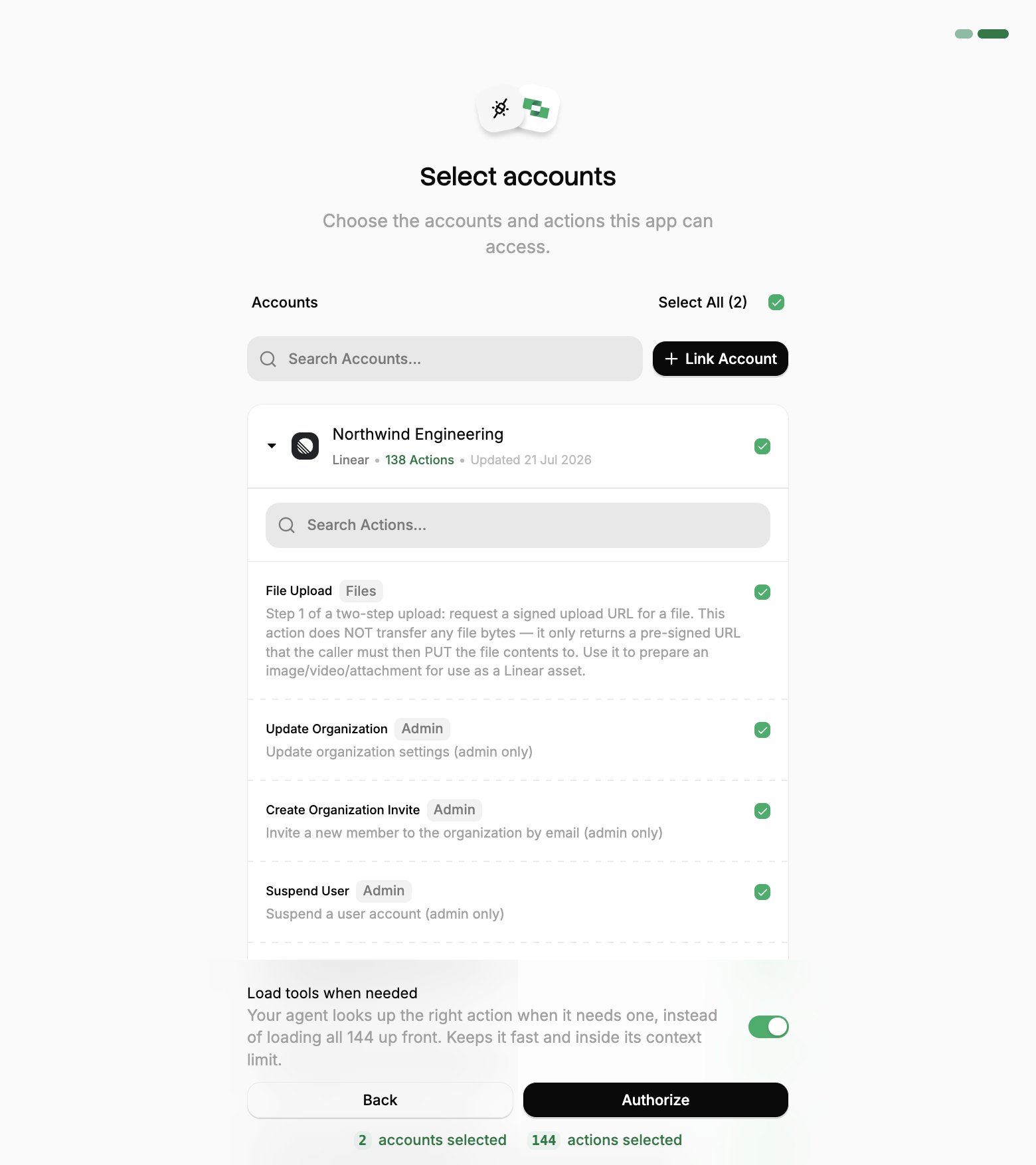
Select accounts and actions. Existing linked accounts are shown. New accounts can be linked by clicking + Link Account. You can either select the whole account (all actions will be granted) or refine by toggling individual actions.
(Optional) Load tools when needed. On by default, and the toggle that puts the connection into Advanced Tool Search. Leave it on for large action sets. Turn it off to hand the agent every selected action up front.
Authorize. Completes the connection; you can return to your client.
Select a project
Select accounts
Toggle actions
If you see a sentence where the Load tools when needed toggle should be, an admin has already settled it for the whole project. See project settings.
4
Verify connection
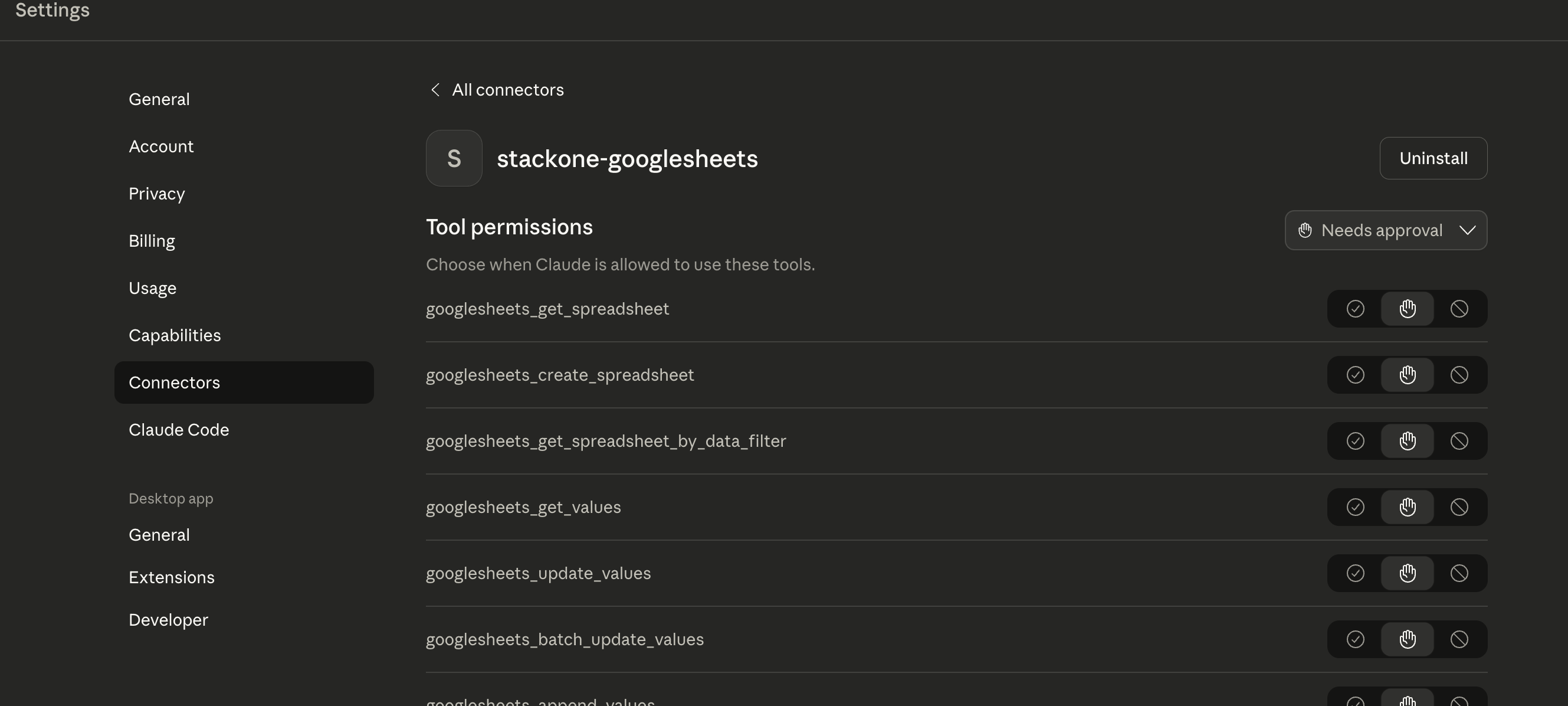
StackOne appears under Customize → Connectors, where you can review each tool and set whether it runs automatically or asks first:
Then try prompts like:
What StackOne tools are available?
Search recent calls in Gong
One grant covers every account you approved, so a single connector is usually all you need. To change which accounts or actions it can reach, disconnect the current connector and then run the flow again; to revoke it, use Connected Apps in the StackOne dashboard.
Connecting with a session token instead
A session token URL carries its own credential, so it covers the cases OAuth can’t: a shared server, a scheduled job, or anywhere nobody is present to approve a consent screen. For a comparison of each connection method, see Choosing a connection method.From the StackOne dashboard, go to Connectors, open a connector, then click Use in Agent.
Pick a linked account.
Set the expiry (one year by default).
Select HTTPS MCP and copy the URL. It should be in the format of:
This URL covers one linked account, and anyone holding it has that access until it expires, so treat it like a password.To enable Advanced Tool Search, add the tool-mode query parameter to the URL:
A token URL is not a remote OAuth connector, so it goes through the mcp-remote package in claude_desktop_config.json. Open it from Settings → Developer → Edit Config:
Restart Claude Desktop to load it. Servers added this way show under Settings → Developer with a green “running” badge; if you see “failed”, click Open Logs Folder.
Multiple accounts example
For multiple linked accounts, add an entry for each. Get each token from the dashboard by selecting the relevant account.