

 MCP
MCP A2A
A2AOverview
Postman is a popular API development and testing tool that allows you to send HTTP requests and receive responses. You can use Postman to interact with StackOne’s MCP server by making JSON-RPC 2.0 requests.Postman is ideal for testing MCP endpoints, debugging requests, and exploring available tools before integrating into your application.
Get the StackOne public Postman collection
The StackOne public Postman collection comes with a pre-configured MCP request:Open in Postman
Fork this collection to get started
- MCP requests in the StackOne MCP folder
- Basic Auth configured with
{{apiKey}}as the username x-account-idheader set to{{accountID}}- URL pre-configured to
https://api.stackone.com/mcp
Setup
1
Create a Postman Environment
- Open Postman
- Click the Environments icon in the left sidebar
- Click + to create a new environment
- Name it “StackOne MCP” (or your preferred name)
2
Add Environment Variables
Add the following variables to your environment (these match the variable names used in the collection):
3
Select Your Environment
In the top-right corner of Postman, select your “StackOne MCP” environment from the dropdown to activate it.
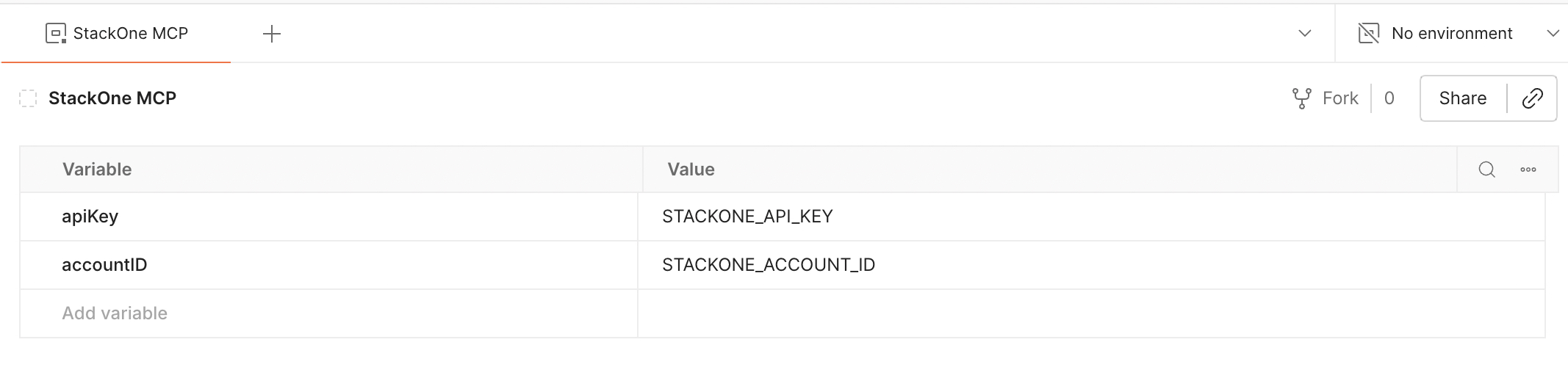
Example Postman environment configured for StackOne MCP (values shown are placeholders).
Using the MCP Request
After forking the collection and setting up your environment variables, you’ll find a pre-configured MCP request in the StackOne MCP folder. The MCP protocol uses JSON-RPC 2.0 format.Send Your First Request
- Navigate to the StackOne MCP folder in your forked collection
- Select the Connect to StackOne MCP request
- Make sure your environment is selected in the top-right corner
- Under the Message tab, click “Load Capabilities”
- This will show all the available tools for the account you’ve connected to
- Select the tool you want to use, fill in any required fields, and click “Run”
The next time you load the collection, it should automatically load the capabilities for the account you’ve connected to.
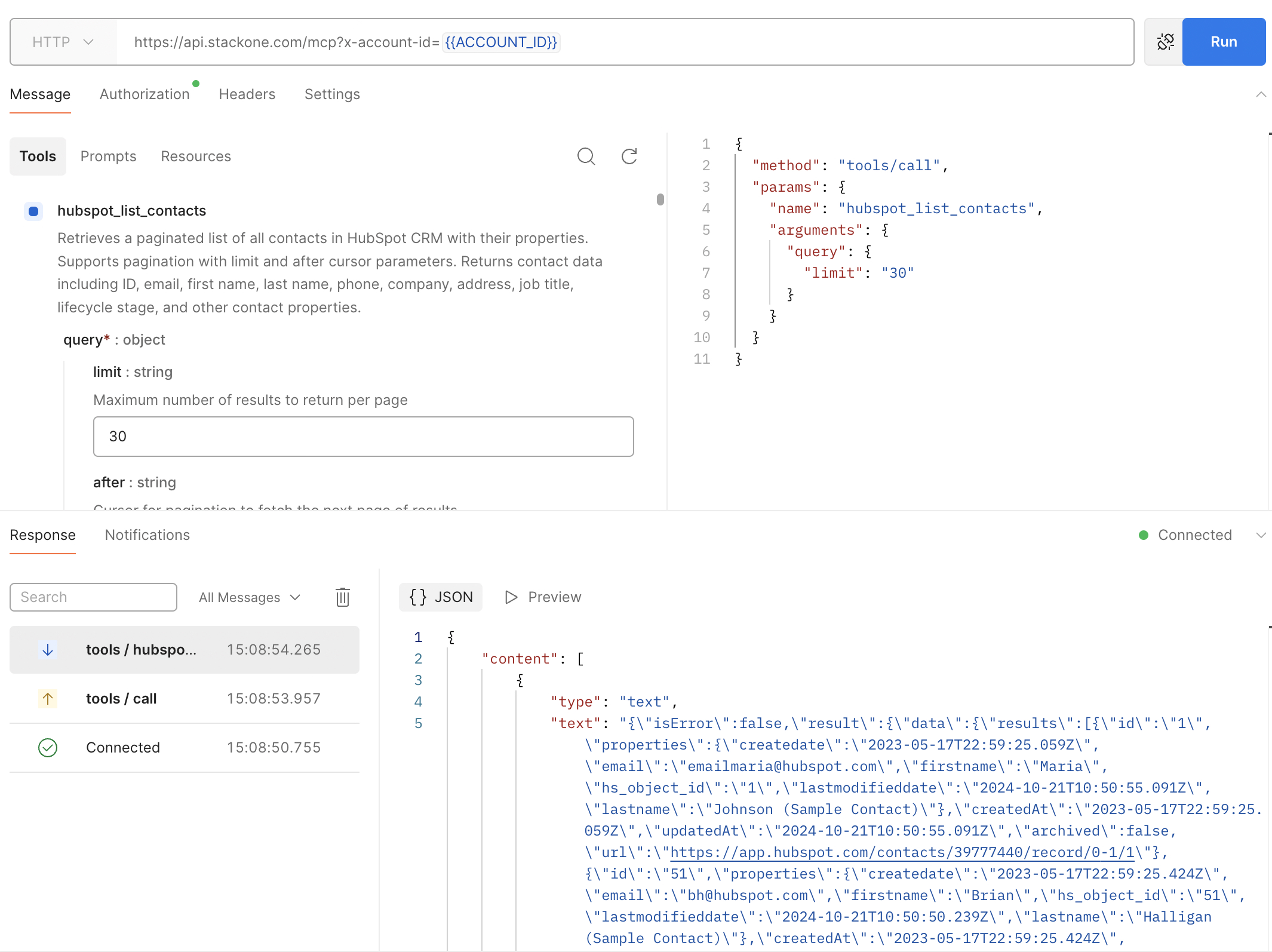
Example tool call from Postman (request parameters and JSON response).
Next Steps
MCP Quickstart
Learn more about StackOne MCP
Authentication Guide
Configure authentication and security
Troubleshooting
Resolve common issues
Framework Guides
Integrate MCP into your application