


These settings control access to StackOne. They never change permissions inside a connected provider.
What each part decides
Choose how users join
Just-in-Time Provisioning and SCIM Provisioning can run on the same SSO connection:
Use SCIM Provisioning wherever the IdP supports it, so a user the IdP deactivates loses access to StackOne without a separate step.
SCIM Provisioning is only available on certain plans. See plans and pricing.
Roll out access
Run these steps as an Organization Admin, with admin access to the StackOne application in the IdP. Keep provisioned access to the projects every user needs, and give each team the rest through its group. SCIM Provisioning applies provisioned access again on every update from the IdP, so a project you remove from a user comes back.1
Connect the identity provider
SAML SSO is only available on certain plans. See plans and pricing.
Okta
Microsoft Entra ID
Other SAML 2.0 provider
2
Open the SSO connection
- In the StackOne dashboard, go to Organization > Security > SSO.
- Open the verified SSO connection.
- Select the Provisioning tab.
3
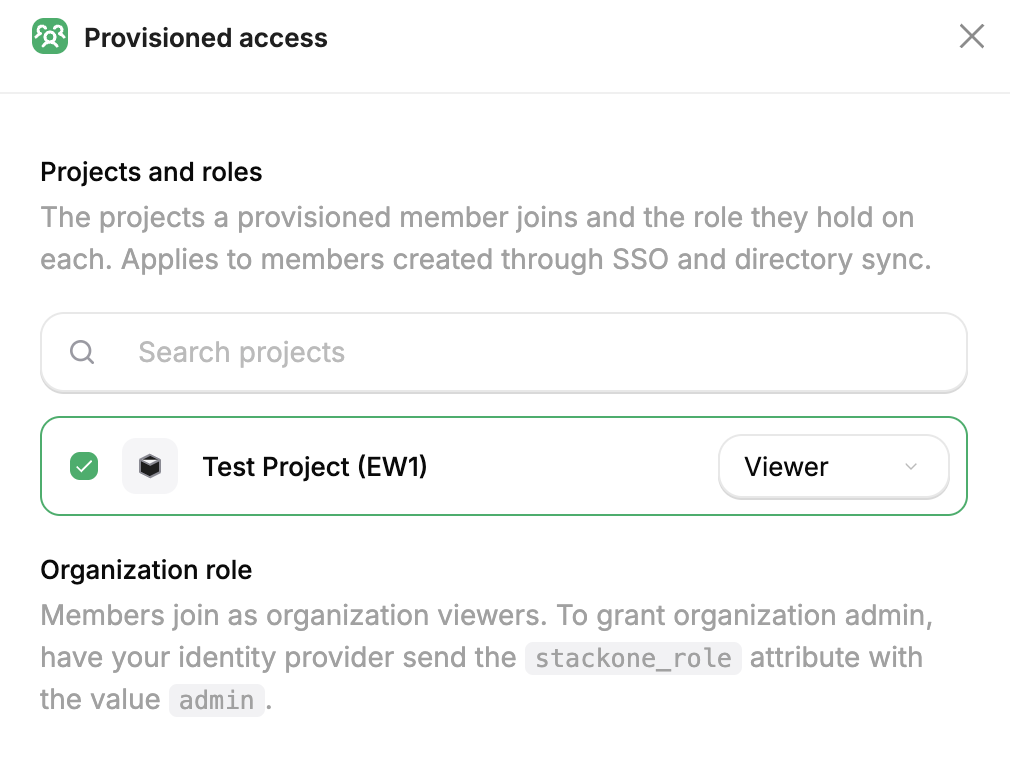
Choose projects and roles
- On the Provisioned access card, select Manage access.
- Pick the projects new users should join.
- Choose a role for each one. See Project Roles.
- Select Save changes.
4
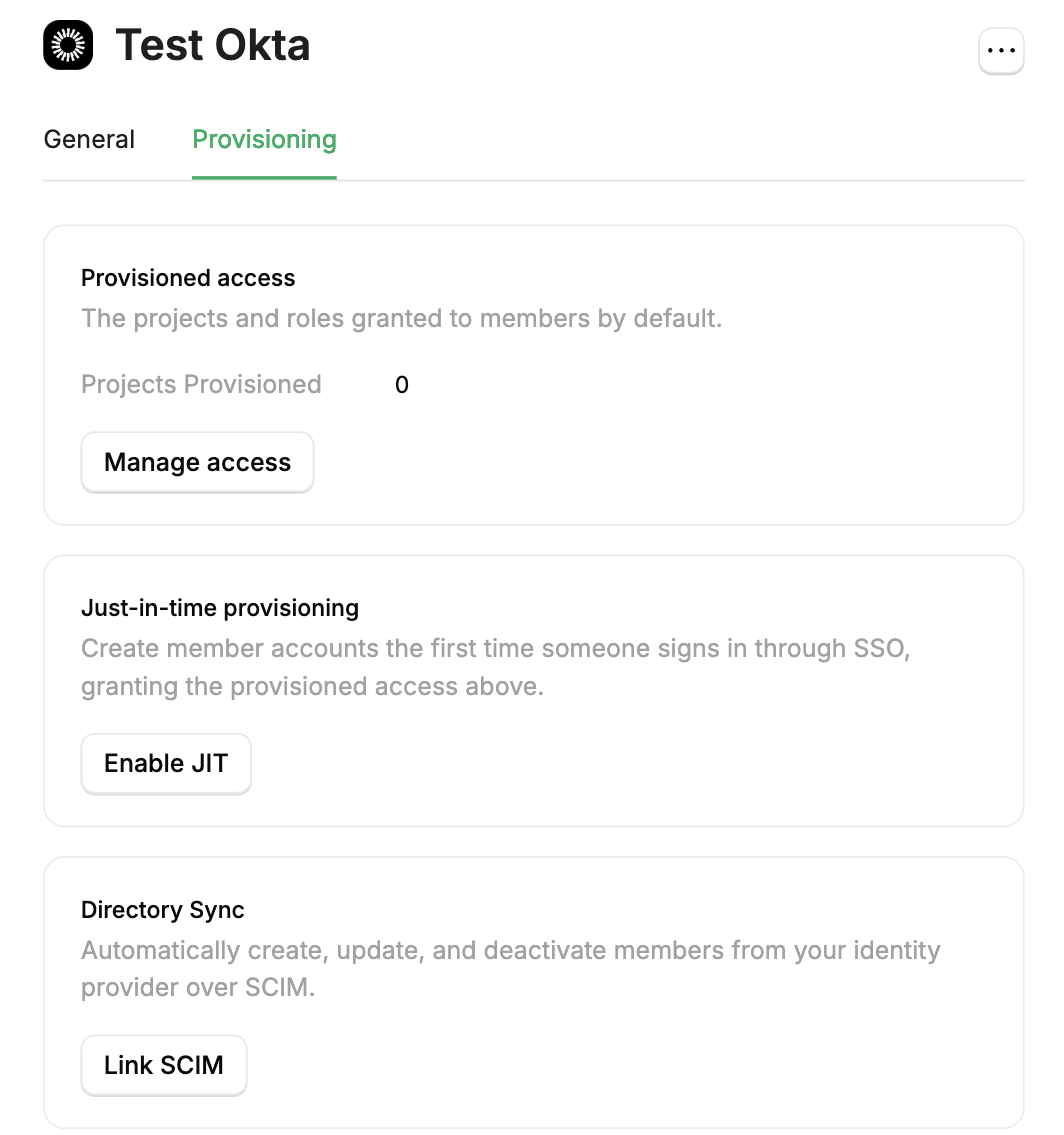
Enable JIT
On the Just-in-time provisioning card, select Enable JIT. See Just-in-Time Provisioning for when a user isn’t added.
5
Link SCIM and copy the credentials
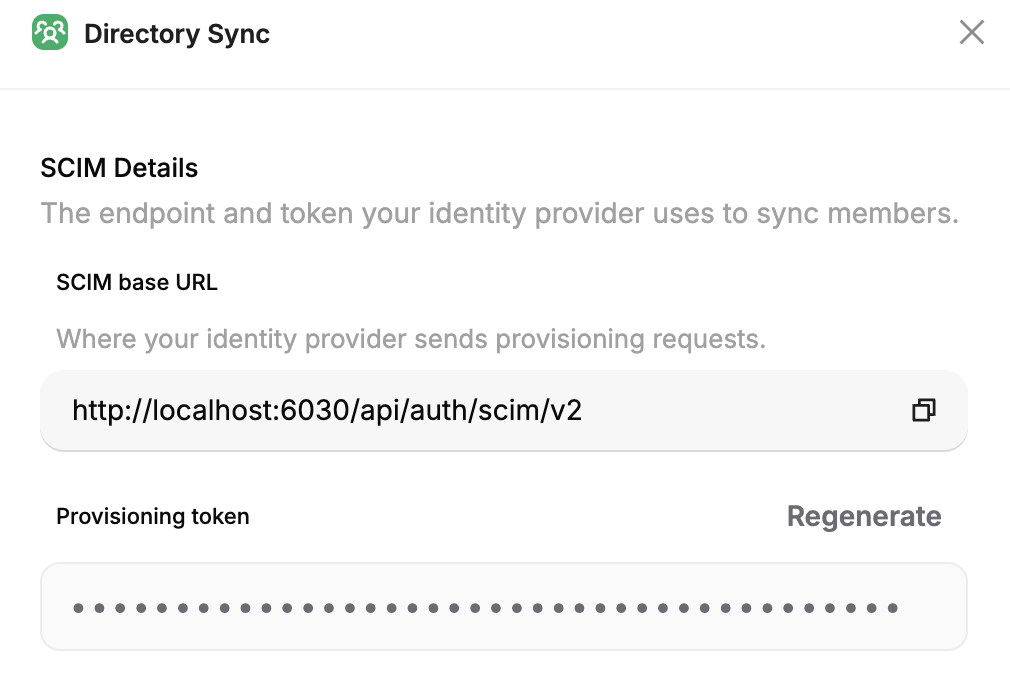
- On the Directory Sync card, select Link SCIM.
- In the SCIM Details section, copy the SCIM base URL and the Provisioning token. You paste both into the IdP.
6
Turn on provisioning in the IdP
Paste the SCIM base URL and the Provisioning token into the IdP, then assign the users who should join:
- Okta
- Microsoft Entra
- Follow Configure provisioning in Okta.
- Follow Assign members in Okta.
7
Push each team's group
- In StackOne, create an empty group with the same name as the directory group, and assign it to the team’s projects. See Prepare the access before you push.
- Push the directory group from the IdP. The pushed group takes over the empty one and keeps its projects.
- Okta
- Microsoft Entra
Push the group from the app’s Push Groups tab. See Push groups.

A project's Access view, with groups and their project roles
8
Restrict sensitive connector profiles
Connector Profile Access is only available on certain plans. See plans and pricing.
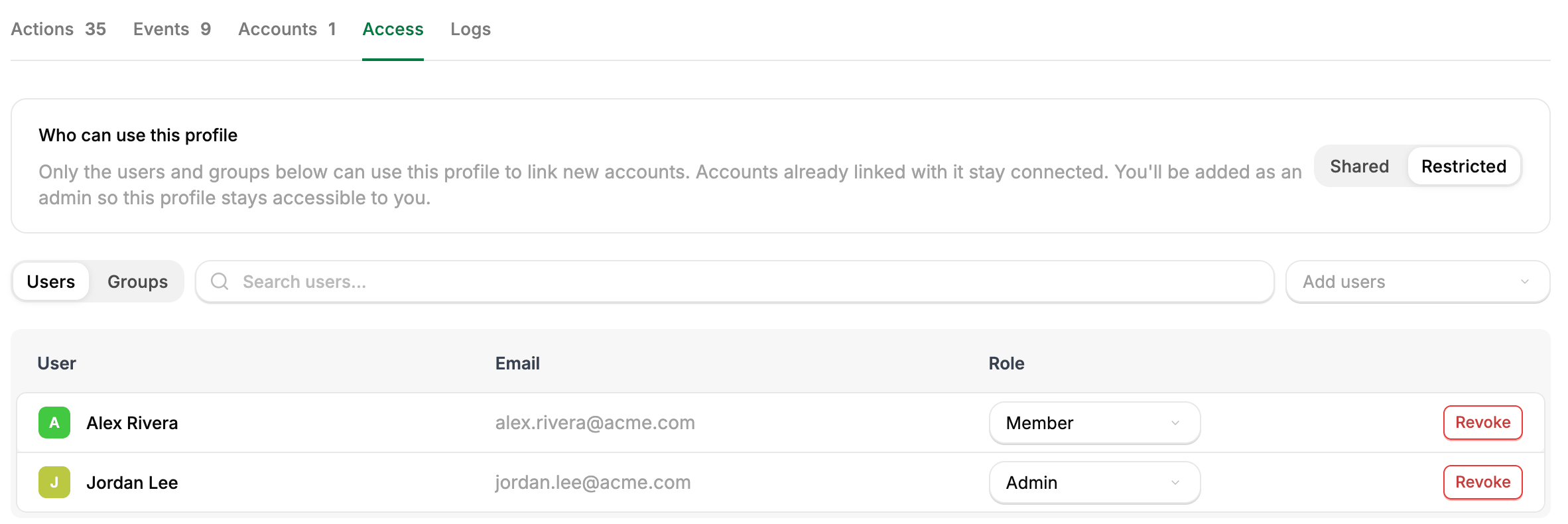
A connector profile restricted to the users and groups granted on it
9
Share accounts a team works through
When a team acts through one login, such as a support mailbox, the user who linked the account grants the team’s group Account Member on the account’s Access tab. Linking an account makes that user its Account Admin. See Assign a group to an account.
10
Require SSO
Requiring SSO is only available on certain plans. See plans and pricing.
When someone leaves
Deactivate or unassign the user in the IdP. With SCIM Provisioning linked, their access to the organization is suspended, they leave every synced group, and they’re signed out. Their agents can no longer act through StackOne. Their own accounts inside each provider are managed in that provider. SCIM Provisioning never deactivates the organization’s last active Organization Admin. Make another user an Organization Admin before that admin leaves. See Deprovisioning. With Just-in-Time Provisioning only, disable the user in StackOne as well. See Removing access to the organization.Send audit logs to your SIEM
The Logs API is only available on certain plans. See plans and pricing.
Each API key reads one project’s logs, so give the collector a key for every project you roll out. If the project has IP restrictions, add the collector’s IP address. Sign-in attempts are in Security logs, under Organization > Security > Logs.
Examples
Only the HR team should connect to the payroll system
Only the HR team should connect to the payroll system
An HR team that handles payroll.
- Restrict the HR connector profile that reaches payroll data.
- Grant the HR team’s group Connector Profile Member on it.
- Only the HR team can link accounts through it.
Next steps
AI Platforms
Give users the MCP connection for their AI platform.
Tool Policies
Decide which tools each user’s or group’s agents can use.
Roles and Groups
How roles combine, and what admins can do with other users’ linked accounts.
IP Restrictions
Limit which IP addresses can call a project’s API.