

SCIM Provisioning is only available on certain plans. See plans and pricing.
- A verified SSO connection between the organization and Microsoft Entra. See Single Sign-On.
- The Organization Admin role in StackOne.
- Admin access to the StackOne application in Microsoft Entra.
- (Optional) Microsoft Entra set up to send
adminin the SCIMrolesfield for anyone who should join as an Organization Admin. Everyone else joins as an Organization Member. See Organization Roles.
The
roles value only counts when a user first joins. After that, their role can only be changed in StackOne.Link SCIM in StackOne
1
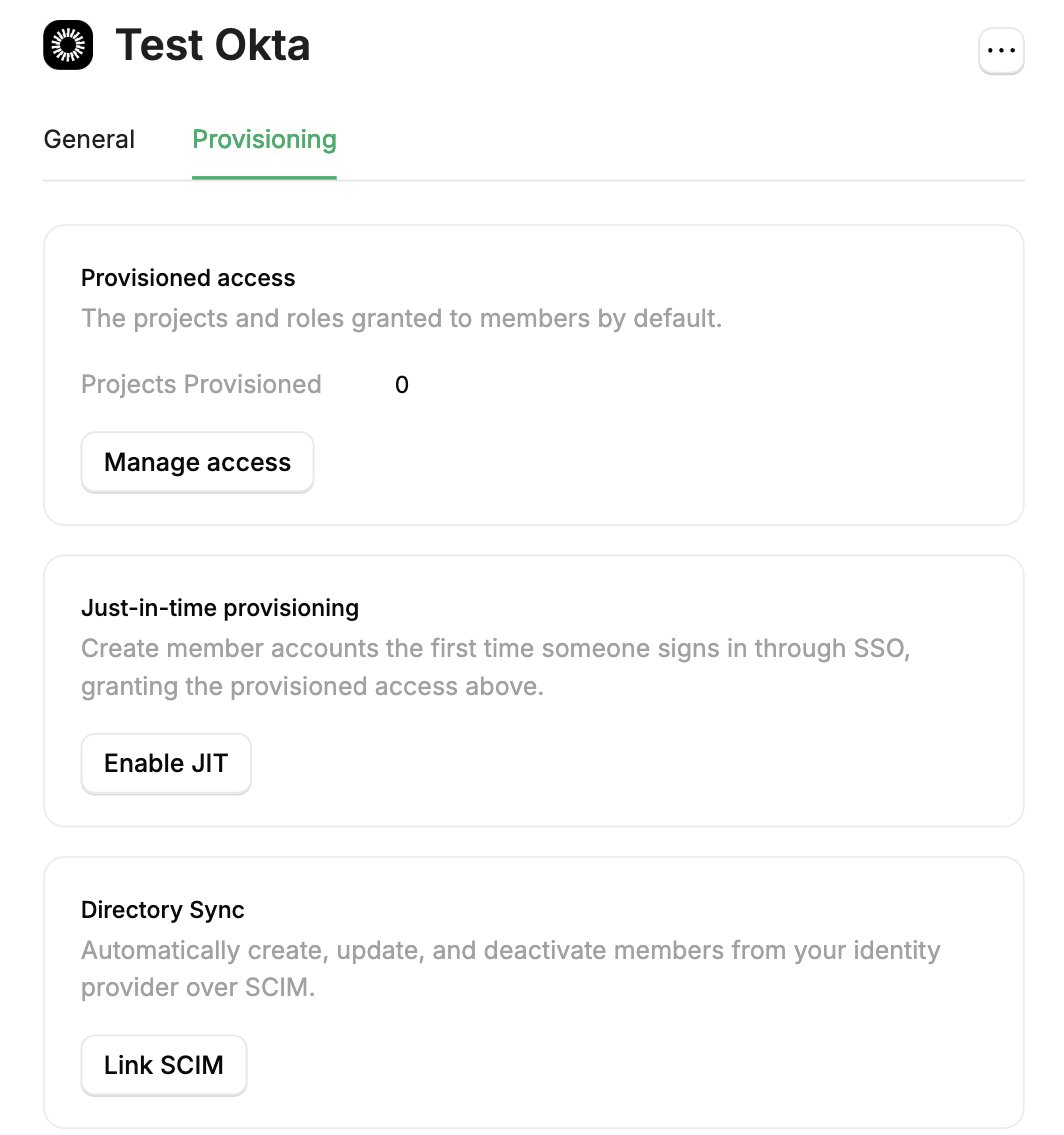
Open the SSO connection
- In the StackOne dashboard, go to Organization > Security > SSO.
- Open the verified SSO connection.
- Select the Provisioning tab.
2
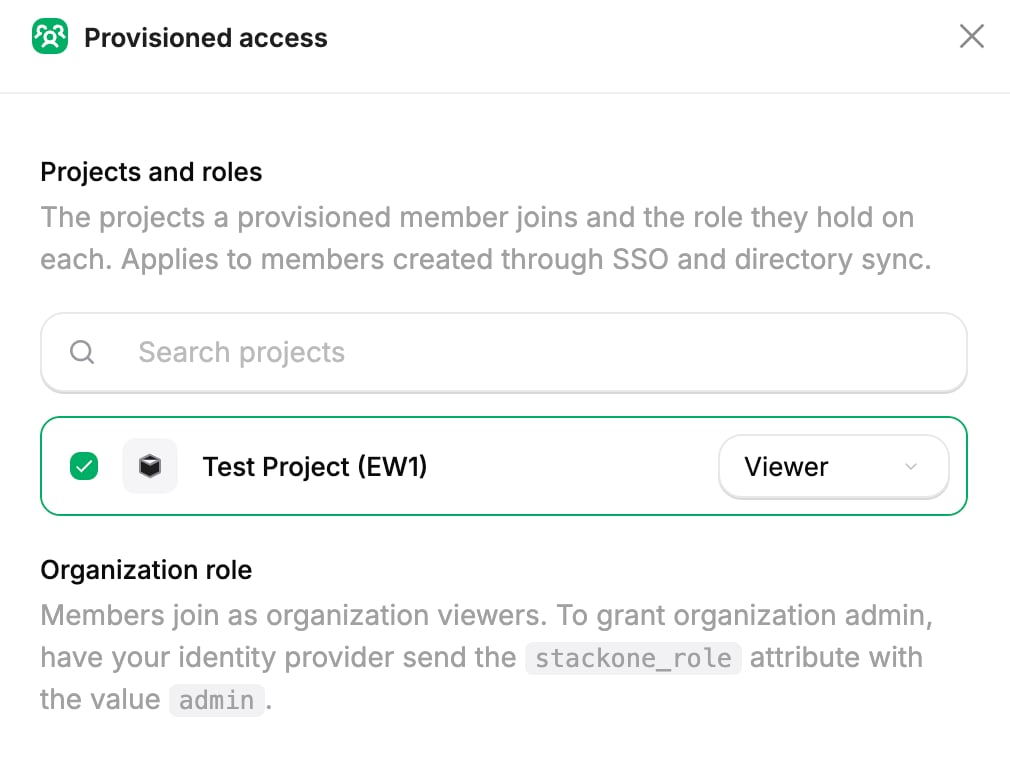
Choose projects and roles
- On the Provisioned access card, select Manage access.
- Pick the projects new users should join.
- Choose a role for each one. See Project Roles.
- Select Save changes.
3
Link SCIM and copy the credentials
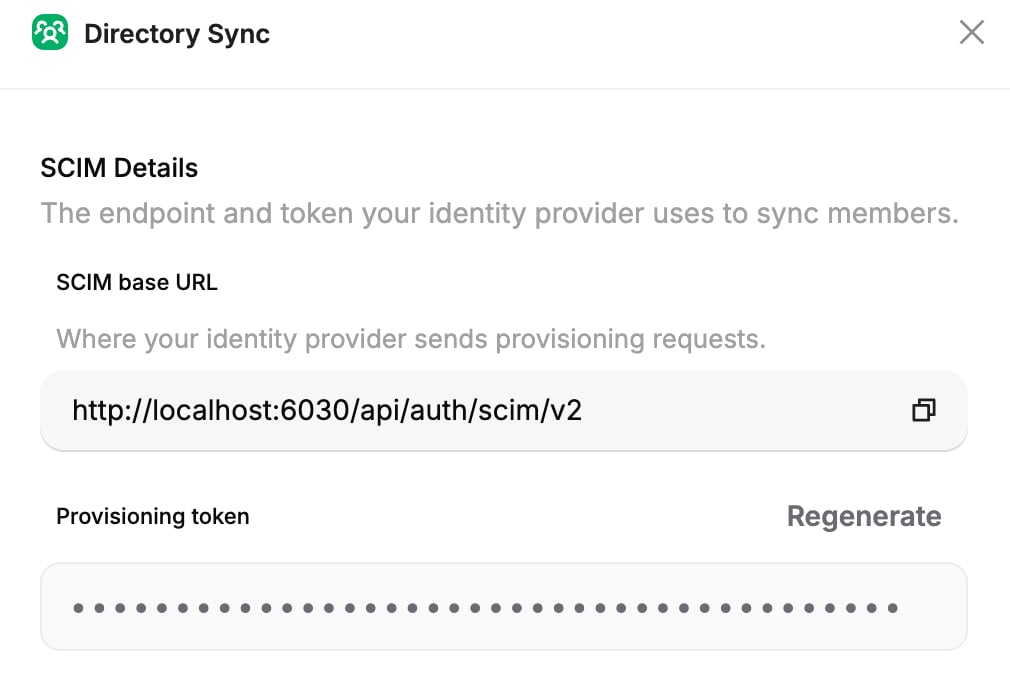
- On the Directory Sync card, select Link SCIM.
- In the SCIM Details section, copy the SCIM base URL and the Provisioning token. You paste both into the IdP.
Configure provisioning in Microsoft Entra
Point the enterprise application at StackOne’s SCIM endpoint. Use the same application you set up for SSO.1
Open provisioning
- In the Microsoft Entra admin center, go to Identity > Applications > Enterprise applications and open the application you created for StackOne SSO.
- Select Provisioning.
- Select Connect your application.
2
Enter the StackOne credentials
Under Admin credentials, set the following: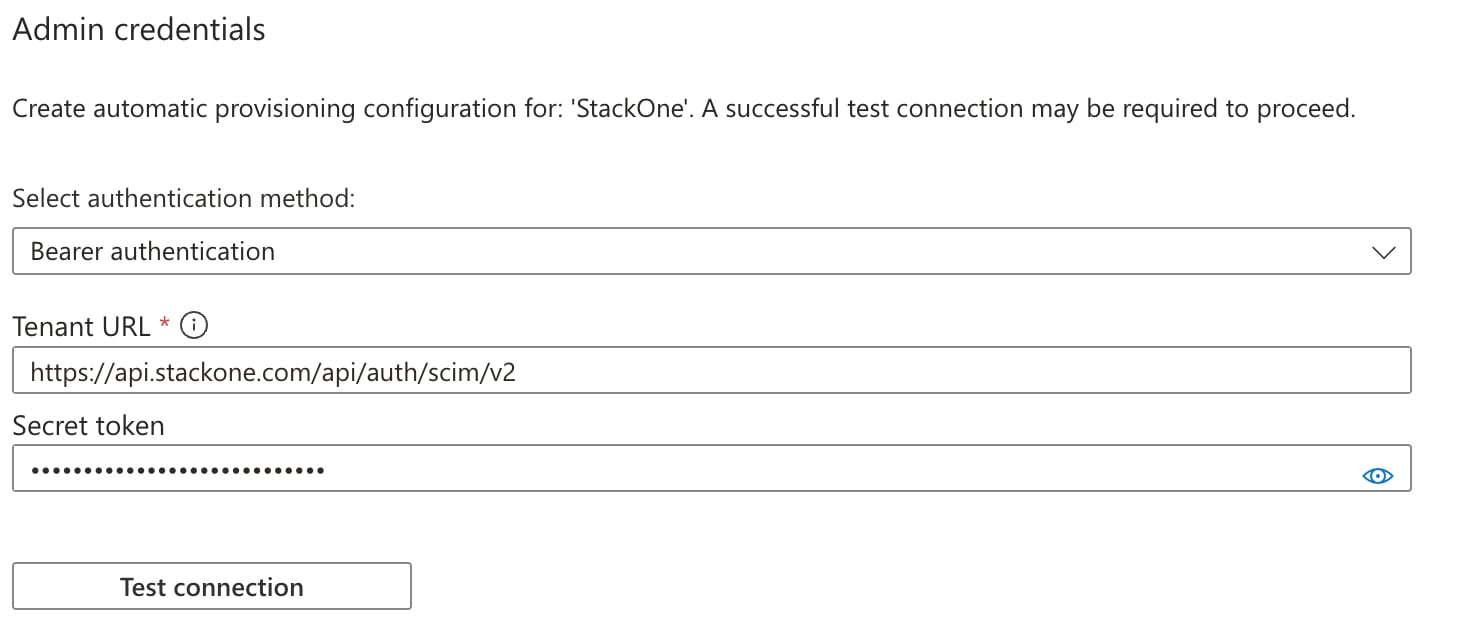
- Select authentication method:
Bearer authentication. - Tenant URL: the SCIM base URL from StackOne.
- Secret token: the Provisioning token from StackOne.
3
Test the connection and save
- Click Test connection.
- When the test passes, select Create to save the configuration.
4
Start provisioning
Select Start provisioning to begin the first cycle. Microsoft Entra provisions the assigned users, then re-syncs roughly every 40 minutes.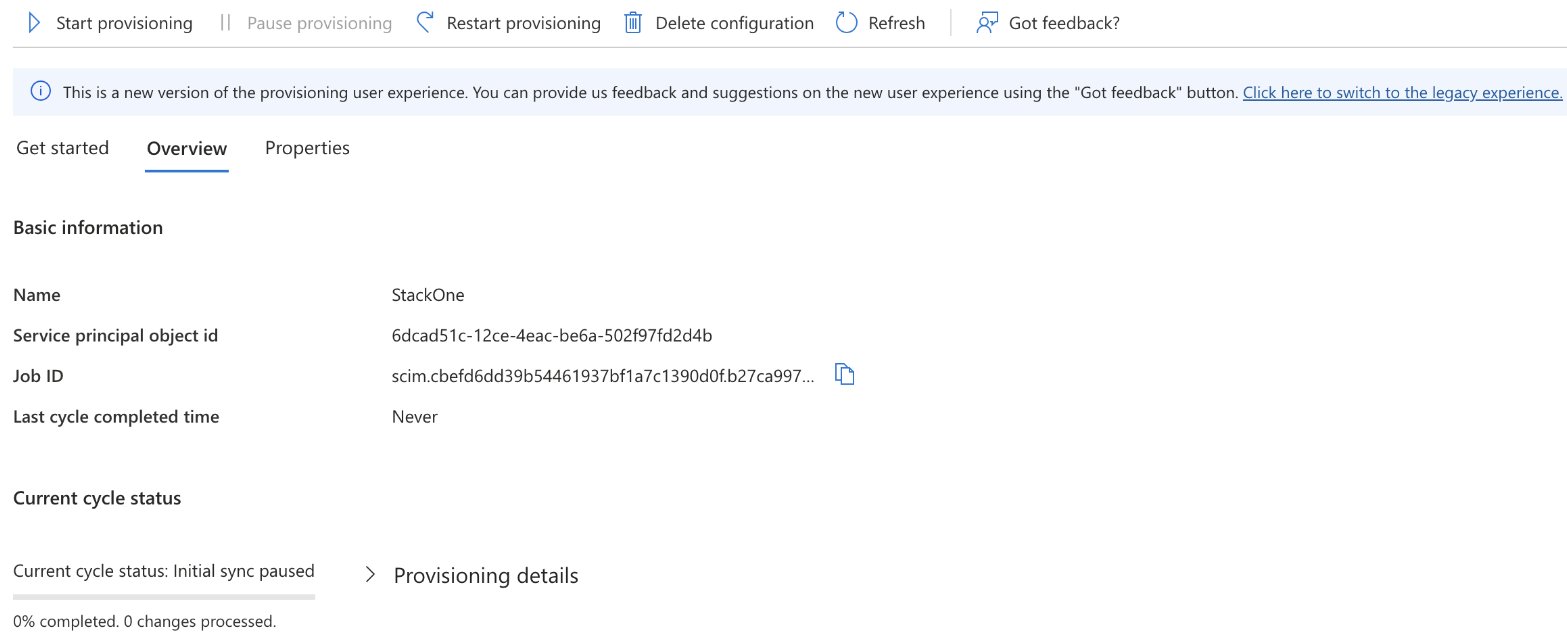
Assign users and groups
Microsoft Entra provisions only the users you assign to the application. Assign the people who should have StackOne access.1
Assign users and groups to the application
- In the same enterprise application, open Users and groups.
- Add the users or groups to sync, such as the Finance group.
Unassign a user from the application, or disable their Microsoft Entra account, and the next cycle deactivates the matching StackOne member, removing their access automatically.
Provision groups
Microsoft Entra can provision the groups you assign to the application as well as their members. Each becomes a synced group in StackOne that keeps its membership in step with Entra.If StackOne already has a group with the same name, an empty one becomes the synced group and keeps its access.If the group has members, it’s left untouched, and StackOne creates a second, synced group with the same name instead. To set up a group’s access before anyone is provisioned into it, see Prepare the access before you push.
1
Enable group provisioning
- In the application’s Provisioning settings, open Mappings.
- Make sure Provision Microsoft Entra ID Groups is
Enabled.
2
Assign the group
Under Users and groups, assign the group, such as Finance.On the next cycle, Entra provisions the group’s direct members as StackOne members and the group itself as a synced group.
3
Confirm in StackOne
- Go to Organization > Manage Team and open the Groups tab. The group is listed with a Synced tag.
- Assign it to projects from its Projects tab.
- To rename it or change its members, make the change in Entra. The synced group follows on the next cycle.
- To stop provisioning it, unassign the group from the application. On the next cycle, Entra deprovisions the members who are no longer assigned to the application through any other assignment.
Next steps
SCIM Provisioning
How SCIM provisioning works and how it attaches to the SSO connection.
Okta SCIM Provisioning
Set up SCIM provisioning with Okta instead of Microsoft Entra.
SCIM Groups
Push the identity provider’s groups into StackOne and grant access through them.