Set agent tool policies to control which tools your agents use, which fields they see, and what data goes into and out of each call.
Tool Policies is only available on certain plans. See plans and pricing.
Tool Policies control which tools an agent may use, and how, on behalf of the member it acts for. StackOne checks the policies that apply to that member before a tool call reaches the provider, and refuses the call when an enforced policy denies it. Value rules, semantic rules and PII checks also look at the data itself. Value rules check the argument values a tool receives before it executes. Semantic rules and PII checks run on the tool’s inputs before it executes and on the response before the agent sees it.
Policies apply when the member is known, which is the case for AI platform sessions. A call made with a project API key is memberless — govern that traffic with Connector Profile scoping instead.
Policies stay in their project
A policy belongs to the project it is created in and governs calls made in that project only. To apply the same rule in several projects, create it in each.
A capability is the kind of access a rule governs: running a tool, reading or writing a field, passing an argument value outside the range or list you set, passing PII through a call, or sending and receiving data that a semantic rule’s question flags. Denying one removes that access for the users or groups the rule covers.
Capability
What denying it does
Use a tool
Refuses the call. The agent may not run the tool at all.
Read a field
Masks the field in responses.
Write a field
Refuses calls that would change the field.
Value rule
Refuses calls whose argument values fall outside the condition, such as a payment amount outside 25 to 500 USD. Calls with values inside it keep their existing access.
Redact PII
Finds the chosen classes of PII (email addresses, phone numbers, SSNs, or credit card numbers) in the tool’s inputs and responses, then redacts the detected span or blocks the call. Record UUIDs, order numbers, and API keys stay intact. See PII Redaction.
Semantic rule
Asks a plain-language question about the data in the call. On inputs, a matching answer refuses the call before the tool runs. On a response, it masks the field the answer applies to.
Rules can carry more than one capability. Capabilities are alternatives rather than conditions: the rule applies where any one of them matches, so adding a second says “or also” rather than narrowing the first. Each is scoped on its own terms, so one rule can deny a tool outright on one connector and only mask a field on another.
Denying Use a tool refuses the call.Choose which targets it applies under Applies to:
Everything covers every tool in the project.
A connector category covers every tool on every connector in the category, including connectors added later.
A connector covers every tool on the connectors you pick.
An account covers the tools of specific Linked Accounts. Search accounts by name or owner.
Specific tools lets you pick a connector, then the tools on it by name.
To narrow the tools covered by the target selection, enter a name pattern under Tools matching (see the pattern syntax below). An empty pattern covers every tool the targets include, so a deny refuses every call to them. A capability takes either specific tools or a pattern, not both.
Denying Read a field masks the field in responses.Choose which targets it applies under Applies to:
Everything covers every connector and account in the project.
A connector category covers every connector in the category, including ones added later.
A connector covers the connectors you pick.
An account covers specific Linked Accounts. Search accounts by name or owner.
To narrow the fields covered by the target selection, enter a pattern on the field’s path in the response under Fields matching (see the pattern syntax below). An empty pattern covers every field the targets include, so a deny masks every field in scope.
Denying Write a field refuses calls that would change the field.Choose which targets it applies under Applies to:
Everything covers every connector and account in the project.
A connector category covers every connector in the category, including ones added later.
A connector covers the connectors you pick.
An account covers specific Linked Accounts. Search accounts by name or owner.
To narrow the fields covered by the target selection, enter a pattern on the field’s path under Fields matching (see the pattern syntax below). An empty pattern covers every field the targets include, so a deny refuses every call that would change one.
Denying Value rule keeps a tool available and checks the values the agent passes in its arguments.Choose which targets it applies under Applies to, the same way as Use a tool, then pick the argument and the condition its value must meet:
A range for numbers, such as a payment amount between 25 and 500 with the currency USD.
Allowed or blocked values, such as an invoice status that may be Draft or Submitted but not Authorized, or a sharing type that may not be anyone.
A call whose value falls outside the condition is refused before the tool runs. A call that leaves the argument out, or sends it in another type or currency, is refused too.
Denying Redact PII checks calls for the chosen classes of PII. StackOne’s own PII model scans the tool’s inputs before it runs and the response before the agent sees it, including free-text fields such as ticket bodies and notes. Record UUIDs, order numbers, and API keys stay intact.The PII Redaction benchmark compares the model with Microsoft Presidio on connector data.Choose which targets it applies under Applies to:
Everything covers every connector and account in the project.
An account covers specific Linked Accounts. Search accounts by name or owner.
Under Which PII to redact, select one or more classes. There is no pattern to enter.Then choose what a detection does:
Redact replaces each detected span in the inputs and in the response, and lets the call continue. The rest of the input or response is unchanged.
Block refuses the call. When the PII is in the inputs, the provider is never called. When it is detected in the response, the agent receives a refusal instead of the data.
A response that cannot be scanned (it is streamed, above the scan size limit, or the scan fails) is returned unredacted, and the request log records which classes were not redacted.For how detection works, what changes in the call and what is recorded, see PII Redaction.
Denying Semantic rule asks a decision model a question about each call in scope. Write the question in plain language, for example:
Does this message contain unreleased financial results?
The model answers for each field or payload, so the rule holds whatever a connector calls the field.Choose which targets it applies under Applies to, the same way as Use a tool. For a rule about outgoing messages, pick the send tools on the connectors that matter, such as Slack, Gmail and Notion.Then choose where the question is asked:
Inputs: a matching answer refuses the call before the tool runs.
Response: a matching answer masks the field it applies to before the agent sees it. A field the model cannot decide is masked unless the rule allows it.
Pattern syntax - wildcards
* is the only wildcard, and it matches any run of characters.
A pattern has to cover the whole name: salary matches only something named exactly that, so use *salary* to match it anywhere.
Matching is case-sensitive.
?, [a-z], and {a,b} are ordinary characters here, not wildcards. A pattern using one saves cleanly and then never matches anything.
Pattern
Matches
Does not match
*delete*
personio_delete_person
okta_remove_user_from_group
salary
salary
employee.compensation.salary
*Delete*
Nothing, since matching is case-sensitive.
personio_delete_person
6
Add exemptions
For a deny rule, use Exempt from this rule to name users or groups the rule does not apply to. Another matching deny can still refuse the call.
7
Review and create
Review the policy:
Plain Text: the panel footer restates the rule in plain words, for example:
Everyone in this project may not use a tool matching *delete* on Workday, except Finance (Group).
Cedar: the exact statement the engine will evaluate, in Cedar syntax. The view is read-only; change the form and the statement follows.
JSON: the same statement in Cedar’s JSON encoding.
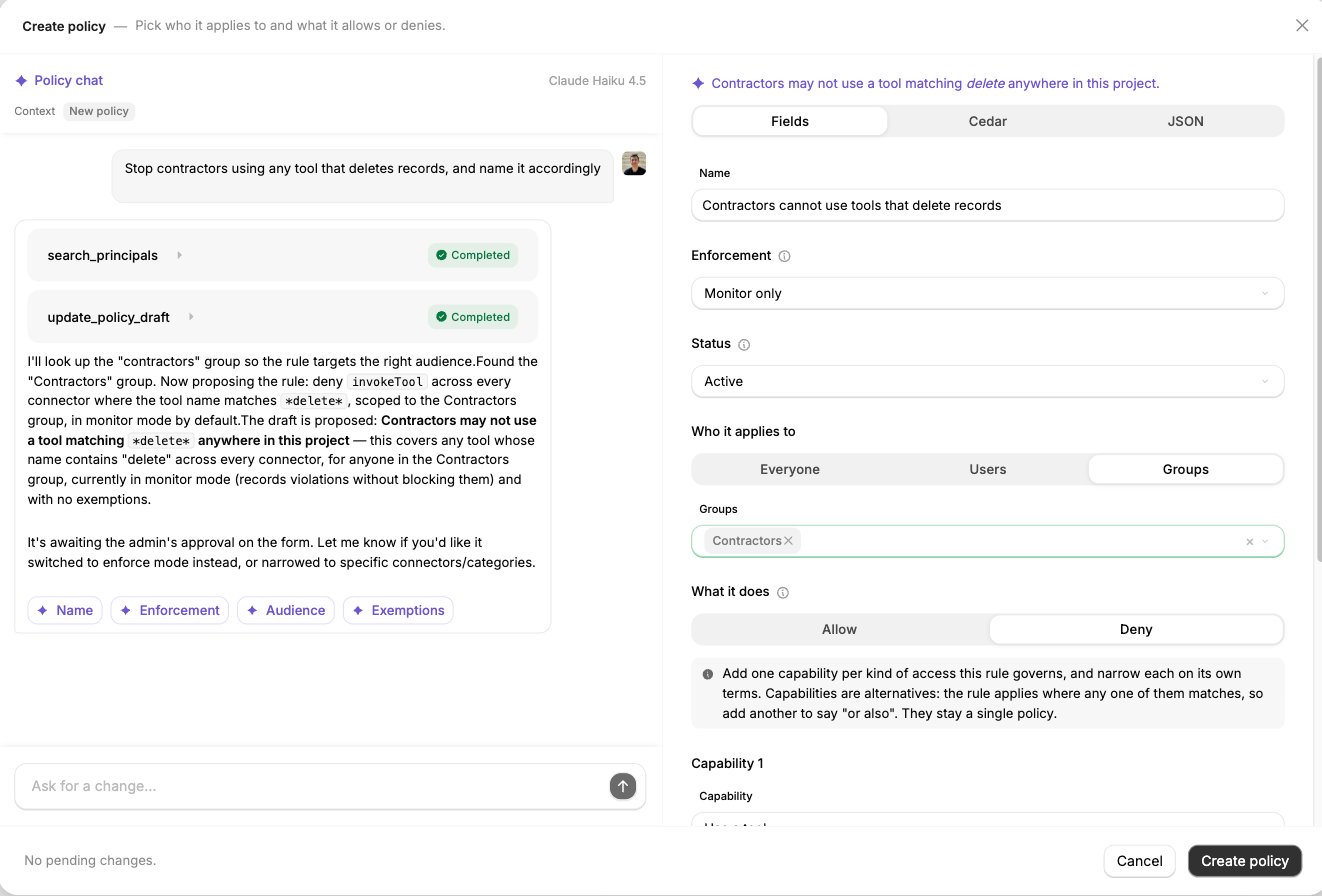
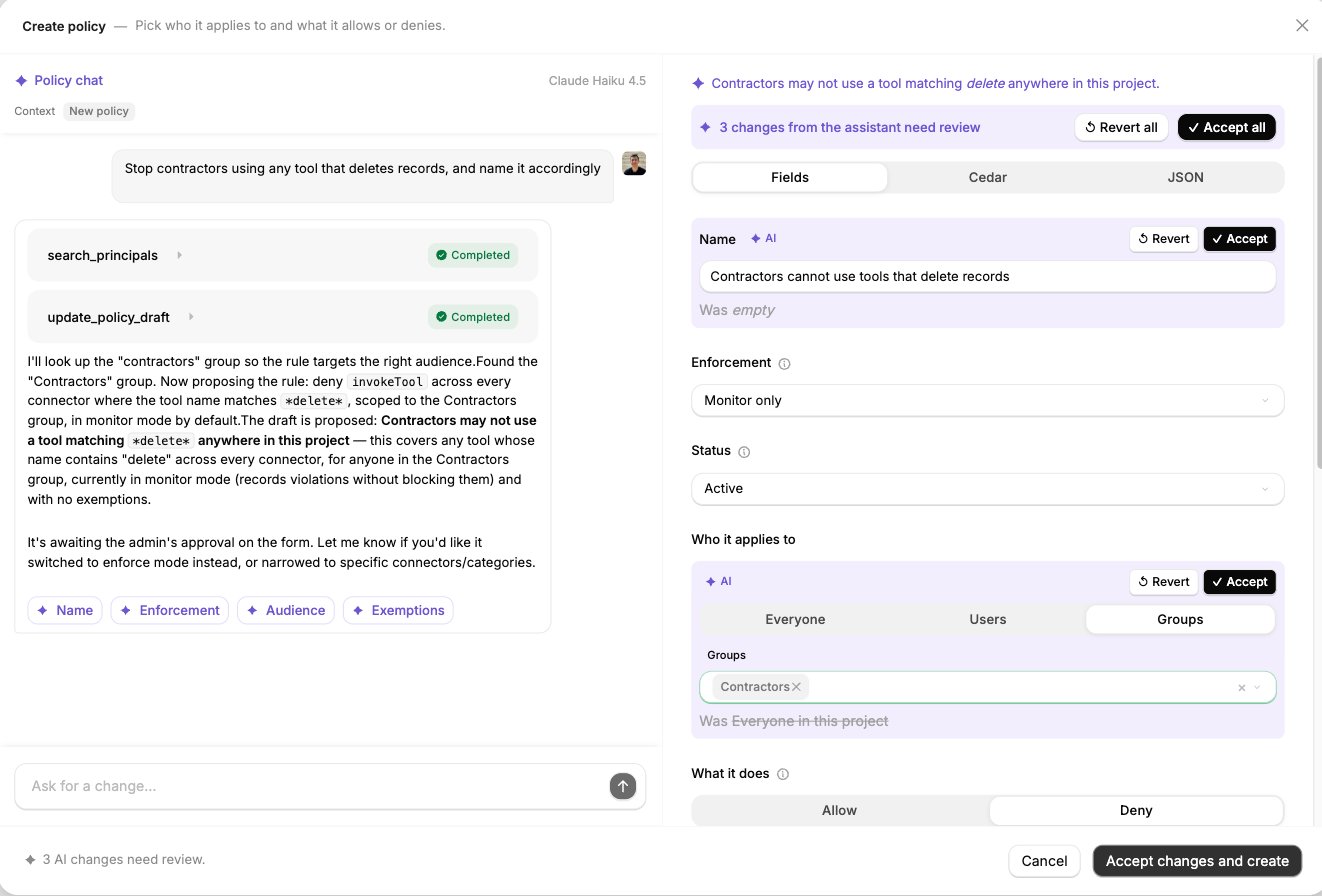
The Policy AI Assistant opens beside the form, as Policy chat, whenever you create or edit a policy. Describe the rule in your own words and the assistant drafts it in the form for you to review:
Suggestions are highlighted in the form, with the previous value shown underneath.
Each suggestion can be applied or reverted individually.
All changes can be applied using the buttons at the top of the form or by clicking Accept changes and create or Accept changes and save.
The assistant drafts every capability, including value rules, semantic rules and PII redaction. Ask for Keep unreleased financial results out of Slack for everyone outside Finance and it writes the semantic rule’s question, picks the send tools, and sets the audience and exemption.
The Policy AI Assistant beside the form. The assistant looked up the Contractors group, proposed a deny rule, and left three changes marked for review.
The assistant can look things up in the project as it drafts, and the transcript shows each lookup as it runs:
It can find
So you can say
Users and groups
Exempt payroll, (where you have a group defined as “payroll”)
Connectors and categories
Block writes to any HRIS connector
The tools on a connector
Stop the delete ones on Workday
Linked accounts
Only the Acme production account
Related tool call logs
Stop this tool returning some of the fields it returned
By default, only a tool call’s tool, connector and caller are exposed.With advanced logging enabled, the assistant can read the request/response payloads to help define field related capabilities.
For example, using a prompt like:
Stop contractors deleting records
The assistant searches existing groups, sets Who it applies to to Groups and populates with Contractors.
Writes a deny on Use a tool with a *delete* pattern, with applies to set to Everything.
The assistant also flags what a rule may miss. For example, a pattern matching delete does not catch a connector whose tools are named with remove or archive, so you can ask it to add those patterns too.
Test against personas: in the create and edit panel, Test this policy against personas shows what the rule would decide for the members you choose, without making a call.
Monitored: set the policy’s Enforcement to Monitored and applicable tool calls are flagged as calls the policy would have applied to, while continuing unaffected. Value rule matches, semantic rule answers and PII detections are recorded the same way.
Only when Enforcement is set to Enforced are tool calls blocked or modified as defined by the policy.
One Use a tool deny with Applies to set to Everything and Tools matching set to *delete*, for the Contractors group. Run it in Monitored first, check the logged decisions, then switch it to Enforced.
Payments stay within limits
A Value rule deny on the payment tools for NetSuite and Xero, on the payment amount, allowing amounts between 25 and 500 in USD. A payment outside that range, or in another currency, is refused before the tool runs, and payments inside it go through as before.
Unreleased financials stay in Finance
A Semantic rule deny on the send tools for Slack, Gmail and Notion, asking Does this message contain unreleased financial results? on Inputs. It applies to Everyone, with the Finance group exempt. The agent can still summarize the month-end close for Finance, and a message that posts those numbers to a shared channel is refused.
Customer PII stays in support
Two policies for the support agent’s users:
Zendesk: a Redact PII deny on the Zendesk account, set to Redact, so responses reach the agent without email addresses, phone numbers or card numbers. The same policy adds Read a field on Zendesk, with Fields matching set to the card number’s path, so that field is always masked.
Jira and Slack: a Redact PII deny on the Jira and Slack accounts, set to Block, so a write that contains PII is refused.
The agent can still escalate the bug to Jira, without the customer’s details.
When an enforced policy refuses a tool call before it runs, the request fails with HTTP 403 and nothing reaches the underlying provider. The refusal returns to the agent as the tool result.
{ "message": "Action 'personio_delete_person' is not permitted by project policy", "errorType": "POLICY_DENIED_ERROR", "level": "project"}
A call refused by a value rule, a semantic rule or a PII block on its inputs fails the same way, before the provider is called. A PII block on a response refuses the call after the provider responds: the agent receives the refusal instead of the data. Masking and redaction on a response never fail the call: the agent receives the response with the denied fields masked and the detected spans redacted.
Why is a pattern matching the wrong tools, or none at all?
It matches nothing. The pattern has to cover the whole name: salary only matches a tool named exactly that, so use *salary*.
?, [a-z], and {a,b} do not perform any special matching.
It misses tools you expected. Matching is case-sensitive: *Delete* misses personio_delete_person. A pattern matches exactly rather than describing a behavior: *delete* does not catch a tool named okta_remove_user_from_group.
It matches more than you expected.* matches any run of characters, underscores included, so *create* could cover leaddocket_list_opportunities_created_since.
Why is a policy not taking effect?
Check the following in order:
The policy’s Enforcement is set to Enforced (not Monitored or Disabled).
The acting member is in its audience (and not exempt).
The call is made in the project the policy was created in.
The tool name or pattern matches exactly, including case.
The caller is a member connected through an AI platform, so the call carries their identity. A call made with a project API key alone names no member, so no policy governs it.
Can I see policy decisions in request logs?
Yes, on an action log. Open the record and select the Policy tab.