


In the StackOne dashboard, open Connectors and select the connector. Its profiles are the cards along the top of the page. Select a profile’s card to see:
- Actions: the actions its Linked Accounts can use.
- Events: the events its Linked Accounts can send.
- Accounts: the Linked Accounts currently connected through it.
- Access: who can use the profile. See Connector Profile Access.
- Logs: activity for each of its Linked Accounts.
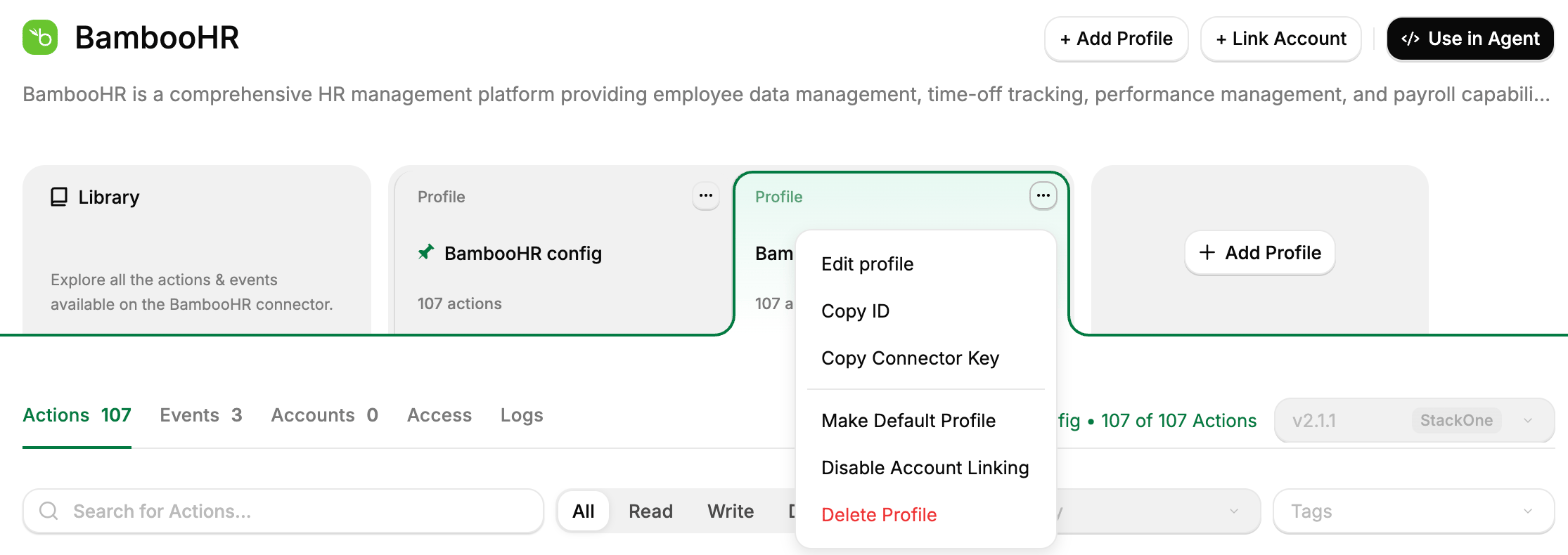
Connector with multiple profiles
Create a Connector Profile
To add a profile to a connector, select Add Profile on the connector’s page, then follow Setup Connector Profile in the Quickstart. The profile can be shared with everyone in the project or restricted to chosen members and groups. See Connector Profile Access.A profile a Project Member creates with Add Profile starts with account linking disabled, so no one can link an account through it yet. A Project Admin or Organization Admin enables it with Enable Account Linking from the profile’s menu. See Project Roles.
Default Connector Profiles
The default profile is what your users get when they link an account without being sent to a specific profile. It decides how they sign in to the provider and what your agents can do with the account. Each connector has one default.Only Project Admins and Organization Admins can change the default profile.
Change a profile
Edit its settings
To change a profile’s settings, select Edit profile from its menu. You can change its:- Profile name.
- Credentials, such as a Client ID and Client Secret or an API key.
- Environment, on connectors that have one.
- Update strategy, which controls the connector versions it moves to. See Connector Versioning.
A profile’s authentication type can’t be changed once it exists. To use another type, create another profile for the same connector.
Disable account linking
Disabling account linking prevents new accounts from connecting through a profile, for example when retiring it or moving users to another profile. To disable account linking, select Disable Account Linking from the profile’s menu.Linked Accounts already on the profile keep working and can still be re-linked. To stop an existing Linked Account from working, suspend it.
Delete a profile
To delete a profile, select Delete Profile from its menu. A profile can only be deleted when:- It has no Linked Accounts.
- If it’s the default, it’s the connector’s only profile. Only Project Admins and Organization Admins can delete the default.
Related pages
Linking Accounts
View, re-authenticate, and remove the accounts your agents act on.
Adding MCP Connectors
Connect a remote MCP server and use its tools as actions.
Use Your Own OAuth Apps
Your brand on the consent screen and dedicated rate limits.
Scoping Connectors
Choose which actions and events a profile exposes.
Connector Versioning
Pin a profile to a connector version so its behavior stays fixed.
Connector Building
Build or customize a connector when a pre-built one doesn’t fit.