

 MCP
MCP A2A
A2AHow It Works
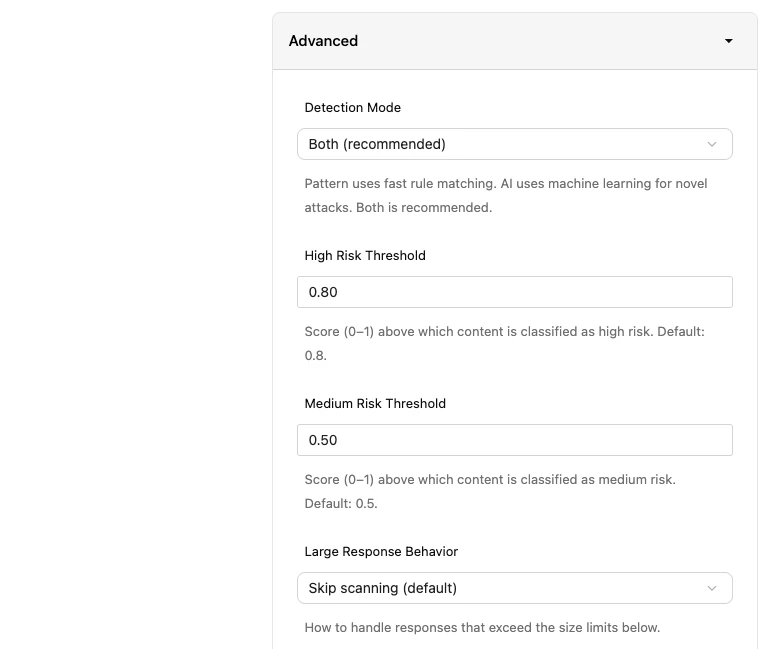
In the default Both detection mode, Defender runs a two-stage pipeline on tool call responses:- Tier 1 — Pattern matching: Fast rule-based scan that checks for known prompt injection signatures and risky field patterns. Runs on every response with negligible latency.
- Tier 2 — AI classification: A local ML model (MiniLM) scores the content for novel or subtle attacks that pattern matching would miss. Runs in parallel with Tier 1 on every response, scanning the SFE-filtered payload (or the
tier2Fieldssubset when configured).
Configuration
Navigate to your project in the StackOne dashboard, then open the Defender tab in project settings.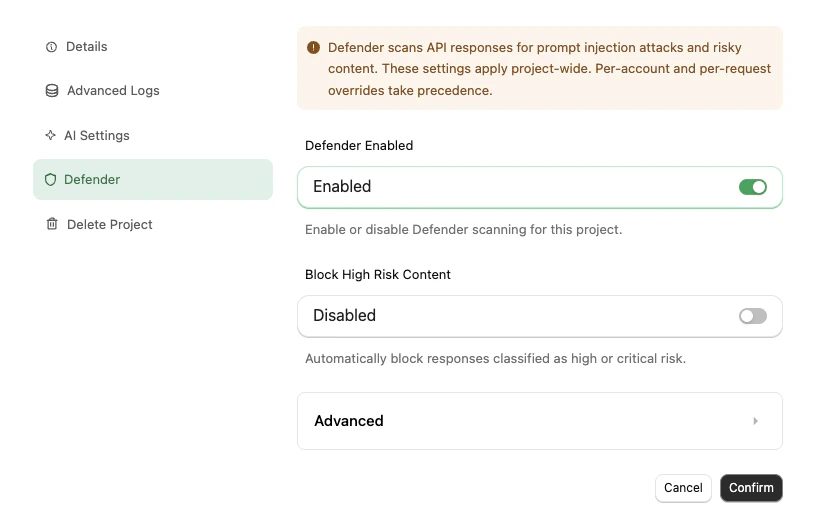
Defender settings apply project-wide. Per-account and per-request overrides take precedence where supported.
Core Settings
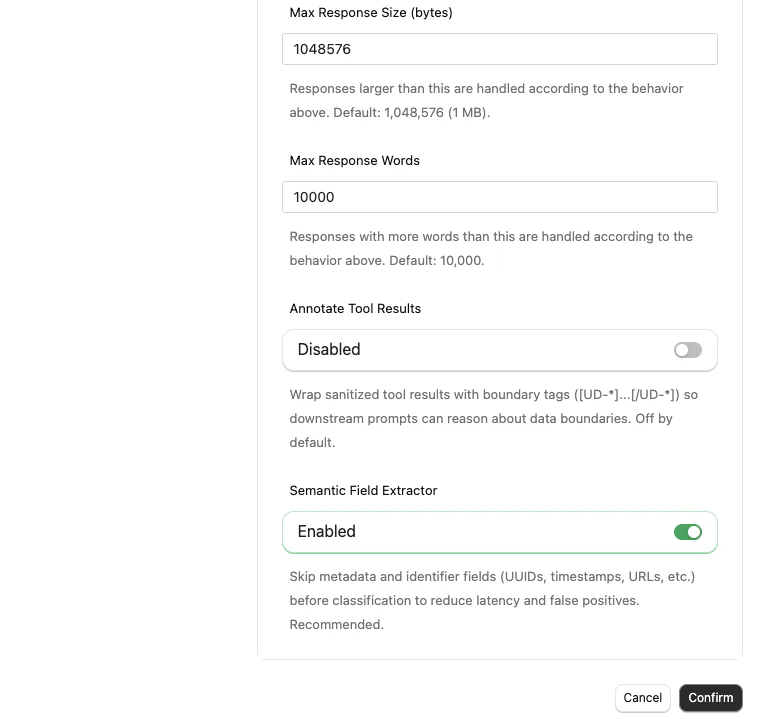
Advanced Settings
When to Use Defender
- You are building AI agents or MCP-based workflows that process third-party API responses
- Your integrations handle sensitive data such as emails, files, calendar events, or CRM records
- You want to observe risk signals on tool call responses without necessarily blocking them
SDK Configuration
If you’re using the Node.js SDK, you can configure Defender per-toolset directly from your code — override your project’s dashboard setting, opt in with safe defaults, or forcibly disable for trusted internal flows. See Tool Defense 101 for the SDK API.FAQ
Do I need to enable Defender?
Do I need to enable Defender?
No. It is off by default. Enable it when your agents consume third-party data and you want protection against prompt injection.
Does Defender add latency?
Does Defender add latency?
Tier 1 (pattern matching) adds negligible latency. Tier 2 (AI classification) runs in parallel on every response — the ML model runs locally, so there is no external API call. The Semantic Field Extractor preprocessor trims metadata/identifier fields before Tier 2 to keep latency low; for typical responses the added latency is under 100ms.
What happens when a response is blocked?
What happens when a response is blocked?
The tool call returns an error to your agent indicating the response was blocked. The agent can handle this like any other tool error — retry, skip, or surface it to the user.
Can I see what Defender flagged without blocking?
Can I see what Defender flagged without blocking?
Yes. Leave Block High Risk Content disabled. Defender still scans and returns
riskLevel, tier2Score, and detections in the response metadata, which you can inspect in your logs.Will my data be used to train the AI model?
Will my data be used to train the AI model?
No. The classification model runs locally within StackOne’s infrastructure and is never trained on your data.