This guide explains how to navigate the StackOne dashboard efficiently.

Dashboard Overview

When you log into StackOne, you’ll see the main dashboard with three key areas:
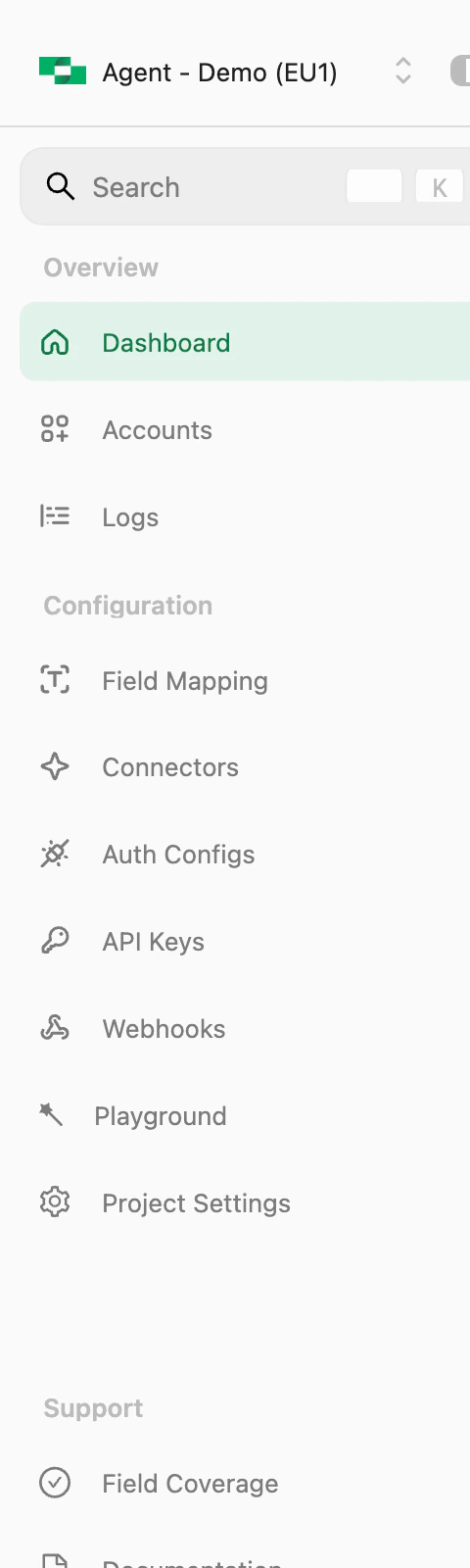
StackOne dashboard with sidebar showing Overview, Configuration, and Support sections

The StackOne dashboard showing the sidebar navigation and main content area


The left sidebar is organized into sections:

Overview

Menu ItemDescription
DashboardAPI request metrics, linked accounts overview, and integration stats
AccountsManage all linked customer accounts and their connection status
LogsView request logs for debugging and monitoring API calls

Configuration

Menu ItemDescription
Field MappingCustomize how data fields map between StackOne and providers
ActionsBrowse and configure available actions for each integration
IntegrationsSet up integration configurations (OAuth credentials, settings)
API KeysCreate and manage API keys for your project
WebhooksConfigure webhook endpoints for real-time event notifications
PlaygroundTest actions using natural language with AI
Project SettingsConfigure project-level settings and preferences

Support

Menu ItemDescription
Field CoverageCheck which fields are supported for each provider
DocumentationQuick link to these docs

Project Switcher

At the top of the sidebar, click on your project name to:
  • Switch projects: Select a different project from your organization
  • View project details: See the current project’s region (EU1, US1, etc.)
Use separate projects for development, staging, and production environments.

User Profile & Organization

Click on your name at the bottom of the sidebar to access:
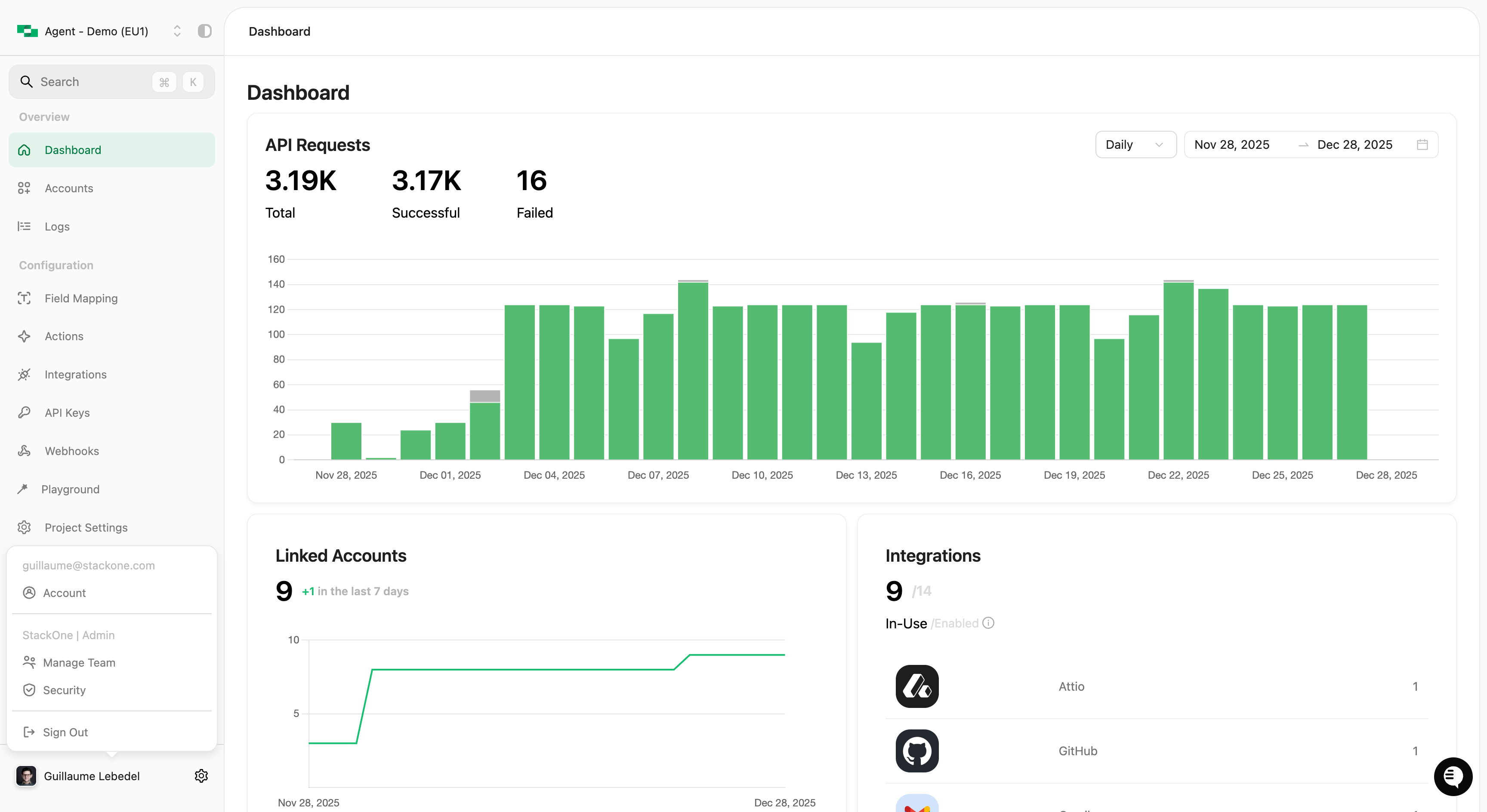
User profile dropdown showing Account, Manage Team, Security, and Sign Out options

User profile menu showing account and organization options

Account Settings

OptionDescription
AccountManage your personal account settings and security
Manage TeamInvite team members and manage roles (Admin only)
SecurityConfigure organization security settings like SSO
Sign OutLog out of your StackOne session

Quick Search (CMD+K)

Press Cmd+K (Mac) or Ctrl+K (Windows/Linux) to open the command palette for quick navigation.

What You Can Do

  • Search pages: Type to filter and jump to any dashboard section
  • Switch projects: Quickly change between projects
  • Access quick links: Jump to frequently used pages
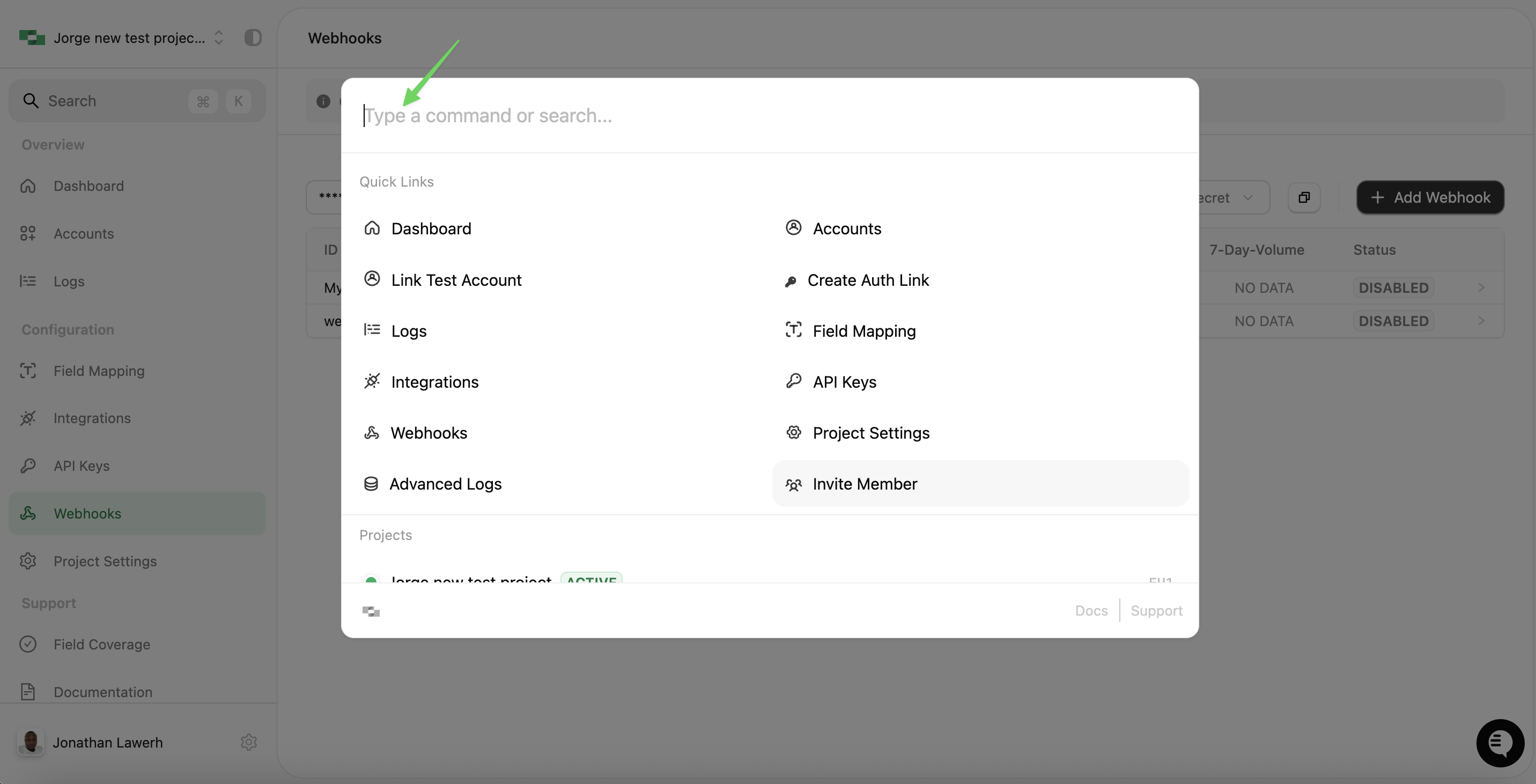
Command palette showing search input and quick links

The command palette for quick navigation

The command palette is the fastest way to navigate if you know where you want to go. Just start typing!

Next Steps