

Recommended Set up with your agent
Claude walks you through it, one step at a time.
Help me connect StackOne to Claude. Read the setup guide at https://docs.stackone.com/end-users/setup-guide.md and guide me one step at a time.
Open in ClaudeOr follow the steps yourself
Connect
Which Claude plan are you on? If your company gave you Claude, pick Team or Enterprise.- Team or Enterprise
- Free, Pro, Max or Ultra
1
Connect StackOne
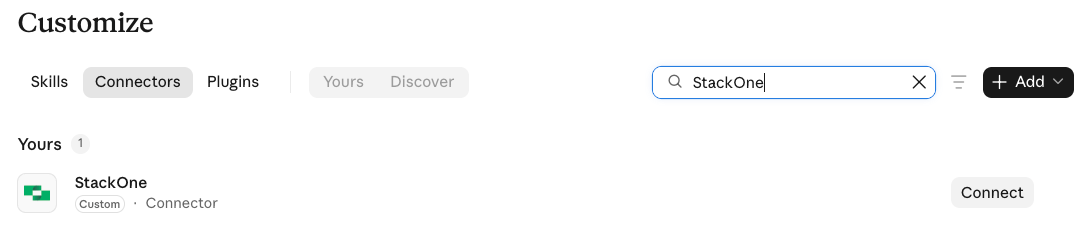
- Go to Customize → Connectors.
- Click Connect on StackOne.
StackOne isn't there
StackOne isn't there
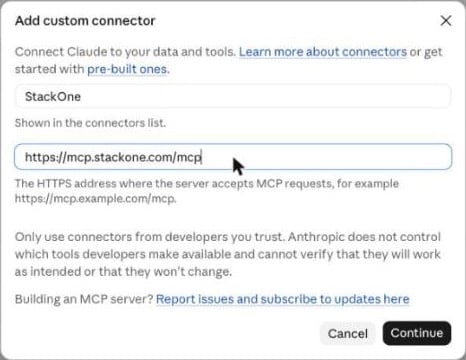
Ask the person who manages Claude at your company (a Claude Owner) to add it. Send them this:
2
Sign in and authorize
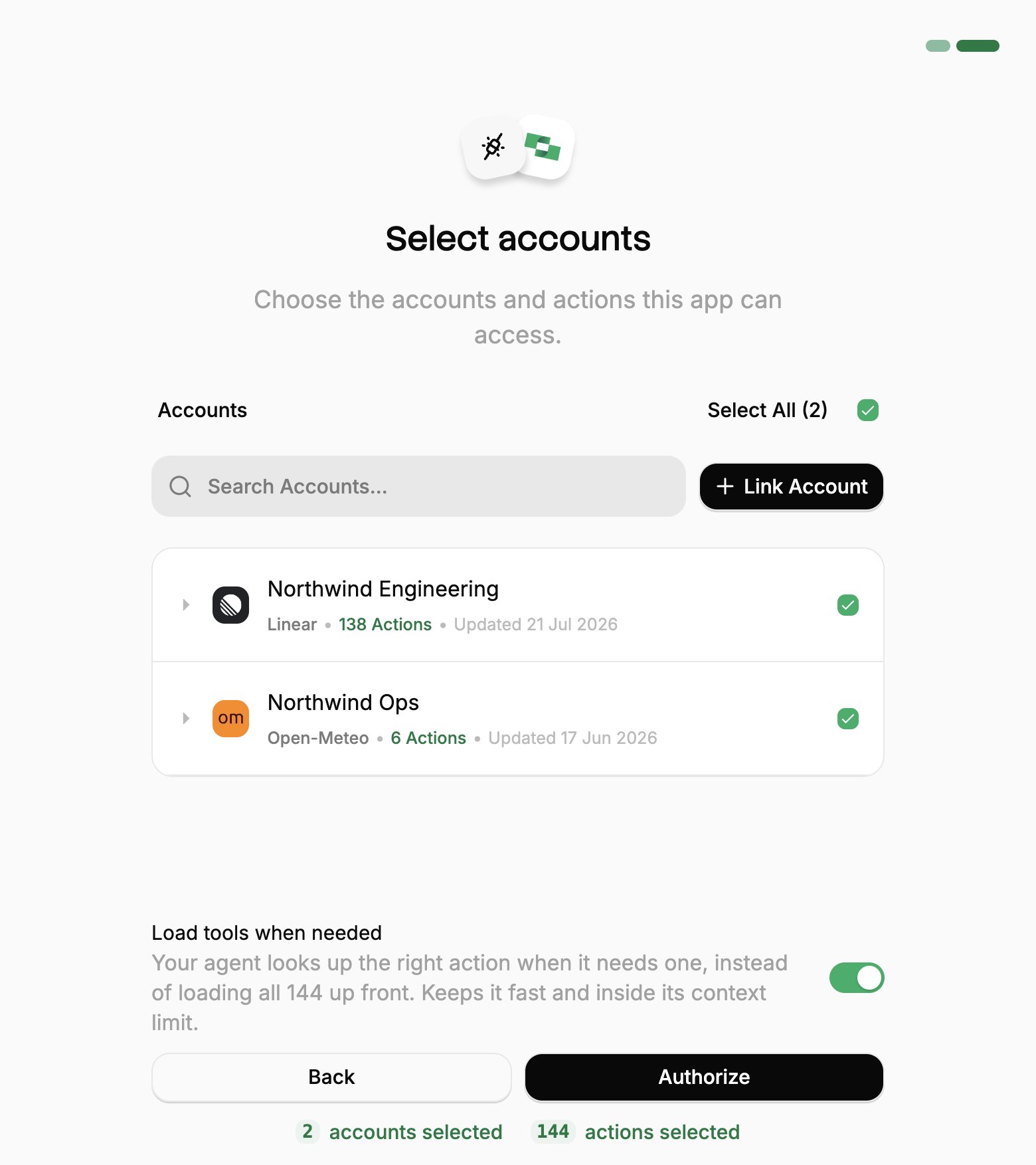
- Sign in to StackOne. In the desktop app, this opens in your browser.
- If StackOne asks for a project, pick yours and click Continue to Accounts.
- Pick the work systems Claude can use (your Linked Accounts).
- If you see Load tools when needed, leave it on.
- Click Authorize.
3
Turn it on in a chat
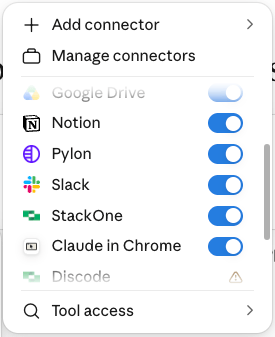
- In a chat, click +.
- Click Connectors.
- Turn on StackOne.
If something goes wrong
If something goes wrong
Can’t find or add StackOne. On Team or Enterprise, a Claude Owner adds it for everyone. On Free, Claude allows only one custom connector, so StackOne can’t be added if you already have one.A system you need is missing. Ask your StackOne admin, or see Linking Accounts.It stopped working. Go to Customize → Connectors and click Reconnect on StackOne. Access lasts 90 days from when you clicked Authorize.It can’t do something. It can do only what your own StackOne access allows. Ask your StackOne admin.