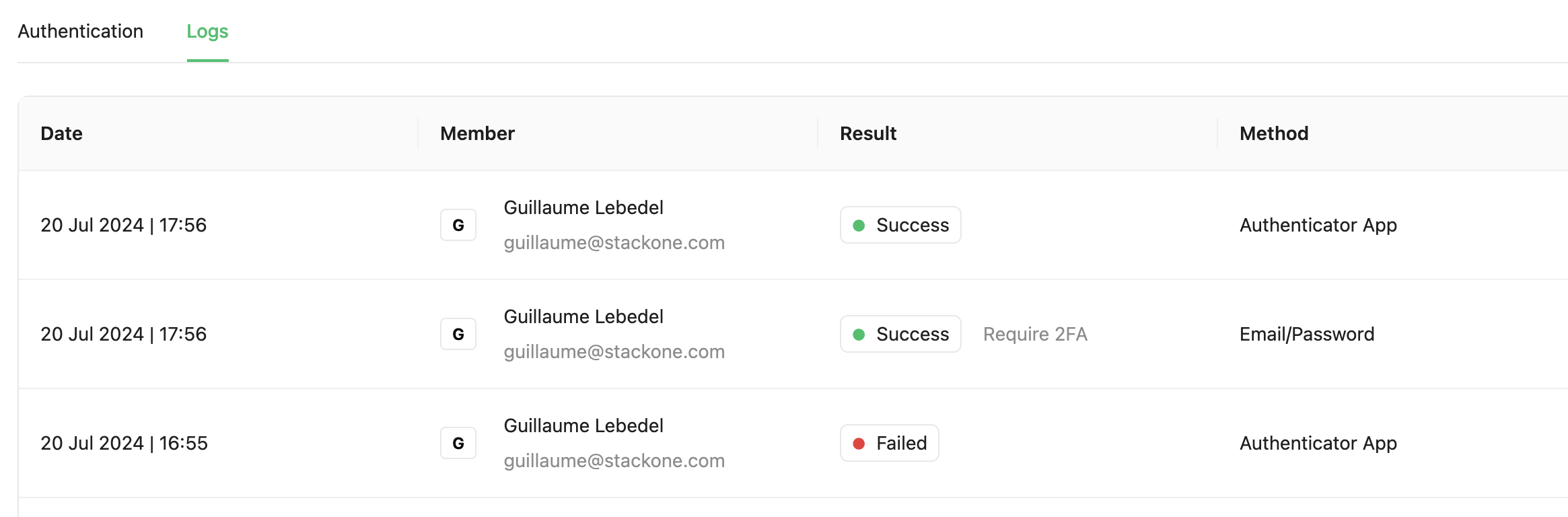
- Organization role: Controls which projects a member can see and whether they can manage the organization itself.
- Project role: Controls what a member can do within a specific project (assigned separately per project).
Organization and project roles are independent. A Member at the organization level can be Admin on a specific project, with full control of that project and no organization-wide access.
Invite a member
Invite people by email and assign their role at the time of invite. Pending invites can be resent or cancelled.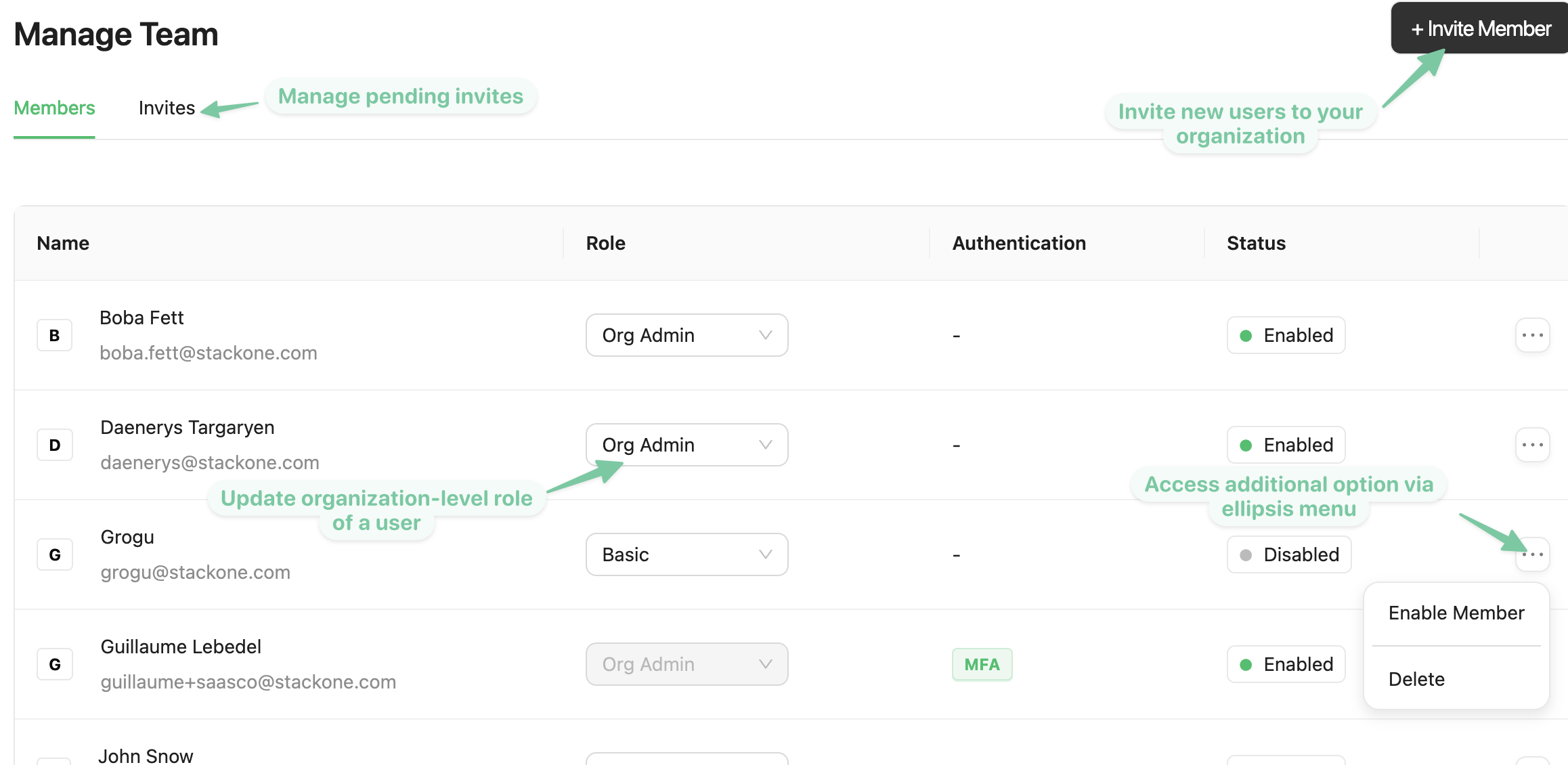
Change a role
Change a member’s org role from the Members list. Project-level access is assigned separately. See Project members.Project members
Project access is managed from Project Settings → Team Members, separately from org membership. Add or remove members per project and assign one of three roles:
Member is the role to use when a whole team needs to connect their own accounts. Each Member can only ever grant access to the accounts they linked themselves, so one project can serve a whole department without everyone seeing everyone else’s connections. See Who can grant access for how this plays out when someone connects an AI platform.
Sharing a single account
Access can also be granted on one linked account at a time, which is how a shared connection reaches someone who is otherwise only a Member. Open the account, then manage its members:Enable, disable, or delete a user
- Disable revokes access while keeping the account, so you can re-enable it later.
- Delete removes the user from the organization permanently.
Organization security
Open the Security page from your user menu to manage these org-wide settings: