

Prerequisites
- Org Admin role in your StackOne organization.
- An SSO connection for your organization with its email domain verified, for example
acme.com. Directory Sync attaches to that connection, and StackOne links each provisioned user to your organization by the verified domain. - Access to the Microsoft Entra admin center with permission to manage the enterprise application, such as the Application Administrator role.
The Provisioning tab and its Directory Sync card are enabled per organization. If you don’t see them on your SSO connection, even as an Org Admin, contact StackOne support to turn on Directory Sync for your organization.
Link SCIM in StackOne
Directory Sync lives on your SSO connection. Open it to mint the credentials Microsoft Entra needs and to choose what provisioned members receive.1
Open Directory Sync and click Link SCIM
In the StackOne dashboard, go to Organization > Security > SSO and open your SSO connection, for example Acme Entra. Select the Provisioning tab, find the Directory Sync card, and click Link SCIM to open the Directory Sync panel.
2
Copy the SCIM base URL and provisioning token
Under SCIM Details, StackOne shows the SCIM base URL and a provisioning token. Copy both now. The token is displayed once and cannot be retrieved later, so store it before you close the panel.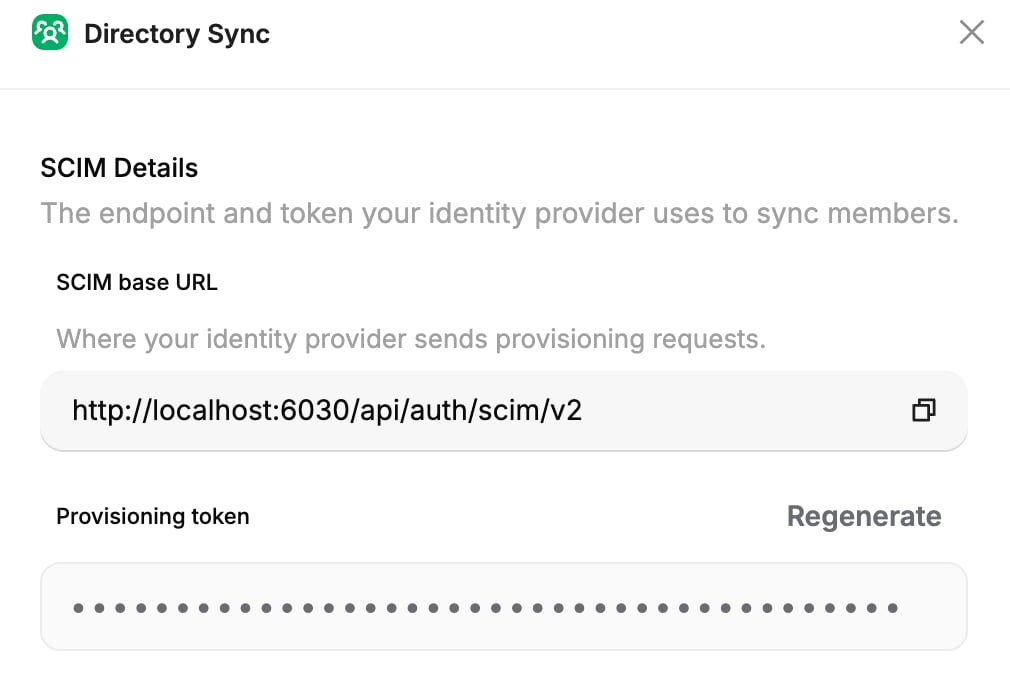
3
Set the provisioned access
On the Provisioned access card, select Manage access. Choose the projects provisioned members join and a role for each one (Viewer, Member, or Admin), then click Save changes. StackOne applies these to every member Microsoft Entra provisions, so pick the least-privilege role that fits each project. This access is shared with JIT provisioning.
The SCIM base URL always ends in
/api/auth/scim/v2, the SCIM 2.0 endpoint Microsoft Entra provisions against. If you regenerate the token in StackOne, the previous one stops working immediately, so update the Secret Token in Microsoft Entra to match or provisioning fails.Configure provisioning in Microsoft Entra
Point the enterprise application at StackOne’s SCIM endpoint. Use the same application you set up for SSO.1
Open provisioning
In the Microsoft Entra admin center, go to Enterprise applications and open your application, for example Acme Entra. Select Provisioning, then Connect your application to set up automatic provisioning.
2
Enter the StackOne credentials
Set the authentication method to Bearer authentication, then under Admin Credentials fill in the two fields with the values from StackOne: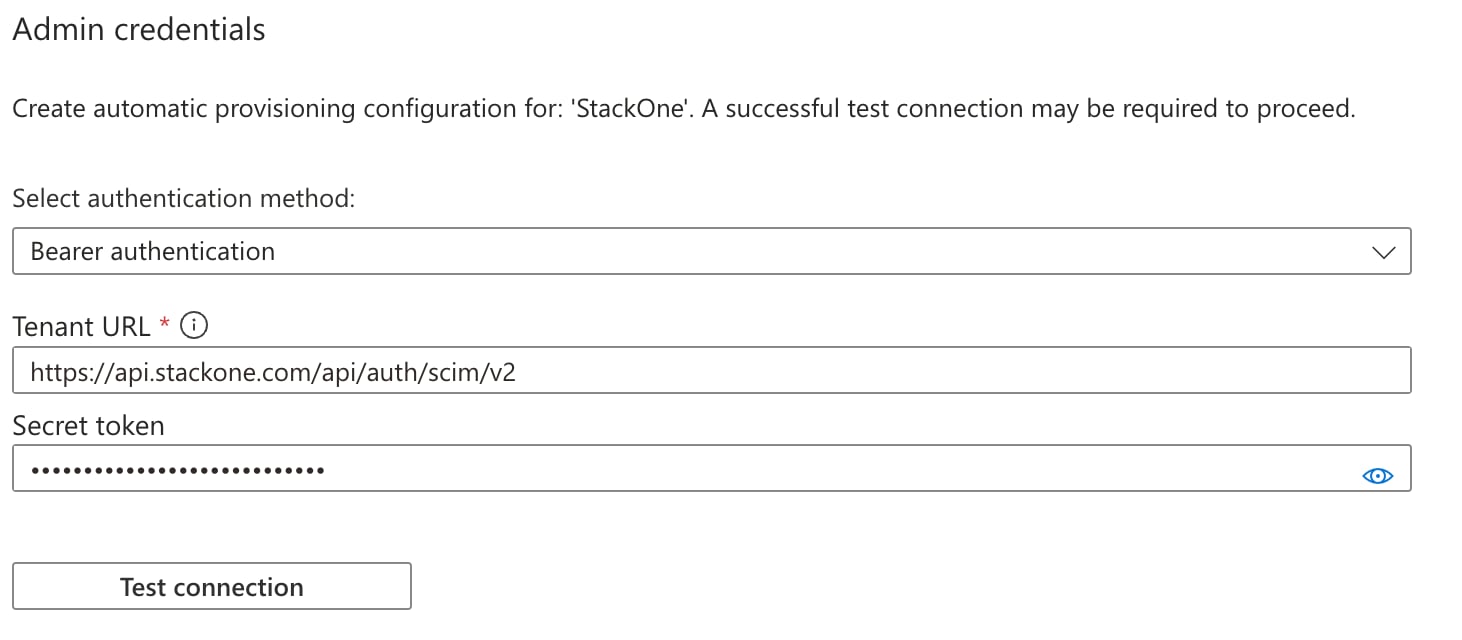
3
Test the connection and save
Click Test Connection. Microsoft Entra calls StackOne with the credentials and confirms they work. When the test passes, select Create to save the configuration.
4
Start provisioning
Select Start provisioning to begin the first cycle. Microsoft Entra provisions your assigned users, then re-syncs roughly every 40 minutes.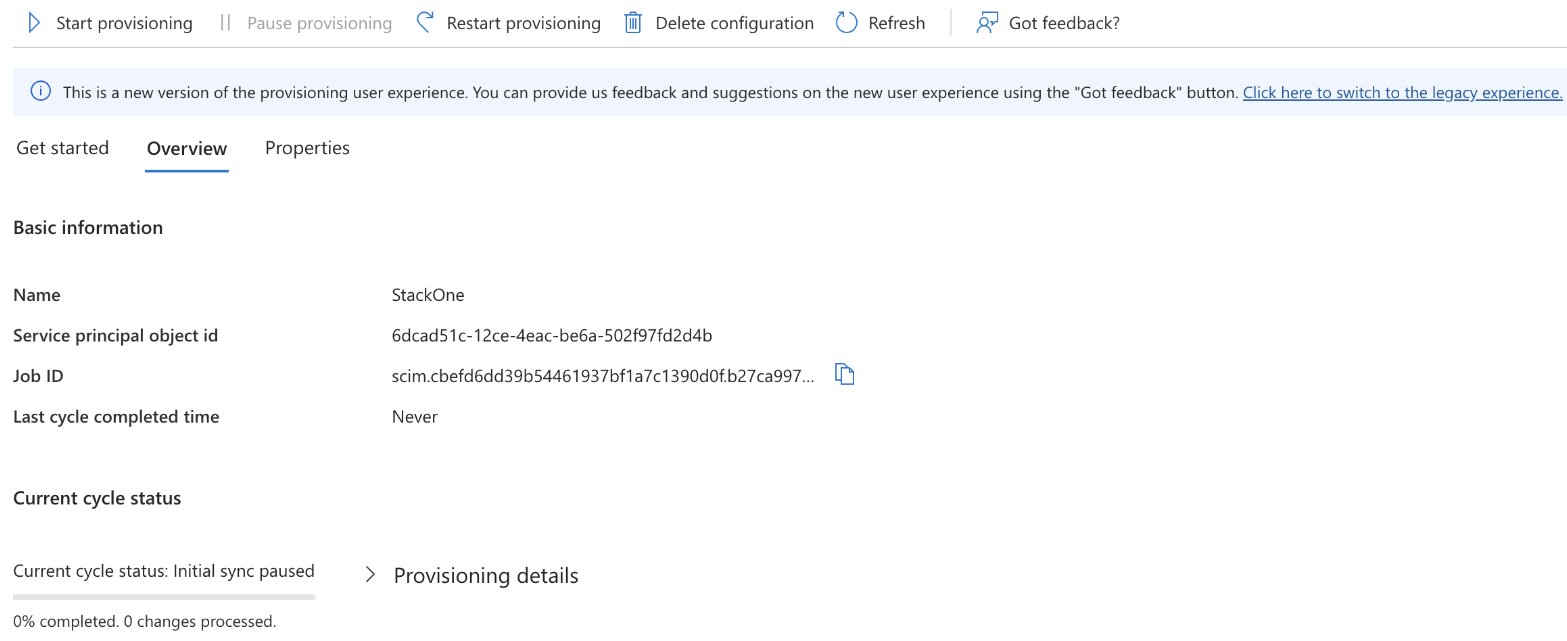
Assign users and groups
Microsoft Entra provisions only the users you assign to the application. Assign the people who should have StackOne access.1
Assign users and groups to the application
In the same enterprise application, open Users and groups and add the users or groups to sync, such as the Finance group. On its next cycle, Microsoft Entra creates a StackOne member for each assigned user, and StackOne applies the default role and projects you chose.
Directory Sync provisions users only, group sync is not available yet. Assigning a group in Microsoft Entra is a convenience on Entra’s side: Entra expands the group and provisions each member as an individual StackOne user. The group and its membership are not synced into StackOne. To organize members into groups within StackOne, see Groups.
Unassign a user from the application, or disable their Microsoft Entra account, and the next cycle deactivates the matching StackOne member, removing their access automatically.
Next steps
Directory Sync overview
How SCIM provisioning works and how it attaches to your SSO connection.
Okta Directory Sync
Set up SCIM provisioning with Okta instead of Microsoft Entra.