Glean is an enterprise AI platform whose chat and agents work over a company’s own knowledge. It connects to remote MCP servers as vendor provided tools, added once by an admin from the Admin console. StackOne connects to Glean with OAuth, so each user authorizes their own toolset and only reaches the linked accounts they have access to.
Adding an MCP server takes a Glean Admin or Setup Admin role, and agent support is in beta. Requirements and the menu labels change often, so see Glean’s Connect remote MCP servers guide for the current flow.
Click Initiate connection. Glean opens StackOne in your browser.Sign in, pick the project and the linked accounts the connector should reach, then Authorize.
Walk through the consent screen
Sign in to StackOne. If you are already signed in to the dashboard you skip straight to the next step.
Check where the connection returns. The line under the client’s logo shows where it goes after you approve. If it names localhost or an app on this device, only continue if you started the connection from that client.
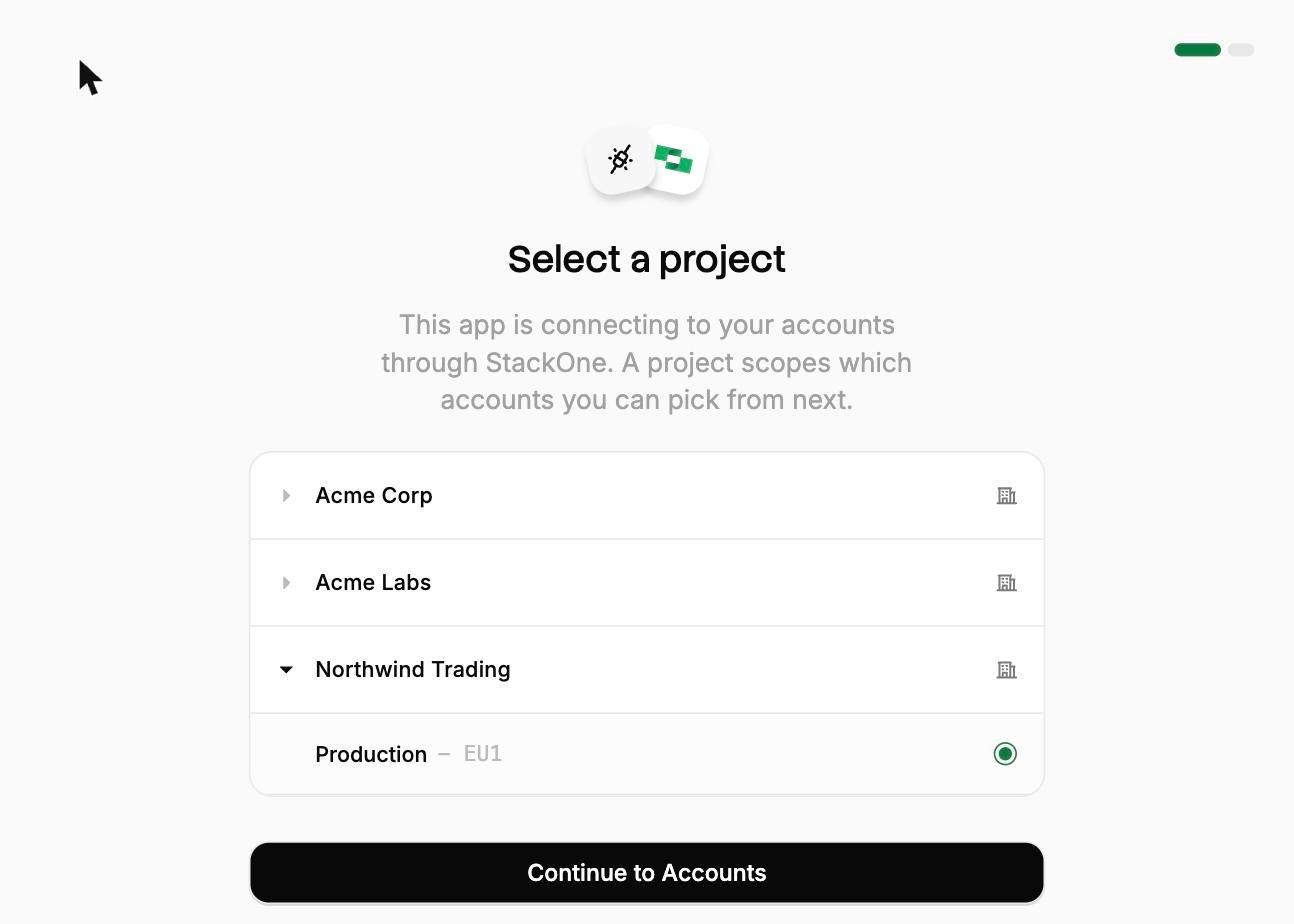
Select a project. Select the project you would like to associate the connection with.
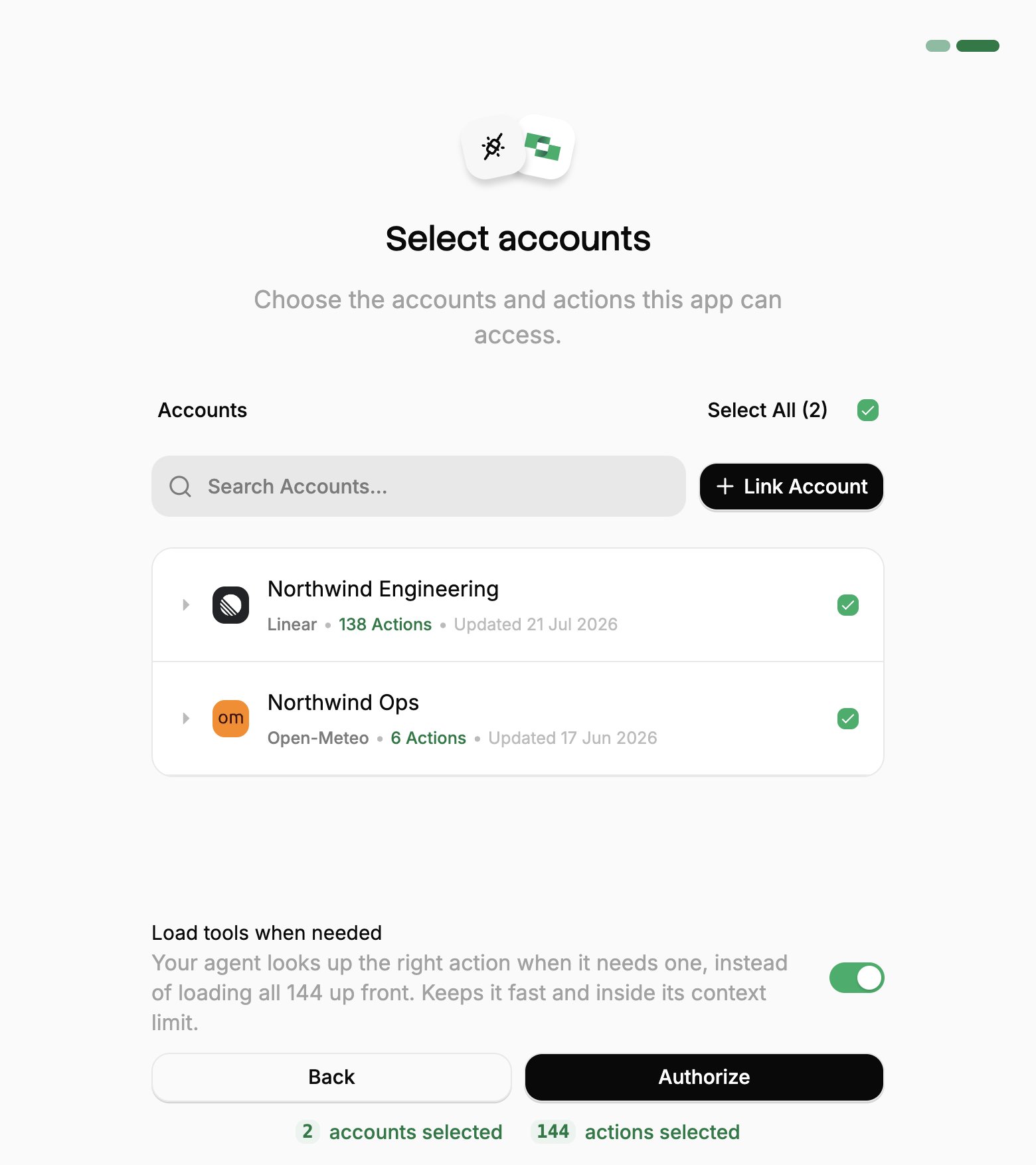
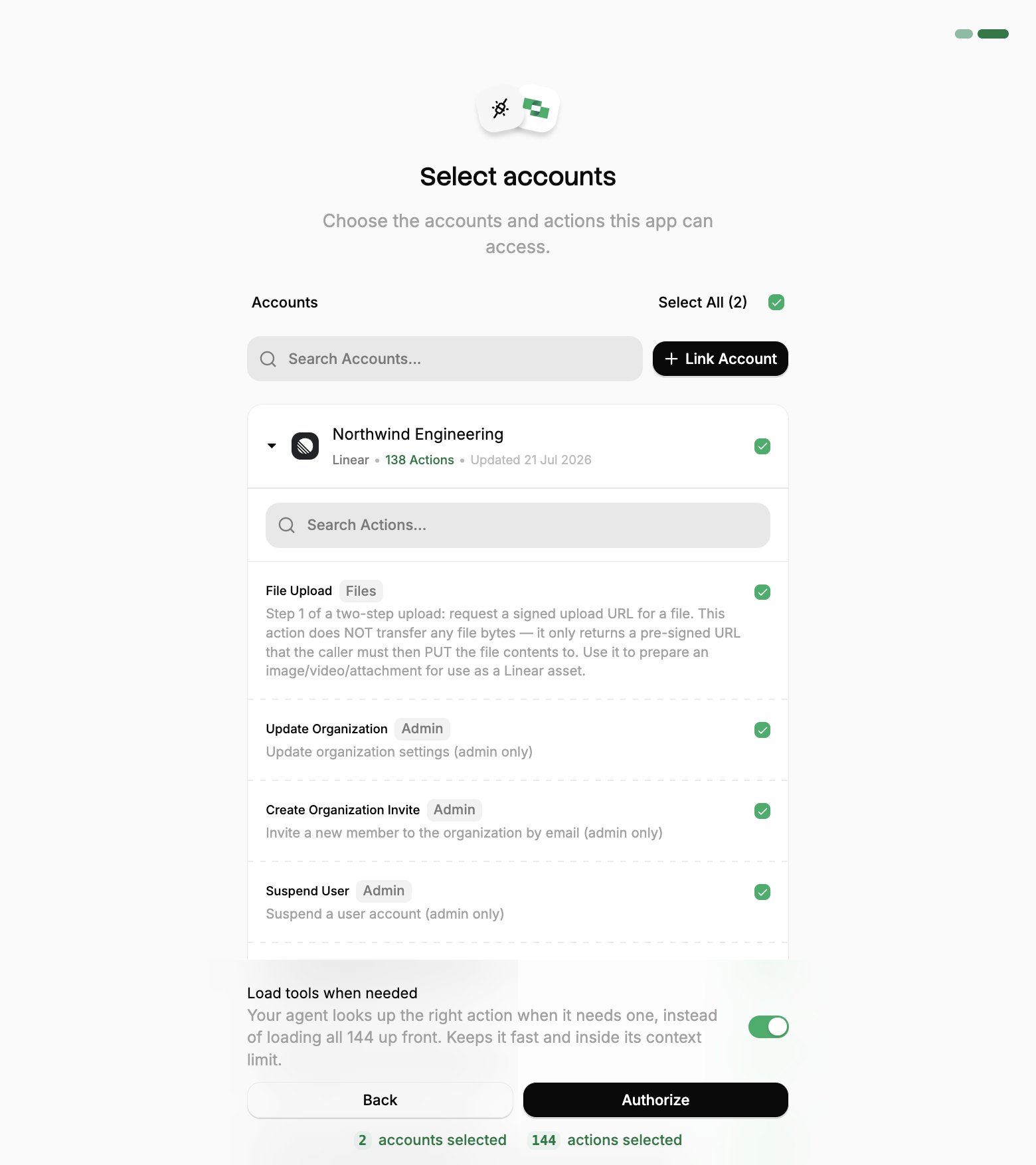
Select accounts and actions. Existing linked accounts are shown. New accounts can be linked by clicking + Link Account. You can either select the whole account (all actions will be granted) or refine by toggling individual actions.
(Optional) Load tools when needed. On by default, and the toggle that puts the connection into Advanced Tool Search. Leave it on for large action sets. Turn it off to hand the agent every selected action up front.
Authorize. Completes the connection; you can return to your client.
Select a project
Select accounts
Toggle actions
If you see a sentence where the Load tools when needed toggle should be, an admin has already settled it for the whole project. See project settings.
Connect to server now shows Connected, and the discovered tools appear on the Tools tab.
Your connection covers tool discovery and configuration only. Glean’s documentation is explicit that it “does not authorize end users”. Each teammate runs this same consent flow with their own StackOne login the first time they use a tool, so they only reach the accounts they have access to.
5
Set tool visibility
On the Configuration tab, under Enable Tools click Edit Settings.
Expand the surface you want the tools on: Chat, Agents, or Glean MCP Server.
For each tool in that surface, set:
Access, the teammates who can use it. Copy to all tools applies one choice to the rest.
Run without user confirmation, whether it runs without asking first.
Repeat for every surface the tools belong on, then click Save.
A tool must be assigned to at least one teammate or team, or Glean disables it everywhere. Run without user confirmation applies to Agents only. See Glean’s tool visibility and run without user confirmation guides.
6
Verify
The server appears under Vendor Provided Tools (via MCP) with status Enabled.Try a prompt in Glean Chat (if you enabled the tools for Chat):
What StackOne tools are available?
Every grant belongs to the teammate who approved it, so changing which accounts or actions Glean can reach means that person running the consent flow again. To revoke one, use Connected Apps in the StackOne dashboard.
In Glean, go to the Agents tab and create an agent.
2
Add the StackOne MCP server as a tool
In the panel on the right, open Tools, click +, choose MCP, and select the StackOne server you added.
3
Verify
Click Preview and ask the agent:
What StackOne tools are available?
Then Publish to make it available to the teammates you granted access to.
All of the server’s tools are enabled on the agent automatically. Through the two Advanced Tool Search tools, Search and Execute, the agent can find and run the actions each teammate granted, against the linked accounts that teammate has access to.
Glean supports MCP tools in Plan and execute steps and autonomous agents, not in single-step selections. They are also unavailable in Fast mode.
Connecting with a session token instead
A session token URL carries its own credential, so it covers the cases OAuth can’t: a shared server, a scheduled job, or anywhere nobody is present to approve a consent screen. For a comparison of each connection method, see Choosing a connection method.From the StackOne dashboard, go to Connectors, open a connector, then click Use in Agent.
Pick a linked account.
Set the expiry (one year by default).
Select HTTPS MCP and copy the URL. It should be in the format of:
This URL covers one linked account, and anyone holding it has that access until it expires, so treat it like a password.To enable Advanced Tool Search, add the tool-mode query parameter to the URL: