

Before you start
- A StackOne project you are a member of.
- A connector profile in the project for each provider the client should reach, with the actions you want exposed enabled.
- (Optional) A linked account for each provider. Accounts can also be linked during the consent flow.
Add StackOne
1
Add the custom MCP server
Add the server in a browser. The desktop app picks it up from there once it exists.
- Go to ChatGPT Plugins.
- Select Add, then Add custom MCP server.
-
Enter a name and description, for example
StackOne. -
Under Connection, enter the MCP server URL:
-
Set authentication to OAuth and leave Advanced OAuth settings as discovered. ChatGPT discovers the endpoints and registers itself, so there is no client ID or secret to enter. No
mcp-remotewrapper needed. If ChatGPT asks you to confirm that the provider issues refresh tokens, confirm it. - Review the risk warning and select I understand and want to continue.
- Select Create as a plugin.
- Select Connect StackOne to start the sign-in.
2
Sign in and authorize
- Sign in to StackOne. In a desktop app or code editor, this opens in your browser.
- If StackOne asks for a project, pick yours and click Continue to Accounts.
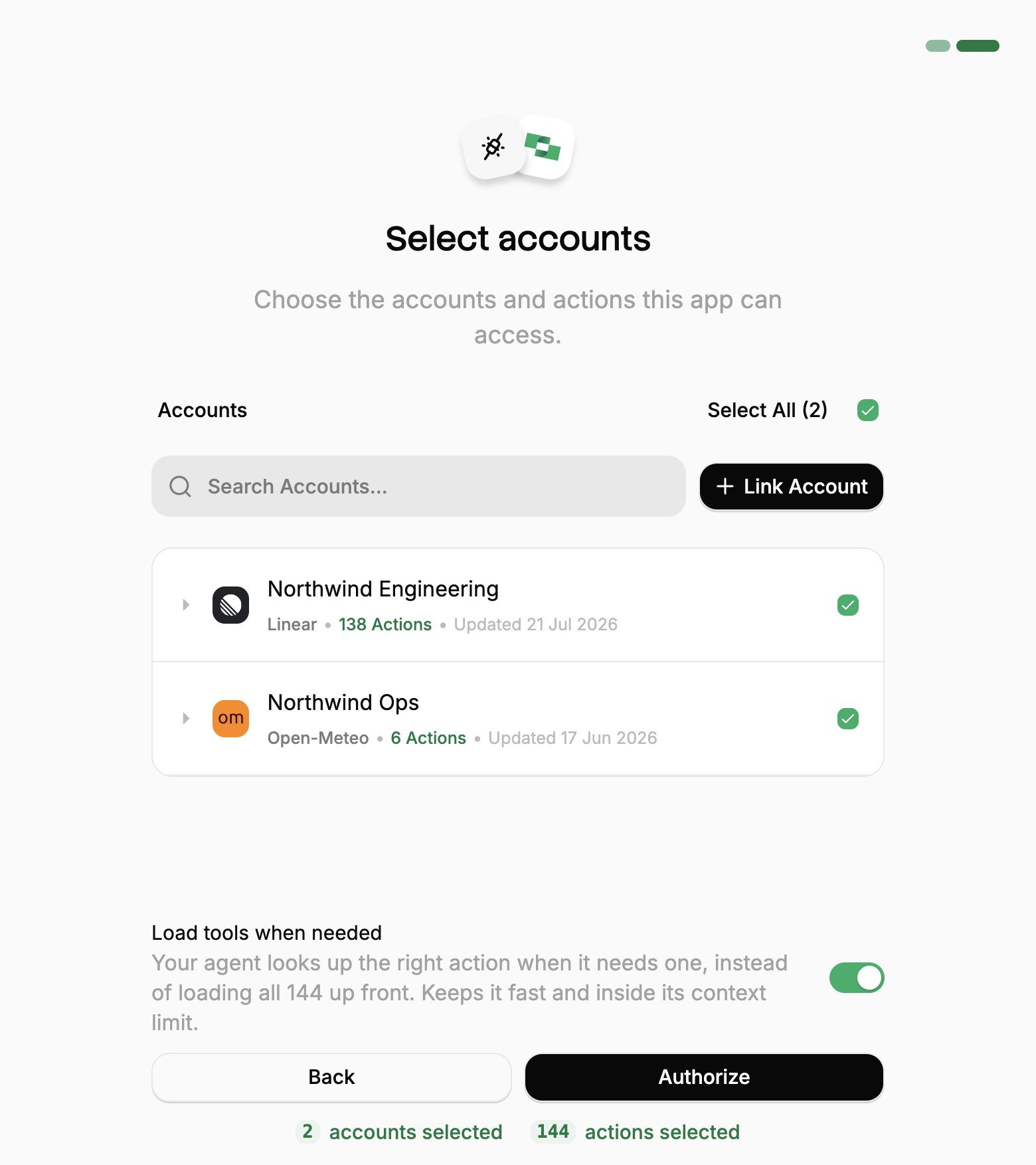
- Pick the work systems ChatGPT can use (your Linked Accounts).
- If you see Load tools when needed, leave it on.
- Click Authorize.
3
Use it in a chat
Start a new chat, type The plugin works in the ChatGPT desktop app as well as the browser. It is not available on mobile.
@, select the StackOne plugin, and try:Add or change accounts
Add or change accounts
ChatGPT reaches only the Linked Accounts you approved when you connected. To add one you link later, or one someone shares with you afterwards:To review or revoke the connection, use the same ⋮ menu in Connected Apps.
1
Open Connected Apps
In the StackOne dashboard, go to Connected Apps.
2
Edit the connection
- Open the ⋮ menu on the row for ChatGPT and select Edit tool access.
- Select the Linked Account.
- Click Save changes.
Keeping the tool list current
Keeping the tool list current
ChatGPT works from a snapshot of the tools StackOne exposed when you added it. When you link another Linked Account or enable more actions on a Connector Profile, open the plugin at ChatGPT Plugins and select Refresh.With Advanced Tool Search on, no refresh is needed. It replaces the per-action tool list with two stable tools, Search and Execute.