Under tools, click + and search for MCP Client Tool
Set URL to https://mcp.stackone.com/mcp
Set the transport to HTTP Streamable. StackOne does not serve SSE, so an SSE endpoint will not connect
2
Authorize
Set Authentication to OAuth2 and complete the flow in the browser. n8n stores the result as a reusable credential.Sign in, pick the project and the linked accounts the connector should reach, then Authorize.
Walk through the consent screen
Sign in to StackOne. If you are already signed in to the dashboard you skip straight to the next step.
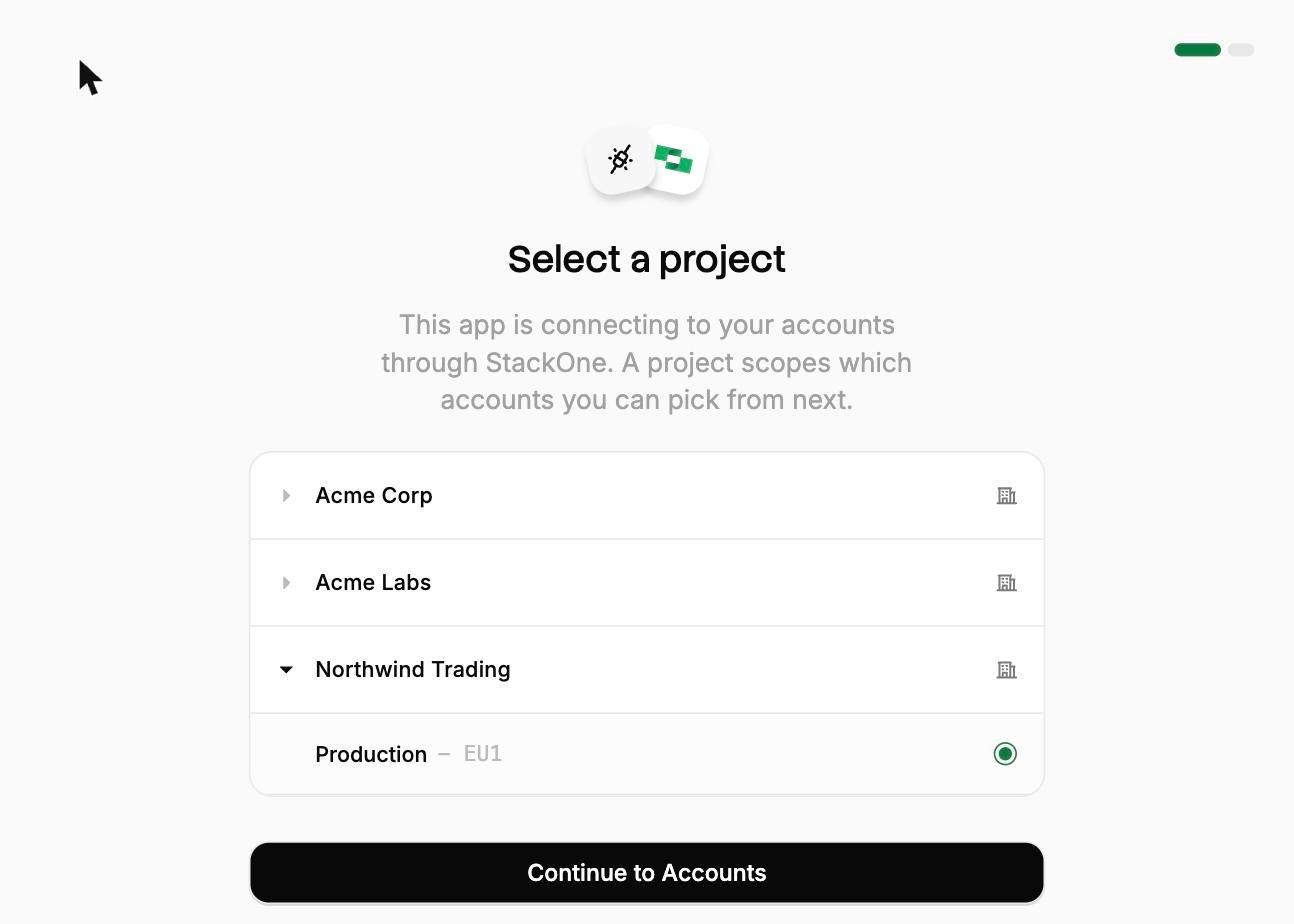
Select a project. Select the project you would like to associate the connection with.
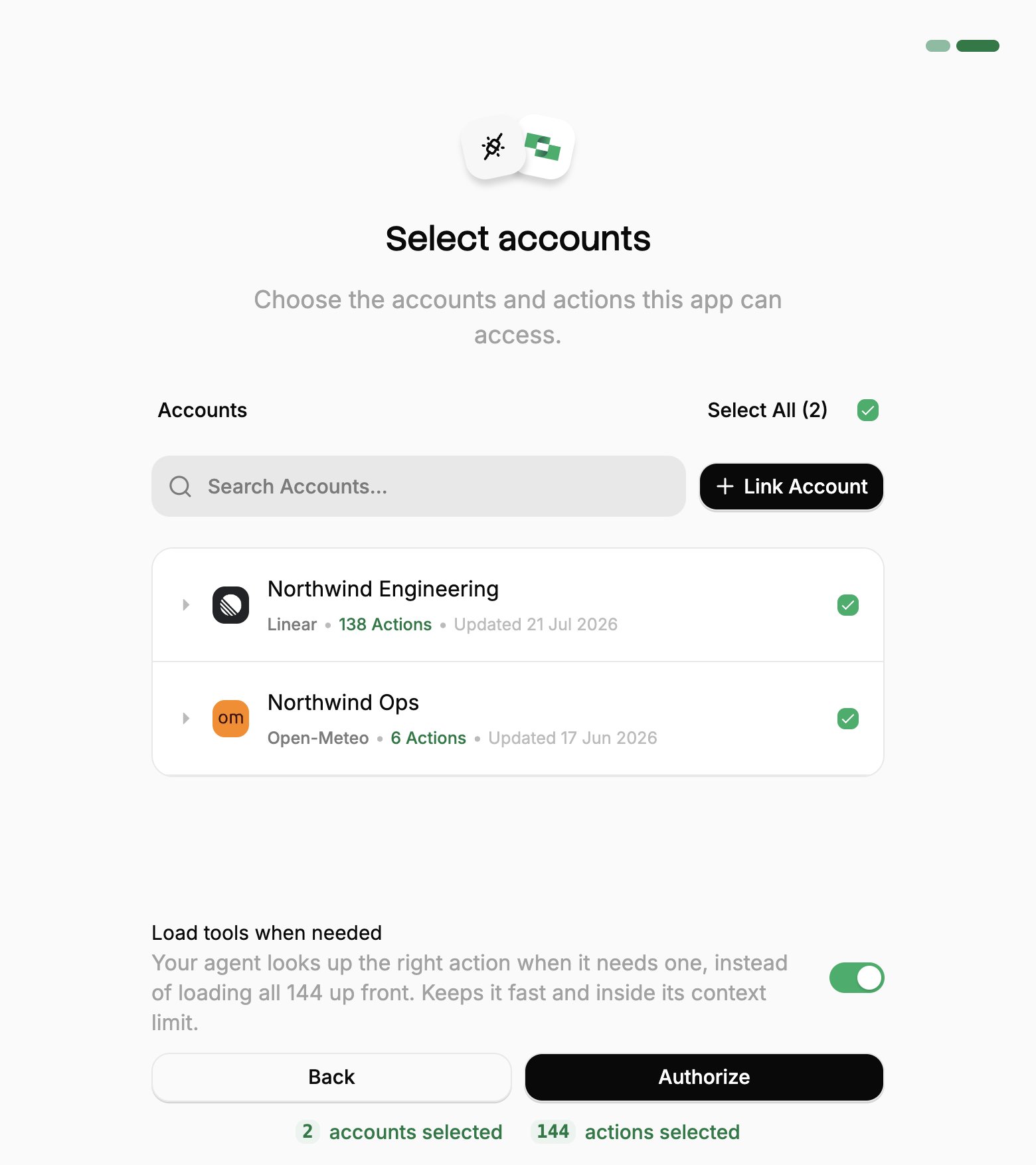
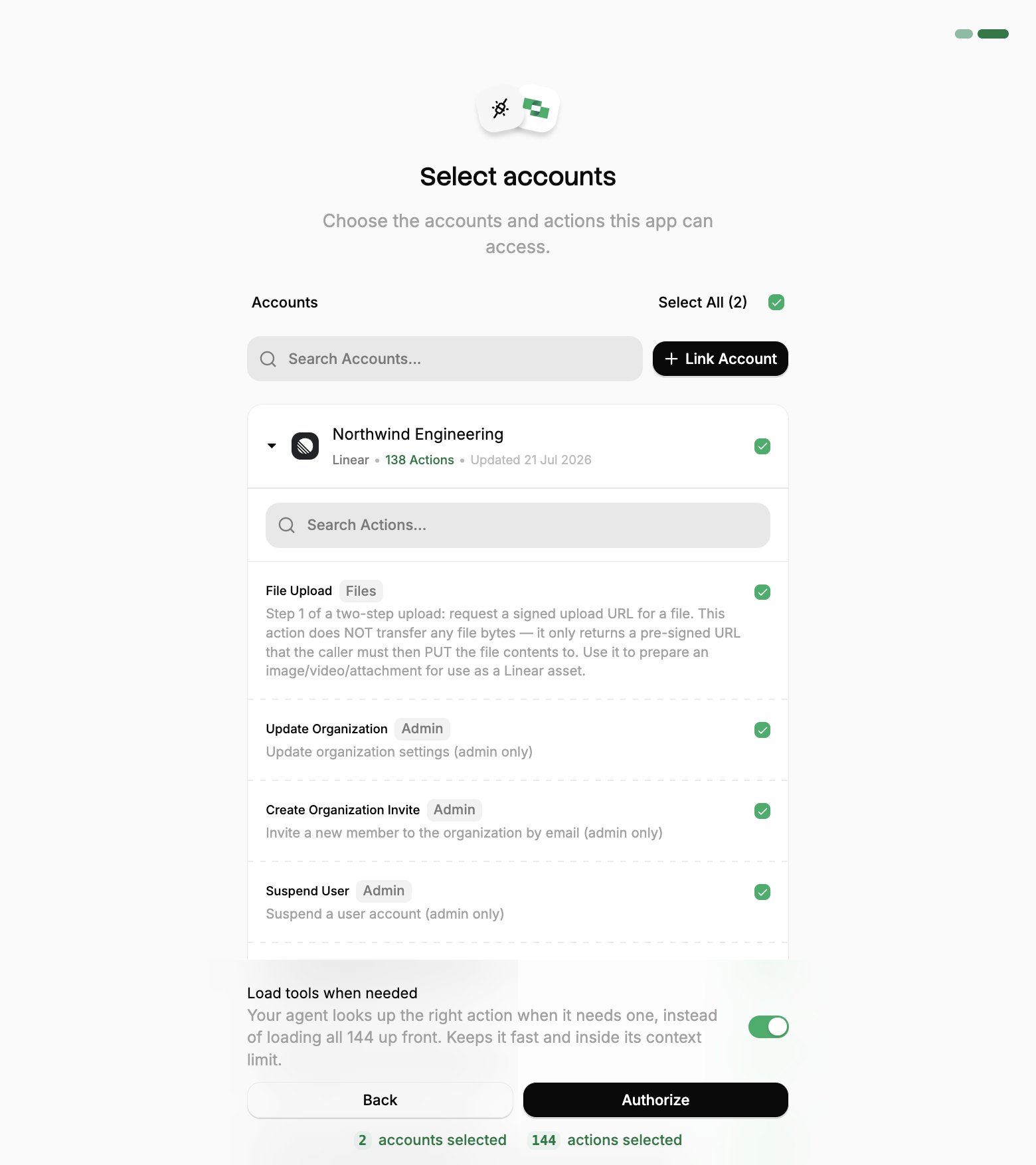
Select accounts and actions. Existing linked accounts are shown. New accounts can be linked by clicking + Link Account. You can either select the whole account (all actions will be granted) or refine by toggling individual actions.
(Optional) Load tools when needed. On by default, and the toggle that puts the connection into Advanced Tool Search. Leave it on for large action sets. Turn it off to hand the agent every selected action up front.
Authorize. Completes the connection; you can return to your client.
Select a project
Select accounts
Toggle actions
If you see a sentence where the Load tools when needed toggle should be, an admin has already settled it for the whole project. See project settings.
If your n8n version doesn’t offer OAuth2 on this node, use a session token URL instead, see below.
3
Test the connection
Click Execute Step to verify the connection and see available tools, then pick what the workflow needs from Tools to include.
An OAuth grant belongs to the person who approved it, and n8n workflows usually run unattended long after that. A session token URL is often the better fit for a scheduled workflow, since it carries its own credential and doesn’t depend on one person’s grant.
Connecting with a session token instead
A session token URL carries its own credential, so it covers the cases OAuth can’t: a shared server, a scheduled job, or anywhere nobody is present to approve a consent screen.Generate one from Connectors, open a connector, then Use in Agent. Pick a linked account, set the expiry (one year by default), and copy the URL:
One URL covers one linked account, and anyone holding it has that access until it expires, so treat it like a password. See Choosing a connection method for the comparison with OAuth.There is no consent screen to set Advanced Tool Search on, so add the tool-mode query parameter instead:
Once configured, use the MCP Client Tool node to execute StackOne actions on the accounts you granted.For detailed setup instructions, see n8n’s MCP Client Tool documentation.