

Recommended Set up with your agent
Paste this into Copilot and it walks you through it, one step at a time.
Help me connect StackOne to Microsoft 365 Copilot. Read the setup guide at https://docs.stackone.com/ai-platforms/setup-guide.md and guide me one step at a time.
Or follow the steps yourself
Connect
1
Find the StackOne agent
StackOne works in Copilot through an agent your company set up.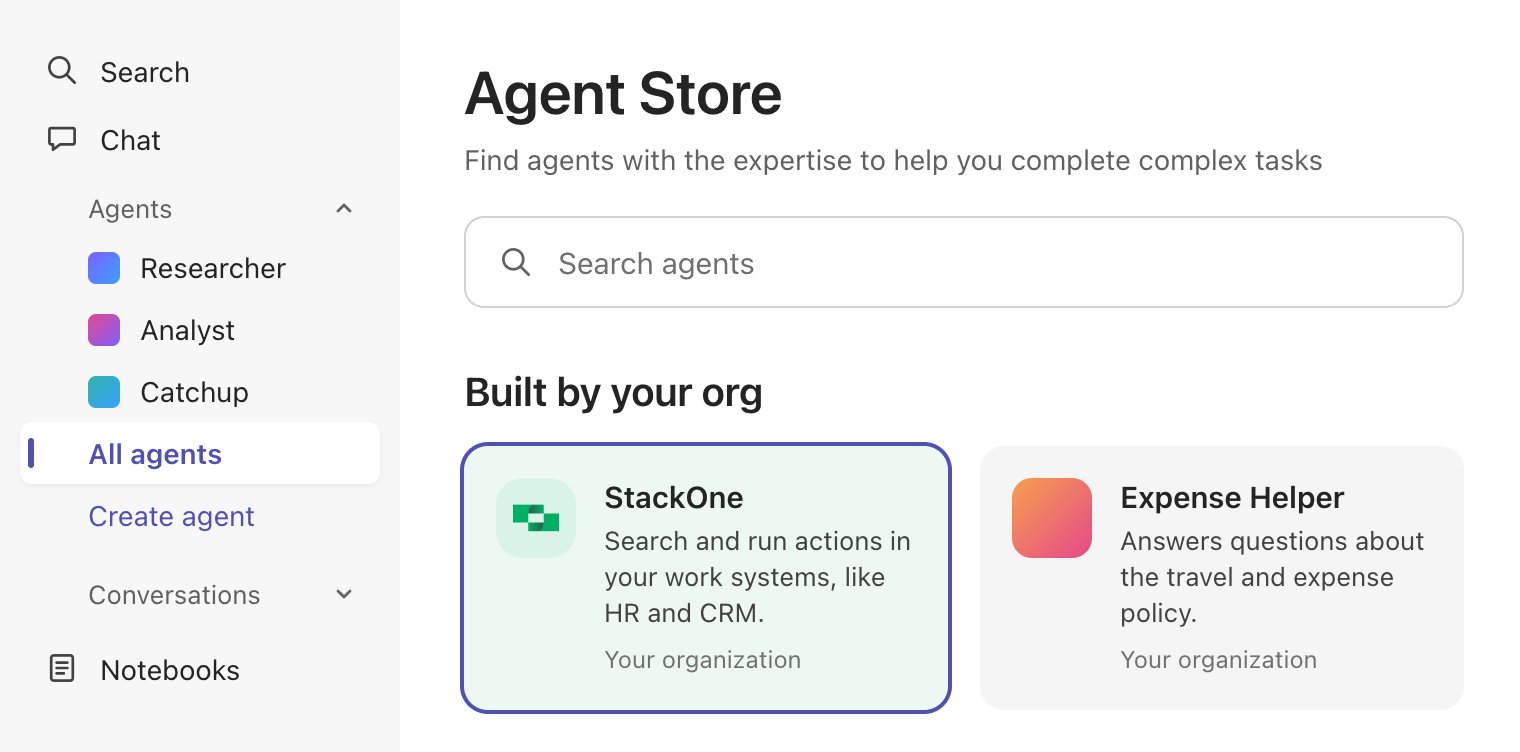
- Open Microsoft 365 Copilot.
- If the agent is already under Agents in the left pane, click it and go to the next step.
- Otherwise, click All agents, find the agent under Built by your org, and click Add.
StackOne isn't there
StackOne isn't there
Ask your Microsoft 365 admin to add it. Send them this:
2
Connect StackOne
- Open the StackOne setup link your admin sent you. It opens in Power Apps.
- If Power Apps shows a welcome screen, finish it.
- Click Create new connection.
I don't have the setup link
I don't have the setup link
Ask the StackOne agent anything. Until you connect StackOne, it replies with your setup link. If it shows a Connect button first, click it and sign in with your work account.
3
Sign in and authorize
- Sign in to StackOne. In a desktop app or code editor, this opens in your browser.
- If StackOne asks for a project, pick yours and click Continue to Accounts.
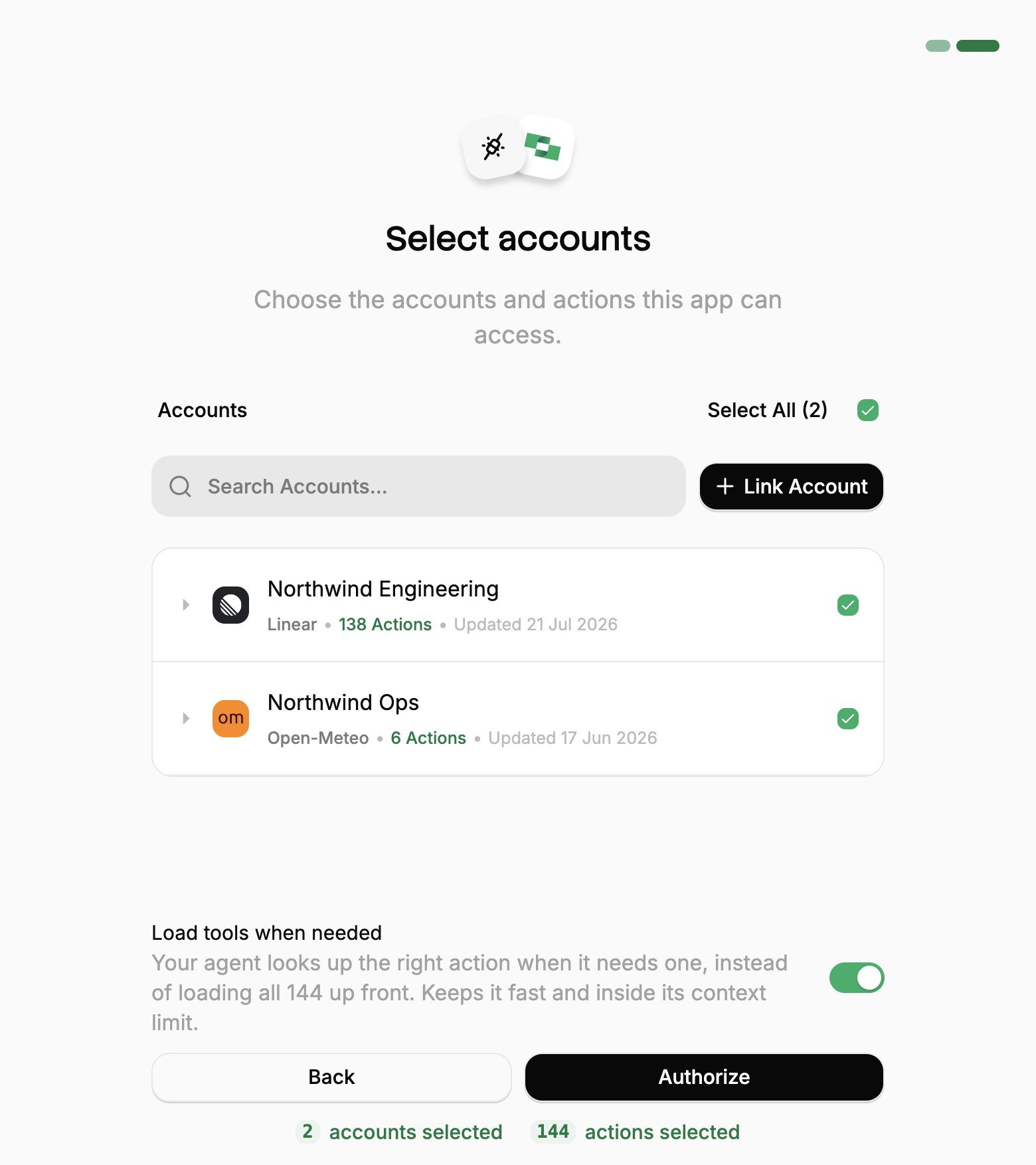
- Pick the work systems Microsoft 365 Copilot can use (your Linked Accounts).
- If you see Load tools when needed, leave it on.
- Click Authorize.
4
Check it works
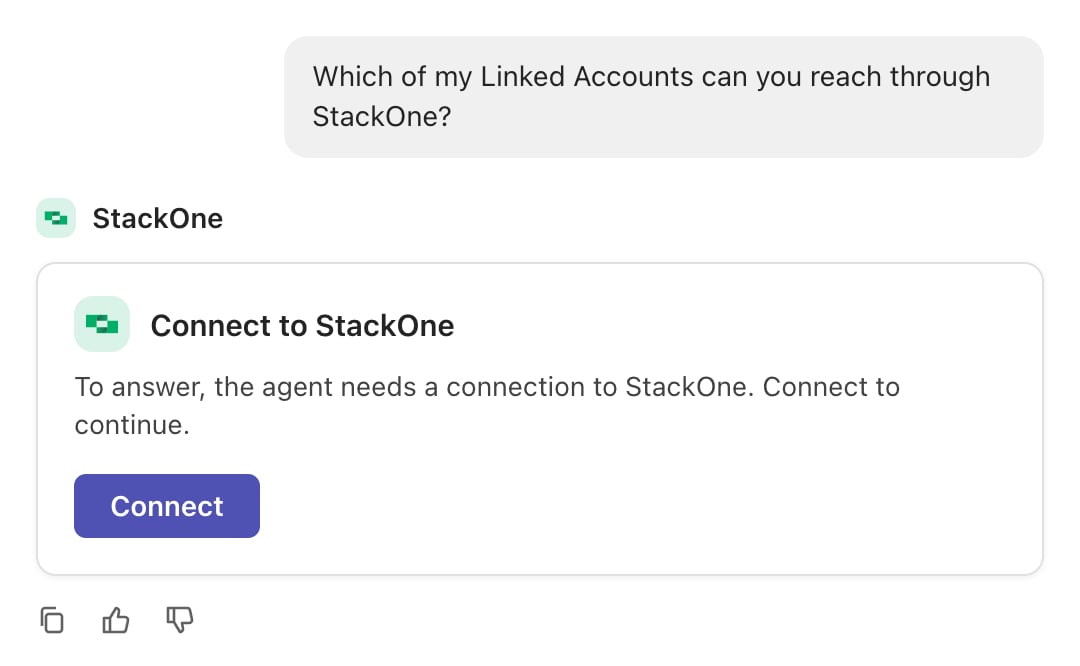
- Go back to Copilot and start a new chat with the StackOne agent.
- If the agent shows a Connect button, click it and sign in with your work account.
If something goes wrong
If something goes wrong
Can’t find the StackOne agent. If you see Request approval instead of Add, click it and wait for your Microsoft 365 admin to approve. If the agent isn’t under Built by your org at all, your admin hasn’t added it yet.You only have Copilot Chat. Without a Microsoft 365 Copilot license, you can use an agent like this only if your company turned on pay-as-you-go billing for agents. Ask your Microsoft 365 admin.The Connect card says Connection failed. Click Try again.The agent only replies with a setup link. You haven’t connected StackOne yet, or your connection stopped working. Open the link, sign in again and click Authorize, then start a new chat.New accounts or actions don’t show up. Copilot keeps the same tools for a whole chat. Start a new chat.A system you need is missing. Ask your StackOne admin, or see Linking Accounts.It stopped working. Access lasts 90 days from when you clicked Authorize. Open your setup link again, sign in and click Authorize.It can’t do something. It can do only what your own StackOne access allows. Ask your StackOne admin.
Add or change accounts
Add or change accounts
Microsoft 365 Copilot reaches only the Linked Accounts you approved when you connected. To add one you link later, or one someone shares with you afterwards:To review or revoke the connection, use the same ⋮ menu in Connected Apps.
1
Open Connected Apps
In the StackOne dashboard, go to Connected Apps.
2
Edit the connection
- Open the ⋮ menu on the row for Microsoft 365 Copilot and select Edit tool access.
- Select the Linked Account.
- Click Save changes.