

Add StackOne to an agent
1
Create the agent
In Glean, go to the Agents tab and create an agent.
2
Add the StackOne MCP server as a tool
In the panel on the right, open Tools, click +, choose MCP, and select the StackOne server your admin added.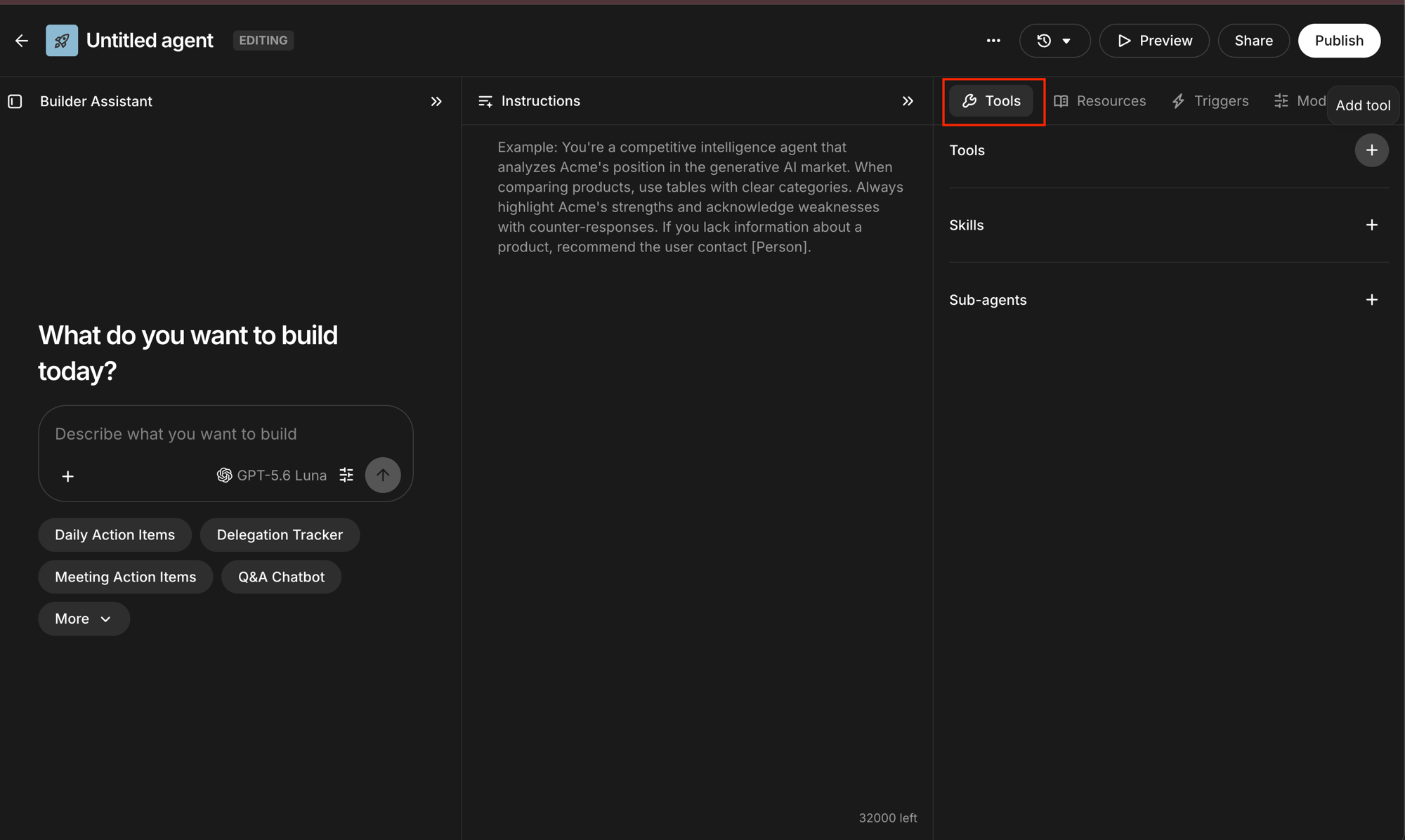
3
Verify
Click Preview and ask the agent:Then Publish to make it available to the teammates you granted access to.
Glean supports MCP tools in Plan and execute steps and autonomous agents, not in single-step selections. They are also unavailable in Fast mode.
How an agent signs in to StackOne
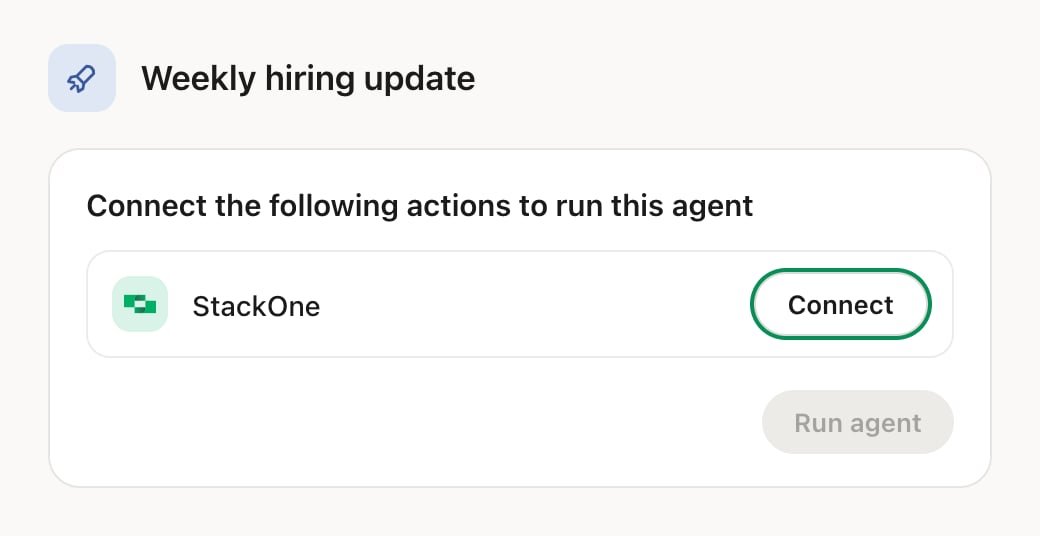
- An agent you run uses your own StackOne login. The first time, Glean lists StackOne under Connect the following actions to run this agent. Click Connect, sign in and authorize as described in Organization User Setup, then click Run agent.
- An agent that runs on its own, with a shared login your admin set up, needs nothing from you.
Add or change accounts
Add or change accounts
Glean reaches only the Linked Accounts you approved when you connected. To add one you link later, or one someone shares with you afterwards:To review or revoke the connection, use the same ⋮ menu in Connected Apps.
1
Open Connected Apps
In the StackOne dashboard, go to Connected Apps.
2
Edit the connection
- Open the ⋮ menu on the row for Glean and select Edit tool access.
- Select the Linked Account.
- Click Save changes.