Allow your users to connect to work systems with StackOne.
Make StackOne available as a tool to everyone in your Dust workspace. Each person then signs in with their own StackOne login and reaches only the systems they’ve been given access to in StackOne.
Before you start
Adding a tool in Dust takes the workspace Admin role.Dust has you sign in to StackOne once during setup, to check the connection. In StackOne:
A connector profile in the project for each provider the client should reach, with the actions you want exposed enabled.
(Optional) A linked account for each provider. Accounts can also be linked during the consent flow.
Add StackOne to your workspace
1
Add the StackOne tool
In Dust, go to Spaces, then Tools, and click Add Tools.
Select StackOne from the list of tools.
If StackOne isn’t in the list, add it as a remote MCP server instead:
Click Add MCP Server.
In URL, enter:
https://mcp.stackone.com/mcp
For Authentication, keep Automatic. Dust registers itself with StackOne, so there’s no client ID or secret to enter.
2
Choose personal accounts
Choose Personal accounts. Each person then signs in with their own StackOne login the first time they use StackOne.
With Shared account, everyone who can use the tool works in StackOne as you, and reaches every system your own StackOne login can reach.
3
Sign in and authorize
Dust opens StackOne in your browser. Your sign-in checks the connection, and nobody else uses it.Sign in, pick the project and the linked accounts the connector should reach, then Authorize.
Walk through the consent screen
Sign in to StackOne. If you are already signed in to the dashboard you skip straight to the next step.
Check where the connection returns. The line under the client’s logo shows where it goes after you approve. If it names localhost or an app on this device, only continue if you started the connection from that client.
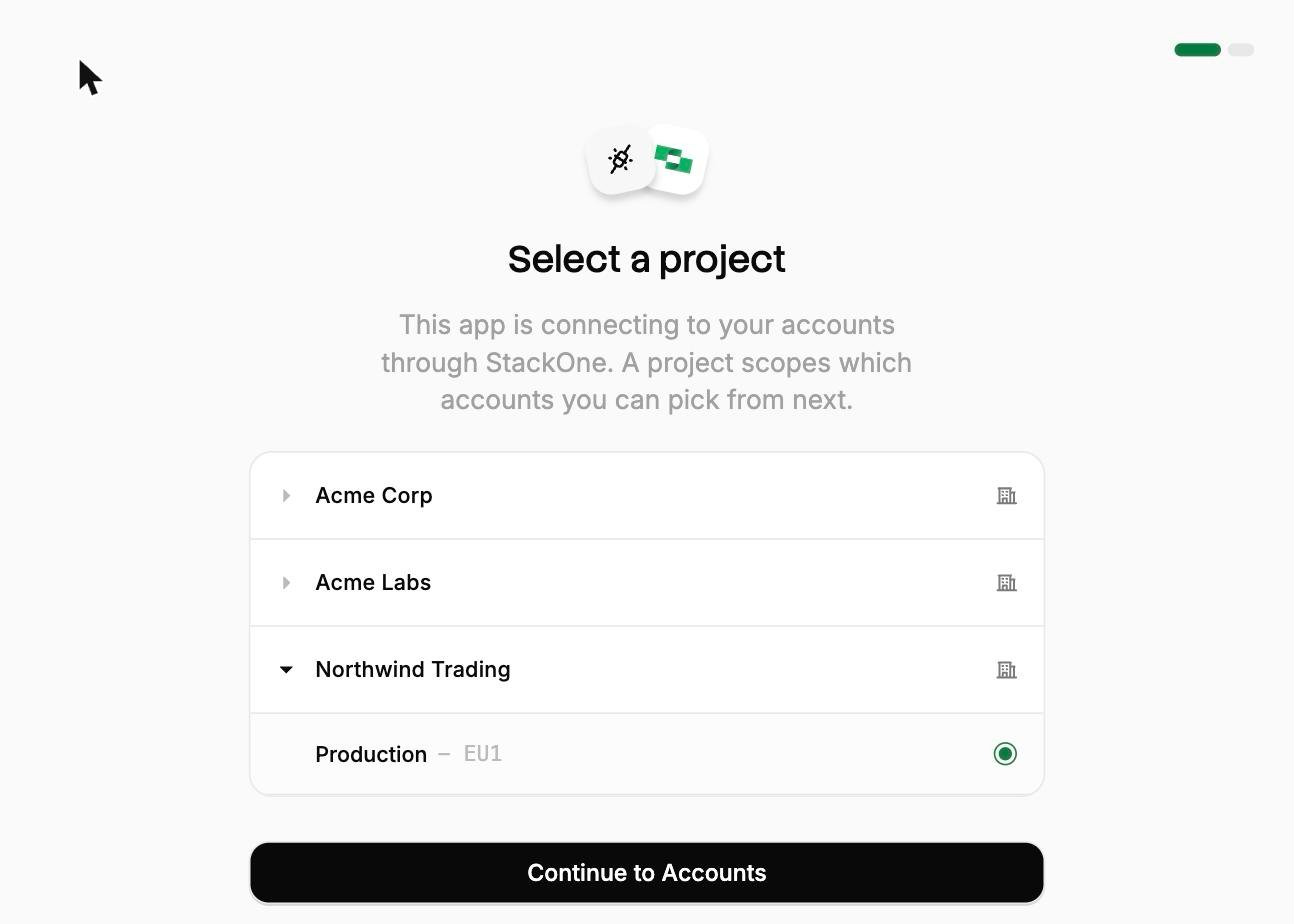
Select a project. Select the project you would like to associate the connection with. If you belong to one project, this step is skipped.
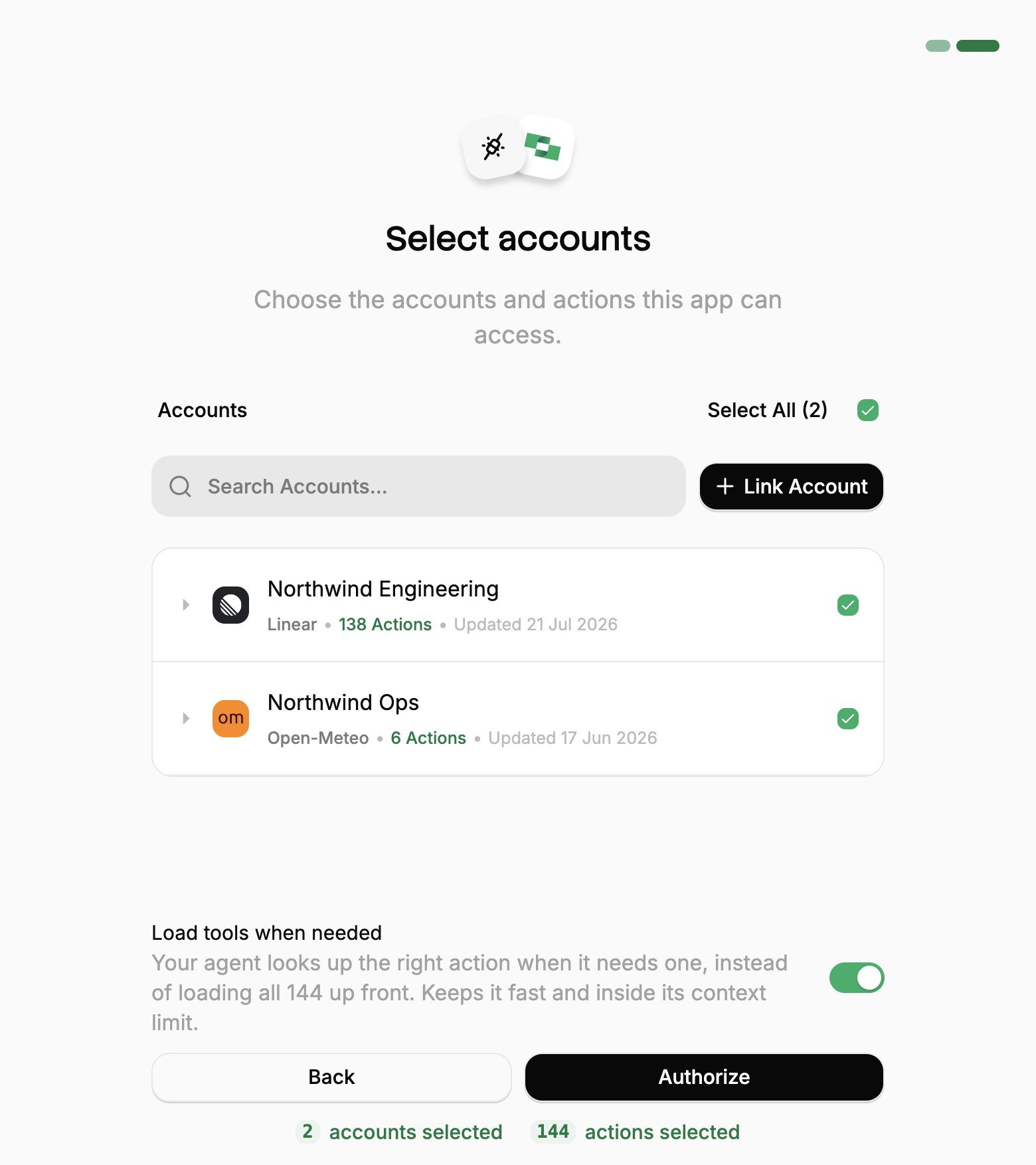
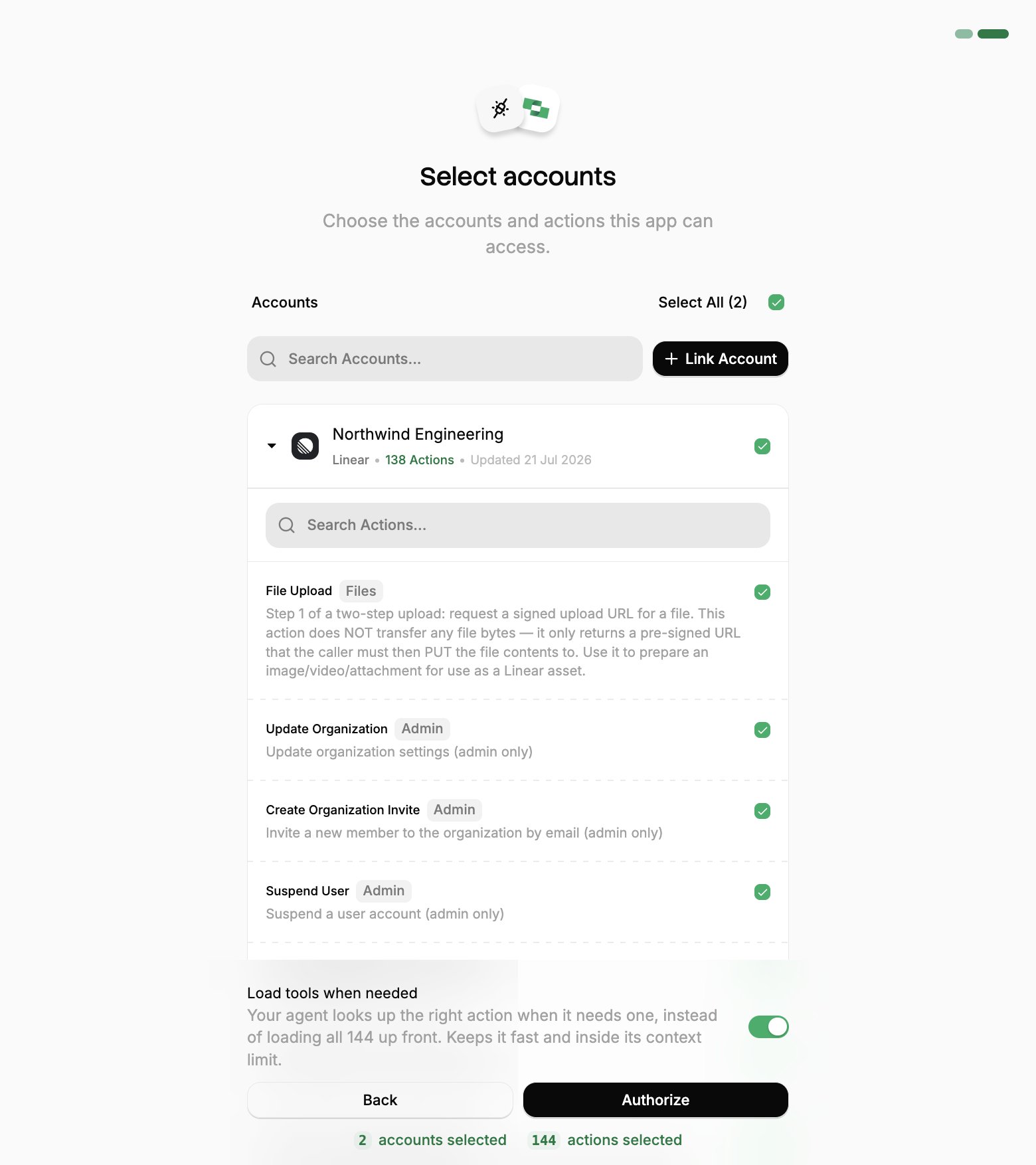
Select accounts and access. Select the linked accounts the client can use, and choose how much it can do in each: read, write, full access, or pick individual actions. To link a new account, click Link account. When the project has MCP Events on, each account also lists its events, and all of them are granted unless you untick some.
(Optional) Load tools when needed. On by default, and the toggle that puts the connection into Advanced Tool Search. Leave it on for large action sets. Turn it off to hand the agent every selected action up front.
Authorize. Completes the connection; you can return to your client.
Select a project
Select accounts
Toggle actions
If you see a sentence where the Load tools when needed toggle should be, an admin has already settled it for the whole project. See project settings.
Back in Dust, the StackOne tools appear after a short sync.
4
Set approvals and availability
Open StackOne under Spaces > Tools to see its settings.
On the Tools & Stakes tab, set how each StackOne tool asks before it runs. A tool set to High asks the person to confirm every call.
On the Availability tab, StackOne is available to the whole workspace. To limit it, choose the spaces that can use it. Agents that use StackOne are then visible only to members of those spaces.
Leave Restrict this tool to skills off. When it’s on, people can’t add StackOne to a conversation or an agent.
Roll it out
StackOne is now available for your users in Dust. Make sure the following is ready before rolling out:
Add users. Invite or provision users via SSO/SCIM. See Manage Team.
Create groups. Organize teams into groups to control which systems each team reaches.
Set up connectors. Define Connector Profiles to scope provider actions for specific functions.
Link accounts. Link shared company accounts, or let users link their own accounts. See Linking Accounts.
Then send users this guide:
Dust Organization User Setup
For people in your workspace connecting StackOne in Dust.
If StackOne shows a sync warning
Dust warns in the tools list when it can no longer sync StackOne, for example after your sign-in expires. Open StackOne’s settings and click Refresh to sign in again. Refreshing keeps the same tool, so agents that use StackOne don’t need changes.
Was this page helpful?
{"docsConfig":{"theme":"mint","$schema":"https://mintlify.com/docs.json","name":"Stackone","colors":{"primary":"#068F56","light":"#00AF66","dark":"#068F56"},"logo":{"light":"https://mintcdn.com/stackone-60/WsmKpuoeBZmio9QO/images/logo/logo-light-mode.svg?fit=max\u0026auto=format\u0026n=WsmKpuoeBZmio9QO\u0026q=85\u0026s=f08be9c0a142cb1e7fcaa23910c4bf7f","dark":"https://mintcdn.com/stackone-60/WsmKpuoeBZmio9QO/images/logo/logo-dark-mode.svg?fit=max\u0026auto=format\u0026n=WsmKpuoeBZmio9QO\u0026q=85\u0026s=b57d63594c13dee65c06a2d578927466","href":"/introduction"},"favicon":"https://mintcdn.com/stackone-60/EZ7nWzE-JJzhmP-C/images/logo/favicon.png?fit=max\u0026auto=format\u0026n=EZ7nWzE-JJzhmP-C\u0026q=85\u0026s=9012a8ae6ce9a80698406b611be47925","appearance":{"default":"light"},"background":{"image":{"light":"https://mintcdn.com/stackone-60/knwbcGlYFJSeLObv/images/background/light.svg?fit=max\u0026auto=format\u0026n=knwbcGlYFJSeLObv\u0026q=85\u0026s=112166d244e990ebc0146ff96958757c","dark":"https://mintcdn.com/stackone-60/knwbcGlYFJSeLObv/images/background/dark.svg?fit=max\u0026auto=format\u0026n=knwbcGlYFJSeLObv\u0026q=85\u0026s=50ec5e23eeb91f55e78a0da97dcaeb7b"},"color":{"dark":"#1a1a1a"}},"navbar":{"links":[{"icon":"circle-question","href":"/support","label":"Support"},{"href":"https://app.stackone.com","label":"Login"},{"href":"https://www.stackone.com/demo/","label":"Book a demo"}],"primary":{"type":"button","label":"Start Free","href":"https://app.stackone.com/sign_up"}},"footer":{"socials":{"linkedin":"https://www.linkedin.com/company/stackonehq","twitter":"https://twitter.com/StackOneHQ"}},"seo":{"metatags":{"canonical":"https://docs.stackone.com","google-site-verification":"gYj1x4gkdSwpCGVLFVXNVOPQ_wVrePW37ZKJt3HEqys"}},"fonts":{"heading":{"family":"Sf Pro Display","source":"https://fonts.gstatic.com/s/inter/v18/UcC73FwrK3iLTeHuS_nVMrMxCp50SjIa1ZL7W0Q5nw.woff2","format":"woff2"},"body":{"family":"Inter","source":"https://fonts.gstatic.com/s/inter/v18/UcC73FwrK3iLTeHuS_nVMrMxCp50SjIa1ZL7W0Q5nw.woff2","format":"woff2"}},"styling":{"eyebrows":"breadcrumbs","latex":true},"integrations":{"gtm":{"tagId":"GTM-NZNK37TL"}},"contextual":{"options":["copy","view","chatgpt","claude","perplexity"],"display":"header"},"navigation":{"pages":[]}},"deployment":{"deploymentMetadataValue":{"subdomain":"stackone-60","hasAudioNarration":false,"actualSubdomain":"stackone-60","customDomains":["docs.stackone.com"],"gitSource":{"type":"github","owner":"stackonehq","repo":"docs","deployBranch":"main","contentDirectory":"","isPrivate":false,"mountPath":"","label":""},"feedback":{"thumbs":true,"edits":false,"issues":false,"agentFeedback":true},"entitlements":{"AI_CHAT":{"status":"ENABLED"},"WEB_MCP":{"status":"ENABLED"},"NARRATION":{"status":"ENABLED"}},"buildId":"6b08cd8cdd4a00ade0cfb095","clientVersion":"0.0.4340","searchFilterCounts":[{"language":"default","tag":"Connectors","count":8218},{"language":"default","tag":"Connector Catalog","count":4085},{"language":"default","tag":"Embed","count":100},{"language":"default","tag":"Platform API","count":68},{"language":"default","tag":"Gateway","count":55},{"language":"default","tag":"Features","count":54},{"language":"default","tag":"Connector Building","count":47},{"language":"default","tag":"Embed StackOne","count":46},{"language":"default","tag":"Unified Actions","count":43},{"language":"default","tag":"AI Platforms","count":42}],"searchSettings":{"isFiltersEnabled":true}},"assistantConfig":{"enableStarterQuestions":false,"deflection":{"enabled":true,"email":"support@stackone.com"}},"basePath":"","hasChatPermissions":true,"hasWebMcpPermissions":true,"toggles":[{"name":"kill-isr","enabled":true,"variant":{"name":"disabled","enabled":false,"feature_enabled":true},"impressionData":false},{"name":"custom-rbac-roles","enabled":true,"variant":{"name":"disabled","enabled":false,"feature_enabled":true},"impressionData":false},{"name":"agent-mintlify-slack","enabled":true,"variant":{"name":"disabled","enabled":false,"feature_enabled":true},"impressionData":false},{"name":"agent-integrations-settings","enabled":true,"variant":{"name":"disabled","enabled":false,"feature_enabled":true},"impressionData":false},{"name":"rbac-expansion","enabled":true,"variant":{"name":"disabled","enabled":false,"feature_enabled":true},"impressionData":false},{"name":"automations-pr-grouping","enabled":true,"variant":{"name":"disabled","enabled":false,"feature_enabled":true},"impressionData":false},{"name":"custom-prefix","enabled":true,"variant":{"name":"disabled","enabled":false,"feature_enabled":true},"impressionData":false},{"name":"analytics-v7","enabled":true,"variant":{"name":"disabled","enabled":false,"feature_enabled":true},"impressionData":false},{"name":"user-flows-analytics","enabled":true,"variant":{"name":"disabled","enabled":false,"feature_enabled":true},"impressionData":false},{"name":"no-publish-flow","enabled":true,"variant":{"name":"disabled","enabled":false,"feature_enabled":true},"impressionData":false},{"name":"snapshot-serving-live","enabled":true,"variant":{"name":"disabled","enabled":false,"feature_enabled":true},"impressionData":false},{"name":"stripTemperatureMiddleware","enabled":true,"variant":{"name":"disabled","enabled":false,"feature_enabled":true},"impressionData":false},{"name":"support-platform-pylon-zendesk","enabled":true,"variant":{"name":"disabled","enabled":false,"feature_enabled":true},"impressionData":false},{"name":"snapshot-serving","enabled":true,"variant":{"name":"disabled","enabled":false,"feature_enabled":true},"impressionData":false},{"name":"instant-rollback","enabled":true,"variant":{"name":"disabled","enabled":false,"feature_enabled":true},"impressionData":false},{"name":"granular-notifications-server","enabled":true,"variant":{"name":"disabled","enabled":false,"feature_enabled":true},"impressionData":false},{"name":"granular-notifications","enabled":true,"variant":{"name":"disabled","enabled":false,"feature_enabled":true},"impressionData":false},{"name":"automations-fable","enabled":true,"variant":{"name":"disabled","enabled":false,"feature_enabled":true},"impressionData":false},{"name":"fixed-ai-action-pricing","enabled":true,"variant":{"name":"disabled","enabled":false,"feature_enabled":true},"impressionData":false},{"name":"site-roles","enabled":true,"variant":{"name":"disabled","enabled":false,"feature_enabled":true},"impressionData":false},{"name":"automation-resolve-merge-conflict","enabled":true,"variant":{"name":"disabled","enabled":false,"feature_enabled":true},"impressionData":false},{"name":"scoped-publishing","enabled":true,"variant":{"name":"disabled","enabled":false,"feature_enabled":true},"impressionData":false},{"name":"mintql","enabled":true,"variant":{"name":"disabled","enabled":false,"feature_enabled":true},"impressionData":false},{"name":"page-level-analytics","enabled":true,"variant":{"name":"disabled","enabled":false,"feature_enabled":true},"impressionData":false},{"name":"editor-version-history-v2","enabled":true,"variant":{"name":"disabled","enabled":false,"feature_enabled":true},"impressionData":false},{"name":"billing-page-v2","enabled":true,"variant":{"name":"disabled","enabled":false,"feature_enabled":true},"impressionData":false},{"name":"full-page-search","enabled":true,"variant":{"name":"disabled","enabled":false,"feature_enabled":true},"impressionData":false},{"name":"workspace-projects","enabled":true,"variant":{"name":"disabled","enabled":false,"feature_enabled":true},"impressionData":false},{"name":"fork-pr-previews","enabled":true,"variant":{"name":"disabled","enabled":false,"feature_enabled":true},"impressionData":false},{"name":"revalidation-jwt","enabled":true,"variant":{"name":"disabled","enabled":false,"feature_enabled":true},"impressionData":false},{"name":"hobby-abuse-scan","enabled":true,"variant":{"name":"disabled","enabled":false,"feature_enabled":true},"impressionData":false},{"name":"dashboard-inbox","enabled":true,"variant":{"name":"disabled","enabled":false,"feature_enabled":true},"impressionData":false},{"name":"turbopuffer-dual-write","enabled":true,"variant":{"name":"disabled","enabled":false,"feature_enabled":true},"impressionData":false},{"name":"approve-review-flow","enabled":true,"variant":{"name":"disabled","enabled":false,"feature_enabled":true},"impressionData":false},{"name":"editor-metadata","enabled":true,"variant":{"name":"disabled","enabled":false,"feature_enabled":true},"impressionData":false},{"name":"turbopuffer-serve","enabled":true,"variant":{"name":"disabled","enabled":false,"feature_enabled":true},"impressionData":false},{"name":"live-agents","enabled":true,"variant":{"name":"disabled","enabled":false,"feature_enabled":true},"impressionData":false},{"name":"starter-pricing","enabled":true,"variant":{"name":"control","enabled":true,"payload":{"type":"string","value":"control"},"feature_enabled":true},"impressionData":false},{"name":"llms-txt-v2","enabled":true,"variant":{"name":"disabled","enabled":false,"feature_enabled":true},"impressionData":false},{"name":"wildcard-email-auth","enabled":true,"variant":{"name":"disabled","enabled":false,"feature_enabled":true},"impressionData":false}],"starterQuestions":[],"googleFontsInlined":false},"customCss":[{"filePath":"style.css","href":"/_mintlify/custom/stackone-60/1689b391b56fc5fb/style.css"}]}
{"page":{"pagePath":"ai-platforms/dust/organization-admin-setup","slug":"/ai-platforms/dust/organization-admin-setup","pageMetadata":{"title":"Dust - Make StackOne Available","sidebarTitle":"Organization Admin Setup","description":"Allow your users to connect to work systems with StackOne.","keywords":["Dust","workspace admin","Spaces","Tools","MCP server","personal accounts","tool stakes","Availability"],"href":"/ai-platforms/dust/organization-admin-setup"},"description":{"compiledSource":"\"use strict\";\nconst {jsx: _jsx} = arguments[0];\nconst {useMDXComponents: _provideComponents} = arguments[0];\nfunction _createMdxContent(props) {\n const _components = {\n p: \"p\",\n ..._provideComponents(),\n ...props.components\n };\n return _jsx(_components.p, {\n children: \"Allow your users to connect to work systems with StackOne.\"\n });\n}\nfunction MDXContent(props = {}) {\n const {wrapper: MDXLayout} = {\n ..._provideComponents(),\n ...props.components\n };\n return MDXLayout ? _jsx(MDXLayout, {\n ...props,\n children: _jsx(_createMdxContent, {\n ...props\n })\n }) : _createMdxContent(props);\n}\nreturn {\n default: MDXContent\n};\n","frontmatter":{},"scope":{}},"pageType":"default","mdx":{"mdxSource":{"compiledSource":"\"use strict\";const{Fragment:_Fragment,jsx:_jsx,jsxs:_jsxs}=arguments[0];const{useMDXComponents:_provideComponents}=arguments[0];const platform_0=`Dust`;function _createMdxContent(props){const _components={a:`a`,code:`code`,li:`li`,ol:`ol`,p:`p`,pre:`pre`,span:`span`,strong:`strong`,ul:`ul`,..._provideComponents(),...props.components},{Accordion,Card,CodeBlock,Columns,Frame,Heading,Note,OptimizedImage,Step,Steps,Warning}=_components;if(!Accordion)_missingMdxReference(`Accordion`,true);if(!Card)_missingMdxReference(`Card`,true);if(!CodeBlock)_missingMdxReference(`CodeBlock`,true);if(!Columns)_missingMdxReference(`Columns`,true);if(!Frame)_missingMdxReference(`Frame`,true);if(!Heading)_missingMdxReference(`Heading`,true);if(!Note)_missingMdxReference(`Note`,true);if(!OptimizedImage)_missingMdxReference(`OptimizedImage`,true);if(!Step)_missingMdxReference(`Step`,true);if(!Steps)_missingMdxReference(`Steps`,true);if(!Warning)_missingMdxReference(`Warning`,true);return _jsxs(_Fragment,{children:[_jsx(Frame,{children:_jsx(OptimizedImage,{src:`https://mintcdn.com/stackone-60/FVoVPSFVY1D00moY/images/ai-platforms/dust/admin-setup.svg?fit=max\u0026auto=format\u0026n=FVoVPSFVY1D00moY\u0026q=85\u0026s=f1894f1897ed1d27df195fe2fd808ecc`,alt:`An IT admin adds StackOne to the Dust workspace, bringing Linked Accounts from many providers. Each user then connects with their own accounts: an HR manager uses Dust with Workday, Greenhouse and BambooHR, and a sales manager builds Dust agents with Salesforce, HubSpot and Gmail.`,\"data-og-width\":`2276`,width:`2276`,\"data-og-height\":`1168`,height:`1168`,\"data-path\":`images/ai-platforms/dust/admin-setup.svg`,\"data-optimize\":`true`,\"data-opv\":`3`,srcset:`https://mintcdn.com/stackone-60/FVoVPSFVY1D00moY/images/ai-platforms/dust/admin-setup.svg?w=280\u0026fit=max\u0026auto=format\u0026n=FVoVPSFVY1D00moY\u0026q=85\u0026s=754e528a3ea7834fb08cddfda45273e1 280w, https://mintcdn.com/stackone-60/FVoVPSFVY1D00moY/images/ai-platforms/dust/admin-setup.svg?w=560\u0026fit=max\u0026auto=format\u0026n=FVoVPSFVY1D00moY\u0026q=85\u0026s=2dd3a2b30ace4ae7ee0d980d16099aec 560w, https://mintcdn.com/stackone-60/FVoVPSFVY1D00moY/images/ai-platforms/dust/admin-setup.svg?w=840\u0026fit=max\u0026auto=format\u0026n=FVoVPSFVY1D00moY\u0026q=85\u0026s=7091de68a4e61bb8c7104bd3cbcdcffc 840w, https://mintcdn.com/stackone-60/FVoVPSFVY1D00moY/images/ai-platforms/dust/admin-setup.svg?w=1100\u0026fit=max\u0026auto=format\u0026n=FVoVPSFVY1D00moY\u0026q=85\u0026s=36009a38b8793b826b942d9aab688872 1100w, https://mintcdn.com/stackone-60/FVoVPSFVY1D00moY/images/ai-platforms/dust/admin-setup.svg?w=1650\u0026fit=max\u0026auto=format\u0026n=FVoVPSFVY1D00moY\u0026q=85\u0026s=54aa2273cfb4006c760db4f1b9d5fc70 1650w, https://mintcdn.com/stackone-60/FVoVPSFVY1D00moY/images/ai-platforms/dust/admin-setup.svg?w=2500\u0026fit=max\u0026auto=format\u0026n=FVoVPSFVY1D00moY\u0026q=85\u0026s=10ea32a34f26a6ff3dfd254aa96aa188 2500w`})}),`\n`,_jsx(_components.p,{children:`Make StackOne available as a tool to everyone in your Dust workspace. Each person then signs in with their own StackOne login and reaches only the systems they’ve been given access to in StackOne.`}),`\n`,_jsx(Heading,{level:`2`,id:`before-you-start`,children:`Before you start`}),`\n`,_jsxs(_components.p,{children:[`Adding a tool in Dust takes the workspace `,_jsx(_components.strong,{children:`Admin`}),` role.`]}),`\n`,_jsx(_components.p,{children:`Dust has you sign in to StackOne once during setup, to check the connection. In StackOne:`}),`\n`,_jsxs(_components.ul,{children:[`\n`,_jsxs(_components.li,{children:[`A StackOne `,_jsx(_components.a,{href:`/gateway/concepts/organizations-and-projects`,children:`project`}),` you are a member of.`]}),`\n`,_jsxs(_components.li,{children:[`A `,_jsx(_components.a,{href:`/connect/managing-connectors/connector-profiles`,children:`connector profile`}),` in the project for each provider the client should reach, with the actions you want exposed enabled.`]}),`\n`,_jsxs(_components.li,{children:[`(Optional) A `,_jsx(_components.a,{href:`/connect/managing-connectors/linking-accounts`,children:`linked account`}),` for each provider. Accounts can also be linked during the consent flow.`]}),`\n`]}),`\n`,_jsx(Heading,{level:`2`,id:`add-stackone-to-your-workspace`,children:`Add StackOne to your workspace`}),`\n`,_jsxs(Steps,{children:[_jsxs(Step,{title:`Add the StackOne tool`,children:[_jsxs(_components.ol,{children:[`\n`,_jsxs(_components.li,{children:[`In Dust, go to `,_jsx(_components.strong,{children:`Spaces`}),`, then `,_jsx(_components.strong,{children:`Tools`}),`, and click `,_jsx(_components.strong,{children:`Add Tools`}),`.`]}),`\n`,_jsxs(_components.li,{children:[`Select `,_jsx(_components.strong,{children:`StackOne`}),` from the list of tools.`]}),`\n`]}),_jsx(_components.p,{children:`If StackOne isn’t in the list, add it as a remote MCP server instead:`}),_jsxs(_components.ol,{children:[`\n`,_jsxs(_components.li,{children:[`\n`,_jsxs(_components.p,{children:[`Click `,_jsx(_components.strong,{children:`Add MCP Server`}),`.`]}),`\n`]}),`\n`,_jsxs(_components.li,{children:[`\n`,_jsxs(_components.p,{children:[`In `,_jsx(_components.strong,{children:`URL`}),`, enter:`]}),`\n`,_jsx(CodeBlock,{filename:``,numberOfLines:`2`,language:`text`,children:_jsx(_components.pre,{className:`shiki shiki-themes github-light-default dark-plus`,style:{backgroundColor:`#ffffff`,\"--shiki-dark-bg\":`#0B0C0E`,color:`#1f2328`,\"--shiki-dark\":`#D4D4D4`},language:`text`,children:_jsxs(_components.code,{language:`text`,numberOfLines:`2`,children:[_jsx(_components.span,{className:`line`,children:_jsx(_components.span,{children:`https://mcp.stackone.com/mcp`})}),`\n`,_jsx(_components.span,{className:`line`,children:_jsx(_components.span,{})})]})})}),`\n`]}),`\n`,_jsxs(_components.li,{children:[`\n`,_jsxs(_components.p,{children:[`For `,_jsx(_components.strong,{children:`Authentication`}),`, keep `,_jsx(_components.strong,{children:`Automatic`}),`. Dust registers itself with StackOne, so there’s no client ID or secret to enter.`]}),`\n`]}),`\n`]})]}),_jsxs(Step,{title:`Choose personal accounts`,children:[_jsxs(_components.p,{children:[`Choose `,_jsx(_components.strong,{children:`Personal accounts`}),`. Each person then signs in with their own StackOne login the first time they use StackOne.`]}),_jsx(Warning,{children:_jsxs(_components.p,{children:[`With `,_jsx(_components.strong,{children:`Shared account`}),`, everyone who can use the tool works in StackOne as you, and reaches every system your own StackOne login can reach.`]})})]}),_jsxs(Step,{title:`Sign in and authorize`,children:[_jsx(_components.p,{children:`Dust opens StackOne in your browser. Your sign-in checks the connection, and nobody else uses it.`}),_jsxs(_components.p,{children:[`Sign in, pick the project and the `,_jsx(_components.a,{href:`/connect/managing-connectors/linking-accounts`,children:`linked accounts`}),` the connector should reach, then `,_jsx(_components.strong,{children:`Authorize`}),`.`]}),_jsxs(Accordion,{title:`Walk through the consent screen`,id:`walk-through-the-consent-screen`,children:[_jsxs(_components.ol,{children:[`\n`,_jsxs(_components.li,{children:[_jsx(_components.strong,{children:`Sign in to StackOne.`}),` If you are already signed in to the dashboard you skip straight to the next step.`]}),`\n`,_jsxs(_components.li,{children:[_jsx(_components.strong,{children:`Check where the connection returns.`}),` The line under the client’s logo shows where it goes after you approve. If it names localhost or an app on this device, only continue if you started the connection from that client.`]}),`\n`,_jsxs(_components.li,{children:[_jsx(_components.strong,{children:`Select a project.`}),` Select the project you would like to associate the connection with. If you belong to one project, this step is skipped.`]}),`\n`,_jsxs(_components.li,{children:[_jsx(_components.strong,{children:`Select accounts and access.`}),` Select the linked accounts the client can use, and choose how much it can do in each: read, write, full access, or pick individual actions. To link a new account, click `,_jsx(_components.strong,{children:`Link account`}),`. When the project has `,_jsx(_components.a,{href:`/connect/mcp-events`,children:`MCP Events`}),` on, each account also lists its events, and all of them are granted unless you untick some.`]}),`\n`,_jsxs(_components.li,{children:[_jsx(_components.strong,{children:`(Optional) Load tools when needed.`}),` On by default, and the toggle that puts the connection into `,_jsx(_components.a,{href:`/optimize/advanced-tool-search`,children:`Advanced Tool Search`}),`. Leave it on for large action sets. Turn it off to hand the agent every selected action up front.`]}),`\n`,_jsxs(_components.li,{children:[_jsx(_components.strong,{children:`Authorize.`}),` Completes the connection; you can return to your client.`]}),`\n`]}),_jsxs(Columns,{cols:3,children:[_jsx(Frame,{caption:`Select a project`,children:_jsx(OptimizedImage,{src:`https://mintcdn.com/stackone-60/RgaE_4ZxFuvAQ6gS/images/ai-platforms/oauth-consent-select-project.png?fit=max\u0026auto=format\u0026n=RgaE_4ZxFuvAQ6gS\u0026q=85\u0026s=69d4694c8ea854c52ec62fc1bbe0825a`,alt:`StackOne authorization screen listing organizations, with a project selected inside one of them`,style:{width:`100%`,aspectRatio:`780 / 877`,objectFit:`cover`},\"data-og-width\":`1294`,width:`1294`,\"data-og-height\":`924`,height:`924`,\"data-path\":`images/ai-platforms/oauth-consent-select-project.png`,\"data-optimize\":`true`,\"data-opv\":`3`,srcset:`https://mintcdn.com/stackone-60/RgaE_4ZxFuvAQ6gS/images/ai-platforms/oauth-consent-select-project.png?w=280\u0026fit=max\u0026auto=format\u0026n=RgaE_4ZxFuvAQ6gS\u0026q=85\u0026s=53f6f08c5bdac63b52a7677e532c24eb 280w, https://mintcdn.com/stackone-60/RgaE_4ZxFuvAQ6gS/images/ai-platforms/oauth-consent-select-project.png?w=560\u0026fit=max\u0026auto=format\u0026n=RgaE_4ZxFuvAQ6gS\u0026q=85\u0026s=7e43214c74ac14d66f90bd9fba40569e 560w, https://mintcdn.com/stackone-60/RgaE_4ZxFuvAQ6gS/images/ai-platforms/oauth-consent-select-project.png?w=840\u0026fit=max\u0026auto=format\u0026n=RgaE_4ZxFuvAQ6gS\u0026q=85\u0026s=b3cdb8aa6236da251708f4a40ace56ba 840w, https://mintcdn.com/stackone-60/RgaE_4ZxFuvAQ6gS/images/ai-platforms/oauth-consent-select-project.png?w=1100\u0026fit=max\u0026auto=format\u0026n=RgaE_4ZxFuvAQ6gS\u0026q=85\u0026s=ccaf970cdfea31e279eb2155a0bbab5c 1100w, https://mintcdn.com/stackone-60/RgaE_4ZxFuvAQ6gS/images/ai-platforms/oauth-consent-select-project.png?w=1650\u0026fit=max\u0026auto=format\u0026n=RgaE_4ZxFuvAQ6gS\u0026q=85\u0026s=97e0ea42b686dc209aa7212dc05e1ac7 1650w, https://mintcdn.com/stackone-60/RgaE_4ZxFuvAQ6gS/images/ai-platforms/oauth-consent-select-project.png?w=2500\u0026fit=max\u0026auto=format\u0026n=RgaE_4ZxFuvAQ6gS\u0026q=85\u0026s=701fb024fccda033b45b5f879ea255c2 2500w`})}),_jsx(Frame,{caption:`Select accounts`,children:_jsx(OptimizedImage,{src:`https://mintcdn.com/stackone-60/RgaE_4ZxFuvAQ6gS/images/ai-platforms/oauth-consent-select-accounts.png?fit=max\u0026auto=format\u0026n=RgaE_4ZxFuvAQ6gS\u0026q=85\u0026s=66ef4eb4d8bf6e5246e5f01ec959c187`,alt:`StackOne authorization screen showing two linked accounts, Linear and Open-Meteo, both selected, above the Load tools when needed toggle`,\"data-og-width\":`1560`,width:`1560`,\"data-og-height\":`1754`,height:`1754`,\"data-path\":`images/ai-platforms/oauth-consent-select-accounts.png`,\"data-optimize\":`true`,\"data-opv\":`3`,srcset:`https://mintcdn.com/stackone-60/RgaE_4ZxFuvAQ6gS/images/ai-platforms/oauth-consent-select-accounts.png?w=280\u0026fit=max\u0026auto=format\u0026n=RgaE_4ZxFuvAQ6gS\u0026q=85\u0026s=90614d95c215e07f909c8020bcf714bc 280w, https://mintcdn.com/stackone-60/RgaE_4ZxFuvAQ6gS/images/ai-platforms/oauth-consent-select-accounts.png?w=560\u0026fit=max\u0026auto=format\u0026n=RgaE_4ZxFuvAQ6gS\u0026q=85\u0026s=7f33457e6769f7c99f8159a746a9f329 560w, https://mintcdn.com/stackone-60/RgaE_4ZxFuvAQ6gS/images/ai-platforms/oauth-consent-select-accounts.png?w=840\u0026fit=max\u0026auto=format\u0026n=RgaE_4ZxFuvAQ6gS\u0026q=85\u0026s=333b72308a94d893e4de5c653d054234 840w, https://mintcdn.com/stackone-60/RgaE_4ZxFuvAQ6gS/images/ai-platforms/oauth-consent-select-accounts.png?w=1100\u0026fit=max\u0026auto=format\u0026n=RgaE_4ZxFuvAQ6gS\u0026q=85\u0026s=127d30ce81527582bd7a9fe2966f392a 1100w, https://mintcdn.com/stackone-60/RgaE_4ZxFuvAQ6gS/images/ai-platforms/oauth-consent-select-accounts.png?w=1650\u0026fit=max\u0026auto=format\u0026n=RgaE_4ZxFuvAQ6gS\u0026q=85\u0026s=b69637962ca207ffd39aa033abc6499c 1650w, https://mintcdn.com/stackone-60/RgaE_4ZxFuvAQ6gS/images/ai-platforms/oauth-consent-select-accounts.png?w=2500\u0026fit=max\u0026auto=format\u0026n=RgaE_4ZxFuvAQ6gS\u0026q=85\u0026s=84df4eb9bf3e5642276f2e49becb447a 2500w`})}),_jsx(Frame,{caption:`Toggle actions`,children:_jsx(OptimizedImage,{src:`https://mintcdn.com/stackone-60/RgaE_4ZxFuvAQ6gS/images/ai-platforms/oauth-consent-select-actions.png?fit=max\u0026auto=format\u0026n=RgaE_4ZxFuvAQ6gS\u0026q=85\u0026s=c86b615e0f55cd43236e38142c1ebca5`,alt:`An expanded linked account showing individual actions with toggles, descriptions, and category tags`,\"data-og-width\":`1560`,width:`1560`,\"data-og-height\":`1754`,height:`1754`,\"data-path\":`images/ai-platforms/oauth-consent-select-actions.png`,\"data-optimize\":`true`,\"data-opv\":`3`,srcset:`https://mintcdn.com/stackone-60/RgaE_4ZxFuvAQ6gS/images/ai-platforms/oauth-consent-select-actions.png?w=280\u0026fit=max\u0026auto=format\u0026n=RgaE_4ZxFuvAQ6gS\u0026q=85\u0026s=793029c3a0d002c9a1c38dfafd643bd5 280w, https://mintcdn.com/stackone-60/RgaE_4ZxFuvAQ6gS/images/ai-platforms/oauth-consent-select-actions.png?w=560\u0026fit=max\u0026auto=format\u0026n=RgaE_4ZxFuvAQ6gS\u0026q=85\u0026s=530e356eaab6a97203a890b472dee801 560w, https://mintcdn.com/stackone-60/RgaE_4ZxFuvAQ6gS/images/ai-platforms/oauth-consent-select-actions.png?w=840\u0026fit=max\u0026auto=format\u0026n=RgaE_4ZxFuvAQ6gS\u0026q=85\u0026s=0b341781bf99cc4b898e21cc1b32021e 840w, https://mintcdn.com/stackone-60/RgaE_4ZxFuvAQ6gS/images/ai-platforms/oauth-consent-select-actions.png?w=1100\u0026fit=max\u0026auto=format\u0026n=RgaE_4ZxFuvAQ6gS\u0026q=85\u0026s=bdcd838f40d6b4ae659dd3911f5403cf 1100w, https://mintcdn.com/stackone-60/RgaE_4ZxFuvAQ6gS/images/ai-platforms/oauth-consent-select-actions.png?w=1650\u0026fit=max\u0026auto=format\u0026n=RgaE_4ZxFuvAQ6gS\u0026q=85\u0026s=4ca0ad52432ef80511ae57ca44be4fea 1650w, https://mintcdn.com/stackone-60/RgaE_4ZxFuvAQ6gS/images/ai-platforms/oauth-consent-select-actions.png?w=2500\u0026fit=max\u0026auto=format\u0026n=RgaE_4ZxFuvAQ6gS\u0026q=85\u0026s=51527433b979a9f72dad9f654c075b93 2500w`})})]}),_jsx(Note,{children:_jsxs(_components.p,{children:[`If you see a sentence where the `,_jsx(_components.strong,{children:`Load tools when needed`}),` toggle should be, an admin has already settled it for the whole project. See `,_jsx(_components.a,{href:`/optimize/advanced-tool-search#setting-it-for-a-whole-project`,children:`project settings`}),`.`]})})]}),_jsx(_components.p,{children:`Back in Dust, the StackOne tools appear after a short sync.`})]}),_jsxs(Step,{title:`Set approvals and availability`,children:[_jsxs(_components.p,{children:[`Open StackOne under `,_jsx(_components.strong,{children:`Spaces`}),` > `,_jsx(_components.strong,{children:`Tools`}),` to see its settings.`]}),_jsxs(_components.ul,{children:[`\n`,_jsxs(_components.li,{children:[`On the `,_jsx(_components.strong,{children:`Tools \u0026 Stakes`}),` tab, set how each StackOne tool asks before it runs. A tool set to `,_jsx(_components.strong,{children:`High`}),` asks the person to confirm every call.`]}),`\n`,_jsxs(_components.li,{children:[`On the `,_jsx(_components.strong,{children:`Availability`}),` tab, StackOne is available to the whole workspace. To limit it, choose the spaces that can use it. Agents that use StackOne are then visible only to members of those spaces.`]}),`\n`,_jsxs(_components.li,{children:[`Leave `,_jsx(_components.strong,{children:`Restrict this tool to skills`}),` off. When it’s on, people can’t add StackOne to a conversation or an agent.`]}),`\n`]}),_jsx(Frame,{children:_jsx(OptimizedImage,{src:`https://mintcdn.com/stackone-60/FVoVPSFVY1D00moY/images/ai-platforms/dust/dust-tools-and-stakes.png?fit=max\u0026auto=format\u0026n=FVoVPSFVY1D00moY\u0026q=85\u0026s=26c3d5a268614f2288f937ebeab430c4`,alt:`Dust StackOne settings on the Tools \u0026 Stakes tab, with the General, Tools \u0026 Stakes and Availability tabs, a User Approval Settings panel, and three StackOne tools each with a Stake menu set to High (always ask for confirmation)`,\"data-og-width\":`1124`,width:`1124`,\"data-og-height\":`1544`,height:`1544`,\"data-path\":`images/ai-platforms/dust/dust-tools-and-stakes.png`,\"data-optimize\":`true`,\"data-opv\":`3`,srcset:`https://mintcdn.com/stackone-60/FVoVPSFVY1D00moY/images/ai-platforms/dust/dust-tools-and-stakes.png?w=280\u0026fit=max\u0026auto=format\u0026n=FVoVPSFVY1D00moY\u0026q=85\u0026s=1c5995bf166f6a4aa0f59ae69e0705a7 280w, https://mintcdn.com/stackone-60/FVoVPSFVY1D00moY/images/ai-platforms/dust/dust-tools-and-stakes.png?w=560\u0026fit=max\u0026auto=format\u0026n=FVoVPSFVY1D00moY\u0026q=85\u0026s=11b26cf2a65978b3f844824a667df6fd 560w, https://mintcdn.com/stackone-60/FVoVPSFVY1D00moY/images/ai-platforms/dust/dust-tools-and-stakes.png?w=840\u0026fit=max\u0026auto=format\u0026n=FVoVPSFVY1D00moY\u0026q=85\u0026s=6a0d932f0174300be2912095e28fc3e9 840w, https://mintcdn.com/stackone-60/FVoVPSFVY1D00moY/images/ai-platforms/dust/dust-tools-and-stakes.png?w=1100\u0026fit=max\u0026auto=format\u0026n=FVoVPSFVY1D00moY\u0026q=85\u0026s=e57f155473668b04a1eb283d9823bcf1 1100w, https://mintcdn.com/stackone-60/FVoVPSFVY1D00moY/images/ai-platforms/dust/dust-tools-and-stakes.png?w=1650\u0026fit=max\u0026auto=format\u0026n=FVoVPSFVY1D00moY\u0026q=85\u0026s=f59b382488066d71d60e67d5e4461f94 1650w, https://mintcdn.com/stackone-60/FVoVPSFVY1D00moY/images/ai-platforms/dust/dust-tools-and-stakes.png?w=2500\u0026fit=max\u0026auto=format\u0026n=FVoVPSFVY1D00moY\u0026q=85\u0026s=f022f2ce2386489dbc1c95738e4507f0 2500w`})})]})]}),`\n`,_jsx(Heading,{level:`2`,id:`roll-it-out`,children:`Roll it out`}),`\n`,_jsxs(_components.p,{children:[`StackOne is now available for your users in `,platform_0,`. Make sure the following is ready before rolling out:`]}),`\n`,_jsxs(_components.ul,{children:[`\n`,_jsxs(_components.li,{children:[_jsx(_components.strong,{children:`Add users.`}),` Invite or provision users via SSO/SCIM. See `,_jsx(_components.a,{href:`/secure/identity-and-access/manage-team/overview`,children:`Manage Team`}),`.`]}),`\n`,_jsxs(_components.li,{children:[_jsx(_components.strong,{children:`Create groups.`}),` Organize teams into `,_jsx(_components.a,{href:`/secure/identity-and-access/roles-and-groups/groups`,children:`groups`}),` to control which systems each team reaches.`]}),`\n`,_jsxs(_components.li,{children:[_jsx(_components.strong,{children:`Set up connectors.`}),` Define `,_jsx(_components.a,{href:`/connect/managing-connectors/connector-profiles`,children:`Connector Profiles`}),` to scope provider actions for specific functions.`]}),`\n`,_jsxs(_components.li,{children:[_jsx(_components.strong,{children:`Link accounts.`}),` Link shared company accounts, or let users link their own accounts. See `,_jsx(_components.a,{href:`/connect/managing-connectors/linking-accounts`,children:`Linking Accounts`}),`.`]}),`\n`]}),`\n`,_jsx(_components.p,{children:`Then send users this guide:`}),`\n`,_jsx(Card,{title:`Dust Organization User Setup`,icon:`message`,href:`/ai-platforms/dust/connect-stackone`,children:_jsx(_components.p,{children:`For people in your workspace connecting StackOne in Dust.`})}),`\n`,_jsx(Heading,{level:`2`,id:`if-stackone-shows-a-sync-warning`,children:`If StackOne shows a sync warning`}),`\n`,_jsxs(_components.p,{children:[`Dust warns in the tools list when it can no longer sync StackOne, for example after your sign-in expires. Open StackOne’s settings and click `,_jsx(_components.strong,{children:`Refresh`}),` to sign in again. Refreshing keeps the same tool, so agents that use StackOne don’t need changes.`]})]})}function MDXContent(props={}){const{wrapper:MDXLayout}={..._provideComponents(),...props.components};return MDXLayout?_jsx(MDXLayout,{...props,children:_jsx(_createMdxContent,{...props})}):_createMdxContent(props)}return{platform_0,default:MDXContent};function _missingMdxReference(id,component){throw new Error(`Expected `+(component?`component`:`object`)+\" `\"+id+\"` to be defined: you likely forgot to import, pass, or provide it.\")}","frontmatter":{},"scope":{"config":{},"pageMetadata":{"title":"Dust - Make StackOne Available","sidebarTitle":"Organization Admin Setup","description":"Allow your users to connect to work systems with StackOne.","keywords":["Dust","workspace admin","Spaces","Tools","MCP server","personal accounts","tool stakes","Availability"],"href":"/ai-platforms/dust/organization-admin-setup"}}},"mdxSourceWithNoJs":null,"noJsSplices":[[17425,17449,"`Dust`,`. Make sure "]]},"mdxExtracts":{"tableOfContents":[{"title":"Before you start","slug":"before-you-start","depth":2,"children":[]},{"title":"Add StackOne to your workspace","slug":"add-stackone-to-your-workspace","depth":2,"children":[]},{"title":"Roll it out","slug":"roll-it-out","depth":2,"children":[]},{"title":"If StackOne shows a sync warning","slug":"if-stackone-shows-a-sync-warning","depth":2,"children":[]}],"codeExamples":{}},"jsLinks":["/_mintlify/custom/stackone-60/072d59ca3ea476f6/status-indicator.js","/_mintlify/custom/stackone-60/108e4b0e256a9ba7/connectors.js","/_mintlify/custom/stackone-60/af28b3fbb0435529/hubspot-form.js","/_mintlify/custom/stackone-60/965ecce887247b53/end-users.js"],"subdomain":"stackone-60","siteName":"Stackone","title":"Dust - Make StackOne Available - Stackone","contextualStarterQuestions":[],"navMaps":{"firstHrefInVersion":{},"firstHrefInLanguage":{},"searchTabScopes":[{"tab":"Gateway"},{"tab":"AI Platforms"},{"tab":"Connectors"},{"tab":"Embed"},{"tab":"Platform API"}]},"lastModified":"2026-11-27T00:24:58.283Z","originalFileLocation":"ai-platforms/dust/organization-admin-setup.mdx"},"headHtml":"\u003cscript data-mint-head>(function(){var d=document.documentElement,p=null;if(!p){try{p=localStorage.getItem(\"isDarkMode\")}catch(e){}if(p==='true')p='dark';else if(p==='false')p='light';if(p!=='light'\u0026\u0026p!=='dark'\u0026\u0026p!=='system')p=\"light\"}var r=p==='system'?(matchMedia(\"(prefers-color-scheme: dark)\").matches?'dark':'light'):p;d.classList.remove(r==='dark'?'light':'dark');d.classList.add(r);d.setAttribute(\"data-theme-preference\",p)})();\u003c/script>\u003cmeta data-mint-head name=\"description\" content=\"Allow your users to connect to work systems with StackOne.\">\u003cmeta data-mint-head name=\"application-name\" content=\"Stackone\">\u003cmeta data-mint-head name=\"generator\" content=\"Mintlify\">\u003clink data-mint-head rel=\"icon\" type=\"image/png\" sizes=\"192x192\" href=\"/mintlify-assets/_mintlify/favicons/stackone-60/vUkZo0TYnLvO23Z1/_generated/favicon/android-chrome-192x192.png\" media=\"(prefers-color-scheme: light)\">\u003clink data-mint-head rel=\"apple-touch-icon\" type=\"image/png\" sizes=\"180x180\" href=\"/mintlify-assets/_mintlify/favicons/stackone-60/vUkZo0TYnLvO23Z1/_generated/favicon/apple-touch-icon.png\">\u003clink data-mint-head rel=\"icon\" type=\"image/png\" sizes=\"16x16\" href=\"/mintlify-assets/_mintlify/favicons/stackone-60/vUkZo0TYnLvO23Z1/_generated/favicon/favicon-16x16.png\" media=\"(prefers-color-scheme: light)\">\u003clink data-mint-head rel=\"icon\" type=\"image/png\" sizes=\"32x32\" href=\"/mintlify-assets/_mintlify/favicons/stackone-60/vUkZo0TYnLvO23Z1/_generated/favicon/favicon-32x32.png\" media=\"(prefers-color-scheme: light)\">\u003clink data-mint-head rel=\"shortcut icon\" type=\"image/x-icon\" href=\"/mintlify-assets/_mintlify/favicons/stackone-60/vUkZo0TYnLvO23Z1/_generated/favicon/favicon.ico\" media=\"(prefers-color-scheme: light)\">\u003clink data-mint-head rel=\"icon\" type=\"image/png\" sizes=\"192x192\" href=\"/mintlify-assets/_mintlify/favicons/stackone-60/vUkZo0TYnLvO23Z1/_generated/favicon-dark/android-chrome-192x192.png\" media=\"(prefers-color-scheme: dark)\">\u003clink data-mint-head rel=\"icon\" type=\"image/png\" sizes=\"16x16\" href=\"/mintlify-assets/_mintlify/favicons/stackone-60/vUkZo0TYnLvO23Z1/_generated/favicon-dark/favicon-16x16.png\" media=\"(prefers-color-scheme: dark)\">\u003clink data-mint-head rel=\"icon\" type=\"image/png\" sizes=\"32x32\" href=\"/mintlify-assets/_mintlify/favicons/stackone-60/vUkZo0TYnLvO23Z1/_generated/favicon-dark/favicon-32x32.png\" media=\"(prefers-color-scheme: dark)\">\u003clink data-mint-head rel=\"shortcut icon\" type=\"image/x-icon\" href=\"/mintlify-assets/_mintlify/favicons/stackone-60/vUkZo0TYnLvO23Z1/_generated/favicon-dark/favicon.ico\" media=\"(prefers-color-scheme: dark)\">\u003cmeta data-mint-head property=\"og:title\" content=\"Dust - Make StackOne Available - Stackone\">\u003cmeta data-mint-head property=\"og:description\" content=\"Allow your users to connect to work systems with StackOne.\">\u003cmeta data-mint-head property=\"og:site_name\" content=\"Stackone\">\u003cmeta data-mint-head property=\"og:url\" content=\"https://docs.stackone.com/ai-platforms/dust/organization-admin-setup\">\u003cmeta data-mint-head property=\"og:type\" content=\"website\">\u003cmeta data-mint-head property=\"og:image\" content=\"https://stackone-60.mintlify.site/_mintlify/api/og/v2?division=Dust\u0026amp;title=Dust+-+Make+StackOne+Available\u0026amp;description=Allow+your+users+to+connect+to+work+systems+with+StackOne.\u0026amp;theme=26a0c4b0d3b33d43a09092cd\u0026amp;signature=788e59863b4d682ee21b3dfbfa47c6a11f17e0b6c0e503e3a4f40817a0342ade\">\u003cmeta data-mint-head property=\"og:image:width\" content=\"1200\">\u003cmeta data-mint-head property=\"og:image:height\" content=\"630\">\u003cmeta data-mint-head name=\"twitter:card\" content=\"summary_large_image\">\u003cmeta data-mint-head name=\"twitter:title\" content=\"Dust - Make StackOne Available - Stackone\">\u003cmeta data-mint-head name=\"twitter:description\" content=\"Allow your users to connect to work systems with StackOne.\">\u003cmeta data-mint-head name=\"twitter:image\" content=\"https://stackone-60.mintlify.site/_mintlify/api/og/v2?division=Dust\u0026amp;title=Dust+-+Make+StackOne+Available\u0026amp;description=Allow+your+users+to+connect+to+work+systems+with+StackOne.\u0026amp;theme=26a0c4b0d3b33d43a09092cd\u0026amp;signature=788e59863b4d682ee21b3dfbfa47c6a11f17e0b6c0e503e3a4f40817a0342ade\">\u003cmeta data-mint-head name=\"twitter:image:width\" content=\"1200\">\u003cmeta data-mint-head name=\"twitter:image:height\" content=\"630\">\u003cmeta data-mint-head name=\"msapplication-config\" content=\"/mintlify-assets/_mintlify/favicons/stackone-60/vUkZo0TYnLvO23Z1/_generated/favicon/browserconfig.xml\">\u003cmeta data-mint-head name=\"apple-mobile-web-app-title\" content=\"Stackone\">\u003cmeta data-mint-head name=\"msapplication-TileColor\" content=\"#068F56\">\u003cmeta data-mint-head name=\"google-site-verification\" content=\"gYj1x4gkdSwpCGVLFVXNVOPQ_wVrePW37ZKJt3HEqys\">\u003clink data-mint-head rel=\"canonical\" href=\"https://docs.stackone.com/ai-platforms/dust/organization-admin-setup\">\u003clink data-mint-head rel=\"alternate\" type=\"application/xml\" href=\"/sitemap.xml\">\u003clink data-mint-head rel=\"alternate\" type=\"text/markdown\" href=\"/ai-platforms/dust/organization-admin-setup.md\">\u003cscript data-mint-head type=\"application/ld+json\">{\"@context\":\"https://schema.org\",\"@graph\":[{\"@type\":\"Organization\",\"@id\":\"https://docs.stackone.com/#organization\",\"name\":\"Stackone\",\"url\":\"https://docs.stackone.com\",\"logo\":{\"@type\":\"ImageObject\",\"url\":\"https://mintcdn.com/stackone-60/WsmKpuoeBZmio9QO/images/logo/logo-light-mode.svg?fit=max\u0026auto=format\u0026n=WsmKpuoeBZmio9QO\u0026q=85\u0026s=f08be9c0a142cb1e7fcaa23910c4bf7f\"}},{\"@type\":\"WebSite\",\"@id\":\"https://docs.stackone.com#website\",\"name\":\"Stackone\",\"url\":\"https://docs.stackone.com\",\"publisher\":{\"@id\":\"https://docs.stackone.com/#organization\"}},{\"@type\":\"WebPage\",\"@id\":\"https://docs.stackone.com/ai-platforms/dust/organization-admin-setup#webpage\",\"url\":\"https://docs.stackone.com/ai-platforms/dust/organization-admin-setup\",\"name\":\"Dust - Make StackOne Available\",\"description\":\"Allow your users to connect to work systems with StackOne.\",\"dateModified\":\"2026-11-27T00:24:58.283Z\",\"isPartOf\":{\"@id\":\"https://docs.stackone.com#website\"},\"breadcrumb\":{\"@id\":\"https://docs.stackone.com/ai-platforms/dust/organization-admin-setup#breadcrumb\"}},{\"@type\":\"BreadcrumbList\",\"@id\":\"https://docs.stackone.com/ai-platforms/dust/organization-admin-setup#breadcrumb\",\"itemListElement\":[{\"@type\":\"ListItem\",\"position\":1,\"name\":\"Dust\",\"item\":\"https://docs.stackone.com/ai-platforms/dust/overview\"},{\"@type\":\"ListItem\",\"position\":2,\"name\":\"Dust - Make StackOne Available\",\"item\":\"https://docs.stackone.com/ai-platforms/dust/organization-admin-setup\"}]},{\"@type\":[\"Article\",\"TechArticle\"],\"@id\":\"https://docs.stackone.com/ai-platforms/dust/organization-admin-setup#article\",\"headline\":\"Dust - Make StackOne Available\",\"name\":\"Dust - Make StackOne Available\",\"description\":\"Allow your users to connect to work systems with StackOne.\",\"url\":\"https://docs.stackone.com/ai-platforms/dust/organization-admin-setup\",\"mainEntityOfPage\":{\"@id\":\"https://docs.stackone.com/ai-platforms/dust/organization-admin-setup#webpage\"},\"dateModified\":\"2026-11-27T00:24:58.283Z\",\"keywords\":\"Dust, workspace admin, Spaces, Tools, MCP server, personal accounts, tool stakes, Availability\",\"publisher\":{\"@id\":\"https://docs.stackone.com/#organization\"},\"isPartOf\":{\"@id\":\"https://docs.stackone.com#website\"}}]}\u003c/script>\u003cscript data-mint-head type=\"application/ld+json\">{\"@context\":\"https://schema.org\",\"@type\":\"WebSite\",\"name\":\"Stackone\",\"publisher\":{\"@type\":\"Organization\",\"name\":\"Stackone\"},\"provider\":{\"@type\":\"Organization\",\"name\":\"Mintlify\",\"url\":\"https://mintlify.com\"}}\u003c/script>","agentPointerHref":"/ai-platforms/dust/organization-admin-setup.md","siteName":"Stackone","nav":{"global":null,"tabs":[{"tab":"Gateway","icon":"rocket","pages":[{"title":"Gateway","href":"/introduction"}]},{"tab":"AI Platforms","icon":"robot","dropdowns":[{"dropdown":"All platforms","icon":"server","description":"Connect any MCP client","groups":[{"group":"Get Started","pages":[{"title":"AI Platforms","sidebarTitle":"Overview","href":"/ai-platforms/overview"},{"title":"StackOne MCP Server","sidebarTitle":"StackOne MCP","href":"/ai-platforms/mcp-server"}]}]},{"dropdown":"Anthropic (Claude)","icon":"https://mintlify.s3.us-west-1.amazonaws.com/stackone-60/images/mcp/logos/claude.svg","description":"Claude Chat, Cowork and Claude Code","groups":[{"group":"Anthropic (Claude)","pages":[{"title":"Anthropic (Claude)","sidebarTitle":"Overview","href":"/ai-platforms/anthropic/overview"},{"title":"Claude - Make StackOne Available","sidebarTitle":"Organization Admin Setup","href":"/ai-platforms/anthropic/organization-admin-setup"},{"group":"Claude Chat \u0026 Cowork","expanded":true,"pages":[{"title":"Claude Chat \u0026 Cowork - Connect StackOne","sidebarTitle":"Organization User Setup","href":"/ai-platforms/anthropic/claude-chat-cowork/organization-user-setup"},{"title":"Claude Chat \u0026 Cowork - Connect StackOne","sidebarTitle":"Personal Setup","href":"/ai-platforms/anthropic/claude-chat-cowork/personal-setup"}]},{"group":"Claude Code","expanded":true,"pages":[{"title":"Claude Code - Connect StackOne","sidebarTitle":"Organization User Setup","href":"/ai-platforms/anthropic/claude-code/organization-user-setup"},{"title":"Claude Code - Connect StackOne","sidebarTitle":"Personal Setup","href":"/ai-platforms/anthropic/claude-code/personal-setup"}]}]}]},{"dropdown":"AWS","icon":"aws","description":"Amazon Quick","groups":[{"group":"AWS","pages":[{"title":"AWS","sidebarTitle":"Overview","href":"/ai-platforms/aws/overview"}]},{"group":"Amazon Quick","pages":[{"title":"Amazon Quick - Make StackOne Available","sidebarTitle":"Organization Admin Setup","href":"/ai-platforms/aws/amazon-quick/organization-admin-setup"},{"title":"Amazon Quick - Connect StackOne","sidebarTitle":"Organization User Setup","href":"/ai-platforms/aws/amazon-quick/organization-user-setup"},{"title":"Amazon Quick - Connect StackOne","sidebarTitle":"Personal Setup","href":"/ai-platforms/aws/amazon-quick/personal-setup"}]}]},{"dropdown":"Cursor","icon":"arrow-pointer","description":"Cursor editor","groups":[{"group":"Cursor","pages":[{"title":"Cursor","sidebarTitle":"Overview","href":"/ai-platforms/cursor/overview"},{"title":"Cursor - Connect StackOne","sidebarTitle":"Organization User Setup","href":"/ai-platforms/cursor/organization-user-setup"},{"title":"Cursor - Connect StackOne","sidebarTitle":"Personal Setup","href":"/ai-platforms/cursor/personal-setup"}]}]},{"dropdown":"Dust","icon":"https://mintlify.s3.us-west-1.amazonaws.com/stackone-60/images/mcp/logos/dust.png","description":"Dust assistants and agents","groups":[{"group":"Dust","pages":[{"title":"Dust","sidebarTitle":"Overview","description":"Connect your work systems to Dust with StackOne.","href":"/ai-platforms/dust/overview"},{"title":"Dust - Make StackOne Available","sidebarTitle":"Organization Admin Setup","href":"/ai-platforms/dust/organization-admin-setup"},{"title":"Dust - Connect StackOne","sidebarTitle":"Organization User Setup","description":"Use the StackOne tool to connect your work systems to Dust.","href":"/ai-platforms/dust/connect-stackone"}]}]},{"dropdown":"Glean","icon":"https://mintlify.s3.us-west-1.amazonaws.com/stackone-60/images/mcp/logos/glean.png","description":"Glean Agents and Glean Assistant","groups":[{"group":"Glean","pages":[{"title":"Glean","sidebarTitle":"Overview","href":"/ai-platforms/glean/overview"},{"title":"Glean - Make StackOne Available","sidebarTitle":"Organization Admin Setup","href":"/ai-platforms/glean/organization-admin-setup"},{"group":"Glean Agents","expanded":true,"pages":[{"title":"Glean Agents - Connect StackOne","sidebarTitle":"Agent Builder Setup","href":"/ai-platforms/glean/glean-agents/agent-builder-setup"}]},{"group":"Glean Assistant","expanded":true,"pages":[{"title":"Glean Assistant - Connect StackOne","sidebarTitle":"Organization User Setup","href":"/ai-platforms/glean/glean-assistant/organization-user-setup"}]}]}]},{"dropdown":"Google","icon":"google","description":"Gemini CLI and Gemini Enterprise","groups":[{"group":"Google","pages":[{"title":"Google","sidebarTitle":"Overview","href":"/ai-platforms/google/overview"}]},{"group":"Gemini CLI","pages":[{"title":"Gemini CLI - Connect StackOne","sidebarTitle":"Personal Setup","href":"/ai-platforms/google/gemini-cli/connect-stackone"}]},{"group":"Gemini Enterprise","pages":[{"title":"Gemini Enterprise - Connect StackOne","sidebarTitle":"Organization User Setup","href":"/ai-platforms/google/gemini-enterprise/connect-stackone"}]}]},{"dropdown":"Goose","icon":"https://mintlify.s3.us-west-1.amazonaws.com/stackone-60/images/mcp/logos/goose.png","description":"Goose CLI and Desktop","groups":[{"group":"Goose","pages":[{"title":"Goose","sidebarTitle":"Overview","href":"/ai-platforms/goose/overview"},{"title":"Goose - Connect StackOne","sidebarTitle":"Personal Setup","href":"/ai-platforms/goose/connect-stackone"}]}]},{"dropdown":"LangChain","icon":"https://mintlify.s3.us-west-1.amazonaws.com/stackone-60/images/mcp/logos/langchain.svg","description":"LangSmith Fleet","groups":[{"group":"LangChain","pages":[{"title":"LangChain","sidebarTitle":"Overview","href":"/ai-platforms/langchain/overview"}]},{"group":"LangSmith Fleet","pages":[{"title":"LangSmith Fleet - Connect StackOne","sidebarTitle":"User Setup","href":"/ai-platforms/langchain/langsmith-fleet/user-setup"}]}]},{"dropdown":"Microsoft","icon":"microsoft","description":"Copilot Studio, GitHub Copilot and Microsoft 365 Copilot","groups":[{"group":"Microsoft","pages":[{"title":"Microsoft","sidebarTitle":"Overview","href":"/ai-platforms/microsoft/overview"}]},{"group":"Copilot Studio","pages":[{"title":"Copilot Studio - Connect StackOne","sidebarTitle":"Agent Builder Setup","href":"/ai-platforms/microsoft/copilot-studio/agent-builder-setup"}]},{"group":"GitHub Copilot","pages":[{"title":"GitHub Copilot CLI - Connect StackOne","sidebarTitle":"Copilot CLI User Setup","href":"/ai-platforms/microsoft/github-copilot/copilot-cli"},{"title":"GitHub Copilot in VS Code - Connect StackOne","sidebarTitle":"VS Code User Setup","href":"/ai-platforms/microsoft/github-copilot/vs-code"}]},{"group":"Microsoft 365 Copilot","pages":[{"title":"Microsoft 365 Copilot - Make StackOne Available","sidebarTitle":"Organization Admin Setup","href":"/ai-platforms/microsoft/microsoft-365-copilot/organization-admin-setup"},{"title":"Microsoft 365 Copilot - Connect StackOne","sidebarTitle":"Organization User Setup","href":"/ai-platforms/microsoft/microsoft-365-copilot/connect-stackone"}]}]},{"dropdown":"n8n","icon":"https://mintlify.s3.us-west-1.amazonaws.com/stackone-60/images/mcp/logos/n8n.png","description":"n8n workflows","groups":[{"group":"n8n","pages":[{"title":"n8n","sidebarTitle":"Overview","href":"/ai-platforms/n8n/overview"},{"title":"n8n - Connect StackOne","sidebarTitle":"Personal Setup","href":"/ai-platforms/n8n/connect-stackone"}]}]},{"dropdown":"OpenAI","icon":"https://mintlify.s3.us-west-1.amazonaws.com/stackone-60/images/agents/openai-logo.svg","description":"ChatGPT and Codex","groups":[{"group":"OpenAI","pages":[{"title":"OpenAI","sidebarTitle":"Overview","href":"/ai-platforms/openai/overview"}]},{"group":"ChatGPT","pages":[{"title":"ChatGPT - Make StackOne Available","sidebarTitle":"Organization Admin Setup","href":"/ai-platforms/openai/chatgpt/organization-admin-setup"},{"title":"ChatGPT - Connect StackOne","sidebarTitle":"Organization User Setup","href":"/ai-platforms/openai/chatgpt/organization-user-setup"},{"title":"ChatGPT - Connect StackOne","sidebarTitle":"Personal Setup","href":"/ai-platforms/openai/chatgpt/personal-setup"}]},{"group":"Codex","pages":[{"title":"Codex - Connect StackOne","sidebarTitle":"Personal Setup","href":"/ai-platforms/openai/codex/connect-stackone"}]}]}]},{"tab":"Connectors","icon":"plug","pages":[{"title":"Connectors","href":"/connectors/introduction"}]},{"tab":"Embed","icon":"cube","pages":[{"title":"Embed","href":"/embed/overview"}]},{"tab":"Platform API","icon":"code","pages":[{"title":"Platform API","href":"/platform-api/overview"}]}]},"basePath":"","title":"Dust - Make StackOne Available - Stackone","deploymentId":"dpl_EtLmMeZHkKGqAjV1DiX4ZXCriDj3","buildId":"dpl_EtLmMeZHkKGqAjV1DiX4ZXCriDj3","dynamics":["07c022d89b","a74be98ba7"],"chunks":["Frame-CCOo5IeD.js","DynamicMarkdown-Czhs88Hc.js","zoom-image-lightbox-BA_UUN68.js","lightbox-handle-r17bVUz3.js"]}