

 MCP
MCP A2A
A2ACreate your Timesheet Portal API credentials
Timesheet Portal generates a Client ID and Client secret for your account under
Settings → Account → API. Sign in as a System Administrator, open the API settings, then copy
the values into the StackOne Connector profile.
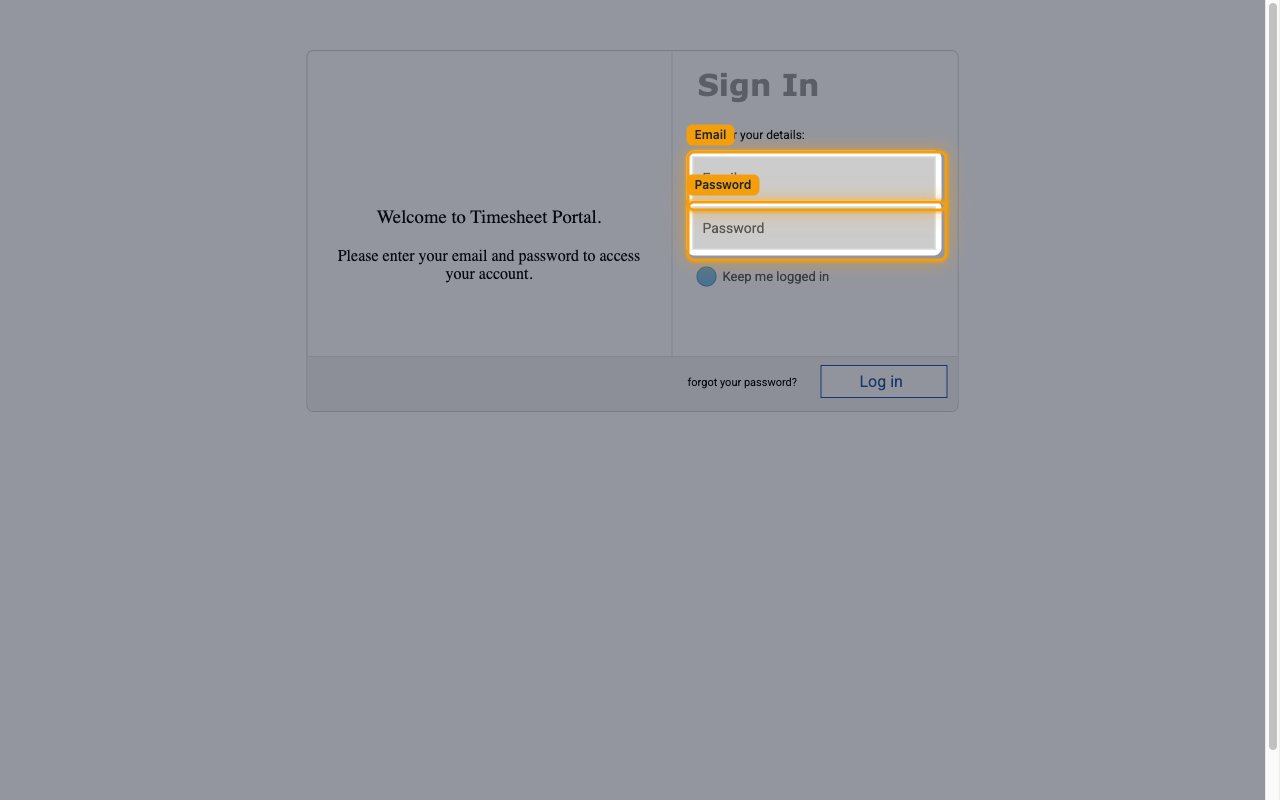
Sign in to Timesheet Portal
Open your Timesheet Portal login page and, under Sign In, enter the Email and
Password of a System Administrator user, then click Log in.
- Sign in at your account’s dedicated login page. Format:
https://{account-name}.timesheetportal.com - Example:
https://acme.timesheetportal.com - If you have a single account you can also use the generic Timesheet Portal login.
Open the API settings
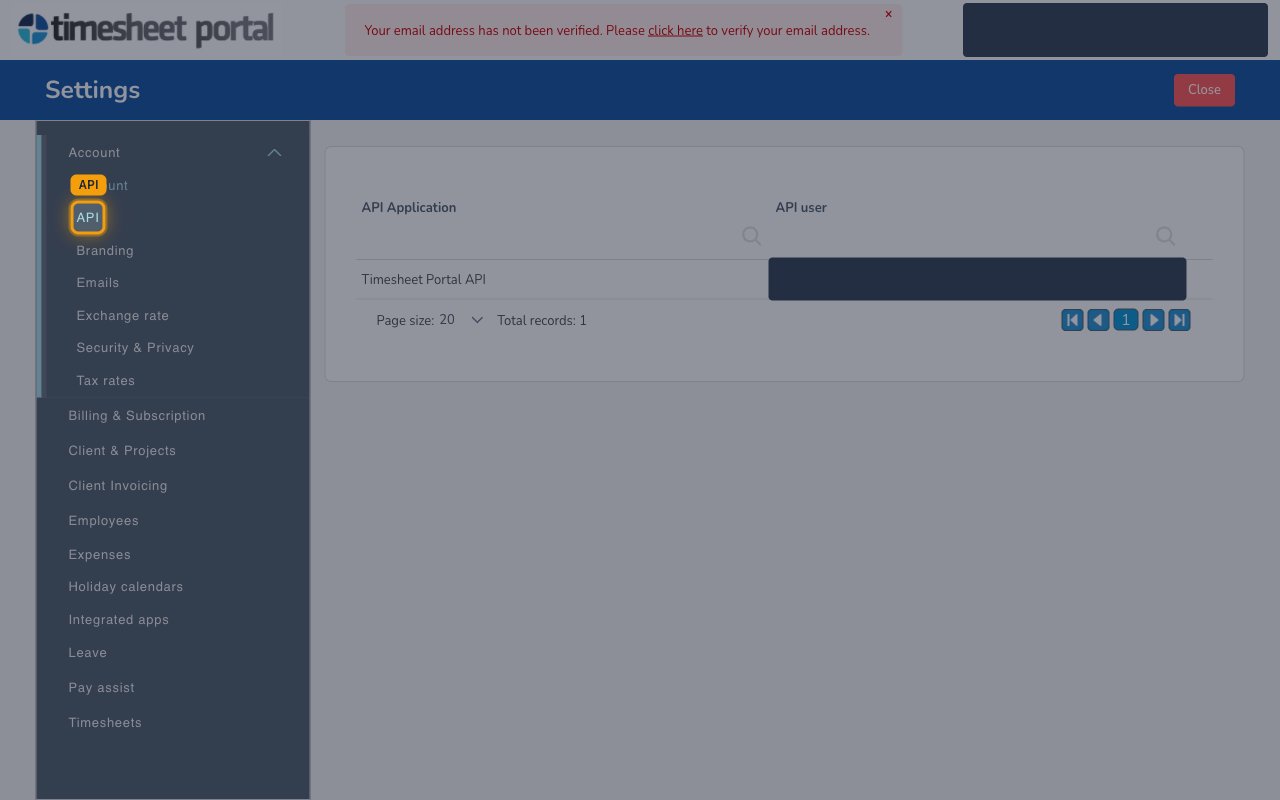
Click the Settings menu. In the settings panel, under the Account section choose
API to open the API applications list. Timesheet Portal lists a single API Application
named Timesheet Portal API together with its assigned API user.
Copy your Client ID and Client secret
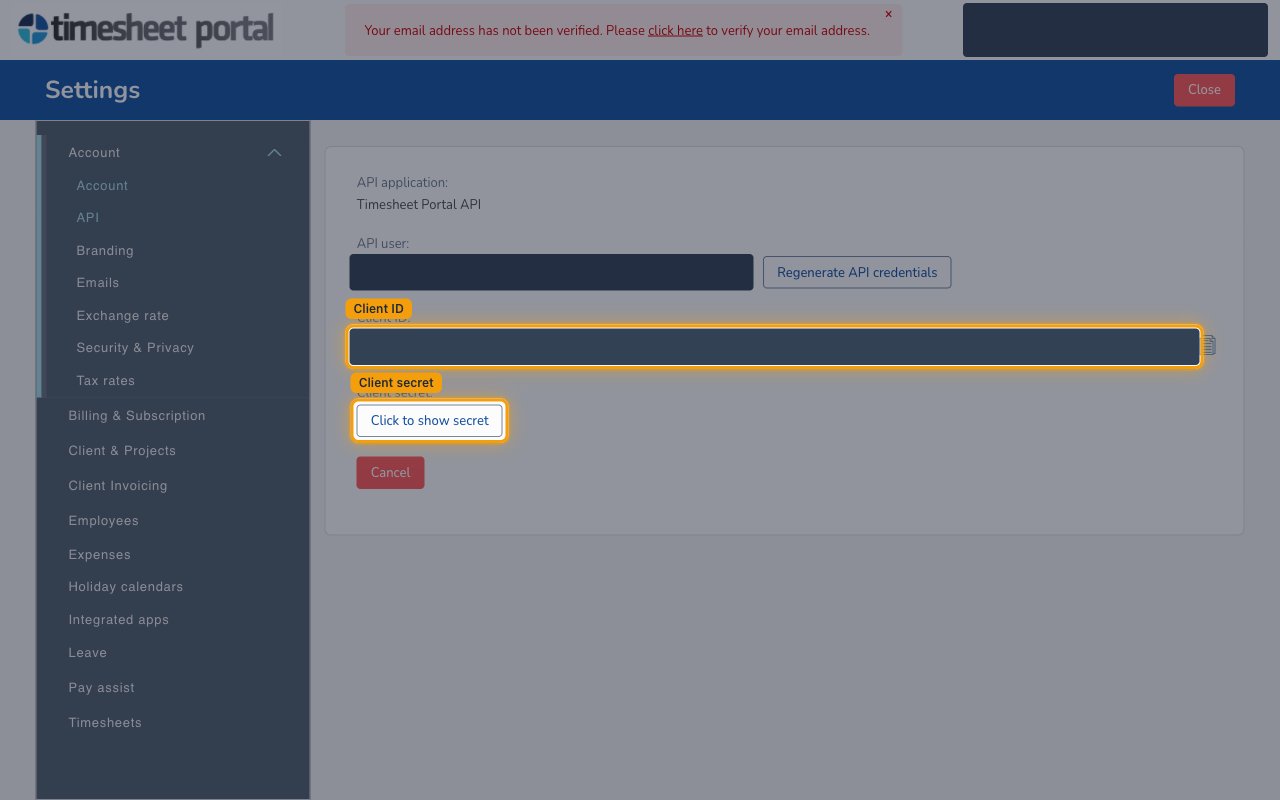
Click the Timesheet Portal API application to open it. Confirm the API user is an
API-authorised System Administrator, then copy the Client ID value. Click
Click to show secret to reveal the Client secret and copy it. Use
Regenerate API credentials if you need to issue a fresh pair.
- Paste the Client ID value into the Client ID field in the StackOne Connector profile.
- Paste the revealed secret into the Client Secret field in the StackOne Connector profile.
- You only need to supply the Client ID and Client Secret — there are no additional connection URLs to register.
Creating the StackOne Connector Profile
To create the Connector Profile in StackOne for Timesheet Portal:Navigate to Connector Profiles
Create New Connector Profile
- Click + Connector Profile
- Search for and select Timesheet Portal
- Select Type as OAuth 2.0 (Client Credentials)
- Fill out the fields using details retrieved from your provider:
- Client ID
- Client Secret
- (Optional) Select Actions to be enabled for this Connector Profile
- Click Create profile