

Recommended Set up with your agent
Paste this into Claude Code. It walks you through each step and can run the commands for you.
Help me connect StackOne to Claude Code. My team already set up StackOne in Claude Code. Read the setup guide at https://docs.stackone.com/ai-platforms/setup-guide.md and guide me one step at a time.
Or follow the steps yourself
Connect
1
Approve StackOne
- In your terminal, open your project and run
claude. - If Claude Code says New MCP server found in this project, choose Use this MCP server.

/mcp. It may be under Managed MCPs, or named claude.ai StackOne if your team added it in Claude. If you haven’t signed in to it yet, select Show unused connectors to find it. If your team shares it as a plugin, install that plugin with /plugin first.StackOne isn't there
StackOne isn't there
Ask the person who manages Claude Code at your company to add it. Send them this:To add it just for yourself instead, follow Personal Setup.
2
Sign in and authorize
In Claude Code, run 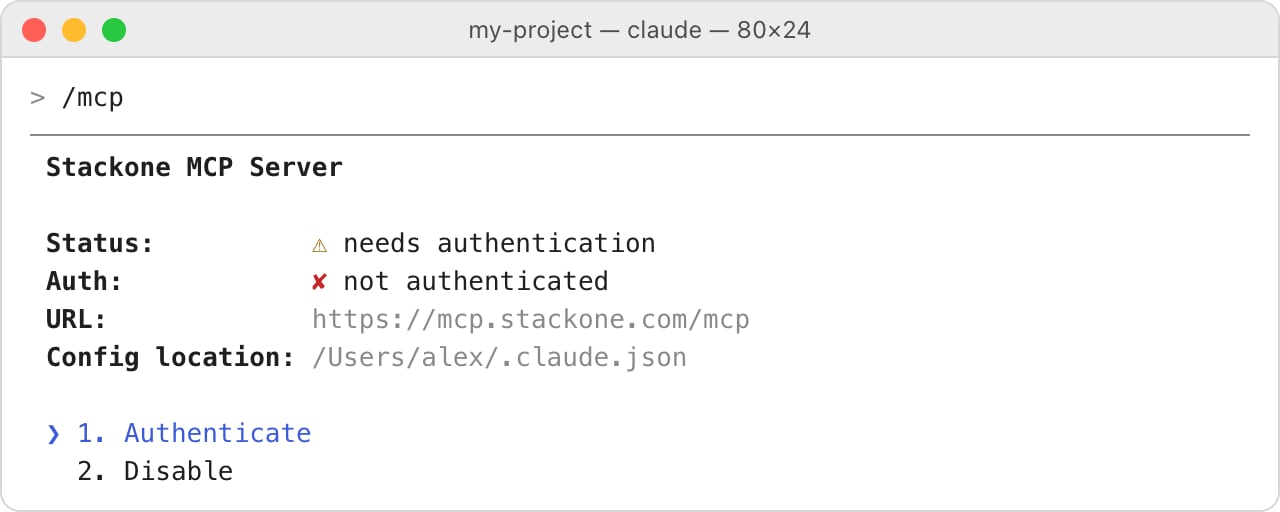
/mcp. Select the StackOne server (usually stackone), press Enter, and choose Authenticate. In VS Code, type /mcp in the Claude Code chat panel.- Sign in to StackOne. In a desktop app or code editor, this opens in your browser.
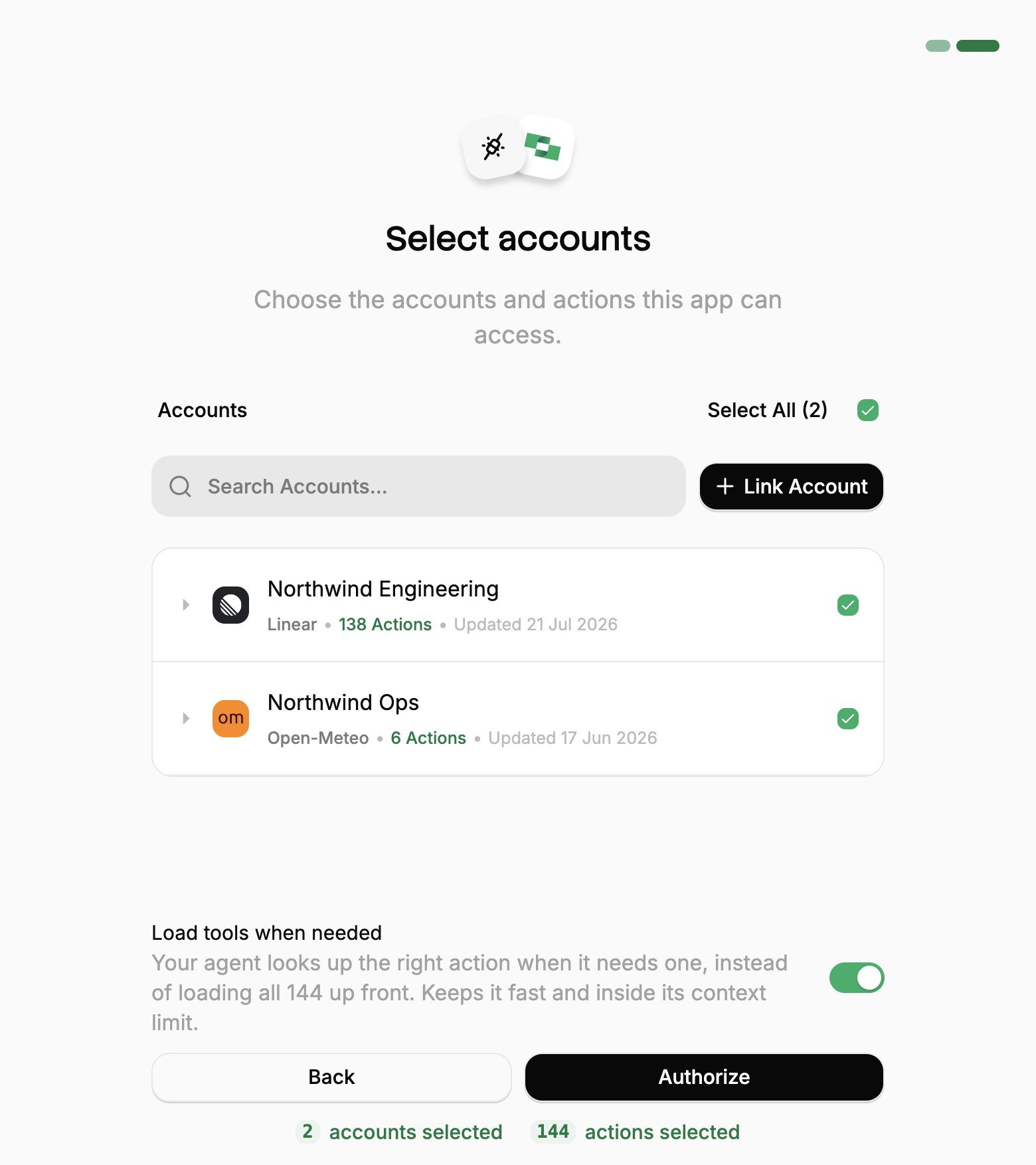
- If StackOne asks for a project, pick yours and click Continue to Accounts.
- Pick the work systems Claude Code can use (your Linked Accounts).
- If you see Load tools when needed, leave it on.
- Click Authorize.
3
Check it works
Back in Claude Code, you see Authentication successful. To check it works, send:The first time Claude uses StackOne, Claude Code asks for permission. Choose Yes.
If something goes wrong
If something goes wrong
Can’t add StackOne. If Claude Code says the server is blocked or not allowed by enterprise policy, your company controls which servers Claude Code can use. Ask the person who manages Claude Code to allow StackOne. If VS Code’s terminal can’t find
claude, install the Claude Code CLI. The extension doesn’t add that command.StackOne from Claude isn’t in /mcp. Claude Code loads Claude connectors only when you are signed in with a Claude account. If you use an API key, Amazon Bedrock or Google Cloud, or a token from claude setup-token, they do not load. Run /status to see the method, remove the API key variable or provider setting, then run /login and choose your Claude account.You skipped the approval. Run claude mcp reset-project-choices in your project, then run claude again.The browser didn’t open. Copy the link Claude Code shows into your browser. If the browser shows an error after you click Authorize, copy the full address from the browser’s address bar and paste it into Claude Code.A system you need is missing. Ask your StackOne admin, or see Linking Accounts. If it’s linked but you didn’t pick it when you signed in, run /mcp, choose Re-authenticate on StackOne and pick it.It stopped working. Run /mcp, select StackOne and sign in again with Re-authenticate or Authenticate. Access lasts 90 days from when you clicked Authorize.It can’t do something. It can do only what your own StackOne access allows. Ask your StackOne admin.You need it in CI or with claude -p. Those runs can’t open the sign-in. Use a token app instead.Add or change accounts
Add or change accounts
Claude Code reaches only the Linked Accounts you approved when you connected. To add one you link later, or one someone shares with you afterwards:To review or revoke the connection, use the same ⋮ menu in Connected Apps.
1
Open Connected Apps
In the StackOne dashboard, go to Connected Apps.
2
Edit the connection
- Open the ⋮ menu on the row for Claude Code and select Edit tool access.
- Select the Linked Account.
- Click Save changes.