

The server URL
Everyone uses the same URL in their client:Most clients open a sign-in prompt as soon as the server is added, and some wait until the first tool call. See Client setup (OAuth) for popular clients.
What the user sees
Authorization happens in the StackOne dashboard, against the user’s own login. Sign in, pick a project, select the Linked Accounts the client should reach, then Authorize. The granted accounts and actions become the client’s tool list. Selecting an account grants every action enabled on its Connector Profile. Expanding an account narrows the grant to individual actions. The same screen carries the Load tools when needed toggle, which puts the connection into Advanced Tool Search. It is on by default. Under the client’s logo, the screen shows where the connection returns after you approve, such as Returns to claude.ai. For a client that publishes its own details, such as Claude Code or VS Code, it also shows the domain it came from. Check that both match the client you are connecting. Any program on your device can catch a sign-in that returns to localhost or to an app on it, so only continue if you started the connection yourself, from that client.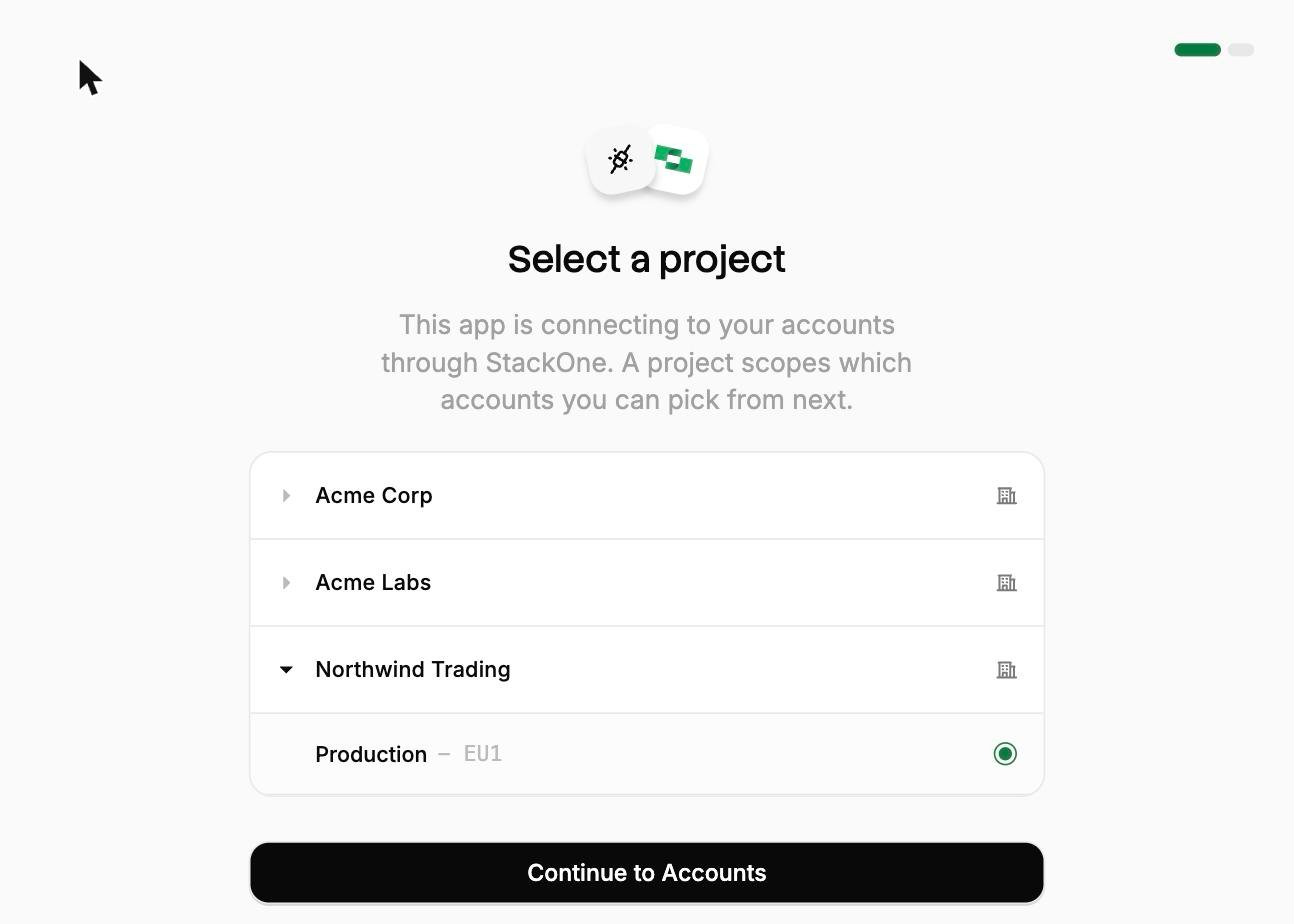
Pick a project
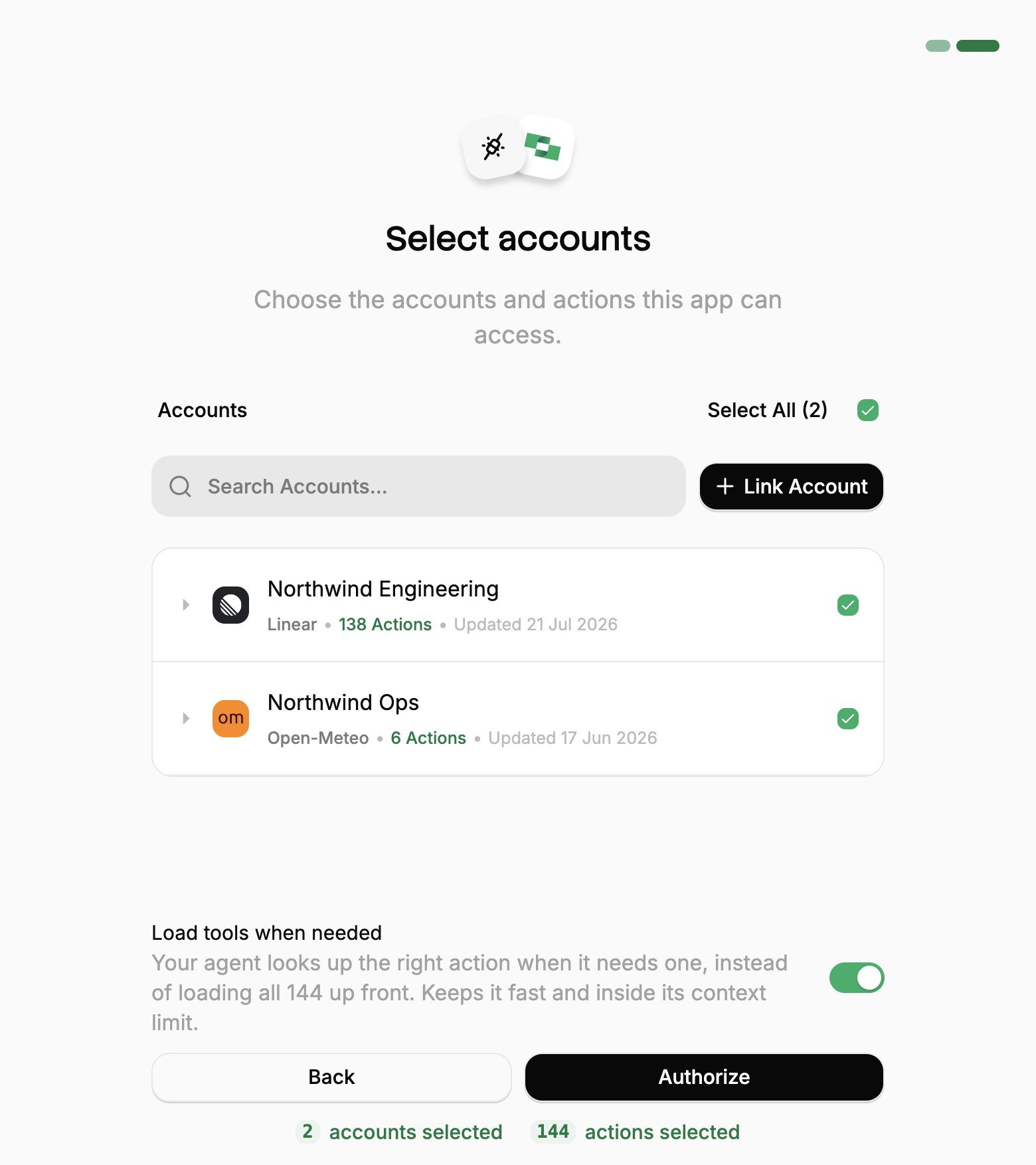
Select accounts
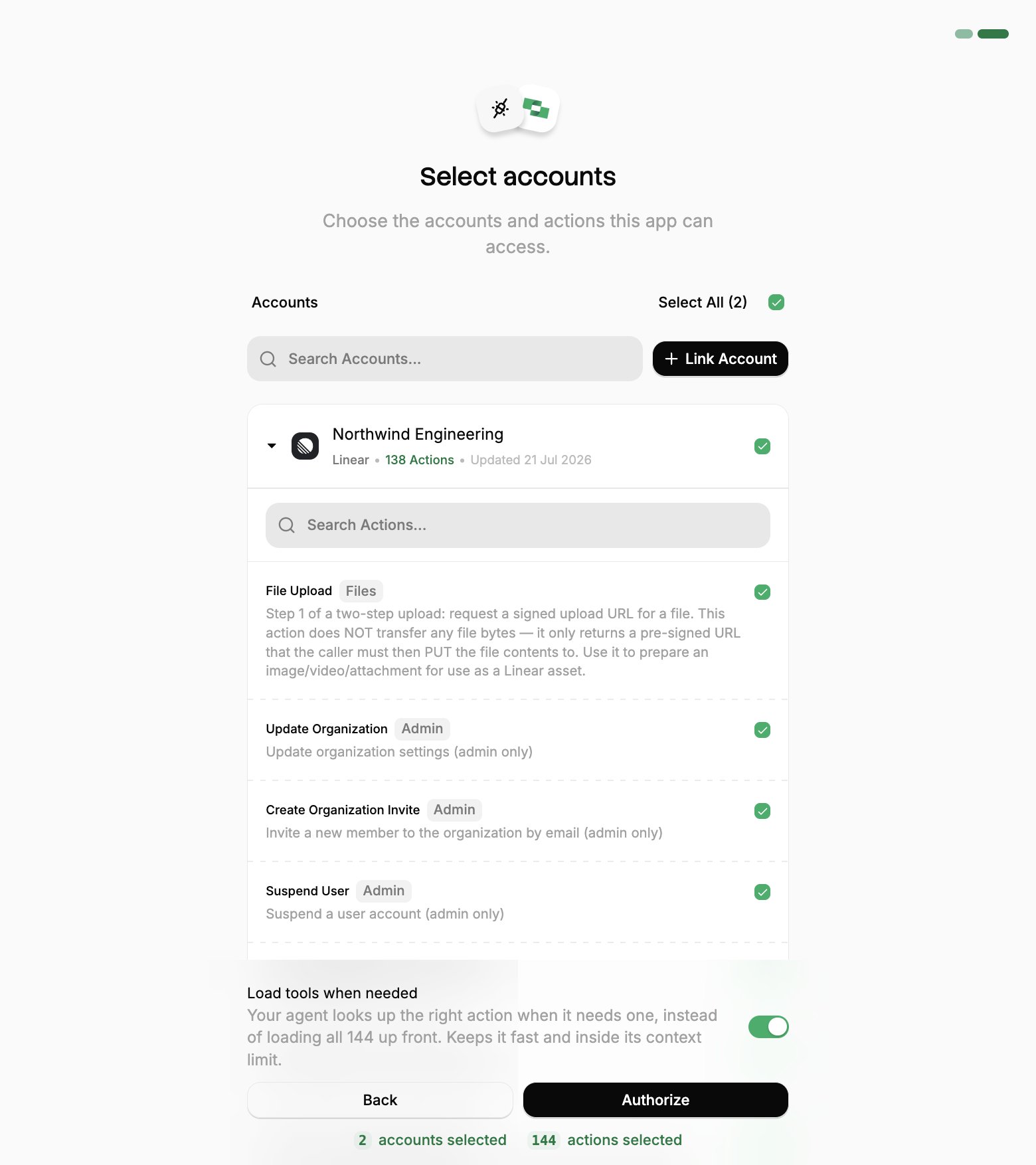
Narrow the actions
Who can grant access
Users typically hold the Project Member role, which is what the flow is built around. A Project Member sees the accounts they linked themselves, plus any they have been added to. That is what makes one URL safe to publish across an organization. Access can also be granted on a single Linked Account, which is how a shared account (a service mailbox, a company CRM login) reaches someone who is otherwise only a Project Member. Each person added to an account gets one of two levels:Choosing a connection method
Client setup (OAuth)
OAuth is the recommended way to connect. Each person authorizes with their own StackOne login, and their grant can be revoked at any time.Popular clients
Each AI platform with a StackOne guide is listed on AI Platforms, with its setup pages. These clients connect too, following their own docs:Clients requiring Client ID and Secret
Most clients identify themselves to StackOne automatically, which is why the URL is usually the whole configuration. Claude Code and VS Code publish their details at an address StackOne reads, and other clients, including Cursor, register on first connect. A few sign in from a fixed, hosted callback address instead and cannot self-register. Those need a client created in the dashboard first, and you paste its credentials into the client.1
Create the client
Go to Project Settings → MCP OAuth Clients → Create OAuth Client. Give it a descriptive name, leave Client type set to
Confidential, and add one redirect URI per line. This is the callback address the client returns to after sign-in, which the client’s own documentation states.The Common integrations picker fills the redirect URI in for the clients we have confirmed:Redirect URIs must be
https or a loopback address.2
Copy the credentials
Generate returns the client ID and secret. The secret is shown only once, so store it before you close the panel. If it is lost, create a new client rather than trying to recover it.
3
Configure the client
Paste the credentials into the client along with the endpoints shown beside them:
Then run the flow. The consent screen is the same one every other client shows, and Who can grant access applies unchanged.
Access tokens last one hour and are renewed automatically using the
offline_access refresh token. The grant itself lasts 90 days, after which the user runs the flow again. Revoking under Connected Apps ends it immediately.Connect another MCP client
Any MCP client that speaks the Streamable HTTP transport and supports OAuth can connect. Point it athttps://mcp.stackone.com/mcp and let it run the flow. If a client cannot open a browser for someone to approve the prompt or does not support OAuth, create a token app instead.
Reviewing and revoking access
Every authorization is a grant against the user who approved it, not against a project API key. Users manage their own grants under Connected Apps → OAuth apps in the dashboard. Edit tool access changes which accounts and actions a grant covers without running the flow again, though a client that keeps its own tool list needs reconnecting or refreshing to show the change. Revoking a grant immediately stops that client’s tool calls. Project Admins and Organization Admins see every grant in the project and can edit or revoke them. Revoking access does not unlink the account or change the Connector Profile. The account keeps working for every other client.Client setup (token apps)
Token apps connect MCP clients that do not support OAuth, such as background jobs, scheduled scripts, or headless agents. Each app receives a URL carrying its own token:Create a token app
Project Admins and Project Members can create token apps.1
Open the create panel
Go to Connected Apps → Token apps and click Create token app.
2
Configure the app
Set the following:
- Name: a descriptive name for the client, for example
Claude Desktop. - Acts as:
Youto run calls under your own permissions and runtime policies, orThe projectto run calls on behalf of the project. Only Project Admins can chooseThe project. - Expires after: the token lifetime (
1 day,7 days,30 days, or1 year). - Accounts and tools: select up to 50 Linked Accounts. Selecting an account grants all enabled actions; expand an account to choose specific actions.
3
Copy the MCP URL
Click Create, then copy the MCP URL.
Manage token apps
Manage existing token apps under Connected Apps → Token apps:- Edit accounts and tools: select a token app from the list to open its details panel. The creator (for an app acting as You) or a Project Admin (for an app acting as The project) can update the selected accounts and actions, then click Save changes. The URL remains unchanged.
- Regenerate URL: in the row menu or details panel, click Regenerate URL and select an expiry to issue a new token. This immediately invalidates the previous URL.
- Revoke: in the row menu or details panel, click Revoke to delete the token app and permanently deactivate its URL. Project Admins can revoke any token app in the project; Project Members can revoke apps they created.
Optimize and secure
With your agent connected, use StackOne’s platform features to optimize performance and secure every call.Advanced Tool Search
Reduce context and save tokens.
Deep Query
Search synced records for a fraction of the tokens.
Defender
Block prompt injections before they reach your agent.