> ## Documentation Index
> Fetch the complete documentation index at: https://docs.stackone.com/llms.txt
> Use this file to discover all available pages before exploring further.
# SpotDraft Webhook Setup Guide
> Configure SpotDraft to deliver events to StackOne.
## Prerequisites
Before continuing, you should have already completed the following for this connector:
Enable the connector and set up its connector profile in your project. See Managing Connectors.
SpotDraft - Client Credentials
Connect an account using StackOne Hub or Auth Link.
SpotDraft - Client Credentials
How webhooks are set up
There is no manual webhook setup in SpotDraft — it is fully automatic. When you connect this account, StackOne uses your Client ID and Client Secret to call SpotDraft's webhook API and register a single webhook that covers every supported activity, pointing at a delivery URL that is unique to this connection and carries a secret token. SpotDraft then sends one HTTP POST per activity to that URL, StackOne routes it to your integration, and only the events you have enabled are dispatched to you. When you disconnect the account, StackOne removes the webhook automatically. Your only step is to enable the events you want in StackOne.
Review the available webhook events
Each delivery carries the firing event in the top-level `activity` field, the affected contract in `contract_id`, and the timestamp in `created_at`. Only the events you enable in StackOne are delivered — the groups below list every activity SpotDraft can send.
Fired as a contract moves through creation, updates, execution, and deletion.
- Contract Created (`CONTRACT_CREATED`) — Fired when a contract is created.
- Contract Data Updated (`CONTRACT_DATA_UPDATED`) — Fired when a contract's key data changes.
- Contract Version Uploaded (`CONTRACT_VERSION_UPLOADED`) — Fired when a new document version is uploaded.
- Contract Deleted (`CONTRACT_DELETED`) — Fired when a contract is deleted.
- Contract Voided (`CONTRACT_VOIDED`) — Fired when a contract is voided.
- Contract Sent to Counterparty (`CONTRACT_SENT_TO_COUNTERPARTY`) — Fired when a contract is sent out for review or signature.
- Contract Executed (`CONTRACT_EXECUTED`) — Fired when all required signatures are complete.
- Contract Marked for Execution (`CONTRACT_MARK_FOR_EXECUTION`) — Fired when a contract is marked ready for execution.
- Contract Unmarked for Execution (`CONTRACT_UNMARK_FOR_EXECUTION`) — Fired when that mark is removed.
- Contract Entity Updated (`CONTRACT_ENTITY_UPDATED`) — Fired when the owning entity changes.
- Contract Process Metric Updated (`CONTRACT_PROCESS_METRIC_UPDATED`) — Fired when a process metric is updated.
Fired for internal approval and legal review workflows.
- Approval Requested (`CONTRACT_APPROVAL_REQUESTED`) — Fired when an approval is requested.
- Approval Completed (`CONTRACT_APPROVAL_COMPLETED`) — Fired when an approval is completed.
- Review Requested (`CONTRACT_REVIEW_REQUESTED`) — Fired when a legal review is first requested.
- Review Completed (`CONTRACT_REVIEW_COMPLETED`) — Fired when a legal review is marked complete.
- Activity Log Comment Created (`CONTRACT_ACTIVITY_LOG_COMMENT_CREATED`) — Fired when a comment is added to the activity log.
Fired during the signature request and signing flow.
- Signature Requested (`CONTRACT_SIGNATURE_REQUESTED`) — Fired when signatures are requested.
- Signature Requested Notification Sent (`CONTRACT_SIGNATURE_REQUESTED_NOTIFICATION_SENT`) — Fired when the signature-request notification is sent.
- Signature Declined (`CONTRACT_SIGNATURE_DECLINED`) — Fired when a signatory declines.
- Contract Signed (`CONTRACT_SIGNED`) — Fired when a required signatory completes signing.
Fired when contract key data points or external metadata change.
- Key Pointer Created (`CONTRACT_KEY_POINTER_CREATION`) — Fired when a key data point is created.
- Key Pointer Updated (`CONTRACT_KEY_POINTER_UPDATION`) — Fired when a key data point is updated.
- External Metadata Created (`CONTRACT_EXTERNAL_METADATA_CREATED`) — Fired when external metadata is added.
- External Metadata Updated (`CONTRACT_EXTERNAL_METADATA_UPDATED`) — Fired when external metadata changes.
Fired for counterparty records, contacts, and addresses.
- Counterparty Created (`COUNTER_PARTY_CREATED`) — Fired when a counterparty is created.
- Counterparty Updated (`COUNTER_PARTY_UPDATED`) — Fired when a counterparty is updated.
- Counterparty Contact Created (`COUNTER_PARTY_CONTACT_CREATED`) — Fired when a counterparty contact is added.
- Counterparty Contact Updated (`COUNTER_PARTY_CONTACT_UPDATED`) — Fired when a counterparty contact changes.
- Counterparty Address Created (`COUNTER_PARTY_ADDRESS_CREATED`) — Fired when a counterparty address is added.
- Counterparty Address Updated (`COUNTER_PARTY_ADDRESS_UPDATED`) — Fired when a counterparty address changes.
Fired as signing and redlining emails are delivered, opened, and clicked.
- Signing Email Delivered (`SIGNING_EMAIL_DELIVERED`) — Fired when a signing email is delivered.
- Signing Email Opened (`SIGNING_EMAIL_OPENED`) — Fired when a signing email is opened.
- Signing Email Not Delivered (`SIGNING_EMAIL_NOT_DELIVERED`) — Fired when a signing email fails to deliver.
- Signing Email Link Clicked (`SIGNING_EMAIL_LINK_CLICKED`) — Fired when a signing email link is clicked.
- Redlining Email Delivered (`REDLINING_EMAIL_DELIVERED`) — Fired when a redlining email is delivered.
- Redlining Email Opened (`REDLINING_EMAIL_OPENED`) — Fired when a redlining email is opened.
- Redlining Email Not Delivered (`REDLINING_EMAIL_NOT_DELIVERED`) — Fired when a redlining email fails to deliver.
- Redlining Email Link Clicked (`REDLINING_EMAIL_LINK_CLICKED`) — Fired when a redlining email link is clicked.
- Postmark Email Event (`POSTMARK_EMAIL_EVENT`) — Fired for lower-level email delivery events from the mail provider.
Inspect the delivery format
SpotDraft sends each activity as an HTTP POST with a JSON body. The top-level fields are `activity` (the firing event, e.g. `CONTRACT_CREATED`), `contract_id`, `contract_title`, `contract_status`, `created_at`, and `activity_data` (event-specific detail, including `performed_by` and a `timestamp`). Counterparty events instead carry the entity under `activity_data.counter_party_data`, `activity_data.counter_party_contact_data`, or `activity_data.counter_party_address_data`.
Each webhook log entry exposes the exact JSON SpotDraft sent under the Payload tab, alongside a Headers tab. Use it to confirm the `activity` type and the identifiers your integration reads.
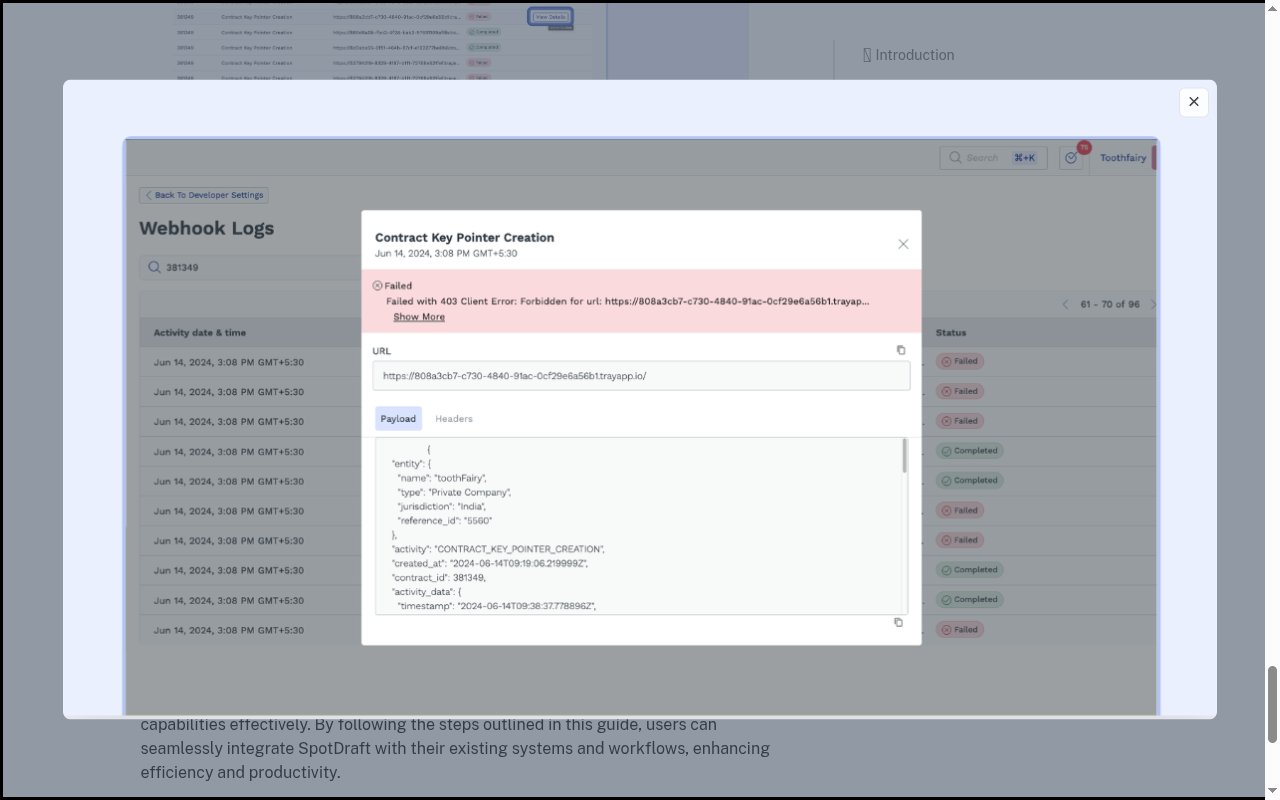
View and troubleshoot deliveries in SpotDraft
SpotDraft records every delivery attempt so you can monitor and debug them, independent of the automatic StackOne setup.
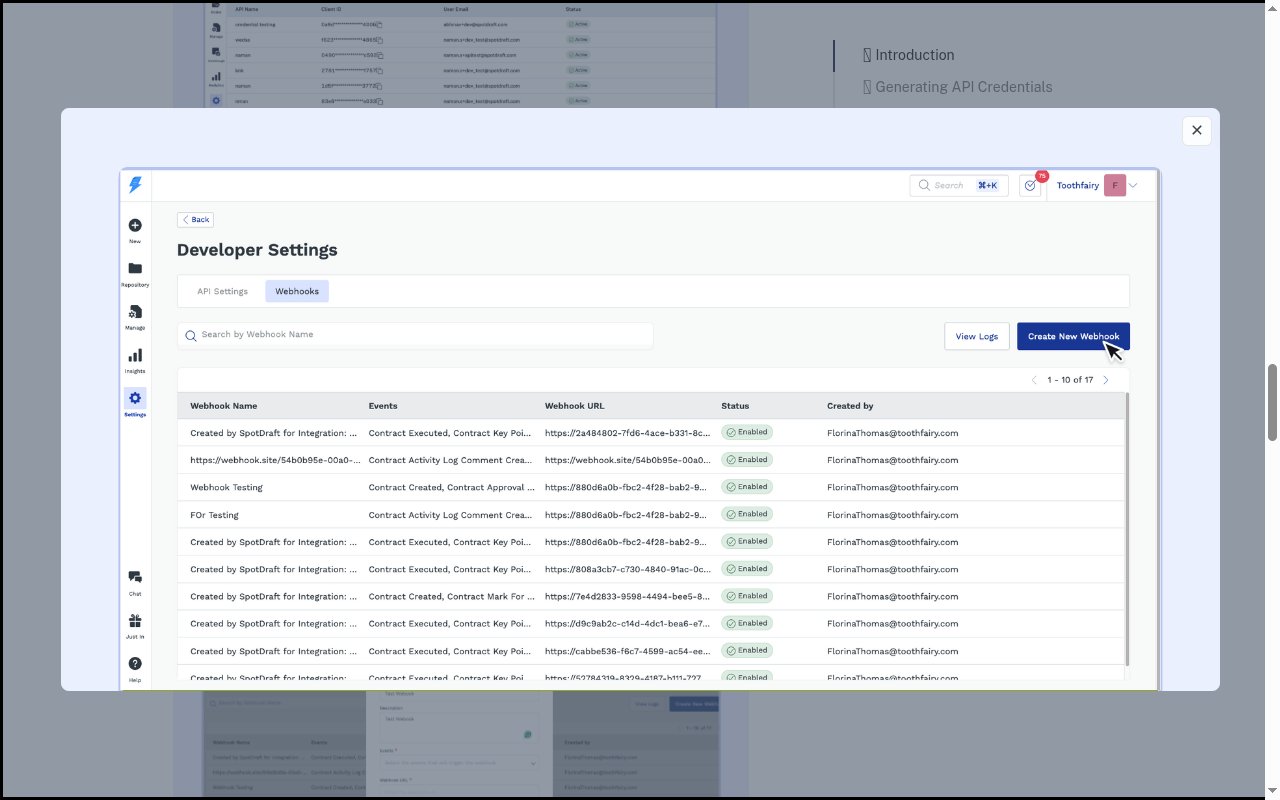
In SpotDraft, click Settings in the left navigation, open Developer Settings, and select the Webhooks tab. The StackOne-managed webhook is listed here (its name begins with "Created by SpotDraft for Integration") with its subscribed Events, Webhook URL, and a Status of Enabled.
Open Webhook Logs, optionally Search by Contract Id to narrow results, and click View Details on any entry to see the delivery status, target URL, and — via View More — the Payload and Headers that were sent.
Verify delivery authenticity
Every delivery includes an `X-SD-WEBHOOK-CONTENT-HASH` header — a Base64-encoded HMAC-SHA512 of the raw request body computed with your workspace's webhook secret. StackOne authorizes each delivery using the secret token embedded in the per-connection webhook URL, so no additional configuration is required on your side.
## Verify
Your Connector should now be able to receive and process events. Try triggering an event and you should see an Event appear in the Connector logs.