> ## Documentation Index
> Fetch the complete documentation index at: https://docs.stackone.com/llms.txt
> Use this file to discover all available pages before exploring further.

# JetBrains YouTrack Webhook Setup Guide

> Configure JetBrains YouTrack to deliver events to StackOne.

## Prerequisites

Before continuing, you should have already completed the following for this connector:

<Steps>
  <Step title="Configure the Connector">
    Enable the connector and set up its connector profile in your project. See <a href="/connect/managing-connectors/overview">Managing Connectors</a>.

    <Columns cols={2}>
      <Card title="Connector Profile" href="/connectors/jetbrains/guides/connector-profile/permanent-token" icon="https://stackone-logos.com/api/jetbrains/filled/svg" horizontal>
        JetBrains YouTrack - Permanent Token
      </Card>
    </Columns>
  </Step>

  <Step title="Link an Account">
    Connect an account using <a href="/embed/account-linking/overview">StackOne Hub</a> or <a href="/embed/account-linking/auth-link">Auth Link</a>.

    <Columns cols={2}>
      <Card title="Link Account" href="/connectors/jetbrains/guides/link-account/permanent-token" icon="https://stackone-logos.com/api/jetbrains/filled/svg" horizontal>
        JetBrains YouTrack - Permanent Token
      </Card>
    </Columns>
  </Step>
</Steps>

<section data-guide-section data-guide-scopes="">
  <h2>Copy your StackOne webhook URL</h2>

  <p>After connecting the account, StackOne generates a unique <strong>Native Webhook URL</strong>. This is the address YouTrack will POST every event to — you will paste it into the Webhook Triggers app.</p>

  <ul>
    <li>Open the connected JetBrains YouTrack account in StackOne Hub.</li>
    <li>Copy the value of the <strong>Native Webhook URL</strong> field and keep it handy.</li>
  </ul>
</section>

<section data-guide-section data-guide-scopes="">
  <h2>Add and attach the Webhook Triggers app</h2>

  <p>The Webhook Triggers app is a Marketplace app. Add it to your YouTrack instance and attach it to the projects you want events from.</p>

  <Steps>
    <Step title="Open Administration > Apps">
      <div data-guide-step data-guide-scopes="" data-guide-display-scopes-list="">
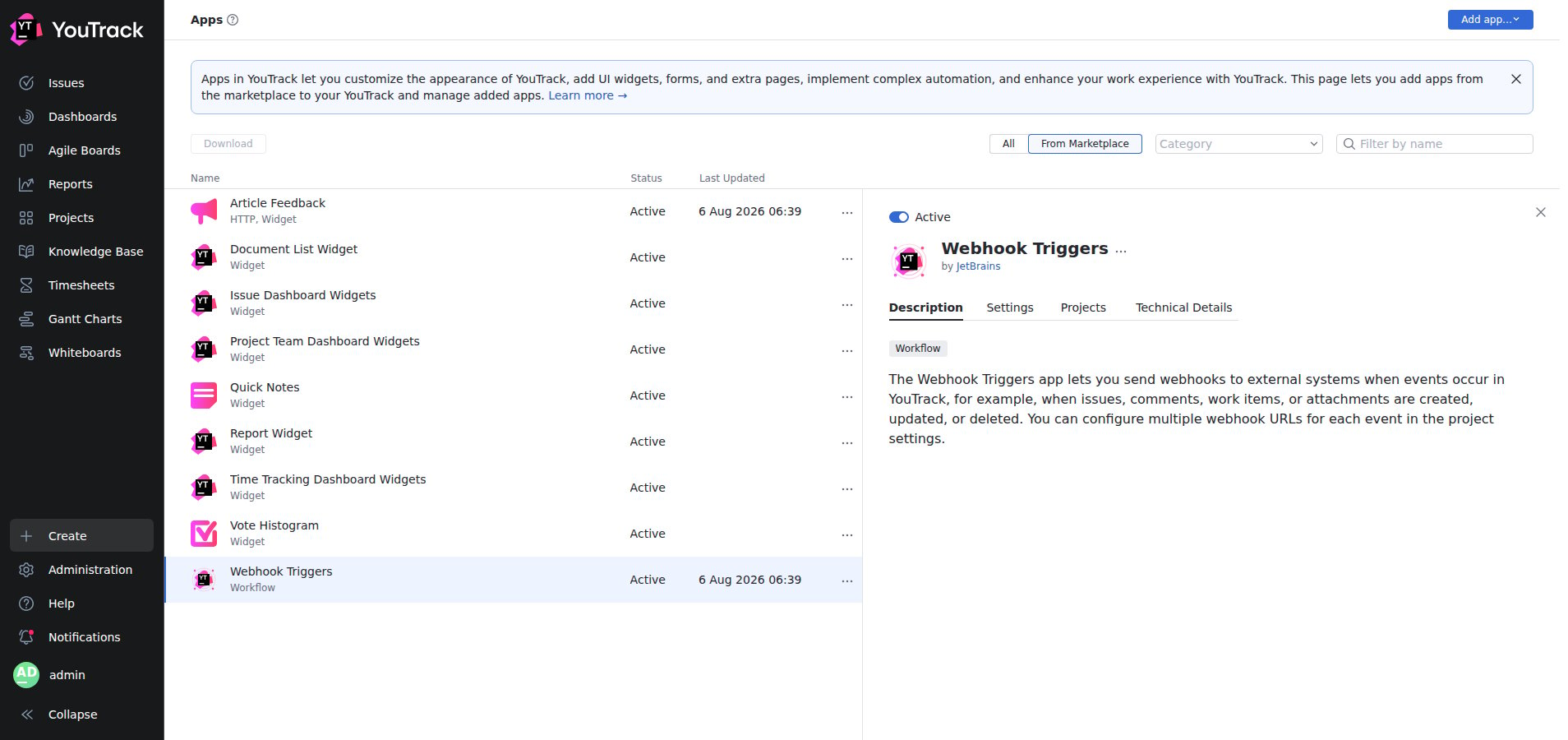
        <p>In YouTrack, click <strong>Administration</strong> in the left sidebar, then open <strong>Apps</strong>. Switch to the <strong>From Marketplace</strong> tab and add <strong>Webhook Triggers</strong> if it is not already installed. Once installed it appears in the apps list with the type <strong>Workflow</strong>.</p>

        <img src="https://mintcdn.com/stackone-60/Eim9vvg_dSsx9JZy/connectors/jetbrains/images/events-app-overview.png?fit=max&auto=format&n=Eim9vvg_dSsx9JZy&q=85&s=51f8837e7f4f09fe95cf4a0c792dfa27" alt="The Administration Apps page with Webhook Triggers selected, showing its Description tab and the by JetBrains author line." width="1908" height="900" data-path="connectors/jetbrains/images/events-app-overview.png" />
      </div>
    </Step>

    <Step title="Attach the app to your project">
      <div data-guide-step data-guide-scopes="" data-guide-display-scopes-list="">
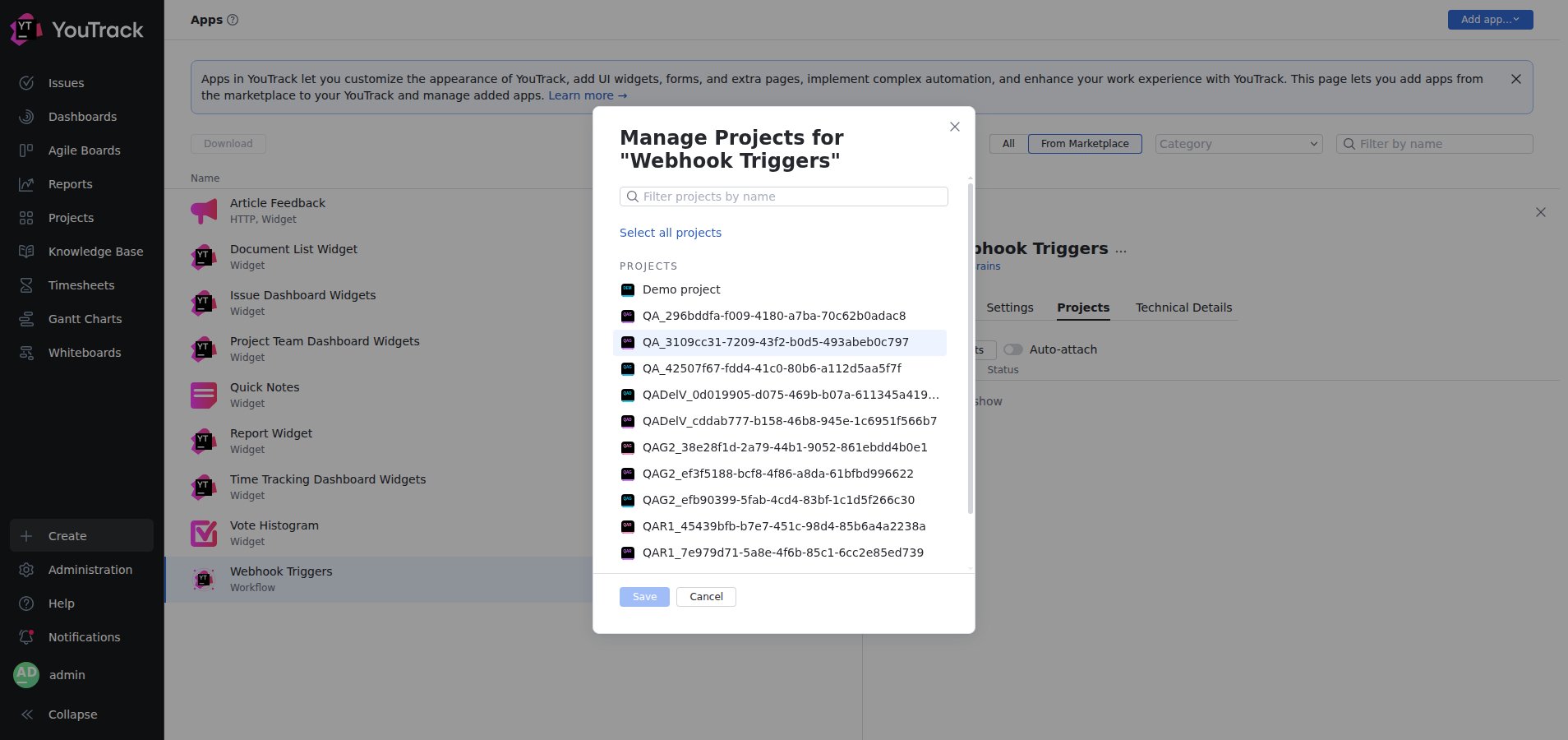
        <p>Open the app's <strong>Projects</strong> tab and click <strong>Manage projects</strong>. Select the project(s) you want to receive events from and click <strong>Save</strong>. (You can instead enable <strong>Auto-attach</strong> to apply it to every project.)</p>

        <img src="https://mintcdn.com/stackone-60/Eim9vvg_dSsx9JZy/connectors/jetbrains/images/events-manage-projects.png?fit=max&auto=format&n=Eim9vvg_dSsx9JZy&q=85&s=1db56a344537d5d5b61fff3ed7794ef0" alt="The Manage Projects dialog for Webhook Triggers with a searchable project list and Save and Cancel buttons." width="1908" height="900" data-path="connectors/jetbrains/images/events-manage-projects.png" />
      </div>
    </Step>
  </Steps>
</section>

<section data-guide-section data-guide-scopes="">
  <h2>Configure the webhook in your project</h2>

  <p>The per-event webhook URLs are set in the project's own app settings.</p>

  <Steps>
    <Step title="Open the project's Webhook Triggers settings">
      <div data-guide-step data-guide-scopes="" data-guide-display-scopes-list="">
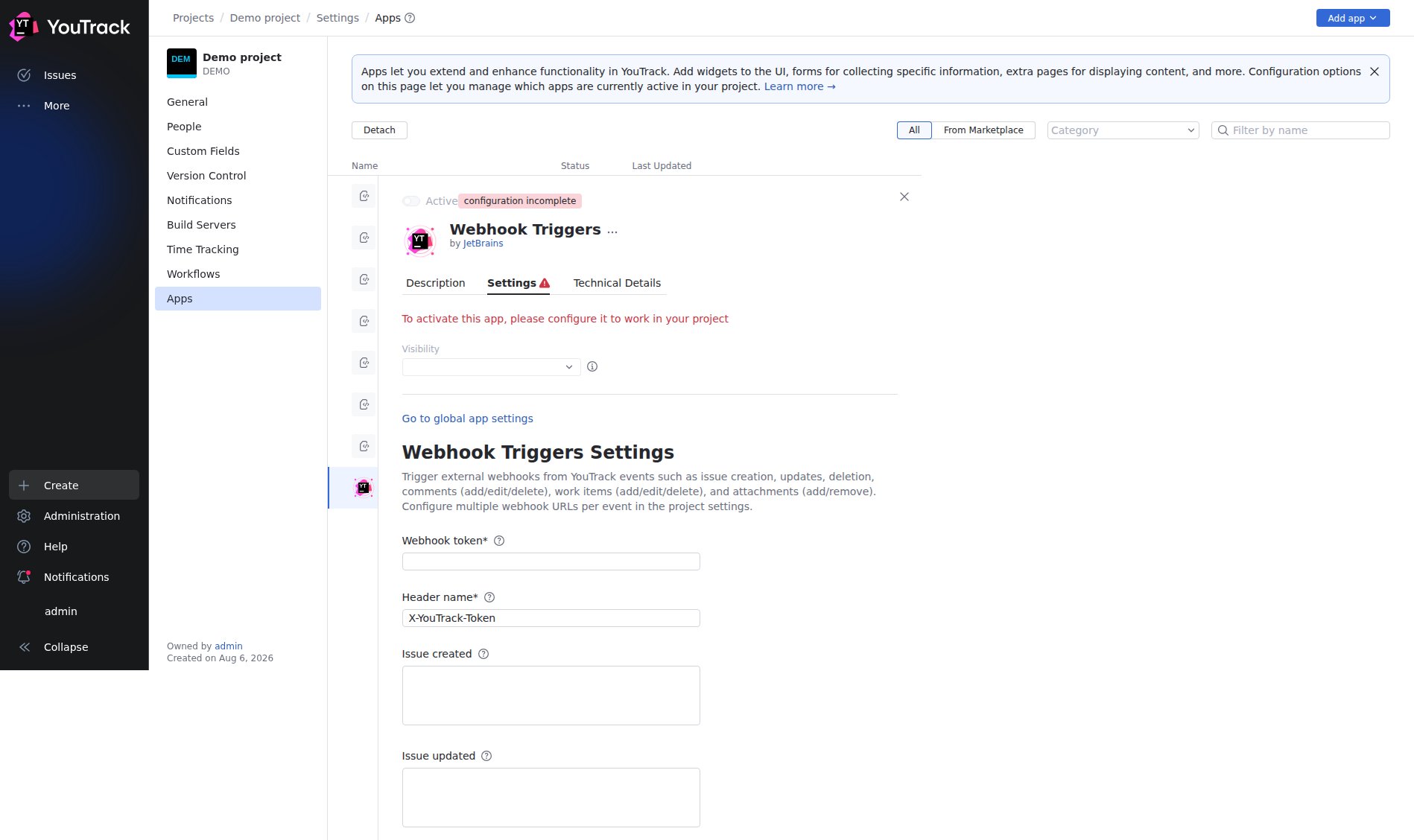
        <p>Go to <strong>Projects > \[your project] > Settings > Apps</strong>, select <strong>Webhook Triggers</strong>, and open its <strong>Settings</strong> tab. Until it is configured the app shows <strong>configuration incomplete</strong> and stays inactive.</p>

        <img src="https://mintcdn.com/stackone-60/Eim9vvg_dSsx9JZy/connectors/jetbrains/images/events-config-fields.png?fit=max&auto=format&n=Eim9vvg_dSsx9JZy&q=85&s=fdb911f9d5370b1a250d4d1b0e384f38" alt="The project-level Webhook Triggers Settings tab showing the Webhook token and Header name fields followed by a URL field per event." width="1898" height="1128" data-path="connectors/jetbrains/images/events-config-fields.png" />
      </div>
    </Step>

    <Step title="Set the webhook token and header">
      <div data-guide-step data-guide-scopes="" data-guide-display-scopes-list="">
        <p>Enter a <strong>Webhook token</strong> — a shared secret of at least 32 characters that YouTrack sends with every request. Leave <strong>Header name</strong> as the default `X-YouTrack-Token`. StackOne already secures the endpoint with the per-account token embedded in the webhook URL, so this value is not verified by StackOne, but YouTrack requires it to be set.</p>
      </div>
    </Step>

    <Step title="Paste the StackOne URL for the events you want">
      <div data-guide-step data-guide-scopes="" data-guide-display-scopes-list="">
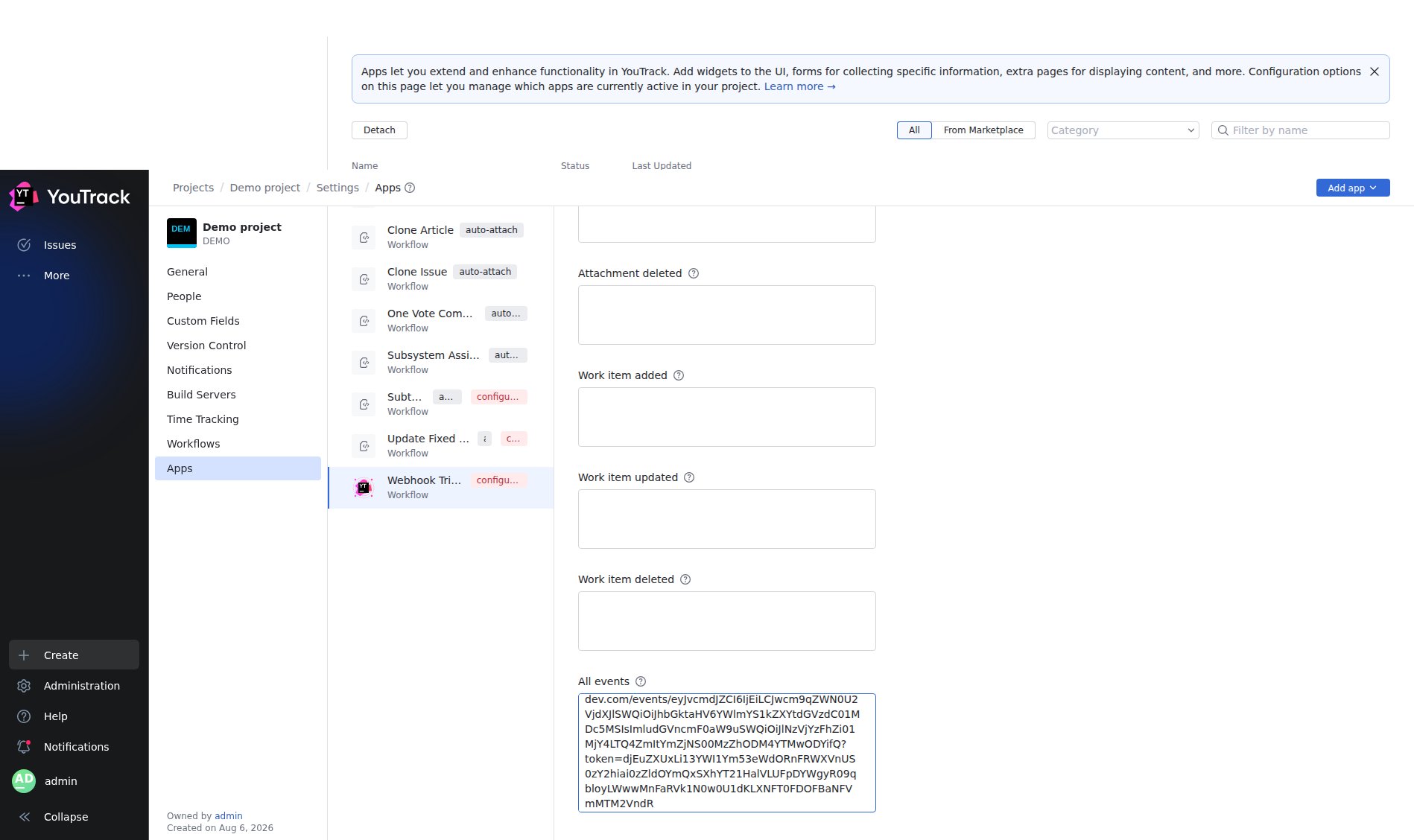
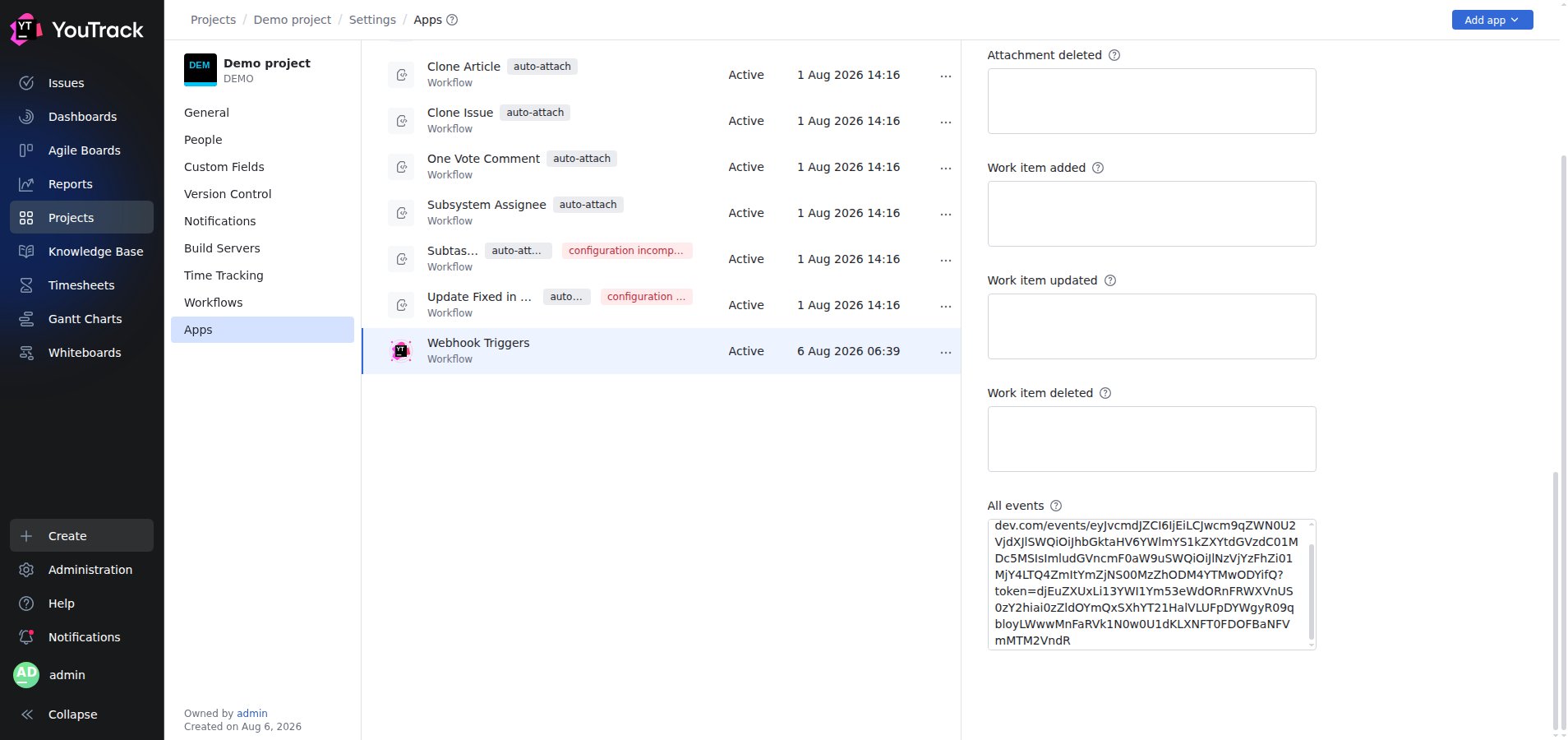
        <p>Paste your StackOne <strong>Native Webhook URL</strong> into the field for each event you want to receive, or paste it once into the <strong>All events</strong> field to receive every event through a single catch-all subscription.</p>

        <img src="https://mintcdn.com/stackone-60/Eim9vvg_dSsx9JZy/connectors/jetbrains/images/events-config-filled.png?fit=max&auto=format&n=Eim9vvg_dSsx9JZy&q=85&s=93d9637d412b39171eedaf5bf1fd8063" alt="The Webhook Triggers Settings form with the Webhook token set and the StackOne URL pasted into the All events field." width="1898" height="1128" data-path="connectors/jetbrains/images/events-config-filled.png" />
      </div>
    </Step>

    <Step title="Save">
      <div data-guide-step data-guide-scopes="" data-guide-display-scopes-list="">
        <p>Click <strong>Save</strong>. The app status changes to <strong>Active</strong> and YouTrack begins POSTing a JSON payload to StackOne whenever a selected event occurs.</p>

        <img src="https://mintcdn.com/stackone-60/Eim9vvg_dSsx9JZy/connectors/jetbrains/images/events-saved-active.png?fit=max&auto=format&n=Eim9vvg_dSsx9JZy&q=85&s=72a84f1d84fcac03adfc4c781dda0511" alt="The Webhook Triggers app showing the Active toggle enabled and a Saved confirmation after the configuration is stored." width="1908" height="900" data-path="connectors/jetbrains/images/events-saved-active.png" />
      </div>
    </Step>
  </Steps>
</section>

<section data-guide-section data-guide-scopes="">
  <h2>Available webhook events</h2>

  <p>Only the events you paste a URL for (or all of them, via the <strong>All events</strong> field) are delivered. YouTrack groups the supported events as follows.</p>

  <Steps>
    <Step title="Issue events">
      <div data-guide-step data-guide-scopes="" data-guide-display-scopes-list="">
        <p>Events fired on the lifecycle of an issue.</p>

        <ul>
          <li><strong>Issue Created</strong> (`issueCreated`) — Fired when a new issue is created</li>
          <li><strong>Issue Updated</strong> (`issueUpdated`) — Fired when an issue is modified</li>
          <li><strong>Issue Deleted</strong> (`issueDeleted`) — Fired when an issue is removed</li>
        </ul>
      </div>
    </Step>

    <Step title="Comment events">
      <div data-guide-step data-guide-scopes="" data-guide-display-scopes-list="">
        <p>Events fired when comments on an issue change.</p>

        <ul>
          <li><strong>Comment Added</strong> (`commentAdded`) — Fired when a comment is added to an issue</li>
          <li><strong>Comment Updated</strong> (`commentUpdated`) — Fired when a comment is modified</li>
          <li><strong>Comment Deleted</strong> (`commentDeleted`) — Fired when a comment is removed</li>
        </ul>
      </div>
    </Step>

    <Step title="Work item events">
      <div data-guide-step data-guide-scopes="" data-guide-display-scopes-list="">
        <p>Events fired when time-tracking work items on an issue change.</p>

        <ul>
          <li><strong>Work Item Added</strong> (`workItemAdded`) — Fired when time is logged on an issue</li>
          <li><strong>Work Item Updated</strong> (`workItemUpdated`) — Fired when a work item is modified</li>
          <li><strong>Work Item Deleted</strong> (`workItemDeleted`) — Fired when a work item is removed</li>
        </ul>
      </div>
    </Step>

    <Step title="Attachment events">
      <div data-guide-step data-guide-scopes="" data-guide-display-scopes-list="">
        <p>Events fired when attachments on an issue change.</p>

        <ul>
          <li><strong>Attachment Added</strong> (`issueAttachmentAdded`) — Fired when an attachment is added to an issue</li>
          <li><strong>Attachment Deleted</strong> (`issueAttachmentDeleted`) — Fired when an attachment is removed</li>
        </ul>
      </div>
    </Step>
  </Steps>
</section>

<section data-guide-section data-guide-scopes="">
  <h2>Delivery format</h2>

  <p>Each delivery is a single JSON object with a top-level `event` field identifying the trigger type. StackOne routes it to the matching event handler on that field, then forwards the StackOne-normalized event (the provider `event` type, the resolved issue `record_id`, and the full YouTrack payload) to your downstream endpoint, signed with the `x-stackone-signature` header.</p>
</section>

## Verify

Your Connector should now be able to receive and process events. Try triggering an event and you should see an Event appear in the Connector logs.