> ## Documentation Index
> Fetch the complete documentation index at: https://docs.stackone.com/llms.txt
> Use this file to discover all available pages before exploring further.

# Gong Webhook Setup Guide

> Configure Gong to deliver events to StackOne.

## Prerequisites

Before continuing, you should have already completed the following for this connector:

<Steps>
  <Step title="Configure the Connector">
    Enable the connector and set up its connector profile in your project. See <a href="/connect/managing-connectors/overview">Managing Connectors</a>.

    <Columns cols={2}>
      <Card title="Connector Profile" href="/connectors/gong/guides/connector-profile/api-key" icon="https://stackone-logos.com/api/gong/filled/svg" horizontal>
        Gong - API Key
      </Card>

      <Card title="Connector Profile" href="/connectors/gong/guides/connector-profile/oauth-2-0" icon="https://stackone-logos.com/api/gong/filled/svg" horizontal>
        Gong - OAuth 2.0
      </Card>
    </Columns>
  </Step>

  <Step title="Link an Account">
    Connect an account using <a href="/embed/account-linking/overview">StackOne Hub</a> or <a href="/embed/account-linking/auth-link">Auth Link</a>.

    <Columns cols={2}>
      <Card title="Link Account" href="/connectors/gong/guides/link-account/api-key" icon="https://stackone-logos.com/api/gong/filled/svg" horizontal>
        Gong - API Key
      </Card>

      <Card title="Link Account" href="/connectors/gong/guides/link-account/oauth-2-0" icon="https://stackone-logos.com/api/gong/filled/svg" horizontal>
        Gong - OAuth 2.0
      </Card>
    </Columns>
  </Step>
</Steps>

<section data-guide-section data-guide-scopes="">
  <h2>Create a Gong Automation Rule webhook</h2>

  <p>Copy the <strong>Native Webhook URL</strong> from this StackOne connection and paste it into a Gong Automation Rule so Gong pushes call data to StackOne when a call finishes processing.</p>

  <Steps>
    <Step title="Copy the Native Webhook URL from StackOne">
      <div data-guide-step data-guide-scopes="" data-guide-display-scopes-list="">
        <p>On this connection in StackOne, copy the read-only <strong>Native Webhook URL</strong>. It already contains a secure per-connection key, so treat it like a secret — you will paste it into Gong in a later step.</p>
      </div>
    </Step>

    <Step title="Open Automation rules in Gong">
      <div data-guide-step data-guide-scopes="" data-guide-display-scopes-list="">
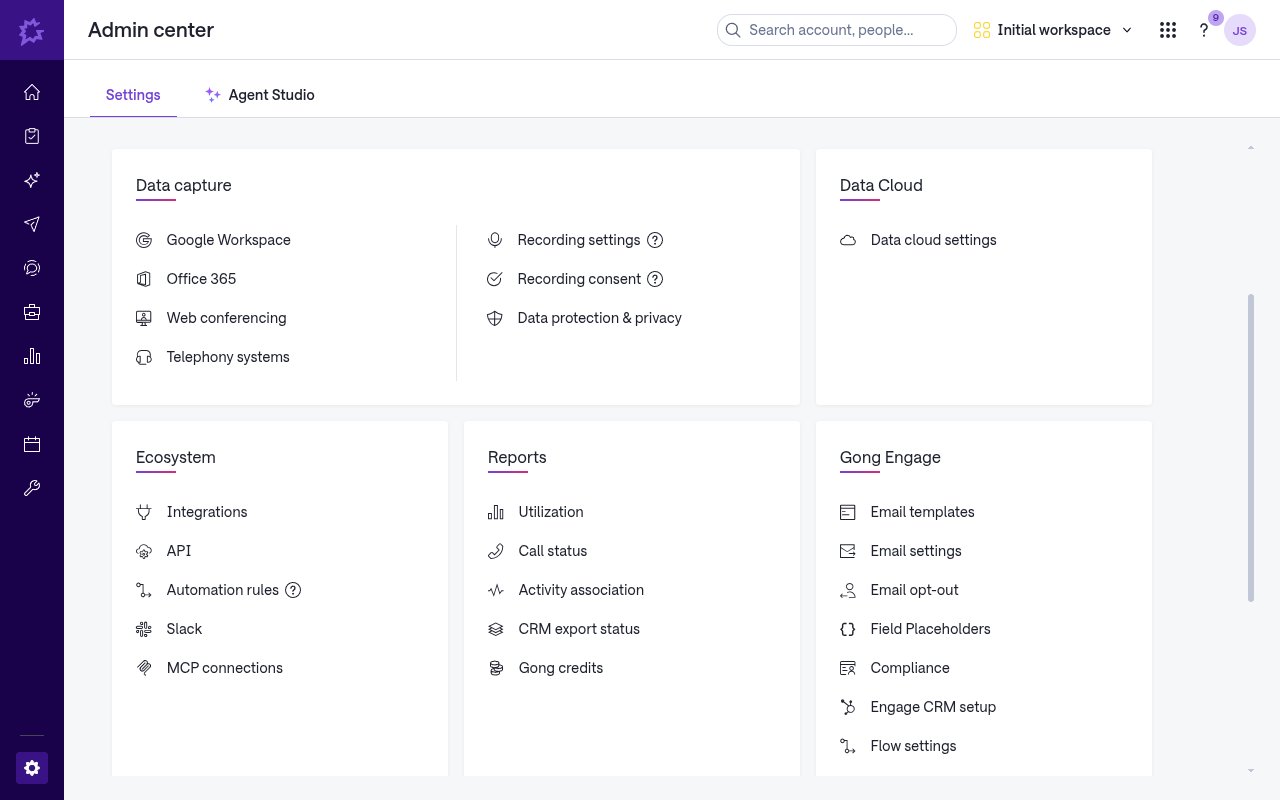
        <p>Sign in to Gong, open the <strong>Admin center</strong>, and on the <strong>Settings</strong> tab find the <strong>Ecosystem</strong> section. Click <strong>Automation rules</strong>.</p>

        <img src="https://mintcdn.com/stackone-60/WA2oIobXRYfoXBV_/connectors/gong/images/events-automation-rules-nav.png?fit=max&auto=format&n=WA2oIobXRYfoXBV_&q=85&s=d46e9f8ae251ed69dd2f9ba457af9890" alt="Gong Admin center Settings tab with the Ecosystem section and the Automation rules link" width="1280" height="800" data-path="connectors/gong/images/events-automation-rules-nav.png" />
      </div>
    </Step>

    <Step title="Add a rule and choose which calls to send">
      <div data-guide-step data-guide-scopes="" data-guide-display-scopes-list="">
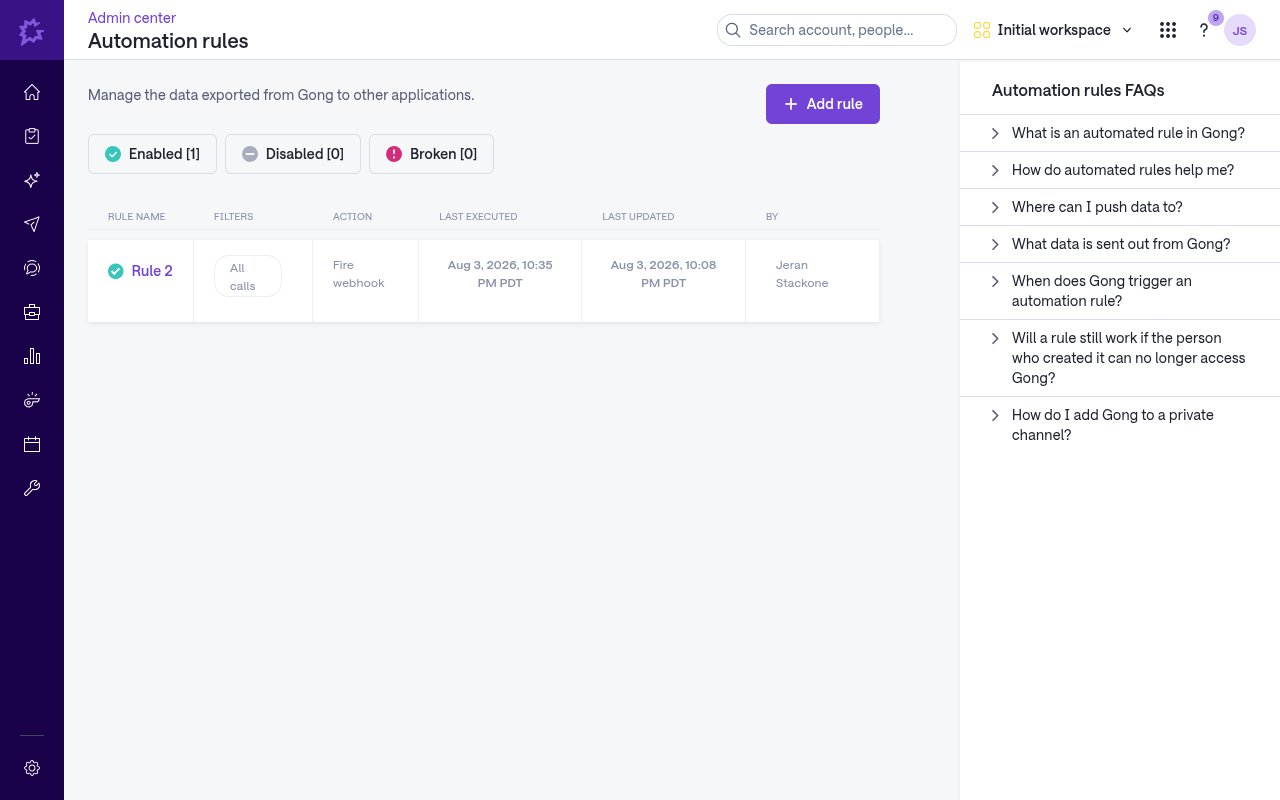
        <p>On the <strong>Automation rules</strong> page, click <strong>Add rule</strong>. Under <strong>If</strong>, the <strong>Trigger</strong> is a new call in the workspace; use <strong>If a call meets the following criteria</strong> to choose which calls the rule applies to (for example, <strong>All calls</strong>).</p>

        <img src="https://mintcdn.com/stackone-60/WA2oIobXRYfoXBV_/connectors/gong/images/events-add-rule.png?fit=max&auto=format&n=WA2oIobXRYfoXBV_&q=85&s=a3fc95977abc2c9b3450f85529a49a5a" alt="Gong Automation rules list page with the Add rule button and an existing Fire webhook rule" width="1280" height="800" data-path="connectors/gong/images/events-add-rule.png" />
      </div>
    </Step>

    <Step title="Configure the Fire webhook action">
      <div data-guide-step data-guide-scopes="" data-guide-display-scopes-list="">
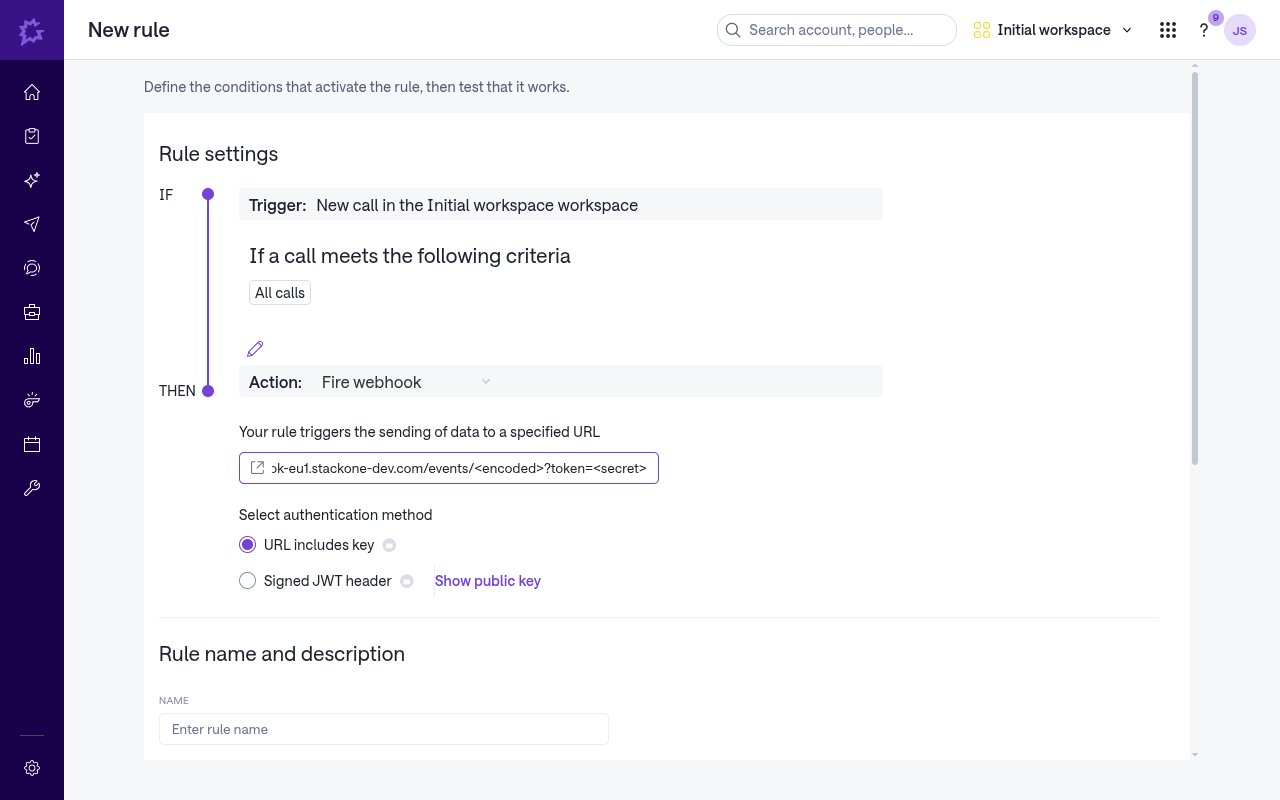
        <p>Under <strong>Then</strong>, set the <strong>Action</strong> to <strong>Fire webhook</strong>, then complete the destination fields.</p>

        <ul>
          <li><strong>Enter URL</strong> — paste the <strong>Native Webhook URL</strong> you copied from this StackOne connection.</li>
          <li><strong>Select authentication method</strong> — choose <strong>URL includes key</strong>. The URL already carries the per-connection key StackOne uses to identify the account. Do not choose <strong>Signed JWT header</strong> — StackOne does not verify that signature.</li>
        </ul>

        <img src="https://mintcdn.com/stackone-60/WA2oIobXRYfoXBV_/connectors/gong/images/events-fire-webhook.png?fit=max&auto=format&n=WA2oIobXRYfoXBV_&q=85&s=752a4f8850e8c553b909b4ae081fd945" alt="Gong new rule editor showing the Fire webhook action, the Enter URL field, and the URL includes key authentication option" width="1280" height="800" data-path="connectors/gong/images/events-fire-webhook.png" />
      </div>
    </Step>

    <Step title="Enter a name, test the rule, and enable it">
      <div data-guide-step data-guide-scopes="" data-guide-display-scopes-list="">
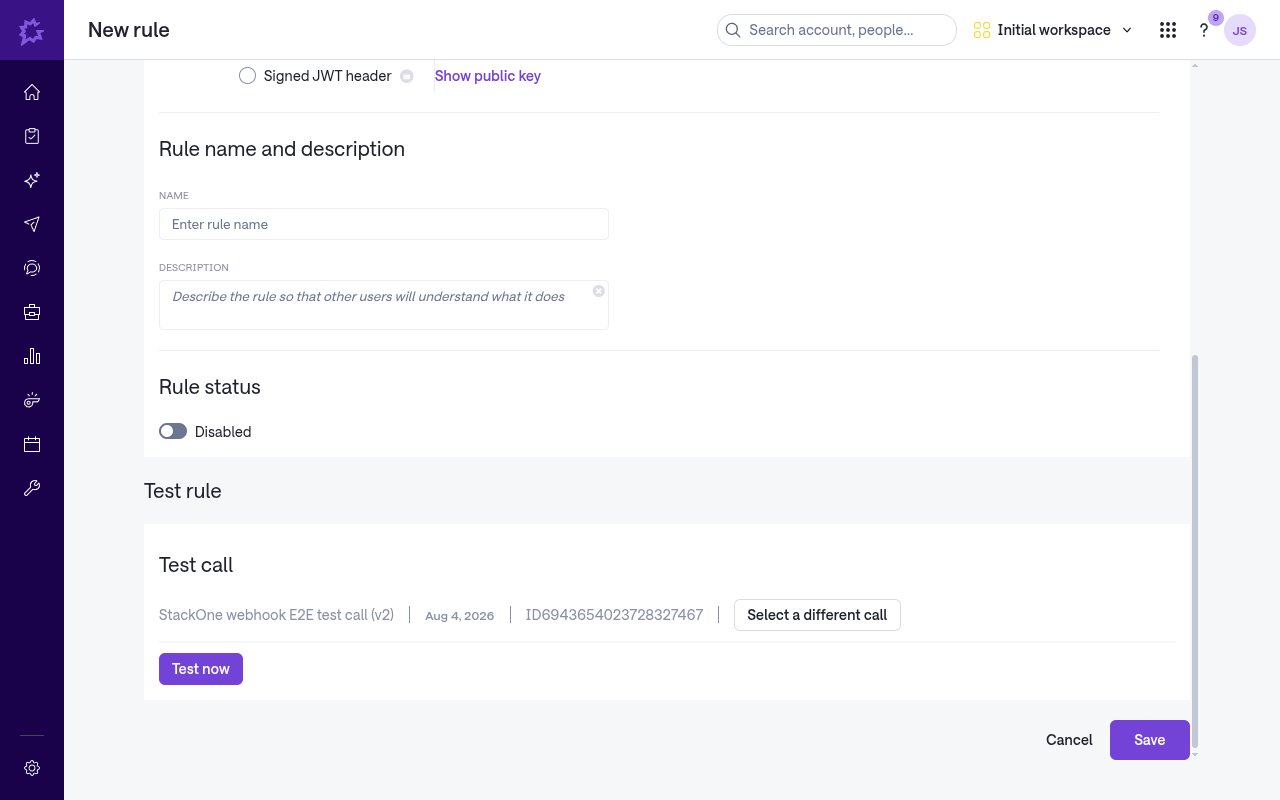
        <p>Under <strong>Rule name and description</strong>, enter a <strong>Name</strong> (and optional <strong>Description</strong>). In the <strong>Test rule</strong> section, keep or use <strong>Select a different call</strong> for the <strong>Test call</strong>, then click <strong>Test now</strong> to confirm Gong can reach the URL. Turn <strong>Rule status</strong> on and click <strong>Save</strong> to start delivering live events.</p>

        <img src="https://mintcdn.com/stackone-60/WA2oIobXRYfoXBV_/connectors/gong/images/events-test-rule.png?fit=max&auto=format&n=WA2oIobXRYfoXBV_&q=85&s=51824373b8281b790d146b7408a97dba" alt="Gong new rule editor showing Rule name and description, Rule status toggle, the Test rule section with Test now, and the Save button" width="1280" height="800" data-path="connectors/gong/images/events-test-rule.png" />
      </div>
    </Step>
  </Steps>
</section>

<section data-guide-section data-guide-scopes="">
  <h2>Available webhook events</h2>

  <p>Gong delivers a single event type through this connection. Only events StackOne recognizes are forwarded to your integration.</p>

  <ul>
    <li><strong>Call Webhook</strong> (`call`) — Fired when a recorded call matching the rule's filters finishes processing in Gong.</li>
  </ul>
</section>

<section data-guide-section data-guide-scopes="">
  <h2>Delivery format</h2>

  <p>When a matching call finishes processing, Gong sends a single HTTPS POST with a JSON body. The call is wrapped under a top-level `callData` object — `callData.metaData` carries the call's `id`, `url`, `title`, `scheduled`, `started`, `duration`, `primaryUserId`, `direction`, `system`, `scope`, `media` and `language`; `callData.context` carries associated CRM objects, `callData.parties` carries participants, and `callData.content` and `callData.interaction` carry trackers, topics and interaction stats. Top-level `isTest` and `isPrivate` flags accompany the payload. StackOne maps `callData.metaData.id` to the record id and `callData.metaData.started` to the event timestamp, emits the event type `call`, and passes the full body through as the event data. Delivery happens after processing completes, not in real time.</p>
</section>

## Verify

Your Connector should now be able to receive and process events. Try triggering an event and you should see an Event appear in the Connector logs.