> ## Documentation Index
> Fetch the complete documentation index at: https://docs.stackone.com/llms.txt
> Use this file to discover all available pages before exploring further.

# Front Webhook Setup Guide

> Configure Front to deliver events to StackOne.

## Prerequisites

Before continuing, you should have already completed the following for this connector:

<Steps>
  <Step title="Configure the Connector">
    Enable the connector and set up its connector profile in your project. See <a href="/connect/managing-connectors/overview">Managing Connectors</a>.

    <Columns cols={2}>
      <Card title="Connector Profile" href="/connectors/front/guides/connector-profile/api-token" icon="https://stackone-logos.com/api/front/filled/png" horizontal>
        Front - API Token
      </Card>
    </Columns>
  </Step>

  <Step title="Link an Account">
    Connect an account using <a href="/embed/account-linking/overview">StackOne Hub</a> or <a href="/embed/account-linking/auth-link">Auth Link</a>.

    <Columns cols={2}>
      <Card title="Link Account" href="/connectors/front/guides/link-account/api-token" icon="https://stackone-logos.com/api/front/filled/png" horizontal>
        Front - API Token
      </Card>
    </Columns>
  </Step>
</Steps>

<section data-guide-section data-guide-scopes="">
  <h2>Enable the Webhooks integration</h2>

  <p>Front delivers events through <strong>rule webhooks</strong>: you enable Front's <strong>Webhooks</strong> integration, then create a rule that forwards events to your StackOne webhook URL. Start by copying the URL and enabling the integration.</p>

  <Steps>
    <Step title="Copy your Native Webhook URL from StackOne">
      <div data-guide-step data-guide-scopes="" data-guide-display-scopes-list="">
        <p>In StackOne, open the connected account and copy the <strong>Native Webhook URL</strong> value. You will paste this into Front in a later step. Keep it private — the URL includes a delivery token.</p>

        <ul>
          <li>Find it on the connection's <strong>Linked account</strong> in StackOne Hub, under the <strong>Native Webhook URL</strong> field.</li>
        </ul>
      </div>
    </Step>

    <Step title="Open the Webhooks app and enable it">
      <div data-guide-step data-guide-scopes="" data-guide-display-scopes-list="">
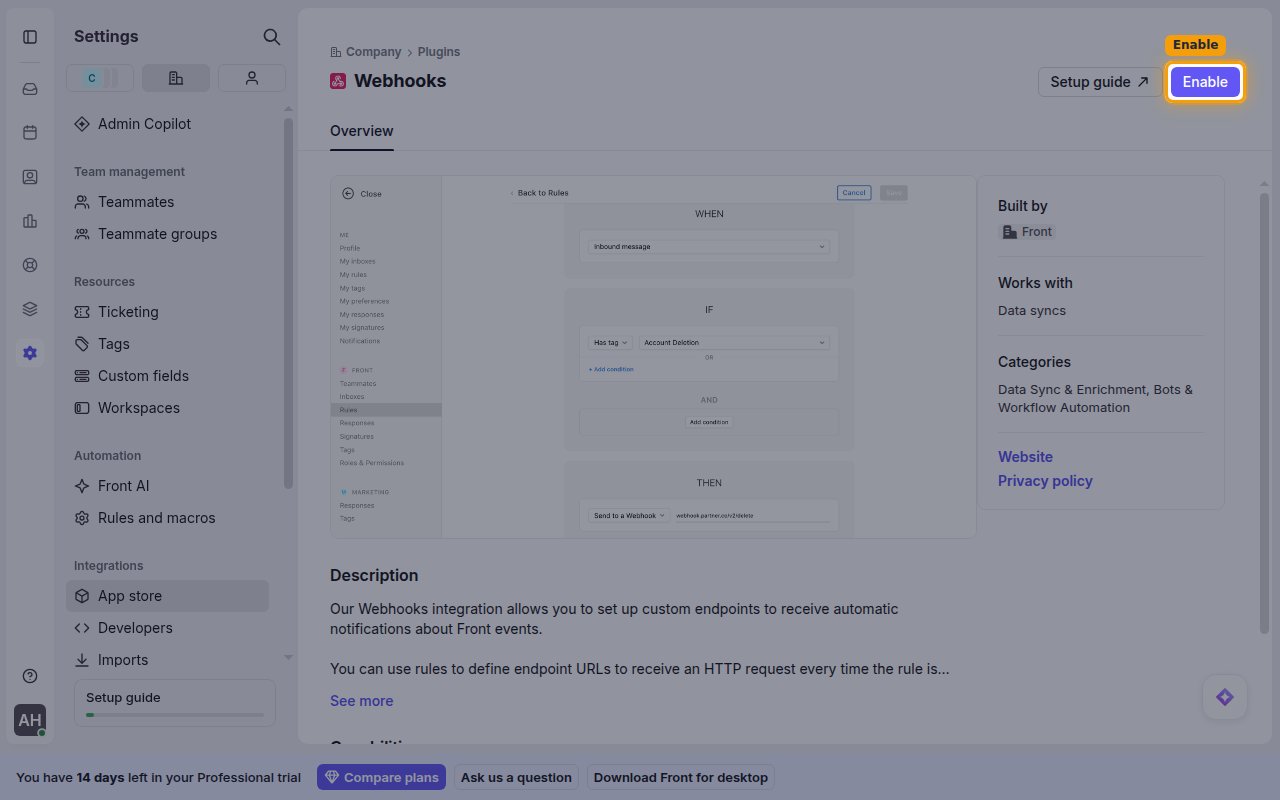
        <p>Sign in to your <a href="https://app.frontapp.com" target="_blank" rel="noopener noreferrer">Front account</a>, open <strong>Settings</strong>, switch to the <strong>Company</strong> tab, then under <strong>Integrations</strong> choose <strong>App store</strong>. Search for <strong>Webhooks</strong>, open the <strong>Webhooks</strong> app, and click <strong>Enable</strong> in the top-right corner.</p>

        <img src="https://mintcdn.com/stackone-60/WlFiz93cLsvdccQQ/connectors/front/images/events-enable-webhooks-app.png?fit=max&auto=format&n=WlFiz93cLsvdccQQ&q=85&s=a4a1302c3e2d4902fe4dd5ca27f0f754" alt="The Front Webhooks app overview page with the Enable button highlighted" width="1280" height="800" data-path="connectors/front/images/events-enable-webhooks-app.png" />
      </div>
    </Step>
  </Steps>
</section>

<section data-guide-section data-guide-scopes="">
  <h2>Create a rule to forward events</h2>

  <p>With the integration enabled, create a rule that forwards events to StackOne. A Front rule has three parts that decide when a webhook is sent: <strong>When</strong> is the trigger — the event that fires the rule (for example, a tag is added or an inbound message arrives); <strong>If</strong> is the condition that must also be true for the rule to run (for example, the conversation is in a chosen inbox); and <strong>Then</strong> is the action Front takes — <strong>Send to webhook</strong>, which forwards the event to StackOne. In short, a webhook is sent whenever the <strong>When</strong> trigger fires <strong>and</strong> the <strong>If</strong> condition matches.</p>

  <Steps>
    <Step title="Select your workspace">
      <div data-guide-step data-guide-scopes="" data-guide-display-scopes-list="">
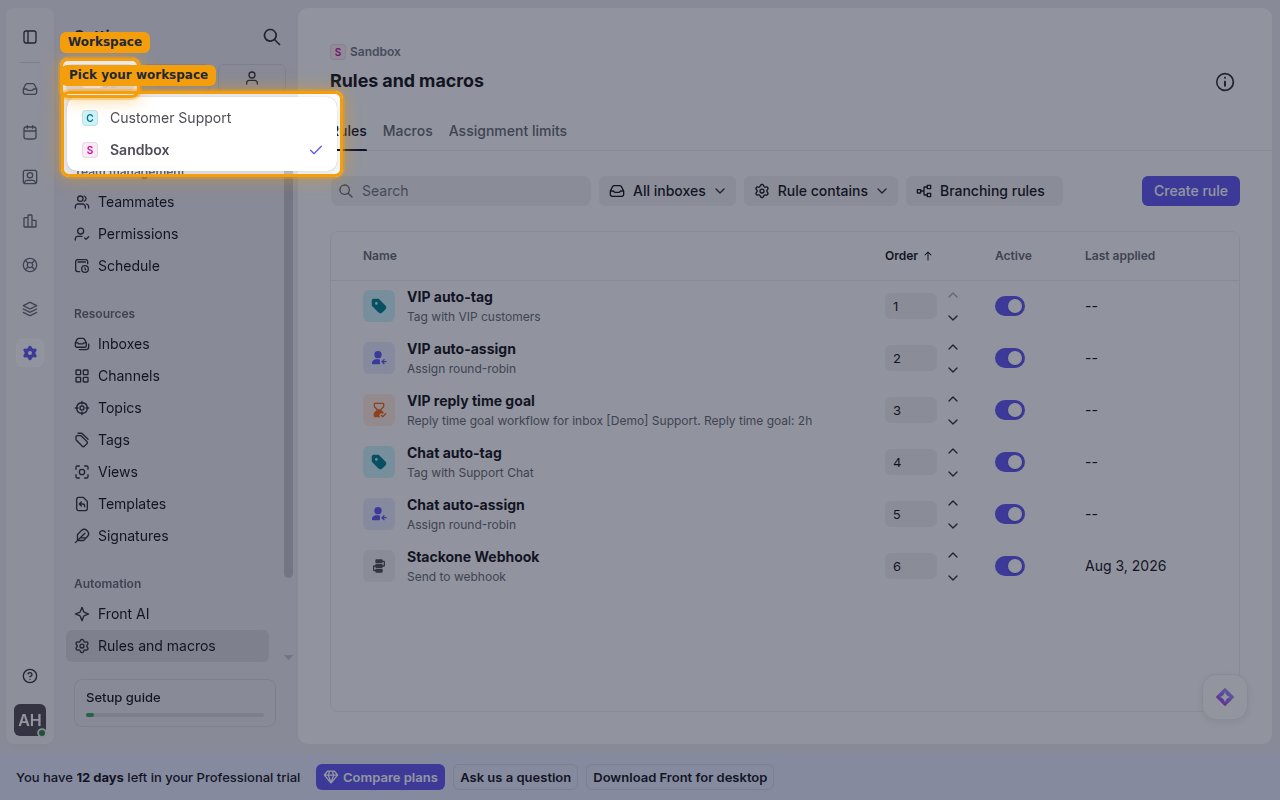
        <p>In Front, open <strong>Settings</strong>, then click the <strong>Workspace</strong> tab at the top of the settings sidebar and select the workspace whose inboxes the rule should cover (for example, <strong>Sandbox</strong>). Rules are created per workspace, so the rule applies to the inboxes in the workspace you pick here.</p>

        <img src="https://mintcdn.com/stackone-60/WlFiz93cLsvdccQQ/connectors/front/images/events-select-workspace.png?fit=max&auto=format&n=WlFiz93cLsvdccQQ&q=85&s=132764194fd0a996b61a4f9e5f7d5cc0" alt="The Workspace switcher open with the list of workspaces to pick from" width="1280" height="800" data-path="connectors/front/images/events-select-workspace.png" />
      </div>
    </Step>

    <Step title="Create a new rule">
      <div data-guide-step data-guide-scopes="" data-guide-display-scopes-list="">
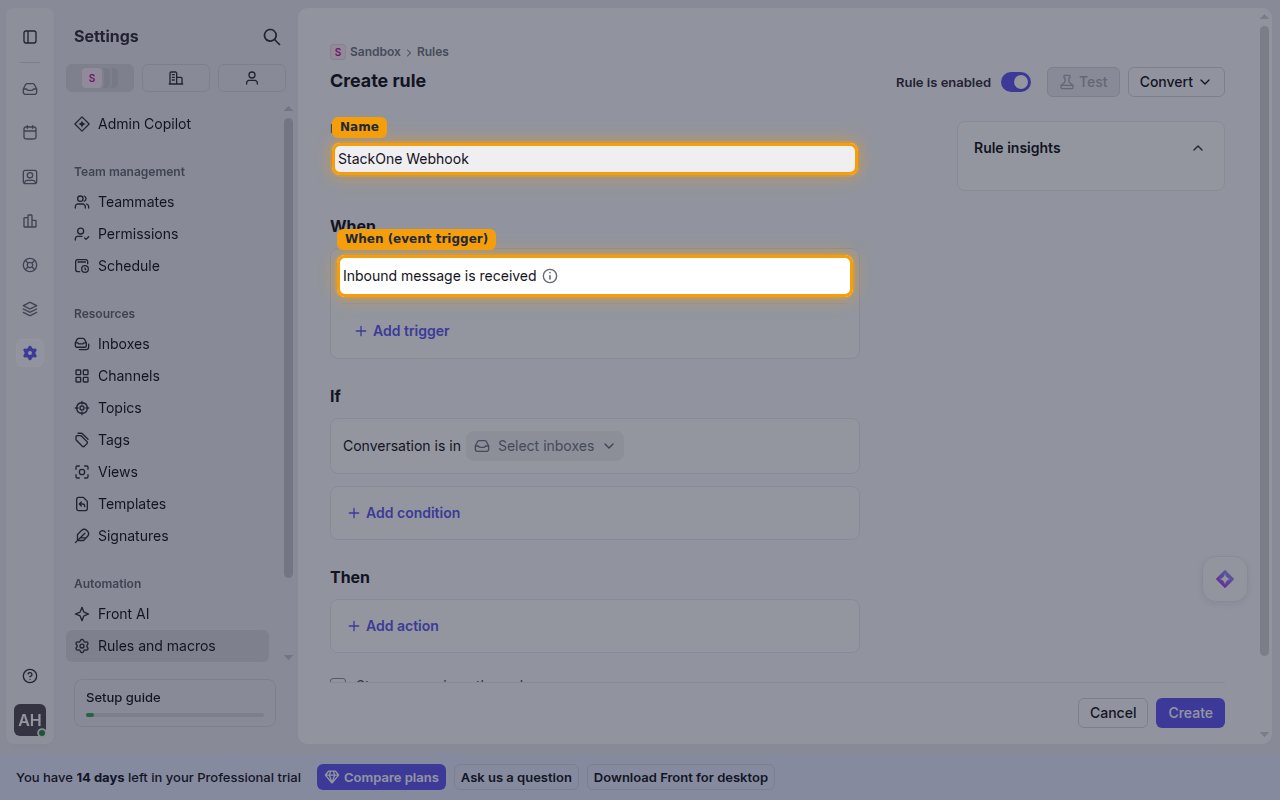
        <p>Choose <strong>Rules and macros</strong> and click <strong>Create rule</strong>, then choose <strong>Create from scratch → Create linear rule</strong>. Enter a name in the <strong>Name</strong> field, and under <strong>When</strong> choose the trigger for the event you want to forward (for example <strong>Inbound message is received</strong>). Use <strong>Add trigger</strong> to forward more than one event type with the same rule.</p>

        <ul>
          <li>The <strong>When</strong> trigger must match how the event is caused. A trigger such as <strong>Inbound message is received</strong> only fires on a real inbound message; to forward events driven by API calls, add the matching trigger (for example <strong>Tag is added</strong>, <strong>Assignee changes</strong>, or <strong>New comment is added</strong>).</li>
        </ul>

        <img src="https://mintcdn.com/stackone-60/WlFiz93cLsvdccQQ/connectors/front/images/events-create-rule.png?fit=max&auto=format&n=WlFiz93cLsvdccQQ&q=85&s=062e8726a954e2c81a1fc6ce35c6531a" alt="The Create rule builder showing the Name field and the When trigger" width="1280" height="800" data-path="connectors/front/images/events-create-rule.png" />
      </div>
    </Step>

    <Step title="Set the If condition (required)">
      <div data-guide-step data-guide-scopes="" data-guide-display-scopes-list="">
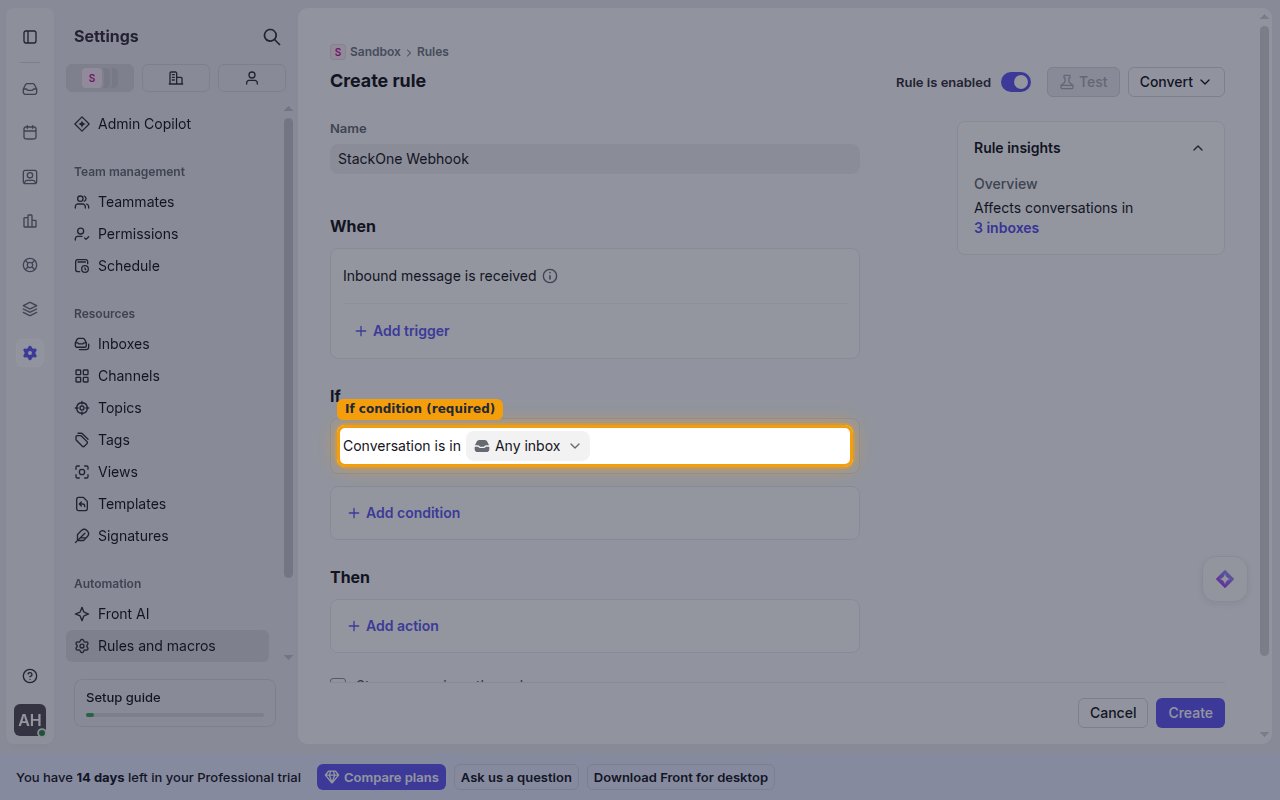
        <p>Under <strong>If</strong>, add at least one condition — Front requires one, and clicking <strong>Create</strong> shows an error if it is left empty. Choose <strong>Conversation is in</strong> and select <strong>Any inbox</strong> (or the specific inboxes you want the rule to cover).</p>

        <img src="https://mintcdn.com/stackone-60/WlFiz93cLsvdccQQ/connectors/front/images/events-if-condition.png?fit=max&auto=format&n=WlFiz93cLsvdccQQ&q=85&s=146d7da01df781e7f0b13f68c57b586e" alt="The rule builder If section with Conversation is in Any inbox highlighted" width="1280" height="800" data-path="connectors/front/images/events-if-condition.png" />
      </div>
    </Step>

    <Step title="Add the Send to webhook action">
      <div data-guide-step data-guide-scopes="" data-guide-display-scopes-list="">
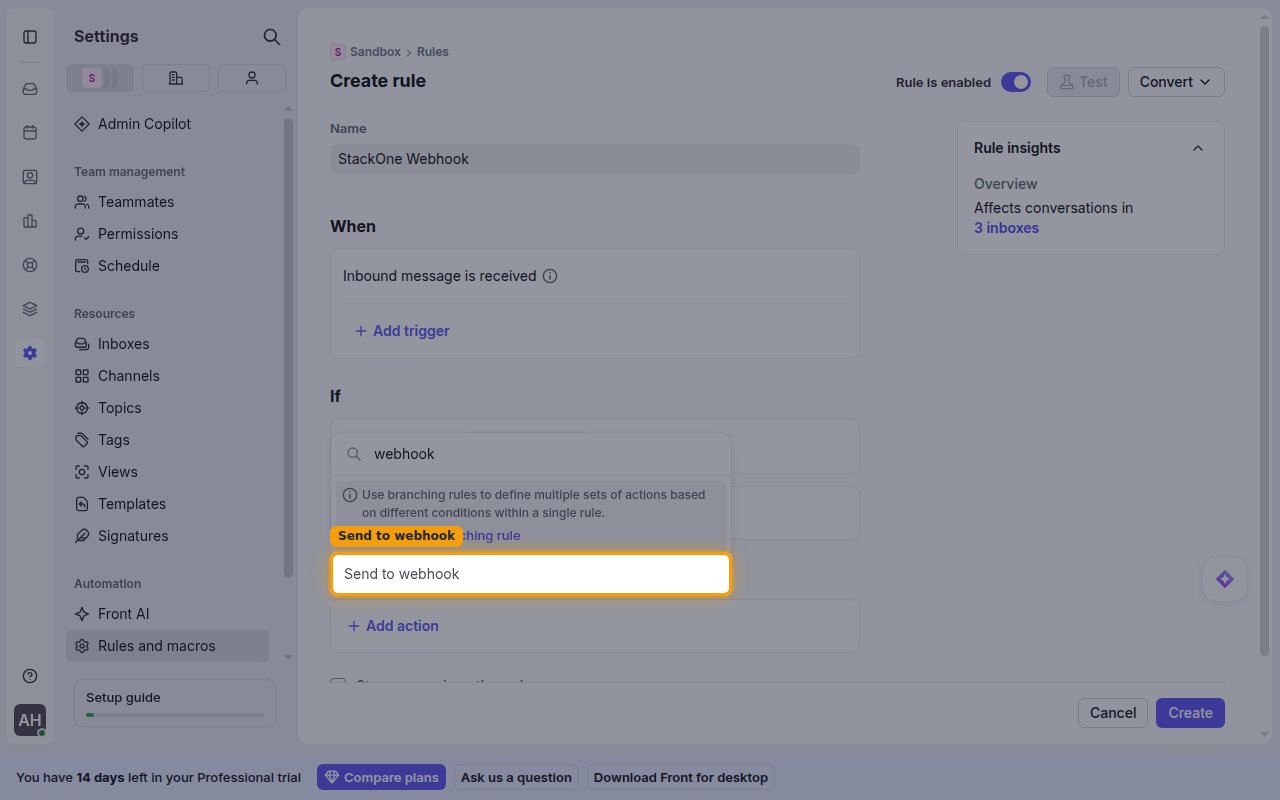
        <p>Under <strong>Then</strong>, click <strong>Add action</strong>, search for <strong>webhook</strong>, and choose <strong>Send to webhook</strong>.</p>

        <img src="https://mintcdn.com/stackone-60/WlFiz93cLsvdccQQ/connectors/front/images/events-add-webhook-action.png?fit=max&auto=format&n=WlFiz93cLsvdccQQ&q=85&s=4ed1ac57ba062c1f3f06eb124861b777" alt="The action picker with the Send to webhook action highlighted" width="1280" height="800" data-path="connectors/front/images/events-add-webhook-action.png" />
      </div>
    </Step>

    <Step title="Paste the Native Webhook URL">
      <div data-guide-step data-guide-scopes="" data-guide-display-scopes-list="">
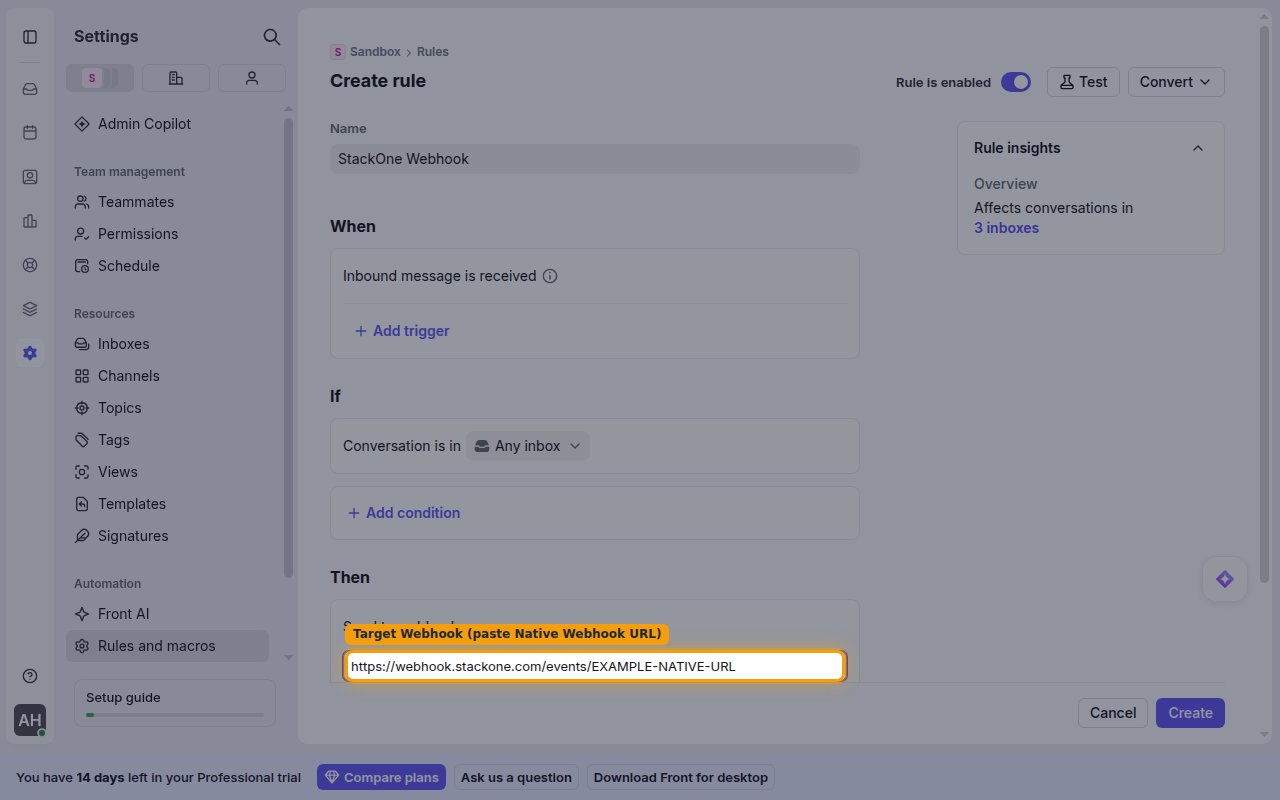
        <p>In the <strong>Send to webhook</strong> action, paste the <strong>Native Webhook URL</strong> you copied from StackOne into the <strong>Target Webhook</strong> field.</p>

        <img src="https://mintcdn.com/stackone-60/WlFiz93cLsvdccQQ/connectors/front/images/events-target-webhook-url.png?fit=max&auto=format&n=WlFiz93cLsvdccQQ&q=85&s=4c24c2fff442704fc847683c9bd2aaa7" alt="The Send to webhook action with the Target Webhook field highlighted" width="1280" height="800" data-path="connectors/front/images/events-target-webhook-url.png" />
      </div>
    </Step>

    <Step title="Save the rule">
      <div data-guide-step data-guide-scopes="" data-guide-display-scopes-list="">
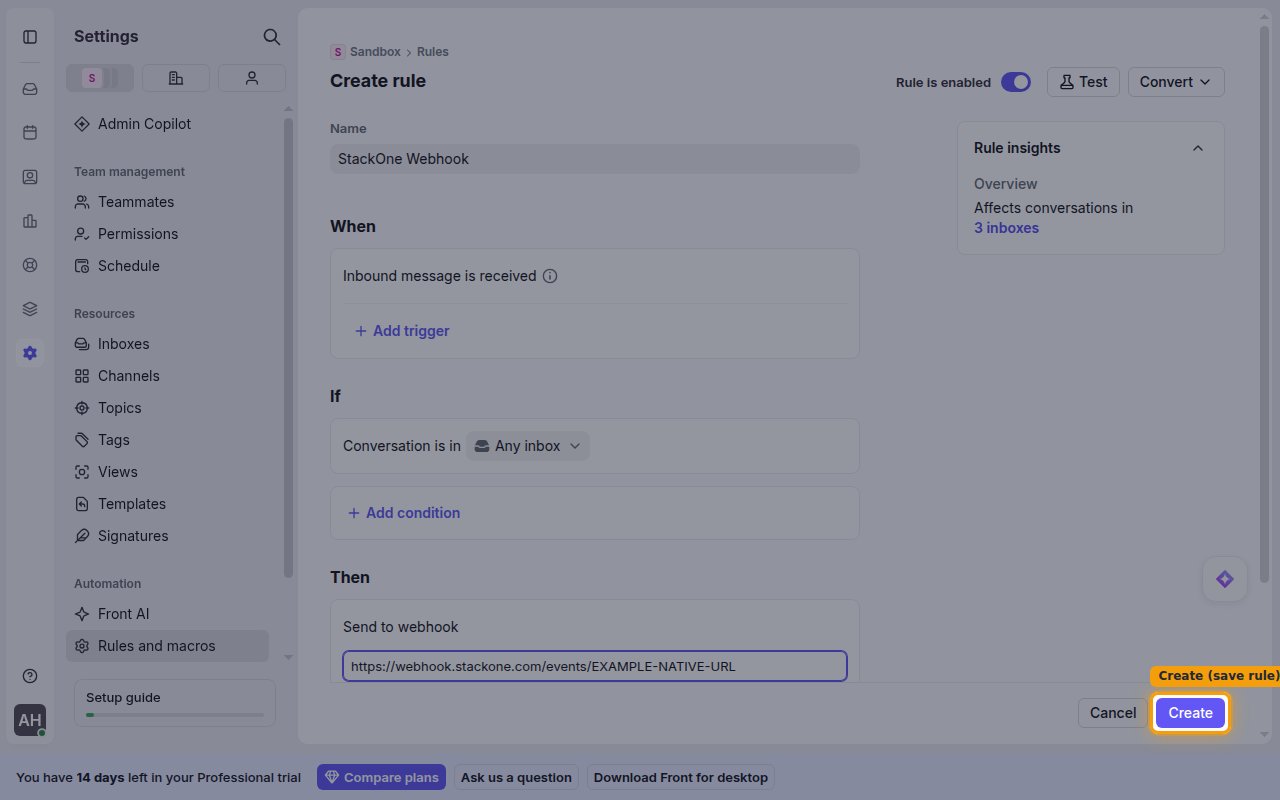
        <p>Click <strong>Create</strong> to save the rule. Front will now forward the selected events to StackOne. Repeat with additional rules or triggers to cover more event types.</p>

        <img src="https://mintcdn.com/stackone-60/WlFiz93cLsvdccQQ/connectors/front/images/events-save-rule.png?fit=max&auto=format&n=WlFiz93cLsvdccQQ&q=85&s=d3de0db362e2930d23bf5a83f1df7308" alt="The completed rule with the Create button highlighted" width="1280" height="800" data-path="connectors/front/images/events-save-rule.png" />
      </div>
    </Step>
  </Steps>
</section>

<section data-guide-section data-guide-scopes="">
  <h2>Available webhook events</h2>

  <p>Front only delivers the events matched by your rules' <strong>When</strong> triggers — add a trigger for each event you want. The connector handles the following event types.</p>

  <Steps>
    <Step title="Message events">
      <div data-guide-step data-guide-scopes="" data-guide-display-scopes-list="">
        <p>Events about individual messages on a conversation.</p>

        <ul>
          <li><strong>Inbound Message Received</strong> (`inbound`) — Fired when an incoming message is received on a conversation</li>
          <li><strong>Outbound Message Sent</strong> (`outbound`) — Fired when a teammate sends an outbound message</li>
          <li><strong>Outbound Reply Sent</strong> (`out_reply`) — Fired when a reply is sent on a conversation</li>
          <li><strong>Message Forwarded</strong> (`forward`) — Fired when a message is forwarded</li>
          <li><strong>Message Bounced</strong> (`message_bounce_error`) — Fired when a message cannot be delivered to a recipient</li>
        </ul>
      </div>
    </Step>

    <Step title="Conversation events">
      <div data-guide-step data-guide-scopes="" data-guide-display-scopes-list="">
        <p>Events about the lifecycle and status of a conversation.</p>

        <ul>
          <li><strong>Conversation Assigned</strong> (`assign`) — Fired when a conversation is assigned to a teammate</li>
          <li><strong>Conversation Unassigned</strong> (`unassign`) — Fired when a conversation is unassigned</li>
          <li><strong>Conversation Archived</strong> (`archive`) — Fired when a conversation is archived</li>
          <li><strong>Conversation Reopened</strong> (`reopen`) — Fired when a conversation is reopened (unarchived)</li>
          <li><strong>Conversation Trashed</strong> (`trash`) — Fired when a conversation is moved to trash</li>
          <li><strong>Conversation Restored</strong> (`restore`) — Fired when a conversation is restored from trash</li>
          <li><strong>Conversation Moved</strong> (`move`) — Fired when a conversation is moved to another inbox</li>
          <li><strong>Conversation Reminder</strong> (`reminder`) — Fired when a conversation is reopened by a reminder</li>
          <li><strong>Sending Error</strong> (`sending_error`) — Fired when an inbox cannot send a message</li>
        </ul>
      </div>
    </Step>

    <Step title="Tag and link events">
      <div data-guide-step data-guide-scopes="" data-guide-display-scopes-list="">
        <p>Events about tags and links on a conversation.</p>

        <ul>
          <li><strong>Conversation Tagged</strong> (`tag`) — Fired when a tag is added to a conversation</li>
          <li><strong>Conversation Untagged</strong> (`untag`) — Fired when a tag is removed from a conversation</li>
          <li><strong>Link Added</strong> (`link_added`) — Fired when a link is added to a conversation</li>
          <li><strong>Link Removed</strong> (`link_removed`) — Fired when a link is removed from a conversation</li>
        </ul>
      </div>
    </Step>

    <Step title="Comment events">
      <div data-guide-step data-guide-scopes="" data-guide-display-scopes-list="">
        <p>Events about internal teammate comments.</p>

        <ul>
          <li><strong>Comment Added</strong> (`comment`) — Fired when a teammate comments on a conversation</li>
          <li><strong>Teammate Mentioned</strong> (`mention`) — Fired when a teammate is mentioned in a comment</li>
        </ul>
      </div>
    </Step>
  </Steps>
</section>

<section data-guide-section data-guide-scopes="">
  <h2>Delivery format</h2>

  <p>Details of how Front delivers events to StackOne.</p>

  <Steps>
    <Step title="One event per request">
      <div data-guide-step data-guide-scopes="" data-guide-display-scopes-list="">
        <p>Each delivery is a single Front <strong>Event</strong> object (Front rule webhooks are not batched). StackOne routes each delivery to the matching event handler based on the event's `type`.</p>
      </div>
    </Step>

    <Step title="Verify events are delivered">
      <div data-guide-step data-guide-scopes="" data-guide-display-scopes-list="">
        <p>After the rule is active, trigger a matching event (for example, add a tag to a conversation) and confirm the delivery reaches your downstream endpoint. Each request carries the StackOne-normalized event — the provider event `type`, the resolved `record_id`, and the full Front payload under `event_data` — and is signed with the `x-stackone-signature` header.</p>
      </div>
    </Step>
  </Steps>
</section>

## Verify

Your Connector should now be able to receive and process events. Try triggering an event and you should see an Event appear in the Connector logs.