> ## Documentation Index
> Fetch the complete documentation index at: https://docs.stackone.com/llms.txt
> Use this file to discover all available pages before exploring further.
# Docebo Webhook Setup Guide
> Configure Docebo to deliver events to StackOne.
## Prerequisites
Before continuing, you should have already completed the following for this connector:
Enable the connector and set up its connector profile in your project. See Managing Connectors.
Docebo - OAuth 2.0 (Password Grant)
Connect an account using StackOne Hub or Auth Link.
Docebo - OAuth 2.0 (Password Grant)
Copy your Native Webhook URL
Before configuring Docebo, copy the Native Webhook URL shown on this connection in StackOne. This is the address Docebo will POST every event to. You will paste it as the Payload URL when you create the webhook in the next steps. Keep it handy — the same URL is reused for every webhook you create.
Open the Webhooks app in Docebo
Sign in and navigate to the Webhooks management page.
Sign in to your Docebo platform (for example `https://your-company.docebosaas.com`) with a Superadmin account.
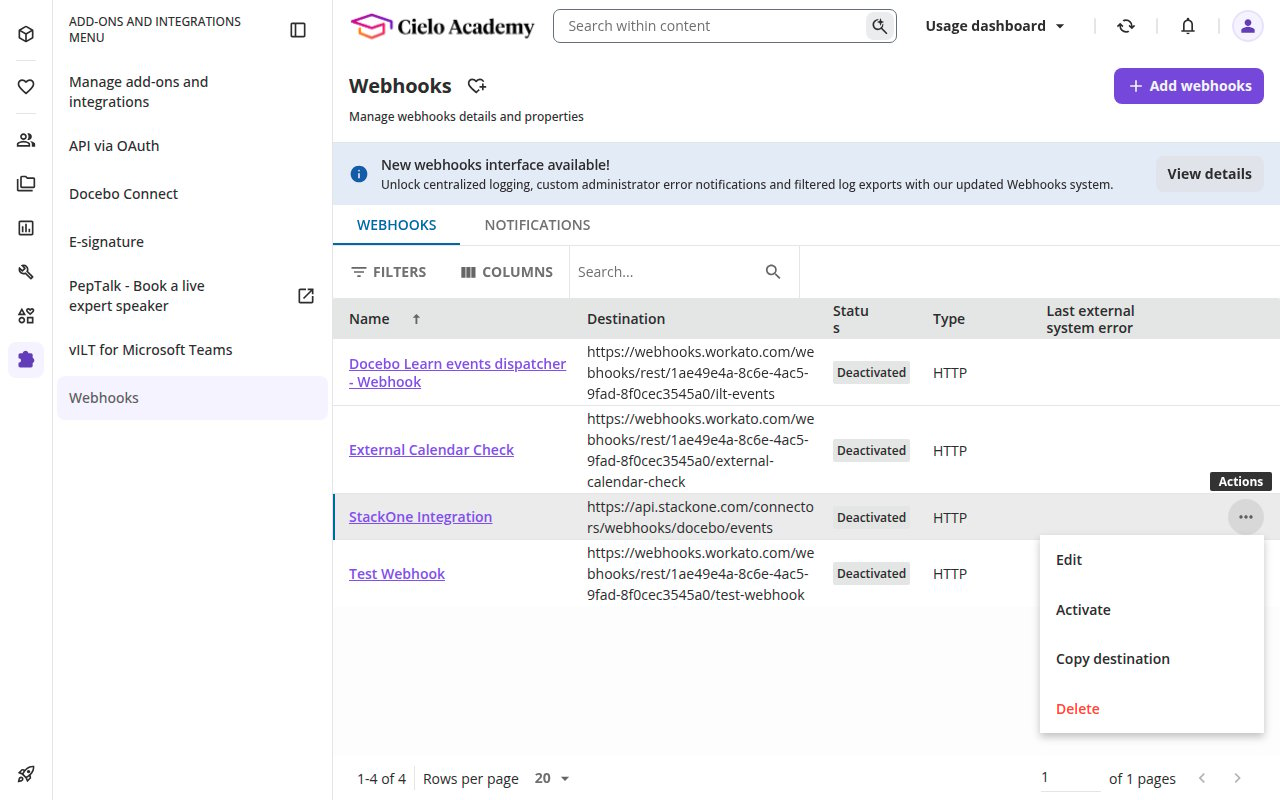
From the top menu, open Add-ons and integrations, then select Webhooks from the left-hand menu. The Webhooks page lists any existing webhooks and their delivery status.
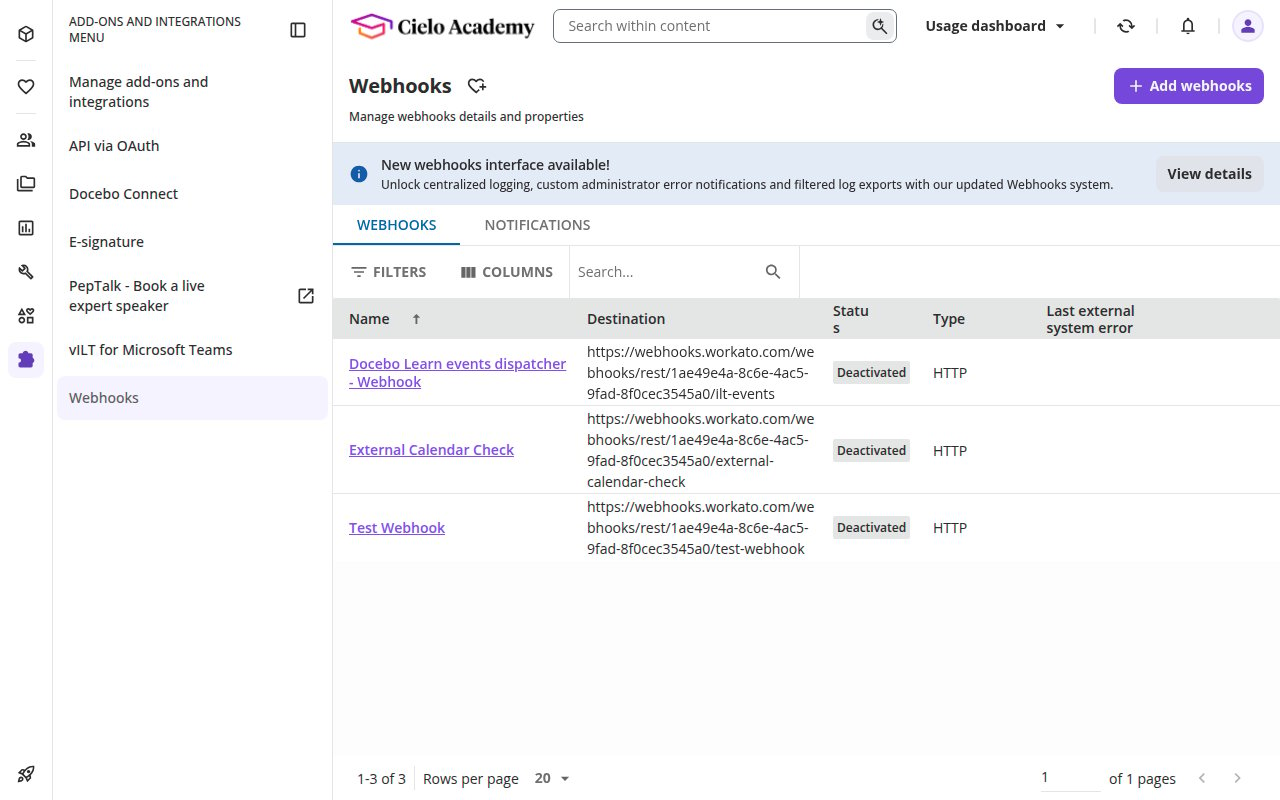
Click Add webhooks in the top-right corner to open the Create a new webhook wizard.
Configure the webhook
Complete the Configuration step of the wizard. The webhook Type is fixed to HTTP.
In the Name field, enter a recognizable name such as `StackOne Integration`.
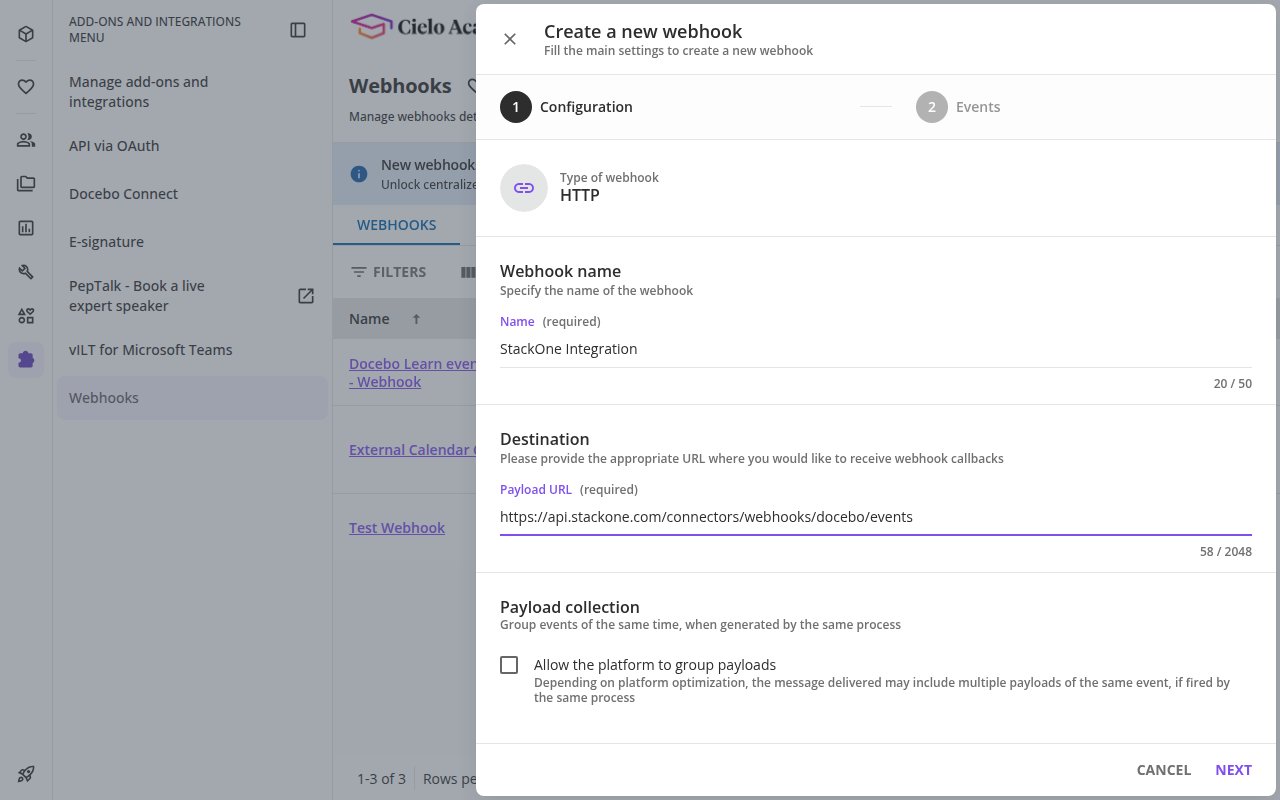
In the Payload URL field under Destination, paste the Native Webhook URL you copied from StackOne.
Under Payload collection, you may enable Allow the platform to group payloads. When enabled, Docebo batches multiple events of the same type — fired by the same process — into a single delivery. StackOne handles both single and batched deliveries, so this is safe to leave on or off.
Click Next to move to the Events step.
Select the events to send
On the Events step, choose which events this webhook delivers.
Use the Search box or scroll the Area / Event table and tick the events you want StackOne to receive. See Available webhook events below for the full list of events this connector understands.
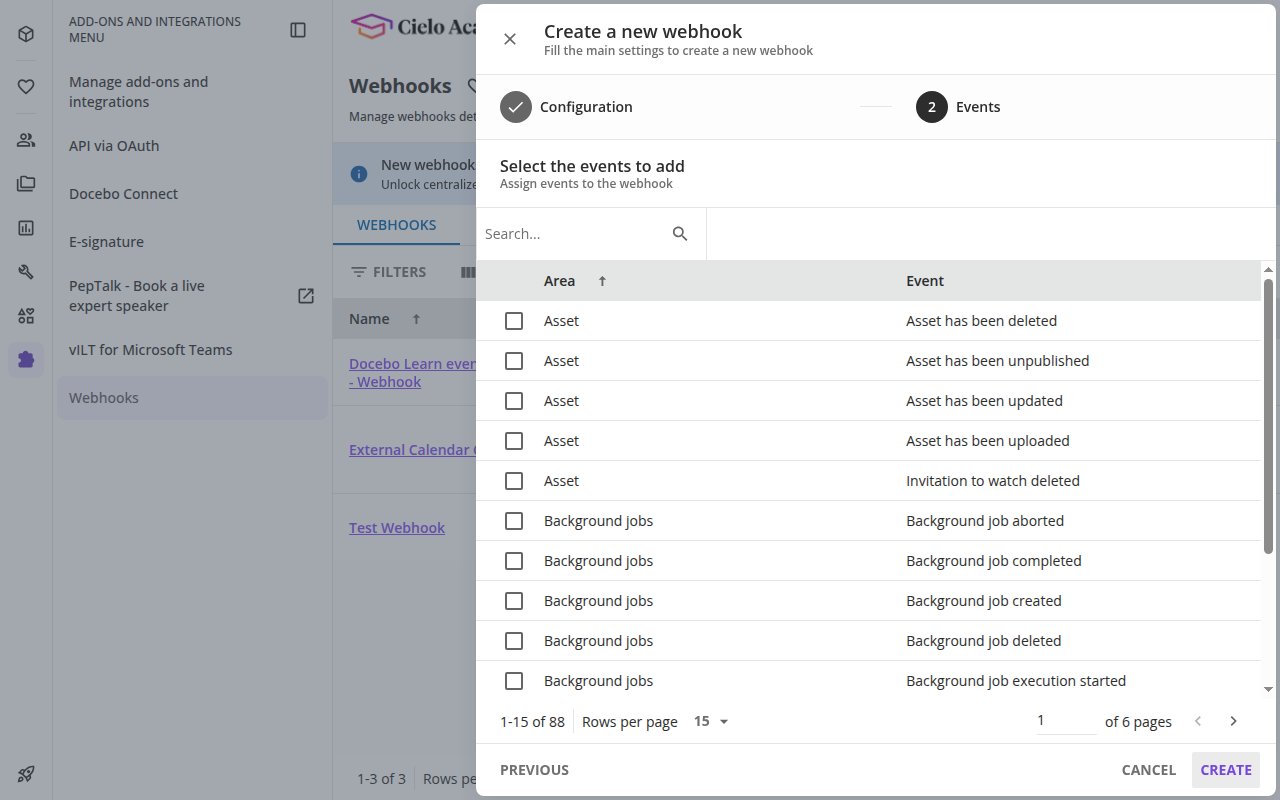
Docebo allows a maximum of 8 events per webhook. To receive more than 8 events, create additional webhooks that reuse the same Native Webhook URL — StackOne routes every delivery correctly regardless of which webhook sent it.
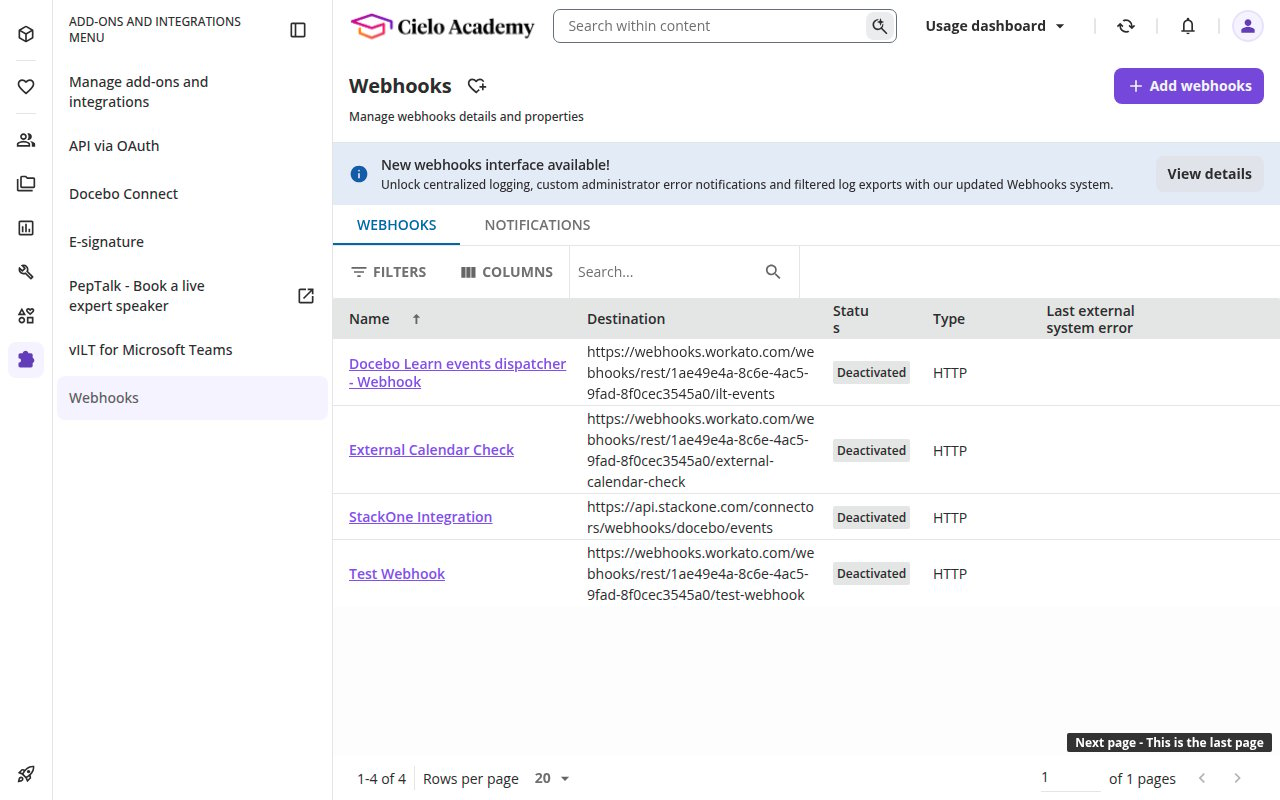
Click Create. The new webhook appears in the list with a Deactivated status — you will activate it next.
Activate the webhook
New webhooks are created Deactivated and must be turned on before Docebo will deliver any events.
On the webhook's row, open the Actions menu (...) and choose Activate. The status changes to active and Docebo begins delivering the selected events to your Native Webhook URL.
Secure the endpoint with Basic Auth (recommended)
Docebo does not sign webhook payloads with an HMAC signature. The available integrity control is HTTP Basic Auth on the endpoint, which Docebo strongly recommends enabling.
On the webhook's Actions menu choose Edit, then open the Endpoint info tab.
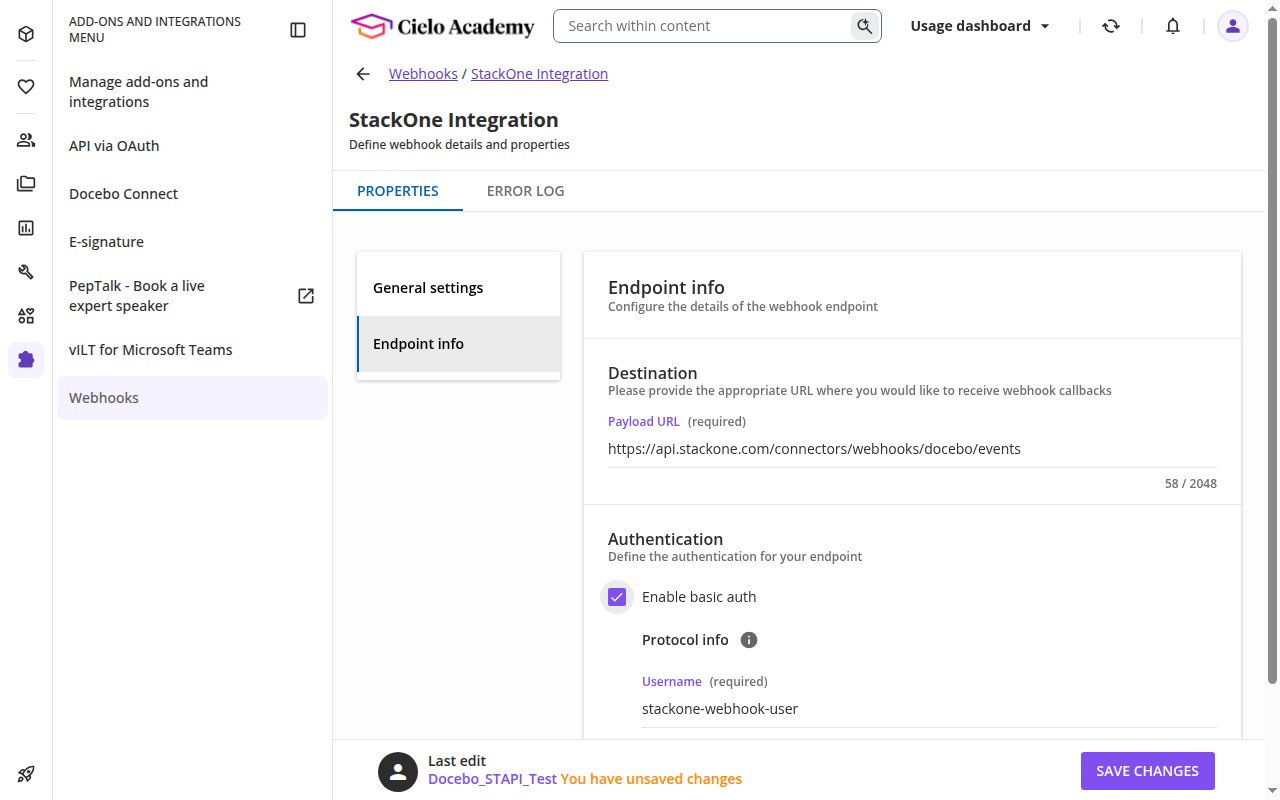
Optionally, under Authentication, tick Enable basic auth and enter a Username and Password of your choosing, then click Save changes. The StackOne endpoint is already secured by the token embedded in the delivery URL, so this step is not required.
If you later rotate the password, allow the previous password to remain valid for a short period — in-flight retries keep authenticating with the old password until Docebo's retry queue drains.
Available webhook events
This connector understands the following Docebo events. Only the events you tick in the webhook configuration are delivered — select the ones your integration needs (remembering the 8-events-per-webhook limit). Each event is shown with its Docebo event code.
Content events (23).
- Asset Created (`contribute.created`) — Fired when an asset is uploaded to the Central Repository.
- Asset Updated (`contribute.updated`) — Fired when an asset is modified.
- Asset Unpublished (`contribute.unpublished`) — Fired when publication of an asset is revoked.
- Asset Deleted (`contribute.deleted`) — Fired when an asset is removed.
- Asset Watch Invitation Deleted (`contribute.watchinvitation.deleted`) — Fired when an asset watch invitation is removed.
- Training Material Added To Course (`tmrepo.course.trainingmaterial.added`) — Fired when a Central Repository material is assigned to a course.
- Training Material Removed From Course (`tmrepo.course.trainingmaterial.removed`) — Fired when a Central Repository material is removed from a course.
- Repository Training Material Updated (`tmrepo.trainingmaterial.updated`) — Fired when a Central Repository material is updated.
- Course Created (`course.created`) — Fired when a course is created.
- Course Updated (`course.updated`) — Fired when course properties are modified.
- Course Deleted (`course.deleted`) — Fired when a course is removed.
- Content Marked Outdated (`content.markedoutdated`) — Fired when course content is marked as outdated.
- Course Rating Updated (`course.rating.updated`) — Fired when a course rating is submitted or changed.
- Course Training Material Created (`course.trainingmaterial.created`) — Fired when training material is created within a course.
- Course Training Material Updated (`course.trainingmaterial.updated`) — Fired when training material within a course is modified.
- Course Training Material Deleted (`course.trainingmaterial.deleted`) — Fired when training material within a course is removed.
- Assignment Submitted (`lo.assignment.submission`) — Fired when a learner submits an assignment.
- Assignment Submission Reset (`lo.assignment.submission.reset`) — Fired when an assignment submission tracking is reset.
- Assignment Evaluated (`lo.assignment.evaluation`) — Fired when an assignment submission is graded.
- Training Material Play Status Updated (`trainingmaterial.playstatus.updated`) — Fired when the play/completion status of a training material changes.
- Course Additional Field Deleted (`courseadditionalfield.deleted`) — Fired when a custom course additional field is removed.
- Catalog Course Deleted (`catalog.course.deleted`) — Fired when a course is removed from a catalog.
- Catalog Learning Plan Deleted (`catalog.learningplan.deleted`) — Fired when a learning plan is removed from a catalog.
Enrollments events (25).
- Course Enrollment Created (`course.enrollment.created`) — Fired when a user is enrolled in a course.
- Course Enrollment Updated (`course.enrollment.updated`) — Fired when a course enrollment status changes.
- Course Enrollment Completed (`course.enrollment.completed`) — Fired when a user completes a course.
- Course Enrollment Deleted (`course.enrollment.deleted`) — Fired when a user is unenrolled from a course.
- Course Enrollment Updated By Admin (`course.enrollment.updatedbyadmin`) — Fired when an admin modifies a course enrollment.
- ILT Session Enrollment Created (`ilt.session.enrollment.created`) — Fired when a user is enrolled in an ILT session.
- ILT Session Enrollment Updated (`ilt.session.enrollment.updated`) — Fired when an ILT session enrollment changes.
- ILT Session Enrollment Deleted (`ilt.session.enrollment.deleted`) — Fired when a user is unenrolled from an ILT session.
- ILT Session Created (`ilt.session.created`) — Fired when an ILT session is created.
- ILT Session Updated (`ilt.session.updated`) — Fired when an ILT session is modified.
- ILT Session Deleted (`ilt.session.deleted`) — Fired when an ILT session is removed.
- ILT Event Created (`ilt.event.created`) — Fired when an ILT event date is created.
- ILT Event Updated (`ilt.event.updated`) — Fired when an ILT event date is modified.
- ILT Event Deleted (`ilt.event.deleted`) — Fired when an ILT event date is removed.
- ILT External Calendar Session Changed (`ilt.extcalendar.session.changed`) — Fired when an ILT session synced to an external calendar changes.
- ILT External Calendar Event Changed (`ilt.extcalendar.event.changed`) — Fired when an ILT event synced to an external calendar changes.
- Learning Plan Created (`learningplan.created`) — Fired when a learning plan is created.
- Learning Plan Updated (`learningplan.updated`) — Fired when a learning plan is modified.
- Learning Plan Deleted (`learningplan.deleted`) — Fired when a learning plan is removed.
- Learning Plan Course Added (`learningplan.course.added`) — Fired when a course is added to a learning plan.
- Learning Plan Course Removed (`learningplan.course.removed`) — Fired when a course is removed from a learning plan.
- Learning Plan Enrollment Created (`learningplan.enrollment.created`) — Fired when a user is enrolled in a learning plan.
- Learning Plan Enrollment Updated (`learningplan.enrollment.updated`) — Fired when a learning plan enrollment changes.
- Learning Plan Enrollment Deleted (`learningplan.enrollment.deleted`) — Fired when a user is unenrolled from a learning plan.
- Learning Plan Enrollment Completed (`learningplan.enrollment.completed`) — Fired when a user completes a learning plan.
People events (14).
- Branch Created (`branch.created`) — Fired when a branch is created.
- Branch Updated (`branch.updated`) — Fired when a branch is modified.
- Branch Deleted (`branch.deleted`) — Fired when a branch is removed.
- Branch User Added (`branch.user.added`) — Fired when a user is assigned to a branch.
- Branch User Removed (`branch.user.removed`) — Fired when a user is removed from a branch.
- Group User Added (`group.user.added`) — Fired when a user is assigned to a group.
- Group User Removed (`group.user.removed`) — Fired when a user is removed from a group.
- Channel Created (`channel.created`) — Fired when a channel is created.
- Channel Updated (`channel.updated`) — Fired when a channel is modified.
- Channel Deleted (`channel.deleted`) — Fired when a channel is removed.
- Channel Content Assigned (`channel.content.assigned`) — Fired when content is added to a channel.
- Channel Content Removed (`channel.content.removed`) — Fired when content is removed from a channel.
- Channel Expert Added (`channel.expert.added`) — Fired when an expert is assigned to a channel.
- Channel Expert Removed (`channel.expert.removed`) — Fired when an expert is removed from a channel.
Engagement events (13).
- Certification Awarded (`certification.award.awarded`) — Fired when a certification is issued to a user.
- Certification Award Updated (`certification.award.updated`) — Fired when a certification award is modified.
- Certification Revoked (`certification.award.revoked`) — Fired when a certification is revoked from a user.
- Badge Earned (`badge.earned`) — Fired when a user earns a gamification badge.
- Skill Object Completed (`skill.object.completed`) — Fired when a user completes content mapped to a skill.
- Observation Checklist Step Submitted (`checklist.observation.step.submitted`) — Fired when an observation checklist step is submitted.
- Approval Checklist Step Submitted (`checklist.approval.step.submitted`) — Fired when an approval checklist step is submitted.
- Observation Checklist Available (`checklist.observation.to.complete`) — Fired when an observation checklist becomes available to complete.
- Background Job Created (`bj.created`) — Fired when a background job is initialized.
- Background Job Deleted (`bj.deleted`) — Fired when a background job is removed.
- Background Job Execution Started (`bj.execution.started`) — Fired when a background job execution starts.
- Background Job Execution Completed (`bj.execution.completed`) — Fired when a background job execution completes successfully.
- Background Job Execution Aborted (`bj.execution.aborted`) — Fired when a background job execution is aborted.
Understand the delivery format
A quick reference for how Docebo delivers events, so you know what to expect.
Each delivery is a JSON envelope whose top-level `event` field carries the event code (for example `course.enrollment.created`). The envelope also includes `message_id` (a unique delivery id used for deduplication), `webhook_id`, and `original_domain` (your Docebo subdomain).
The event data is delivered in a `payload` object for a single event. If you enabled payload grouping, Docebo may instead send a `payloads` array of same-type events (up to 25 per delivery). StackOne handles both shapes automatically.
## Verify
Your Connector should now be able to receive and process events. Try triggering an event and you should see an Event appear in the Connector logs.