> ## Documentation Index
> Fetch the complete documentation index at: https://docs.stackone.com/llms.txt
> Use this file to discover all available pages before exploring further.

# CezanneHR Webhook Setup Guide

> Configure CezanneHR to deliver events to StackOne.

## Prerequisites

Before continuing, you should have already completed the following for this connector:

<Steps>
  <Step title="Configure the Connector">
    Enable the connector and set up its connector profile in your project. See <a href="/connect/managing-connectors/overview">Managing Connectors</a>.

    <Columns cols={2}>
      <Card title="Connector Profile" href="/connectors/cezannehr/guides/connector-profile/oauth-2-0" icon="https://stackone-logos.com/api/cezanne-hr/filled/png" horizontal>
        CezanneHR - OAuth 2.0
      </Card>
    </Columns>
  </Step>

  <Step title="Link an Account">
    Connect an account using <a href="/embed/account-linking/overview">StackOne Hub</a> or <a href="/embed/account-linking/auth-link">Auth Link</a>.

    <Columns cols={2}>
      <Card title="Link Account" href="/connectors/cezannehr/guides/link-account/oauth-2-0" icon="https://stackone-logos.com/api/cezanne-hr/filled/png" horizontal>
        CezanneHR - OAuth 2.0
      </Card>
    </Columns>
  </Step>
</Steps>

<section data-guide-section data-guide-scopes="">
  <h2>Copy your Native Webhook URL</h2>

  <p>In StackOne, copy the read-only <strong>Native Webhook URL</strong> from this connection's configuration. This is the per-connection HTTPS endpoint CezanneHR posts events to. It already includes the security token that authorizes deliveries — paste it exactly as shown.</p>
</section>

<section data-guide-section data-guide-scopes="">
  <h2>Open Integrations in CezanneHR</h2>

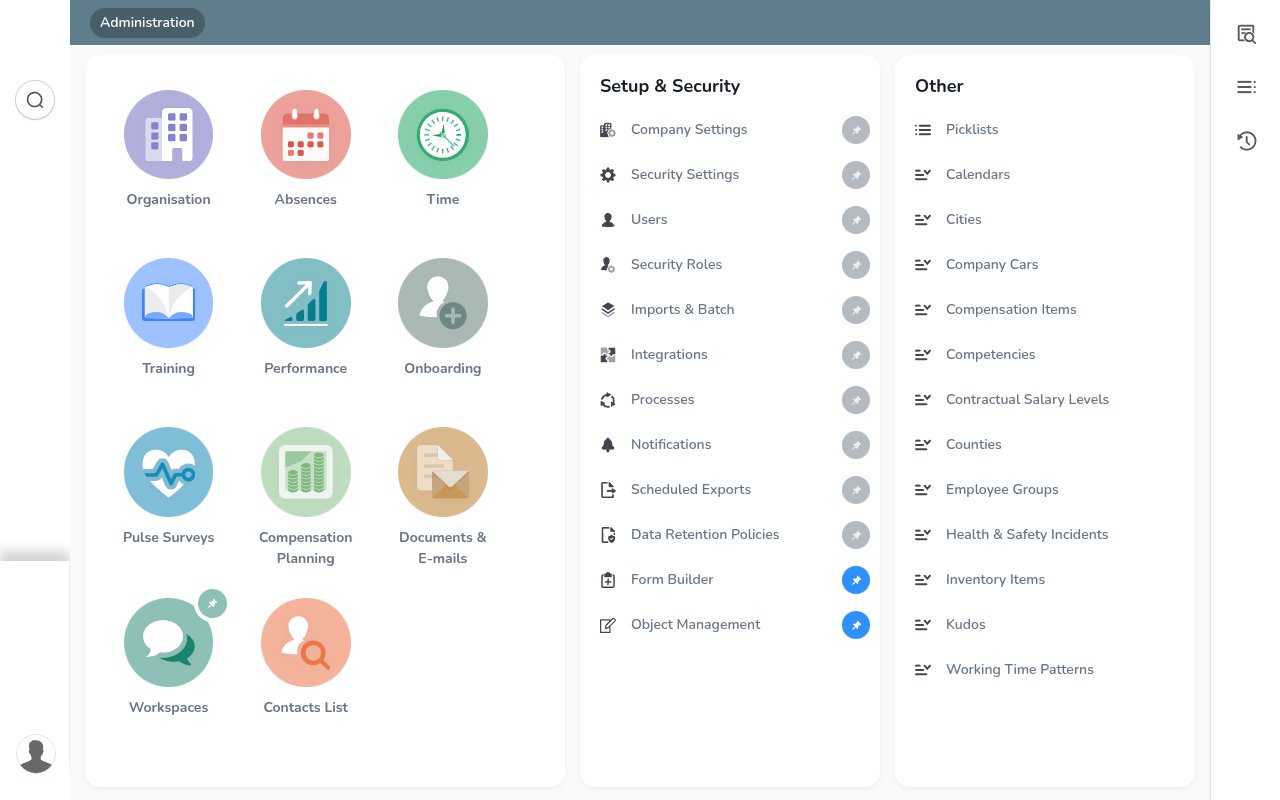
  <p>Sign in to CezanneHR as an administrator, open <strong>Administration</strong>, and under the <strong>Setup & Security</strong> column click <strong>Integrations</strong>.</p>

  <img src="https://mintcdn.com/stackone-60/LNYn_wW20YME4mPo/connectors/cezannehr/images/events-integrations.png?fit=max&auto=format&n=LNYn_wW20YME4mPo&q=85&s=94db8e9b6f34a65141454301c33bafad" alt="CezanneHR Administration page showing the Setup & Security column with the Integrations link" width="1280" height="800" data-path="connectors/cezannehr/images/events-integrations.png" />

  <Steps>
    <Step title="Open the Webhooks tab and click Add New">
      <div data-guide-step data-guide-scopes="" data-guide-display-scopes-list="">
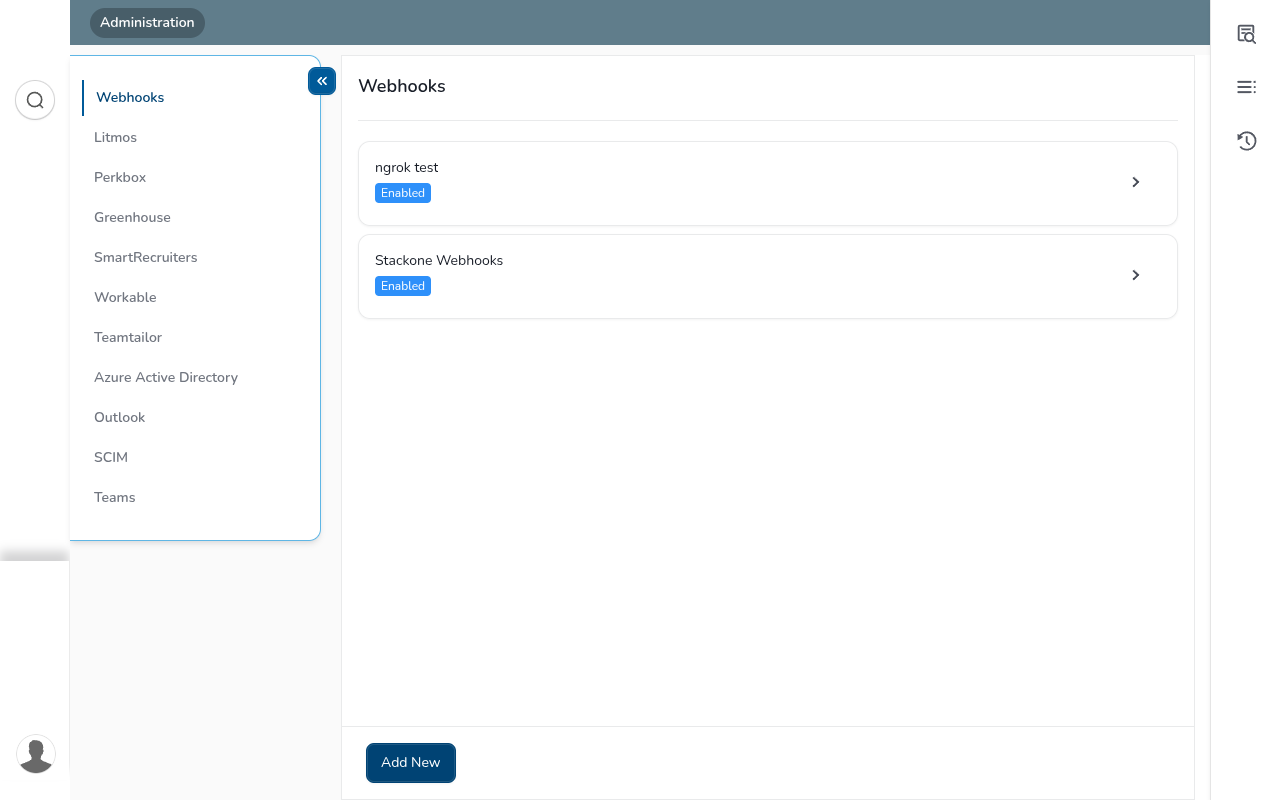
        <p>Integrations opens on the <strong>Webhooks</strong> tab, which lists your existing webhooks. Click <strong>Add New</strong> at the bottom to create one.</p>

        <img src="https://mintcdn.com/stackone-60/LNYn_wW20YME4mPo/connectors/cezannehr/images/events-webhooks-list.png?fit=max&auto=format&n=LNYn_wW20YME4mPo&q=85&s=ddf3c1da54a9252e55be5d2473b969c5" alt="CezanneHR Integrations Webhooks list with existing webhooks and the Add New button" width="1280" height="800" data-path="connectors/cezannehr/images/events-webhooks-list.png" />
      </div>
    </Step>
  </Steps>
</section>

<section data-guide-section data-guide-scopes="">
  <h2>Create the webhook</h2>

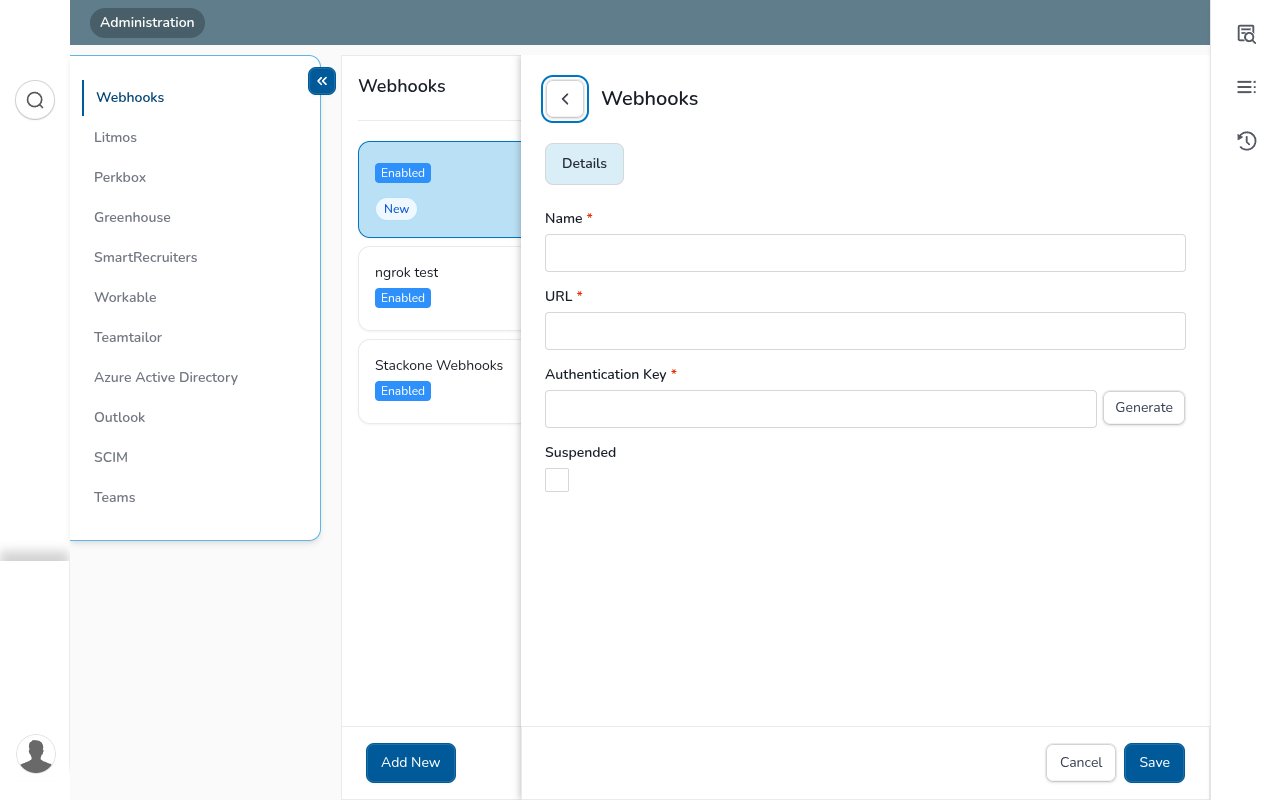
  <p>In the <strong>Add New</strong> panel, complete the details and click <strong>Save</strong>.</p>

  <img src="https://mintcdn.com/stackone-60/LNYn_wW20YME4mPo/connectors/cezannehr/images/events-add-webhook.png?fit=max&auto=format&n=LNYn_wW20YME4mPo&q=85&s=7b0a59c2b3f27cef15f20ef85cf5d213" alt="CezanneHR Add New webhook form with Name, URL, Authentication Key (with Generate) and Suspended fields" width="1280" height="800" data-path="connectors/cezannehr/images/events-add-webhook.png" />

  <Steps>
    <Step title="Enter the webhook details">
      <div data-guide-step data-guide-scopes="" data-guide-display-scopes-list="">
        <p>Complete the required fields, then Save.</p>

        <ul>
          <li><strong>Name</strong> — a label for this integration (e.g. StackOne).</li>
          <li><strong>URL</strong> — paste the StackOne Native Webhook URL (must be an HTTPS link).</li>
          <li><strong>Authentication Key</strong> — optional shared secret; type a value or click <strong>Generate</strong>. CezanneHR sends it with every delivery (as the `X-Api-Key` header and in the body), but StackOne authenticates deliveries via the token embedded in the Native Webhook URL, so this value does not need to be entered anywhere in StackOne.</li>
          <li>Leave <strong>Suspended</strong> unticked, then click <strong>Save</strong>.</li>
        </ul>
      </div>
    </Step>
  </Steps>
</section>

<section data-guide-section data-guide-scopes="">
  <h2>Enable the triggers you need</h2>

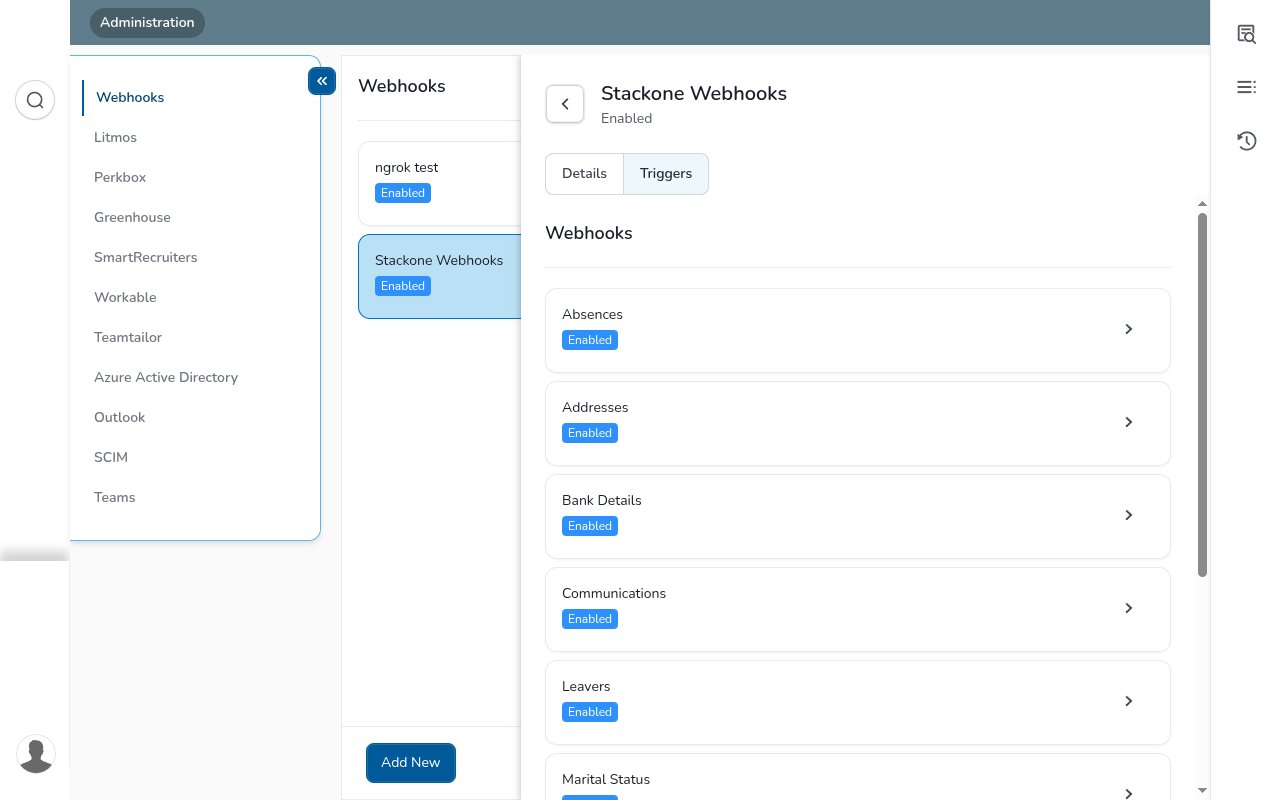
  <p>After saving, open the <strong>Triggers</strong> tab. There are 9 record-type triggers, each firing when its record is inserted, updated, or deleted. Click a trigger, tick <strong>Enable</strong>, then <strong>Save and Close</strong>. Only enabled triggers are delivered.</p>

  <img src="https://mintcdn.com/stackone-60/LNYn_wW20YME4mPo/connectors/cezannehr/images/events-triggers.png?fit=max&auto=format&n=LNYn_wW20YME4mPo&q=85&s=5231b03d557767ffd4160210307f7a2e" alt="CezanneHR webhook Triggers tab listing the nine triggers, each marked Enabled" width="1280" height="800" data-path="connectors/cezannehr/images/events-triggers.png" />

  <Steps>
    <Step title="Enable the standard triggers">
      <div data-guide-step data-guide-scopes="" data-guide-display-scopes-list="">
        <p>Enable any of these directly — click the trigger, tick <strong>Enable</strong>, then <strong>Save and Close</strong>.</p>

        <ul>
          <li><strong>Addresses</strong>, <strong>Bank Details</strong>, <strong>Communications</strong>, <strong>Marital Status</strong>, <strong>Person Details</strong>, <strong>Person Development Activities</strong>.</li>
        </ul>
      </div>
    </Step>

    <Step title="Configure Absences (categories and statuses)">
      <div data-guide-step data-guide-scopes="" data-guide-display-scopes-list="">
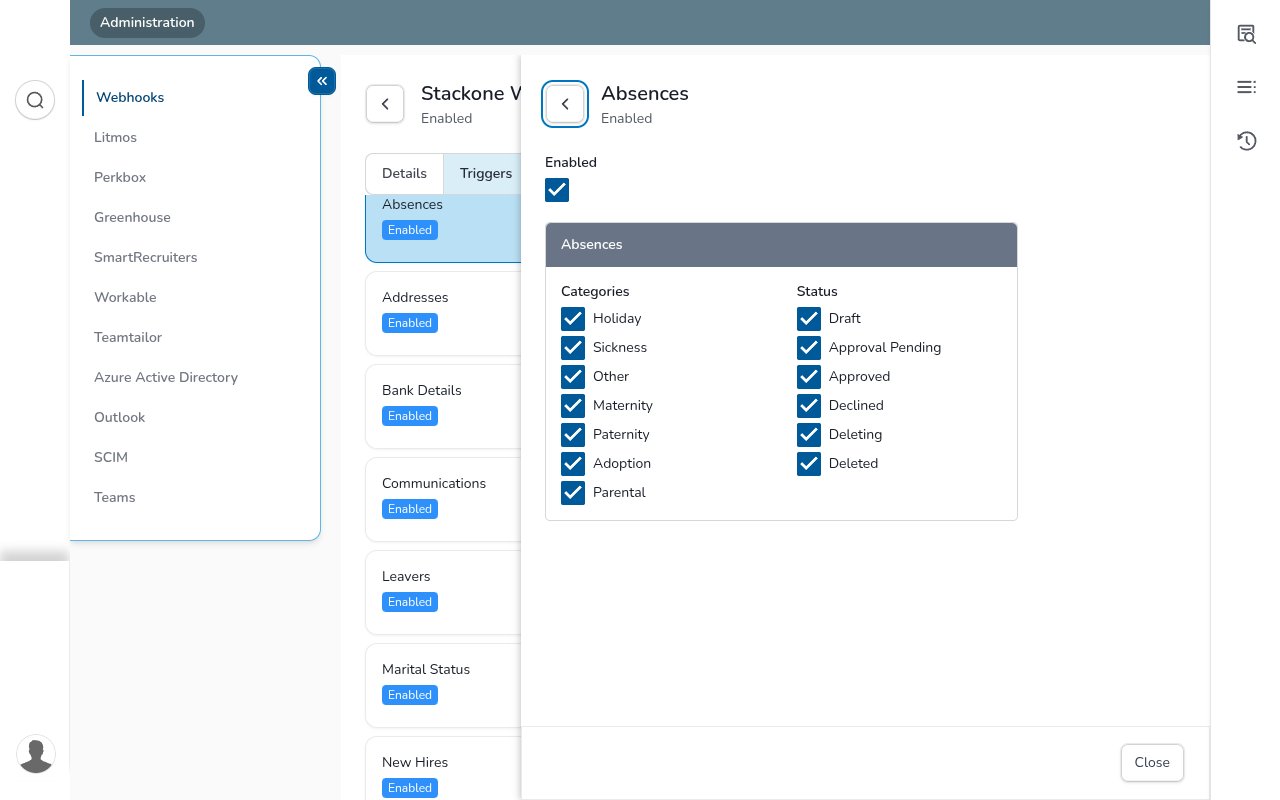
        <p>Tick <strong>Enabled</strong>, then select at least one <strong>Category</strong> (Holiday, Sickness, Maternity, Paternity, Adoption, Parental, Other) and at least one <strong>Status</strong> (Draft, Approval Pending, Approved, Declined, Deleting, Deleted). Tick every box to receive all absences — saving with no category or status selected is rejected.</p>

        <img src="https://mintcdn.com/stackone-60/LNYn_wW20YME4mPo/connectors/cezannehr/images/events-absences-config.png?fit=max&auto=format&n=LNYn_wW20YME4mPo&q=85&s=893a4688c399135cc74dd021b3e18223" alt="CezanneHR Absences trigger configuration with Categories and Status checkboxes" width="1280" height="800" data-path="connectors/cezannehr/images/events-absences-config.png" />
      </div>
    </Step>

    <Step title="Set Leavers and New Hires delivery (real-time or overnight)">
      <div data-guide-step data-guide-scopes="" data-guide-display-scopes-list="">
        <p>Tick <strong>Enabled</strong>, then choose <strong>Trigger Real-time</strong> (sent as soon as the record is added, changed, or deleted) or <strong>Trigger Overnight</strong> (all of that day's changes sent together overnight). Select exactly one.</p>
      </div>
    </Step>
  </Steps>
</section>

<section data-guide-section data-guide-scopes="">
  <h2>Available webhook events</h2>

  <p>StackOne maps each enabled trigger to an event. Every delivery carries `GroupID` (the change group) and `State` (`Added`, `Modified`, or `Deleted`), and StackOne emits an event type of `GroupID.State`. Only the triggers you enable are delivered.</p>

  <Steps>
    <Step title="Review person, hire, leaver, address and contact events">
      <div data-guide-step data-guide-scopes="" data-guide-display-scopes-list="">
        <p>New hires and leavers are person changes — a new hire arrives as PEOPLECHANGED/Added and a leaver as PEOPLECHANGED/Modified.</p>

        <ul>
          <li><strong>Person Details</strong> / <strong>New Hires</strong> / <strong>Leavers</strong> (`PEOPLECHANGED`) — a person record is added, updated, or deleted.</li>
          <li><strong>Addresses</strong> (`ADDRESSCHANGED`) — a person's address is added, updated, or deleted.</li>
          <li><strong>Communications</strong> (`COMMUNICATIONSCHANGED`) — phone, email, or contact details change.</li>
          <li><strong>Marital Status</strong> (`MARITALSTATUSECHANGED`) — a marital status record changes.</li>
        </ul>
      </div>
    </Step>

    <Step title="Review banking, development and absence events">
      <div data-guide-step data-guide-scopes="" data-guide-display-scopes-list="">
        <p>Fired for the remaining record types.</p>

        <ul>
          <li><strong>Bank Details</strong> (`BANKDETAILSCHANGED`) — a bank account record is added, updated, or deleted.</li>
          <li><strong>Person Development Activities</strong> (`PERSONDEVACTIVITYCHANGED`) — a development activity changes.</li>
          <li><strong>Absences</strong> (`PERSONABSENCECHANGED`) — an absence changes, per the categories and statuses you selected.</li>
        </ul>
      </div>
    </Step>
  </Steps>
</section>

<section data-guide-section data-guide-scopes="">
  <h2>Understand the delivery format</h2>

  <p>CezanneHR POSTs a JSON body whenever an enabled trigger fires, containing `GroupID` (the change group, e.g. `PEOPLECHANGED`), `State` (`Added`, `Modified`, or `Deleted`), `TenantID`, the `AuthKey` you set (also sent as the `X-Api-Key` header), and `MessageContent.DataSet` with the changed record(s). StackOne routes on `GroupID`, resolves the account from the token embedded in the Native Webhook URL, and emits an event of type `GroupID.State` carrying the record id and full payload.</p>
</section>

## Verify

Your Connector should now be able to receive and process events. Try triggering an event and you should see an Event appear in the Connector logs.