> ## Documentation Index
> Fetch the complete documentation index at: https://docs.stackone.com/llms.txt
> Use this file to discover all available pages before exploring further.

# Basecamp Webhook Setup Guide

> Configure Basecamp to deliver events to StackOne.

## Prerequisites

Before continuing, you should have already completed the following for this connector:

<Steps>
  <Step title="Configure the Connector">
    Enable the connector and set up its connector profile in your project. See <a href="/connect/managing-connectors/overview">Managing Connectors</a>.

    <Columns cols={2}>
      <Card title="Connector Profile" href="/connectors/basecamp/guides/connector-profile/oauth-2-0" icon="https://stackone-logos.com/api/basecamp/filled/svg" horizontal>
        Basecamp - OAuth 2.0
      </Card>
    </Columns>
  </Step>

  <Step title="Link an Account">
    Connect an account using <a href="/embed/account-linking/overview">StackOne Hub</a> or <a href="/embed/account-linking/auth-link">Auth Link</a>.

    <Columns cols={2}>
      <Card title="Link Account" href="/connectors/basecamp/guides/link-account/oauth-2-0" icon="https://stackone-logos.com/api/basecamp/filled/svg" horizontal>
        Basecamp - OAuth 2.0
      </Card>
    </Columns>
  </Step>
</Steps>

<section data-guide-section data-guide-scopes="">
  <h2>Configure Basecamp Webhooks</h2>

  <p>Basecamp delivers real-time webhook notifications for events within a project. Follow the steps below to configure webhooks for your Basecamp project.</p>

  <Steps>
    <Step title="Sign in to Basecamp">
      <div data-guide-step data-guide-scopes="" data-guide-display-scopes-list="">
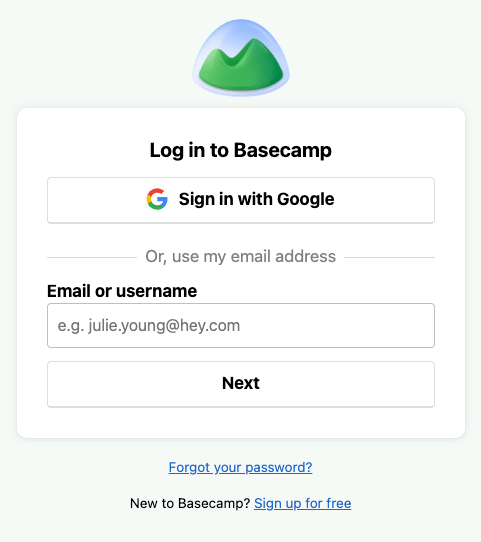
        <p>Sign in to your <a href="https://launchpad.37signals.com/signin" target="_blank" rel="noopener noreferrer">Basecamp account</a> with administrator credentials.</p>

        <img src="https://mintcdn.com/stackone-60/X3hsrbcDUPSraEHE/connectors/basecamp/images/basecamp-signin-step-0.png?fit=max&auto=format&n=X3hsrbcDUPSraEHE&q=85&s=5169303fd7ff11a7ff34e4d615f550b3" alt="Basecamp Sign In Page" width="481" height="542" data-path="connectors/basecamp/images/basecamp-signin-step-0.png" />
      </div>
    </Step>

    <Step title="Identify Your Project">
      <div data-guide-step data-guide-scopes="" data-guide-display-scopes-list="">
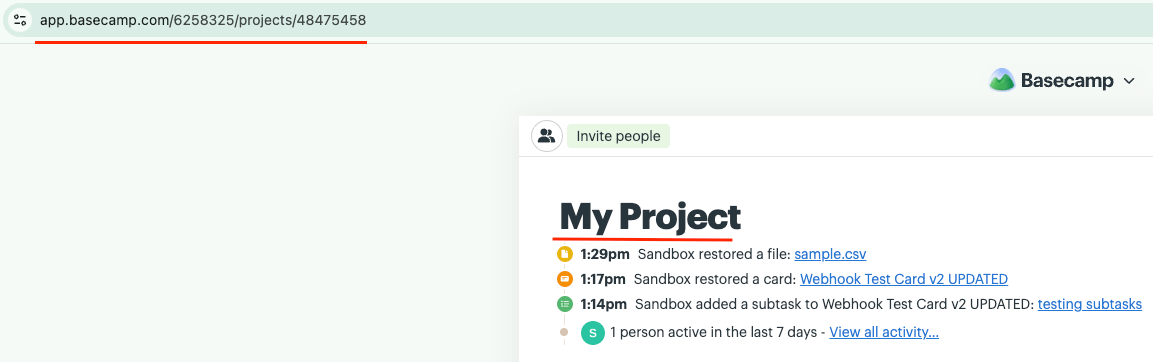
        <p>Navigate to the project you wish to receive events from. Your Account ID and Project ID can be found in the browser URL bar.</p>

        <ul>
          <li>Open your project in Basecamp.</li>
          <li>The URL follows this format: `https://app.basecamp.com/{account_id}/projects/{project_id}`</li>
          <li>Note both the <strong>Account ID</strong> and <strong>Project ID</strong> — these are required in later steps.</li>
        </ul>

        <img src="https://mintcdn.com/stackone-60/kjd_sJ9F8GsE9-Ag/connectors/basecamp/images/basecamp-project-url-step-1.png?fit=max&auto=format&n=kjd_sJ9F8GsE9-Ag&q=85&s=6f88c58fec44e6e56f832f475302f3ed" alt="Basecamp Project URL showing Account ID and Project ID" width="1153" height="362" data-path="connectors/basecamp/images/basecamp-project-url-step-1.png" />
      </div>
    </Step>

    <Step title="Open Webhook Settings">
      <div data-guide-step data-guide-scopes="" data-guide-display-scopes-list="">
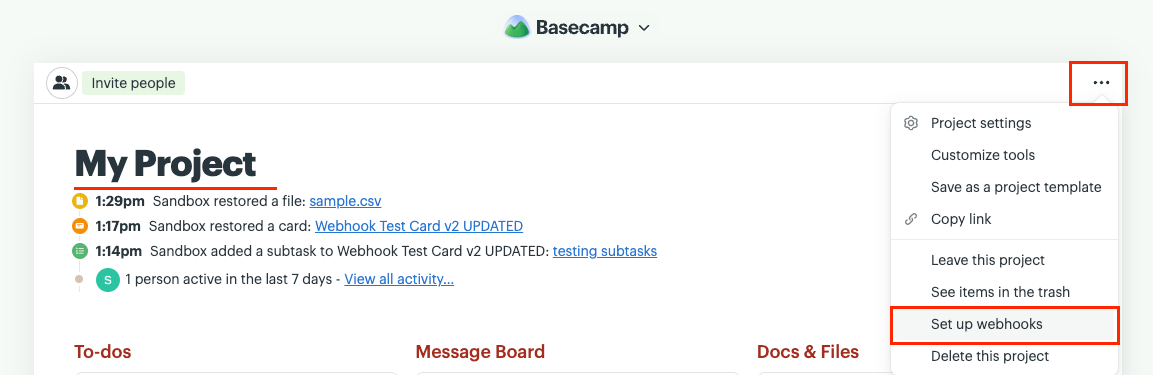
        <p>Navigate to <strong>Set up webhooks</strong> from the three-dot menu in the top-right corner of your project.</p>

        <img src="https://mintcdn.com/stackone-60/kjd_sJ9F8GsE9-Ag/connectors/basecamp/images/basecamp-setup-webhook-step-2.png?fit=max&auto=format&n=kjd_sJ9F8GsE9-Ag&q=85&s=838d1f3c4669c7f2aacde9a138174343" alt="Basecamp Set Up Webhooks Option" width="1153" height="375" data-path="connectors/basecamp/images/basecamp-setup-webhook-step-2.png" />
      </div>
    </Step>

    <Step title="Register the Webhook">
      <div data-guide-step data-guide-scopes="" data-guide-display-scopes-list="">
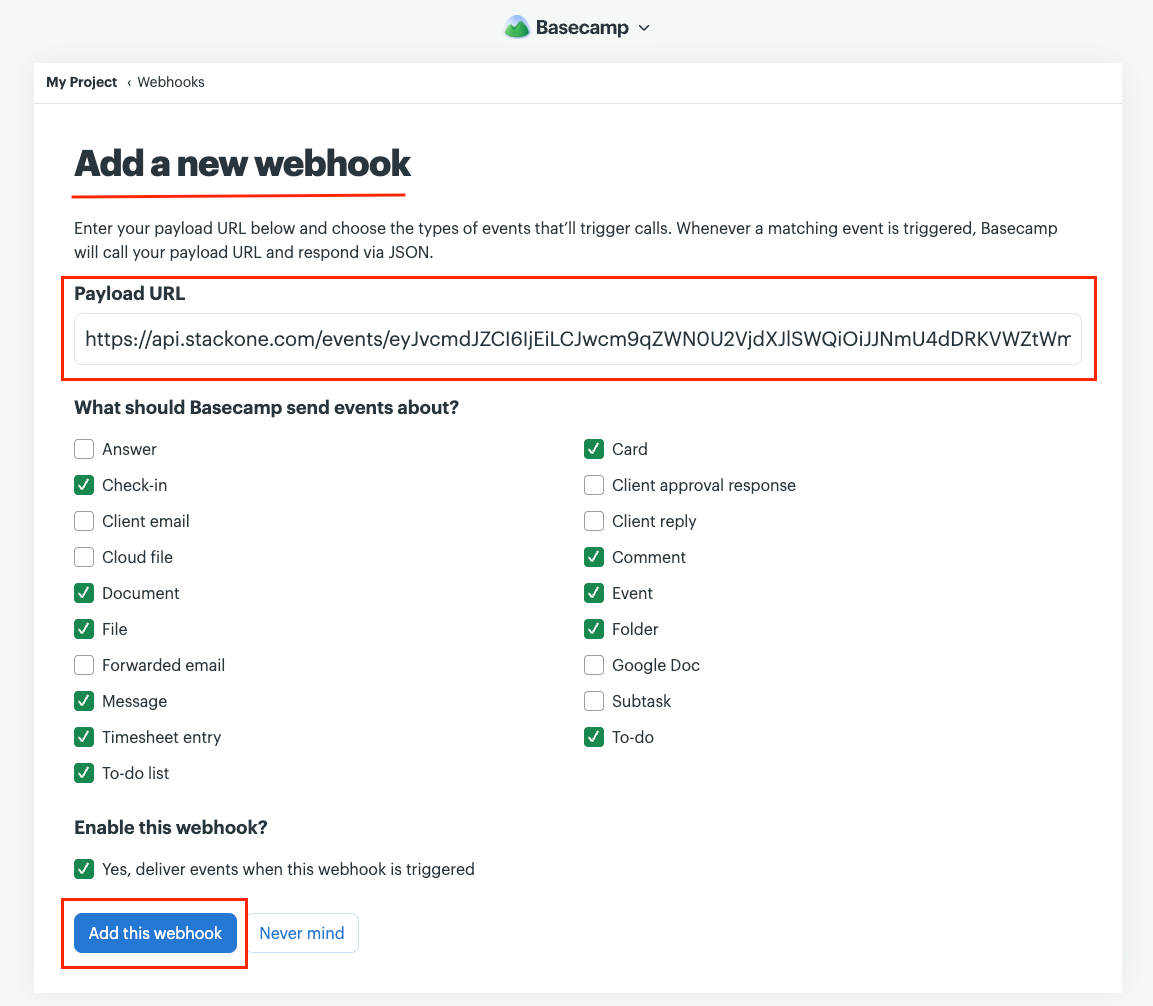
        <p>Add a new webhook by providing the Payload URL and selecting the event types you wish to receive notifications for.</p>

        <ul>
          <li>Click the <strong>Add a new webhook</strong> button.</li>
          <li>In the <strong>Payload URL</strong> field, paste the <strong>Native Webhook URL</strong> copied from the StackOne Hub connection form.</li>
          <li>Select the event types you wish to subscribe to. Refer to the <strong>Select Event Types</strong> step below for supported events.</li>
          <li>Tick the <strong>Enable this webhook</strong> checkbox to activate the webhook.</li>
          <li>Click the <strong>Add this webhook</strong> button to save.</li>
        </ul>

        <img src="https://mintcdn.com/stackone-60/kjd_sJ9F8GsE9-Ag/connectors/basecamp/images/basecamp-create-webhook-step-3.png?fit=max&auto=format&n=kjd_sJ9F8GsE9-Ag&q=85&s=bda37ee2c8c61f55a20a5daf00b248c8" alt="Basecamp Create Webhook Form" width="1153" height="1006" data-path="connectors/basecamp/images/basecamp-create-webhook-step-3.png" />
      </div>
    </Step>

    <Step title="Select Event Types">
      <div data-guide-step data-guide-scopes="" data-guide-display-scopes-list="">
        <p>The following event types are currently supported by the StackOne Basecamp integration. Select the relevant types when configuring your webhook.</p>

        <ul>
          <li><strong>To-do</strong> — To-do item events (created, completed, updated, deleted)</li>
          <li><strong>To-do list</strong> — To-do list events</li>
          <li><strong>Message</strong> — Message board events</li>
          <li><strong>Comment</strong> — Comment events on any recording</li>
          <li><strong>Document</strong> — Document events</li>
          <li><strong>File</strong> — File upload events</li>
          <li><strong>Timesheet entry & Event</strong> — Calendar and schedule events</li>
          <li><strong>Card</strong> — Card table (Kanban) events</li>
          <li><strong>Folder</strong> — Folder (Docs & Files) events</li>
          <li><strong>Check-in</strong> — Automatic check-in events</li>
        </ul>
      </div>
    </Step>
  </Steps>
</section>

## Verify

Your Connector should now be able to receive and process events. Try triggering an event and you should see an Event appear in the Connector logs.