> ## Documentation Index
> Fetch the complete documentation index at: https://docs.stackone.com/llms.txt
> Use this file to discover all available pages before exploring further.
# ADP Workforce Now Webhook Setup Guide
> Configure ADP Workforce Now to deliver events to StackOne.
## Prerequisites
Before continuing, you should have already completed the following for this connector:
Enable the connector and set up its connector profile in your project. See Managing Connectors.
ADP Workforce Now - OAuth 2.0
Connect an account using StackOne Hub or Auth Link.
ADP Workforce Now - OAuth 2.0
Get your Native Webhook URL
StackOne generates a per-connection webhook URL. You will paste it into ADP as the webhook host and endpoint.
- On this connection in StackOne, copy the read-only Native Webhook URL. It contains a secure per-connection token (the `?token=` at the end) that identifies your account, so treat it like a secret.
Open your project's events
Configure webhooks from your ADP project in ADP API Central.
Sign in to ADP API Central, open Projects, select your project, and open the APIs tab. Under the APIs, select the Events tab.
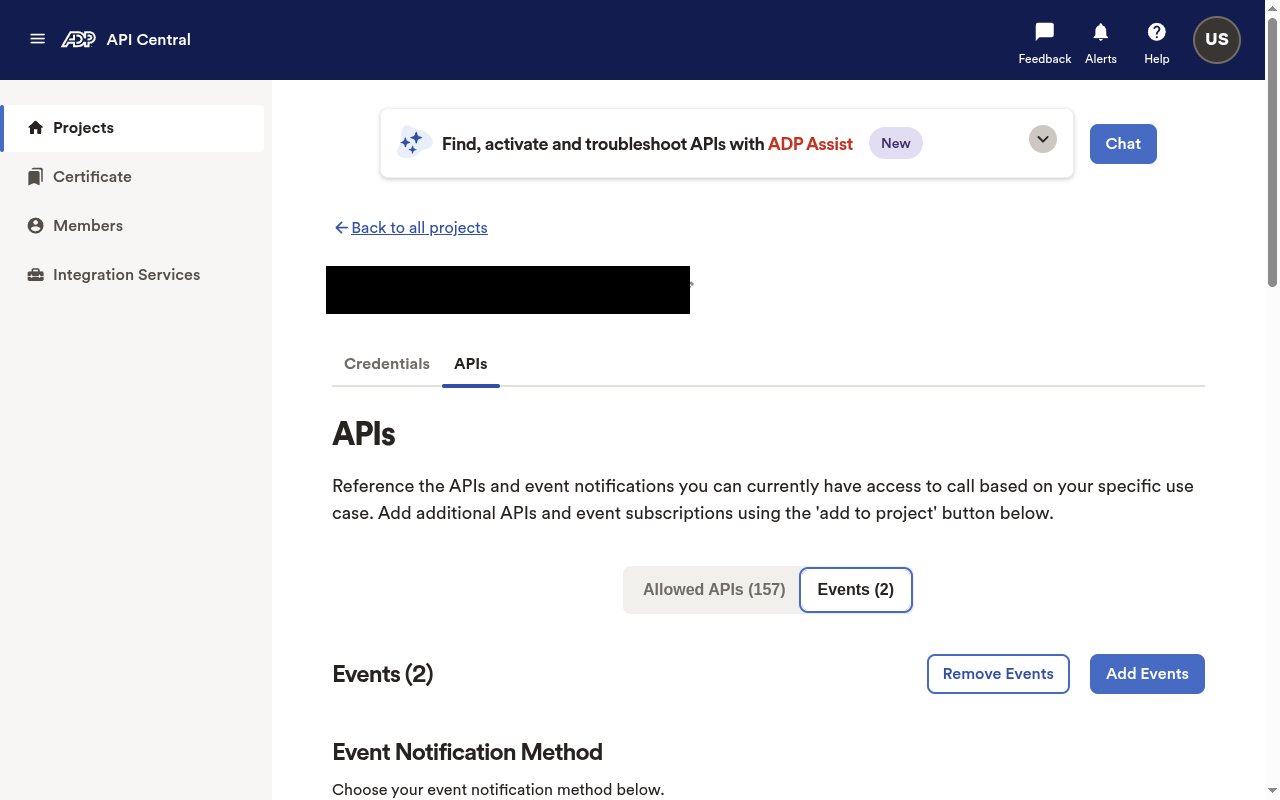
The Subscribed events list shows the event notifications your project is scoped for. If an event you want is missing, click Add Events and subscribe to it — events that are not subscribed are never delivered.
Configure the webhook delivery
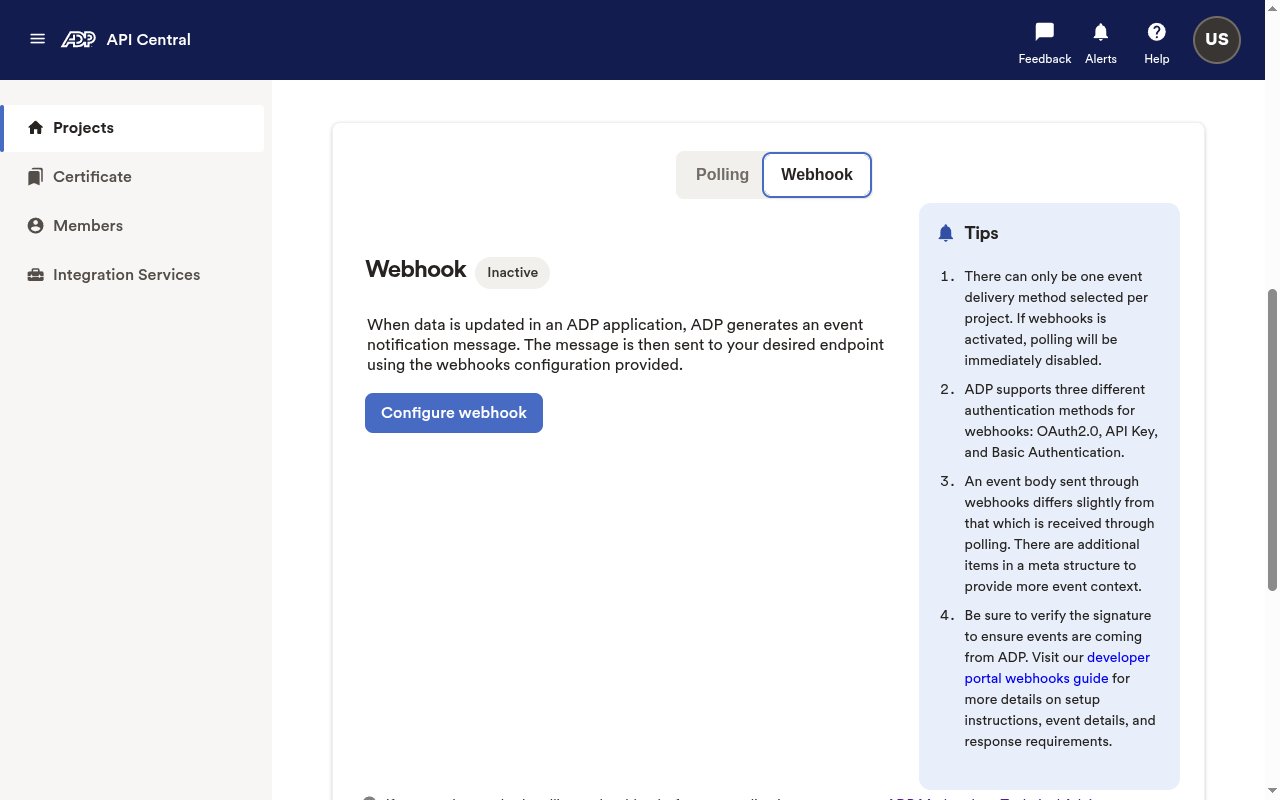
Under Event Notification Method, switch delivery to Webhook and point it at your Native Webhook URL. Activating Webhook disables Polling for the project.
In Event Notification Method, select the Webhook tab, then click Configure webhook (or Edit webhook if one already exists).
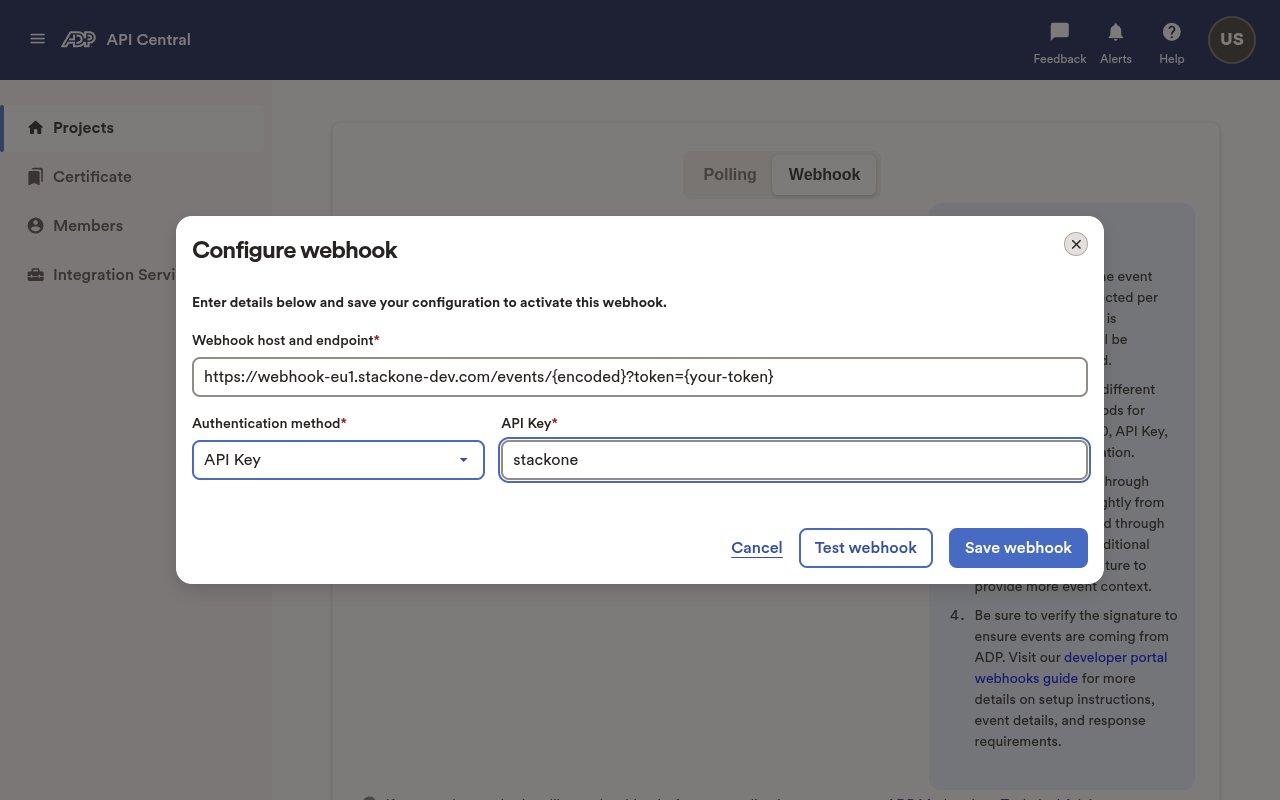
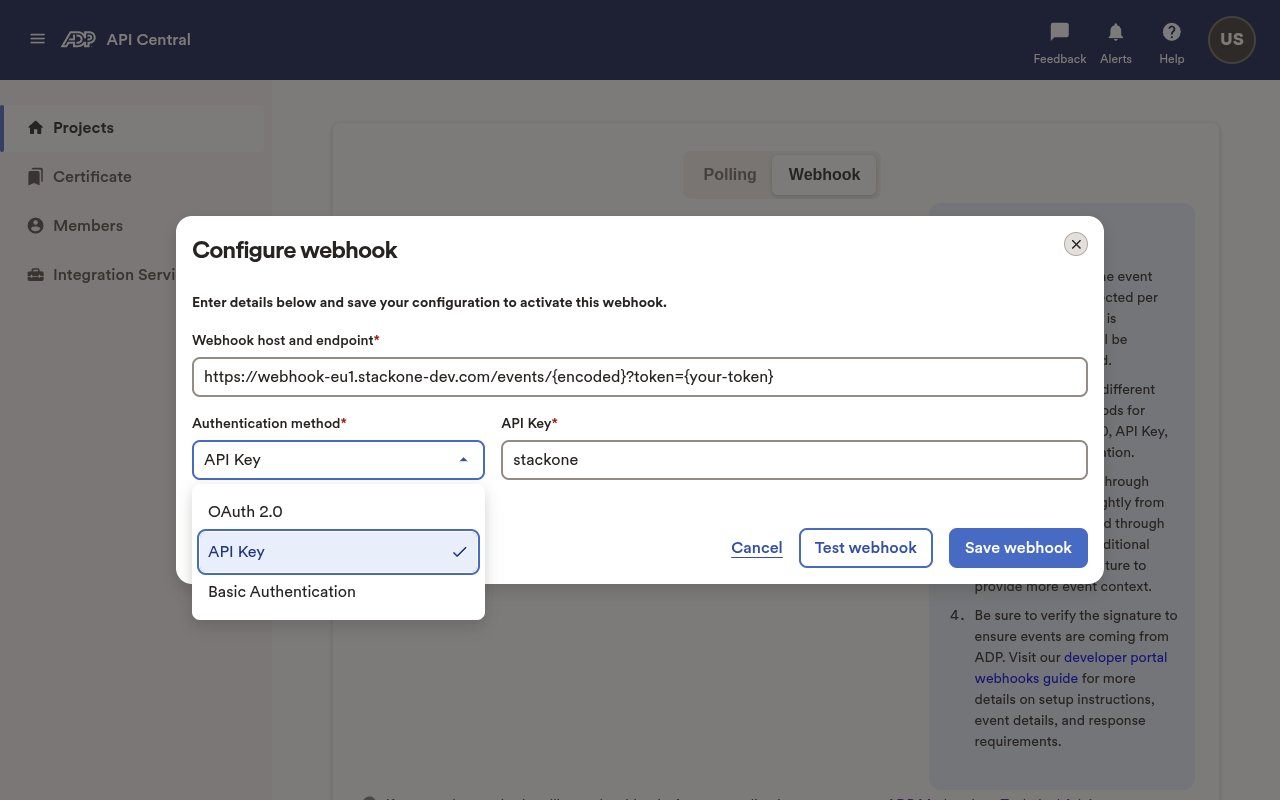
In the Configure webhook dialog, set Webhook host and endpoint to the StackOne Native Webhook URL (including its `?token=`). ADP requires an Authentication method and the credential field cannot be empty — select API Key and enter any non-empty placeholder value (for example, `stackone`). StackOne does not read this header; the `?token=` in the URL authenticates the delivery. (OAuth 2.0 and Basic Authentication are also offered but are not needed here.)
Click Test webhook — ADP sends a test message and StackOne returns the required 2xx acknowledgement, so it should report success. When the test passes, click Save webhook.
Available webhook events
StackOne maps each delivered event by its ADP code to a dedicated handler. Only events you have subscribed on the ADP project are delivered; a subscribed code without a handler is rejected, so keep your subscriptions aligned with the list below.
Hire, rehire, termination, leave and retirement events.
- Worker Hire (`worker.hire`) — a worker is hired
- Worker Rehire (`worker.rehire`) — a worker is rehired
- Worker Terminate (`worker.terminate`) — a worker is terminated
- Worker On Leave (`worker.on-leave`) — a worker is placed on leave
- Worker Retire (`worker.work-assignment.retire`) — a worker's assignment is retired
Name, marital status and legal address changes.
- Worker Legal Name Change (`worker.legal-name.change`) — a worker's legal name changes
- Worker Marital Status Change (`worker.marital-status.change`) — a worker's marital status changes
- Worker Legal Address Add (`worker.legal-address.add`) — a worker's legal address is added
- Worker Legal Address Change (`worker.legal-address.change`) — a worker's legal address changes
- Worker Legal Address Remove (`worker.legal-address.remove`) — a worker's legal address is removed
Business email and personal phone/email changes.
- Worker Business Email Add / Change / Remove (`worker.business-communication.email.add` / `.change` / `.remove`) — a worker's business email is added, changed or removed
- Worker Personal Landline Add / Change / Remove (`worker.personal-communication.landline.add` / `.change` / `.remove`) — a worker's personal landline is added, changed or removed
- Worker Personal Mobile Add / Change / Remove (`worker.personal-communication.mobile.add` / `.change` / `.remove`) — a worker's personal mobile is added, changed or removed
- Worker Personal Email Change (`worker.personal-communication.email.change`) — a worker's personal email changes
Assignment, base pay, organizational unit and manager changes.
- Worker Work Assignment Modify (`worker.work-assignment.modify`) — a worker's work assignment is modified
- Worker Base Remuneration Change (`worker.work-assignment.base-remuneration.change`) — a worker's base pay changes
- Worker Organizational Unit Change (`worker.work-assignment.home-organizational-units.modify`) — a worker's home organizational unit (department) changes
- Worker Manager Change (`worker.reports-to.modify`) — a worker's reports-to (manager) changes
Dependent record changes.
- Dependent Add (`dependent.add`) — a dependent is added
- Dependent Change (`dependent.change`) — a dependent is changed
- Dependent Remove (`dependent.remove`) — a dependent is removed
Time-off request and balance events.
- Time Off Request Review (`time-off-request.review`) — a time-off request is reviewed
- Time Off Balances Modify (`time-off-balances.modify`) — a worker's time-off balances change
Payroll job status events.
- Payroll Job Status Change (`payroll-job-status.change`)
Delivery format
ADP wraps each webhook delivery in a `meta` block (orgID, messageId, messageSentTime, webhookAuditTrailID, …) around a `message.events` array; each event carries an `eventID`, `eventNameCode.codeValue` (the ADP event code, e.g. `worker.legal-address.change`), `recordDateTime` and a `data` object with the worker's `associateOID`. StackOne emits that code as the event type, the `eventID` as the record id, and passes the full body through as the event data — treat notifications as a trigger and re-fetch the record via the API for authoritative data. ADP signs every delivery with an `adpx-messageauthentication` header (HMAC-SHA256 of your data-connector Client ID keyed by your Client Secret) and requires a 2xx acknowledgement; StackOne returns one automatically, and any delivery that is not acknowledged is retried (10 times at one-minute intervals, then 10 times every six hours).
## Verify
Your Connector should now be able to receive and process events. Try triggering an event and you should see an Event appear in the Connector logs.