

Recommended Set up with your agent
Copy this into any AI assistant. It guides you one step at a time.
Help me connect StackOne to LangSmith Fleet. Read the setup guide at https://docs.stackone.com/ai-platforms/setup-guide.md and guide me one step at a time.
Or follow the steps yourself
Connect
Are you adding StackOne to an agent you built, or using one a teammate shared with you?
- My own agent
1
Connect StackOne
- In Fleet, go to Integrations.
- Search for StackOne and click Connect.

StackOne isn't there
StackOne isn't there
Ask your LangSmith workspace admin to add it. Send them this:If your role lets you add MCP servers, you can add it to your own agent instead. Open the agent, click Configure, expand Connections, click Add connection, then + Add custom MCP. Name it
StackOne, choose OAuth 2.1 (Auto) for authentication, and use this URL:2
Sign in and authorize
- Sign in to StackOne. In a desktop app or code editor, this opens in your browser.
- If StackOne asks for a project, pick yours and click Continue to Accounts.
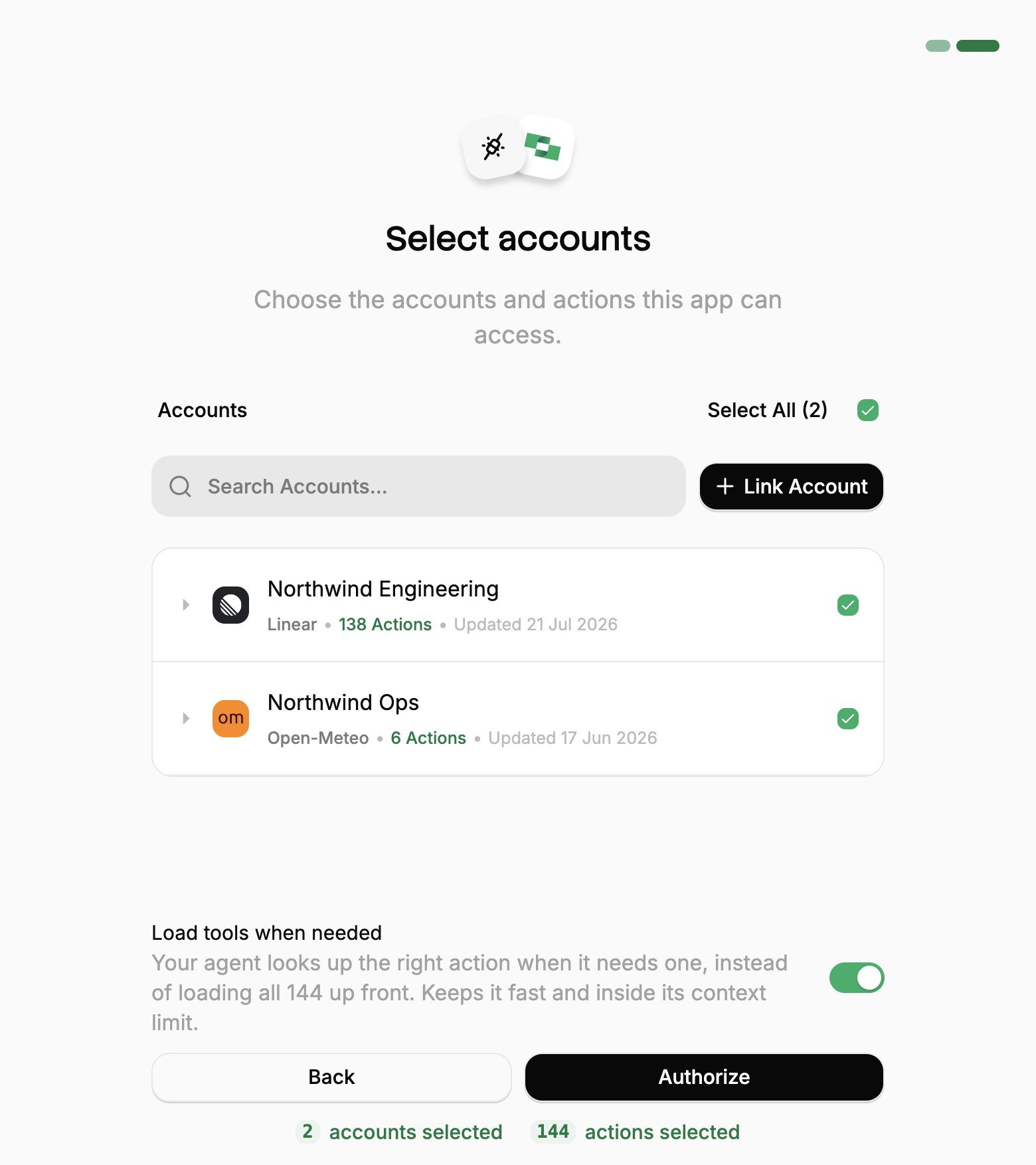
- Pick the work systems LangSmith Fleet can use (your Linked Accounts).
- If you see Load tools when needed, leave it on.
- Click Authorize.
3
Add it to your agent
- Open your agent and click Configure.
- Expand Connections and click Add connection.
- Select StackOne. If Fleet asks which account to use, pick the one you just connected.
- Click Save changes.

Shared and scheduled agents
- Runs with no one in the chat. An agent on a schedule, or one started from Slack, Gmail or Teams, can’t stop to ask anyone to sign in. Connect StackOne and check it in a chat first.
- Sharing your agent. The agent’s connection setting under Configure decides whose StackOne login it uses. Per-user, Fleet’s recommended option, has each teammate sign in with their own login. Shared has everyone work through your StackOne connection and reach your Linked Accounts.
- One login for the whole workspace. If your admin connected StackOne with a single workspace login, there’s no sign-in step. StackOne works in any agent that has it.
If something goes wrong
If something goes wrong
Can’t find or add StackOne. Your LangSmith workspace admin adds StackOne to the workspace. Adding it yourself needs the MCP Server Create permission, which they can grant.A system you need is missing. Ask your StackOne admin, or see Linking Accounts.It stopped working. StackOne shows Needs reconnect in Integrations or in your agent’s Connections. Click Reconnect and sign in again. Access lasts 90 days from when you clicked Authorize.The agent stops and waits. A StackOne tool set to Ask runs only after you click Accept. To let it run on its own, set it to Auto under Connections.Agents stop starting new runs. Your organization may have used its monthly Fleet allowance or reached a weekly spend limit. Ask your LangSmith workspace admin.It can’t do something. It can do only what your own StackOne access allows. Ask your StackOne admin.
Add or change accounts
Add or change accounts
LangSmith Fleet reaches only the Linked Accounts you approved when you connected. To add one you link later, or one someone shares with you afterwards:To review or revoke the connection, use the same ⋮ menu in Connected Apps.
1
Open Connected Apps
In the StackOne dashboard, go to Connected Apps.
2
Edit the connection
- Open the ⋮ menu on the row for LangSmith Fleet and select Edit tool access.
- Select the Linked Account.
- Click Save changes.