

Creating a Todoist app
Todoist integrations are registered in the App Management console, which issues the Client ID and Client secret used to connect.
Sign in to Todoist
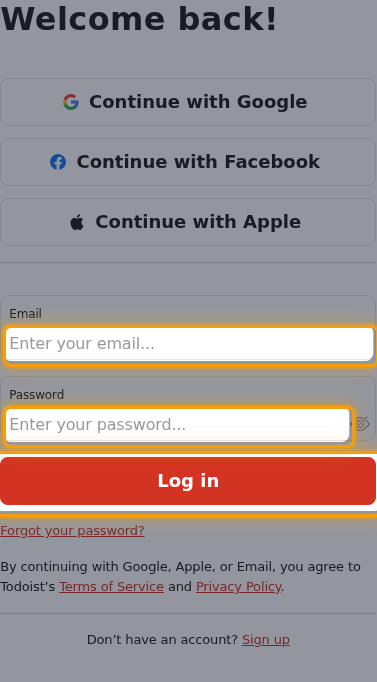
Sign in to your Todoist account.
- Enter your Email and Password, then click Log in.
- You can also use Continue with Google, Continue with Facebook, or Continue with Apple.
Open the App Management console
Create the app
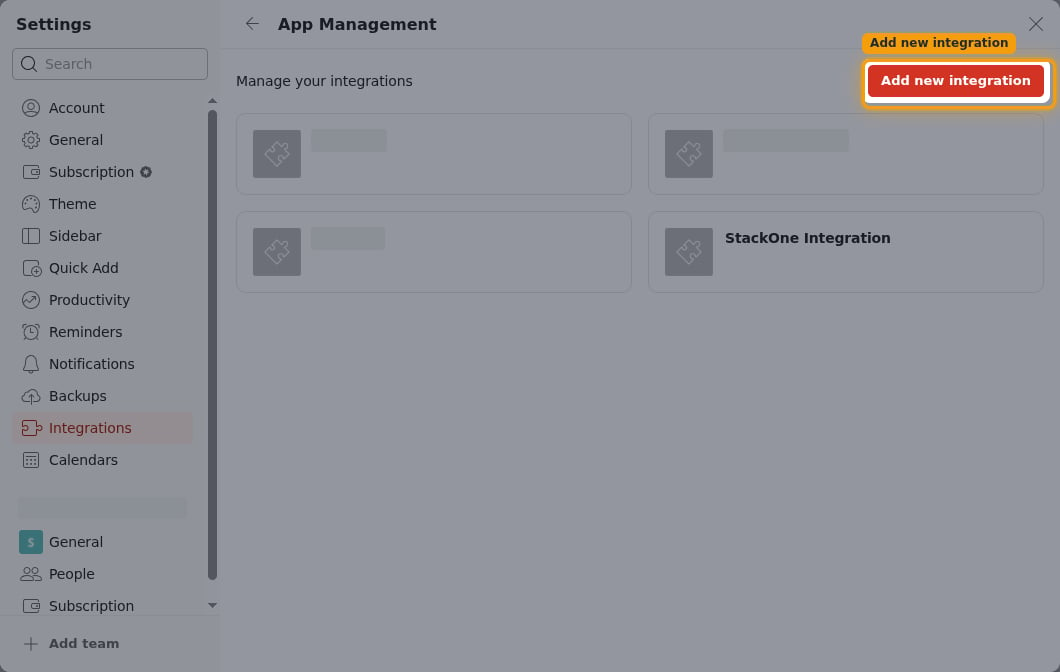
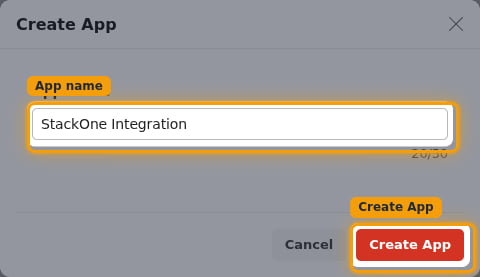
Click Add new integration to open the Create App dialog.
- App name:
StackOne Integration - Click Create App.
Enabling token refresh
The connector renews access tokens automatically, which requires the app to issue refresh tokens. An app created now already does this and shows no setting to change.
Enable token refresh on an older app
Open the app settings and look for a Token refresh section, between OAuth redirect URL and Verification token. If Verification token follows OAuth redirect URL directly, the section is absent because the app already issues refresh tokens, and nothing needs changing.
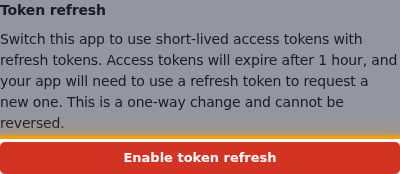
- Click Enable token refresh.
- Todoist describes the change as follows. Switch this app to use short-lived access tokens with refresh tokens. Access tokens will expire after 1 hour, and your app will need to use a refresh token to request a new one. This is a one-way change and cannot be reversed.
- Tokens issued before the change stay long-lived, so any account already connected keeps working until it is reconnected.
Configuring the redirect URL
Todoist sends the authorization response to a redirect URL that has to be registered on the app.
Register the StackOne callback URL
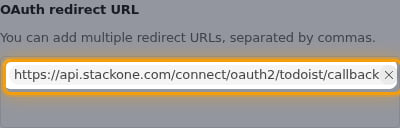
In the OAuth redirect URL field, enter the StackOne callback URL.
- Value:
https://api.stackone.com/connect/oauth2/todoist/callback - You can add multiple redirect URLs, separated by commas.
Configuring OAuth scopes
Scopes decide which Todoist data the connector can reach. They are requested when an account authorizes the app, not configured on the app itself.
Select the scopes to grant
Grant the permissions the connector’s actions require.
Enter the scopes in StackOne
Enter the scopes in the Application Scopes field in the StackOne Connector profile.
- Format: comma-separated, with no spaces
- Example:
data:read_write,data:delete,project:delete - Leaving the field empty applies the connector’s default scopes.
Copying your credentials
The app settings page shows the credentials the connector authenticates with.
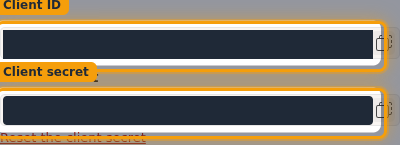
Copy the Client ID and Client secret
Copy both values into the StackOne Connector profile.
- Copy Client ID into the Client ID field.
- Copy Client secret into the Client Secret field.
- Store the Client secret securely. Anyone holding it can authorize apps against your integration, and replacing it with Reset the client secret invalidates the old value.
Creating the StackOne Connector Profile
To create the Connector Profile in StackOne for Todoist:Open the connector
Choose actions and events
- Click Add Profile.
- If the connector offers more than one authentication method, set the Auth Method filter to OAuth 2.0.
- Select the actions, and any events, to enable for this Connector Profile.
- Click Continue.
Set up authentication
- Select Authentication Type as OAuth 2.0.
- Fill out the fields using details retrieved from your provider:
- Client ID
- Client Secret
- Application Scopes (Optional)
- Click Create Profile.