

Create or select a Google Cloud project
To use the Cloud Logging and Cloud Monitoring APIs with OAuth 2.0, you need a Google Cloud project.
Sign in to Google Cloud
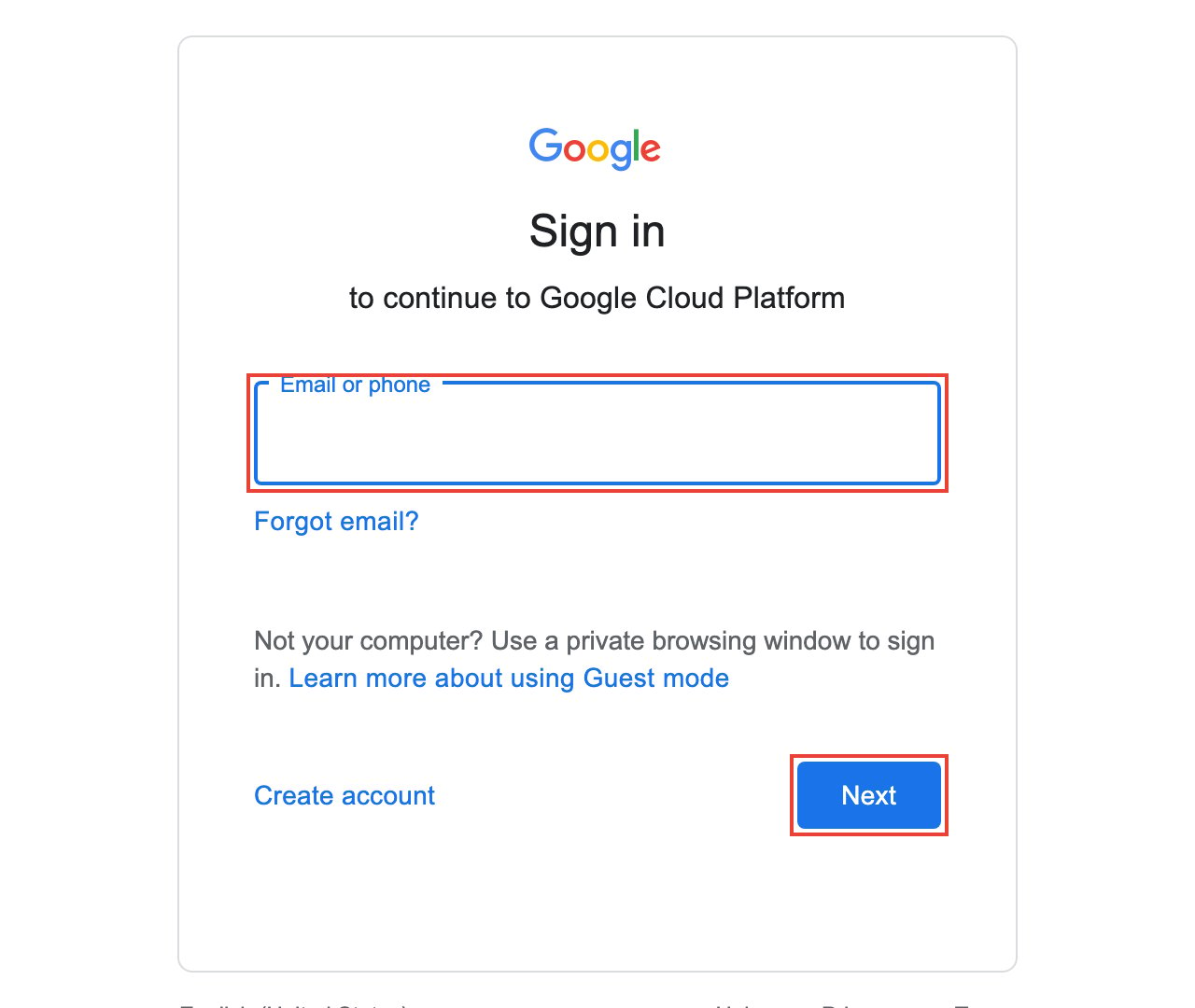
Sign in to your Google Cloud Console.
Create or select a project
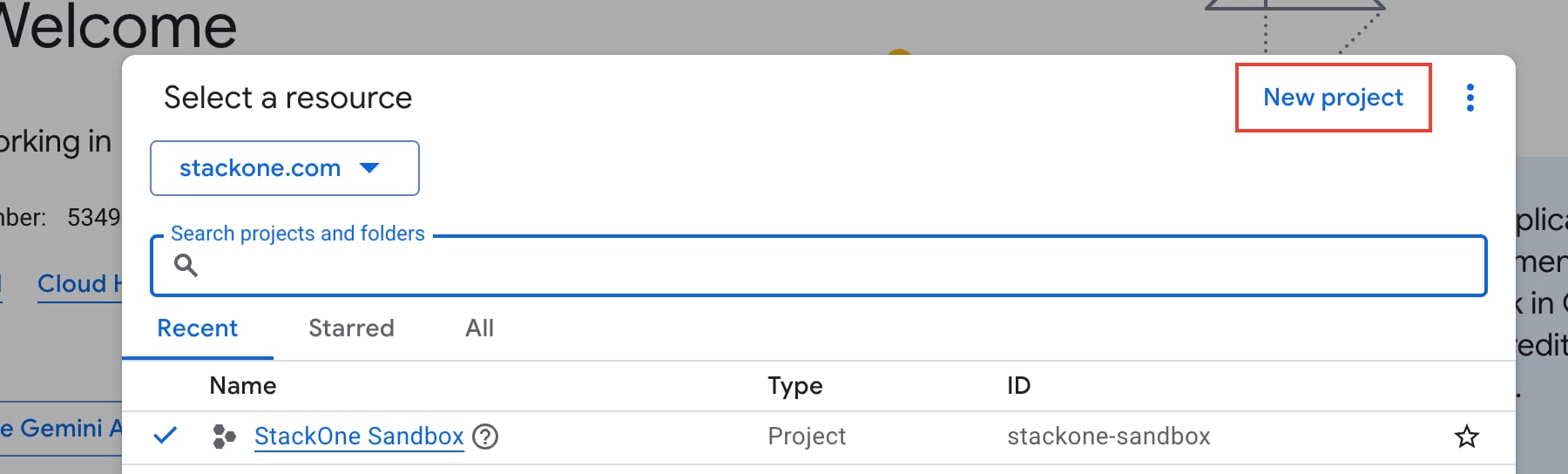
Select an existing project from the dropdown at the top of the page, or create a new one by clicking New Project and filling in the Project name, Organization, and Parent resource fields, then clicking Create.
Enable the Cloud Logging API and Cloud Monitoring API
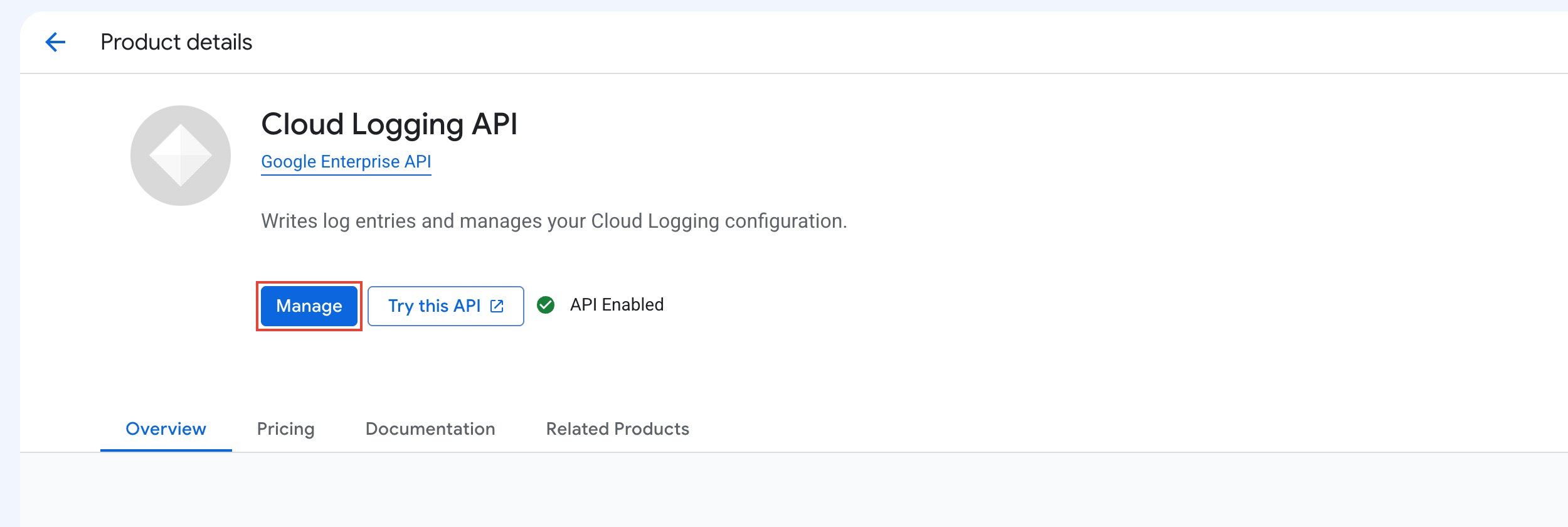
Navigate to APIs & Services > Library, search for each API below, click on it, then click Enable. If it already shows Manage, the API is already enabled.
- Cloud Logging API
- Cloud Monitoring API
Configure Google Auth Platform
Before creating OAuth credentials, ensure Google Auth Platform is configured.
Navigate to Google Auth Platform
In the Google Cloud Console, go to APIs & Services > OAuth consent screen. This will open the Google Auth Platform dashboard.
Start configuration
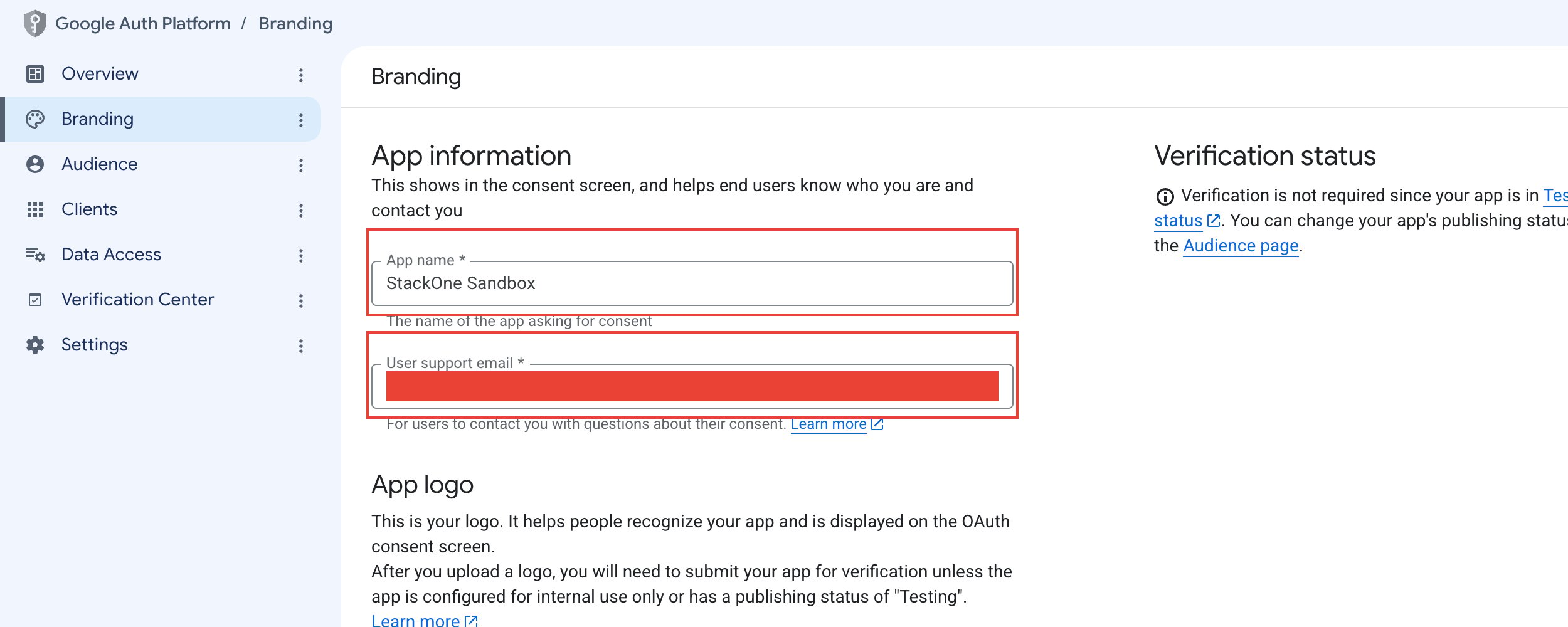
If you have already configured Auth Platform (the OAuth Overview page with usage metrics is shown), skip this step and navigate to the Branding page from the sidebar. Otherwise, you will see a Get started button — click it to begin the configuration process.
Enter app information
Fill in the required fields for your application.
- App name: Enter a name for your application (e.g., StackOne GCP Observability Integration).
- User support email: Select an email for user inquiries.
- Click Next to continue.
- Note: If you already have an existing OAuth consent screen configuration, you can edit the details in this and the following steps.
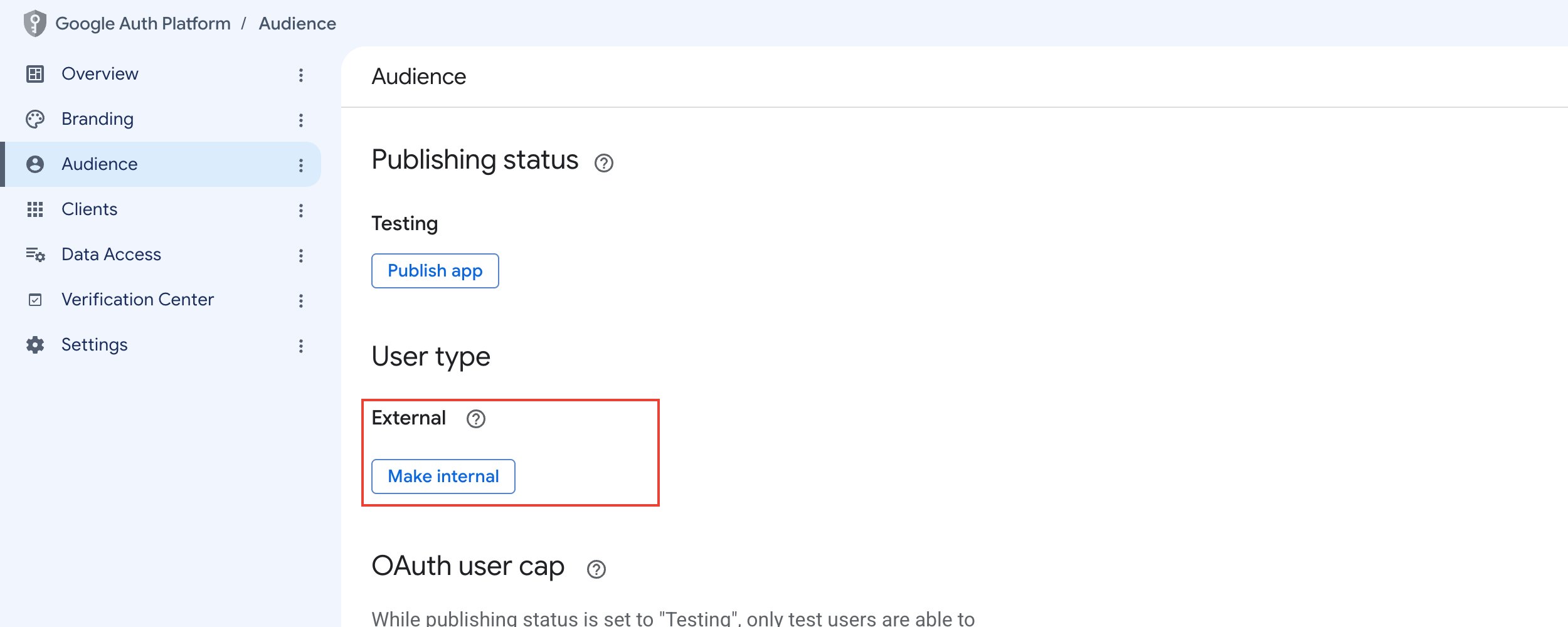
Select audience
Choose the appropriate user type for your application.
- Internal: Only users within your Google Workspace organization can authorize (no app verification required).
- External: Any Google account can authorize (requires app verification for production use).
- Click Next to continue.
Enter contact information
Provide email addresses for Google to notify you about any changes to your project. Click Next to continue.
Finish configuration
Review your settings, agree to the Google API Services User Data Policy, and click Create to complete the setup.
Configure scopes
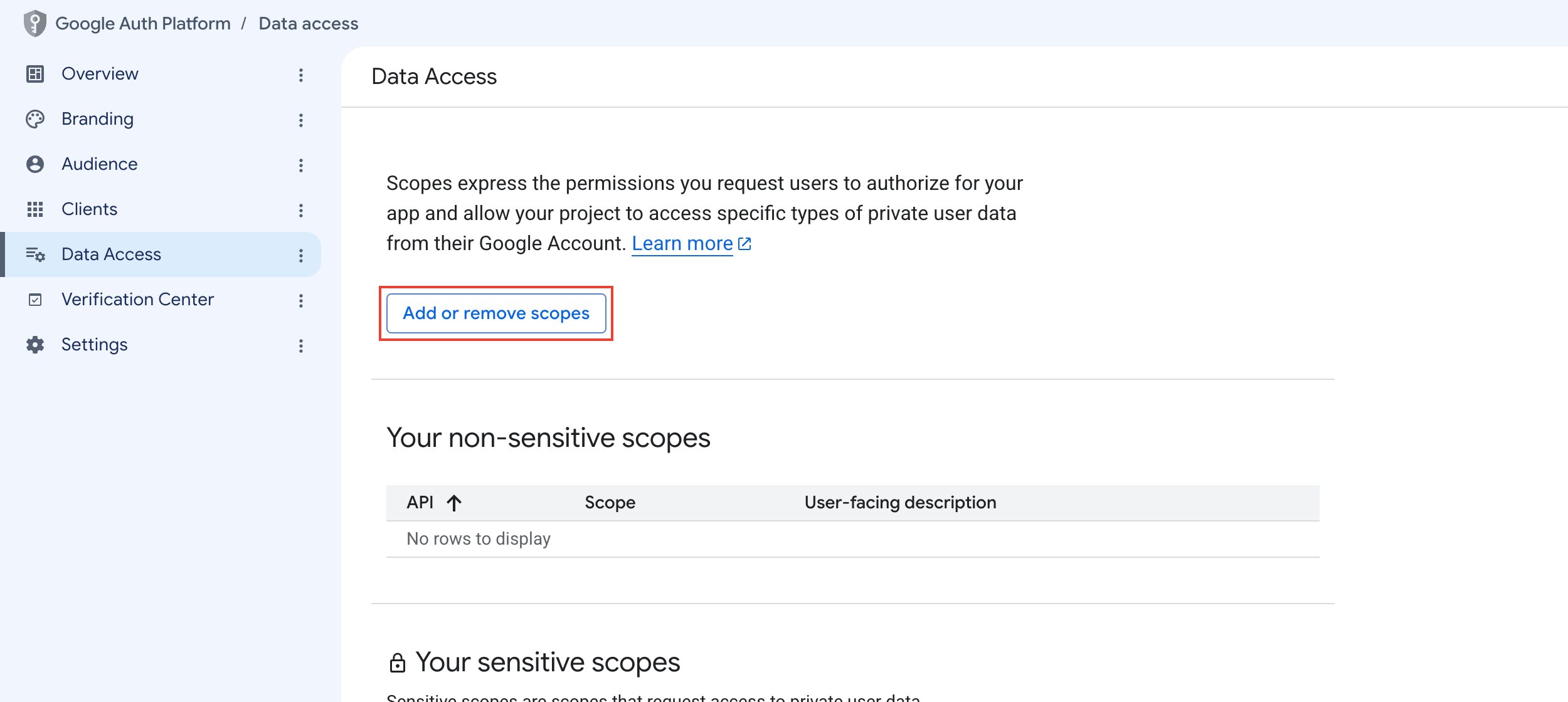
In Google Auth Platform, go to Data Access and click Add or Remove Scopes to configure the OAuth scopes your application needs.
Add scopes
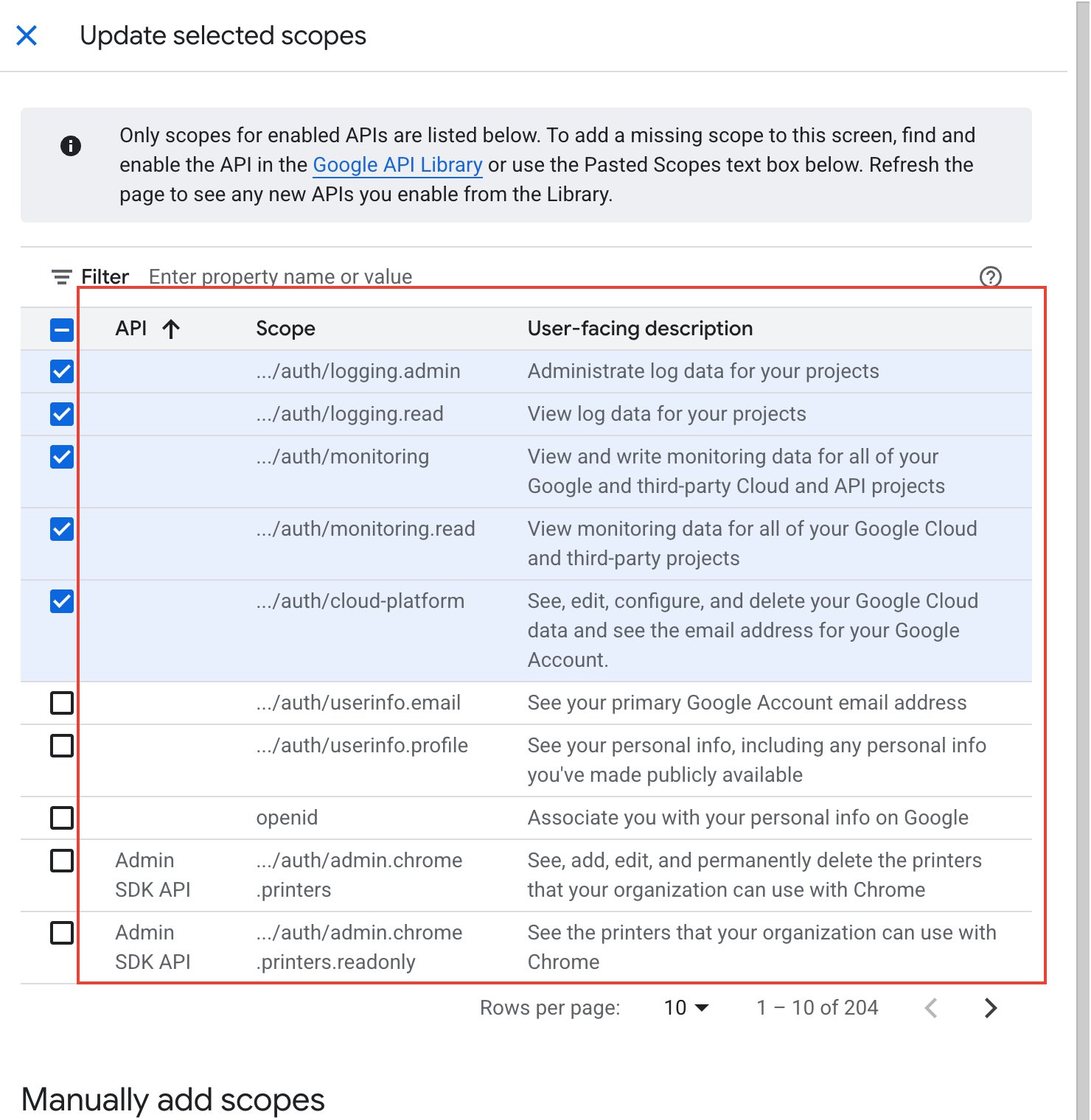
Add the required Google Cloud Logging and Monitoring scopes for your integration.
Select scopes from the list
In the Update selected scopes side panel that opens, check the required scopes from the list.
Manually add scopes (if needed)
If a required scope is not shown in the list, use the Manually add scopes section.
- Enter the full scope URL in the input field.
- Click Add to table.
Apply and save
Confirm and persist your scope configuration.
- Click Update to apply the selected scopes. The side panel will close.
- On the Data Access page, click Save to persist the scope configuration.
Create OAuth 2.0 client credentials
Set up OAuth client credentials to authenticate with Cloud Logging and Cloud Monitoring APIs. If you already have an existing OAuth 2.0 client, you can reuse it by adding the StackOne redirect URI and generating a new secret.

Navigate to Credentials
In the Google Cloud Console, go to APIs & Services > Credentials.
Option A — Create a new OAuth client
Skip this step if you are using an existing client.
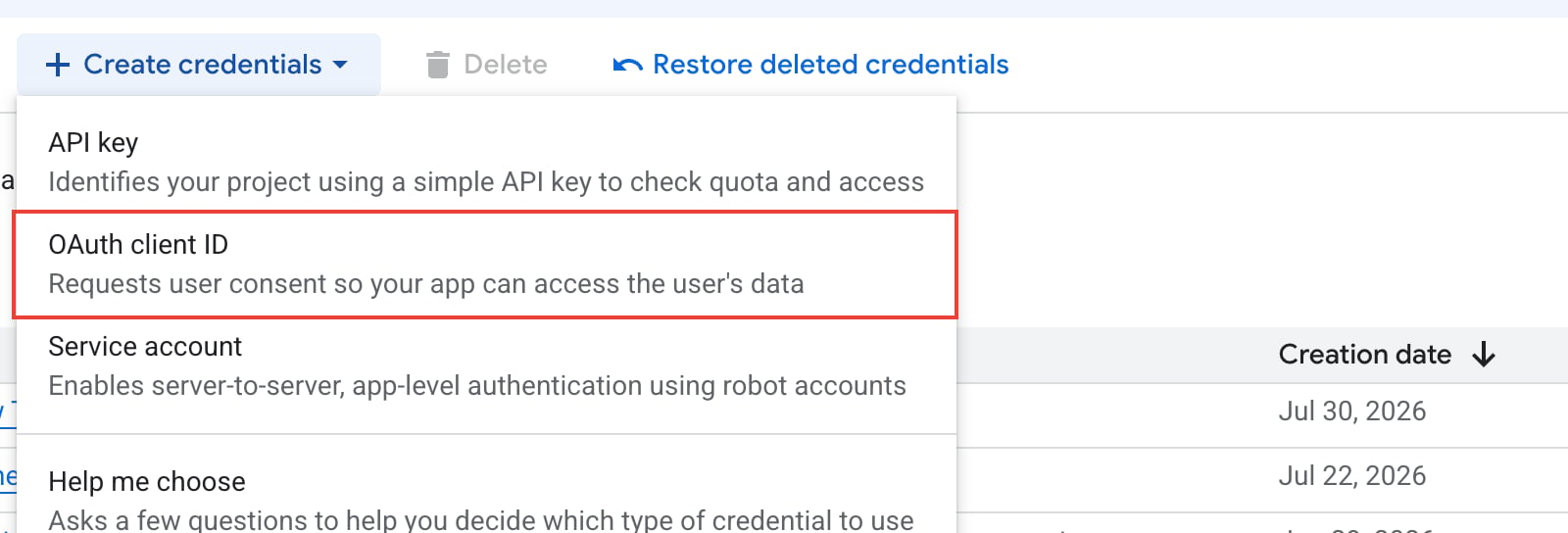
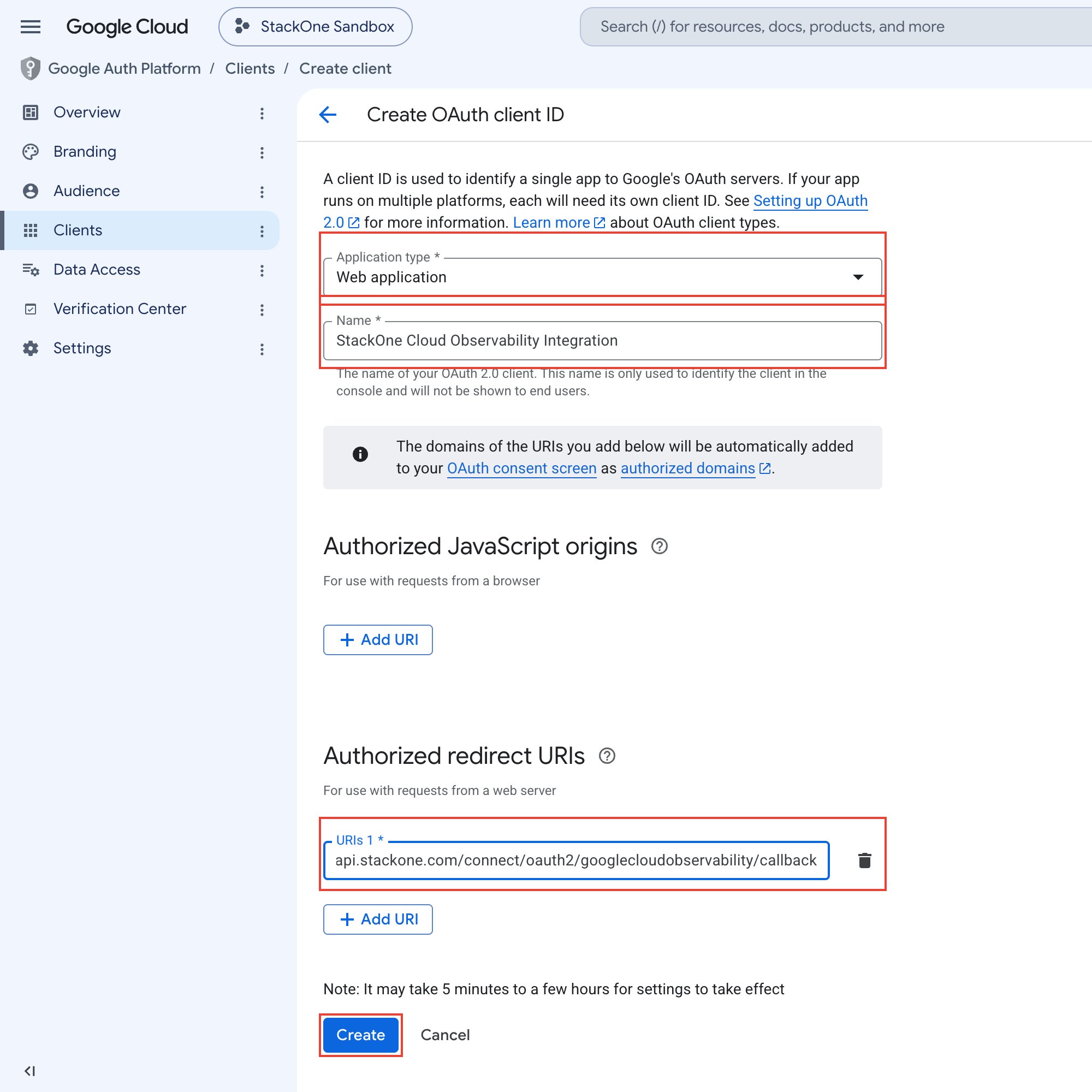
- Click + Create Credentials and select OAuth client ID.
- Select Web application as the application type.
- Enter a Name for your OAuth client (e.g., StackOne Cloud Observability Integration).
- Under Authorized redirect URIs, click Add URI and enter
https://api.stackone.com/connect/oauth2/googlecloudobservability/callback. - Click Create. A dialog will display your Client ID and Client Secret — copy and store them securely.
Option B — Use an existing OAuth client
Skip this step if you created a new client above.
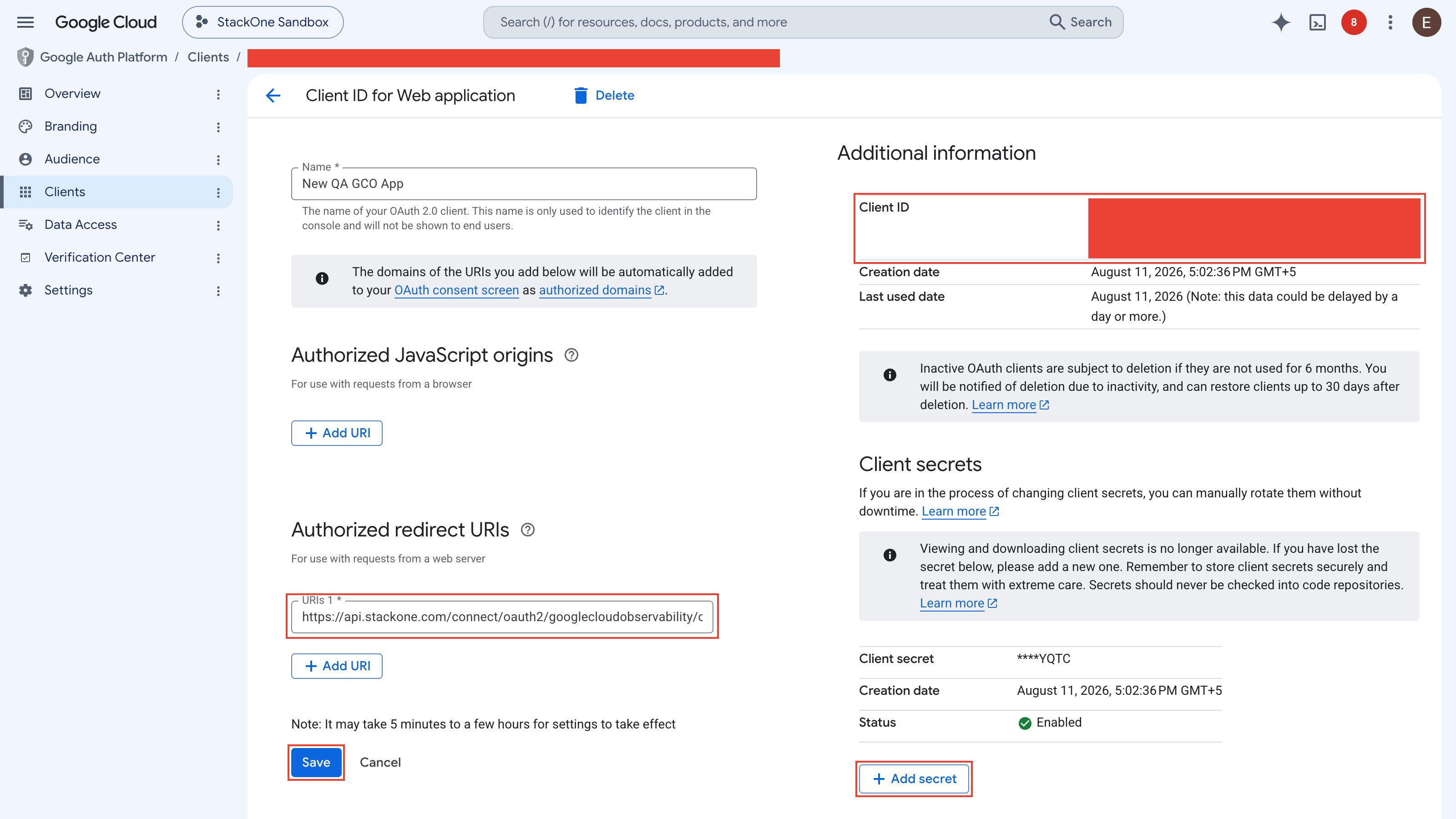
- Click on your existing OAuth 2.0 client ID from the list.
- Under Authorized redirect URIs, click Add URI, enter
https://api.stackone.com/connect/oauth2/googlecloudobservability/callback, and click Save. - Under Client secrets, click + Add secret to generate a new secret. Copy it and store it securely — it will not be shown again.
- Your Client ID is shown on the same page under Additional information.
Google Cloud session control and token expiry
Google Workspace administrators can enforce a Google Cloud session control window of 1 to 24 hours that applies to Google Cloud OAuth scopes. While it is enforced, the refresh token for this connection stops working once the window elapses, and the connected account keeps failing until a user re-authenticates interactively.
- Symptom — the connected account periodically fails with a
refresh token expirederror even though the credentials and the OAuth client are unchanged. - Cause — Google Cloud session control requires interactive re-authentication for Google Cloud scopes. Google scopes outside Google Cloud (for example Sheets, Drive or Directory) are not affected.
- Fix — in the Google Admin console, go to Security > Access and data control > Google Cloud session control and select Session never expires, or add this OAuth app to the trusted (exempted) apps list. Without one of these, periodic re-linking of the account is expected.
Creating the StackOne Connector Profile
To create the Connector Profile in StackOne for Google Cloud Observability:Open the connector
Choose actions and events
- Click Add Profile.
- If the connector offers more than one authentication method, set the Auth Method filter to OAuth 2.0.
- Select the actions, and any events, to enable for this Connector Profile.
- Click Continue.
Set up authentication
- Select Authentication Type as OAuth 2.0.
- Fill out the fields using details retrieved from your provider:
- Client ID
- Client Secret
- Scopes (Optional)
- Click Create Profile.