> ## Documentation Index
> Fetch the complete documentation index at: https://docs.stackone.com/llms.txt
> Use this file to discover all available pages before exploring further.
# Team Management
> Invite members, assign org and project roles, and manage organization security.
**Org Admins** manage who can access your StackOne organization from the organization's **Members** settings.
| Org role | Access |
| ------------- | -------------------------------------------------------------------------------------------------------------------- |
| **Org Admin** | Manage members and security settings; create and access any [project](/gateway/concepts/organizations-and-projects). |
| **Basic** | Only the projects they're added to. The Team Members section is hidden. |
Org and project roles are independent — a **Basic** member can be **Project Admin** on a specific project, with full control of that project and no org-wide access.
## Invite a member
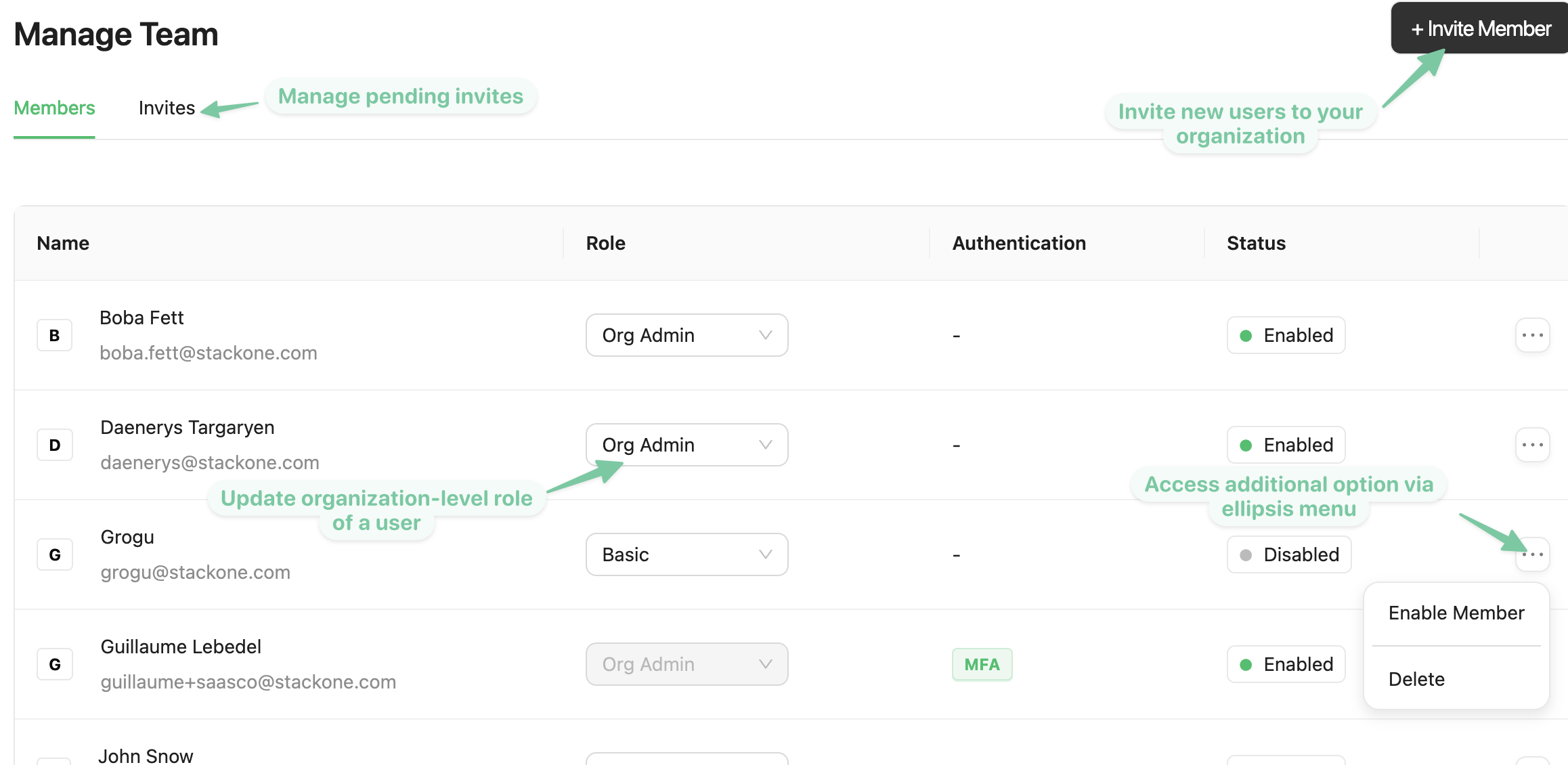
Invite people by email and assign their role at the time of invite. Pending invites can be resent or cancelled.
 ## Change a role
Change a member's org role from the Members list. Project-level access is assigned separately — see [Project members](#project-members).
## Project members
Project access is managed from **Project Settings → Team Members**, separately from org membership. Add or remove members per project and assign one of two roles:
| Resource | Project Admin | Viewer |
| ---------------------------------------------------------- | ---------------------------------------------------------------------------------- | -------------------------------------------- |
| [Linked accounts](/gateway/concepts/linked-accounts) | Link, edit, re-authenticate, suspend, delete, and run requests against any account | View status and details |
| [Connector profiles](/gateway/concepts/connector-profiles) | Create, configure, scope actions and events, and delete | View authentication type and enabled actions |
| [Request logs](/connect/troubleshooting) | View | View |
| [API keys](/embed/api-keys) | Create, scope, and revoke | No access |
| [Webhooks](/connect/webhooks) | Create, route events, and delete | No access |
| Project settings | Manage all settings | No access |
## Enable, disable, or delete a user
* **Disable** revokes access while keeping the account, so you can re-enable it later.
* **Delete** removes the user from the organization permanently.
From the Members list you can also unlock accounts locked by failed logins and reset another user's MFA.
## Passwords and MFA
Members manage their own credentials from their personal settings — click your name in the bottom-left corner of the dashboard:
* **Change password** — open **Account** settings and click **Change Password**: enter your current password, then enter and confirm the new one, and save.
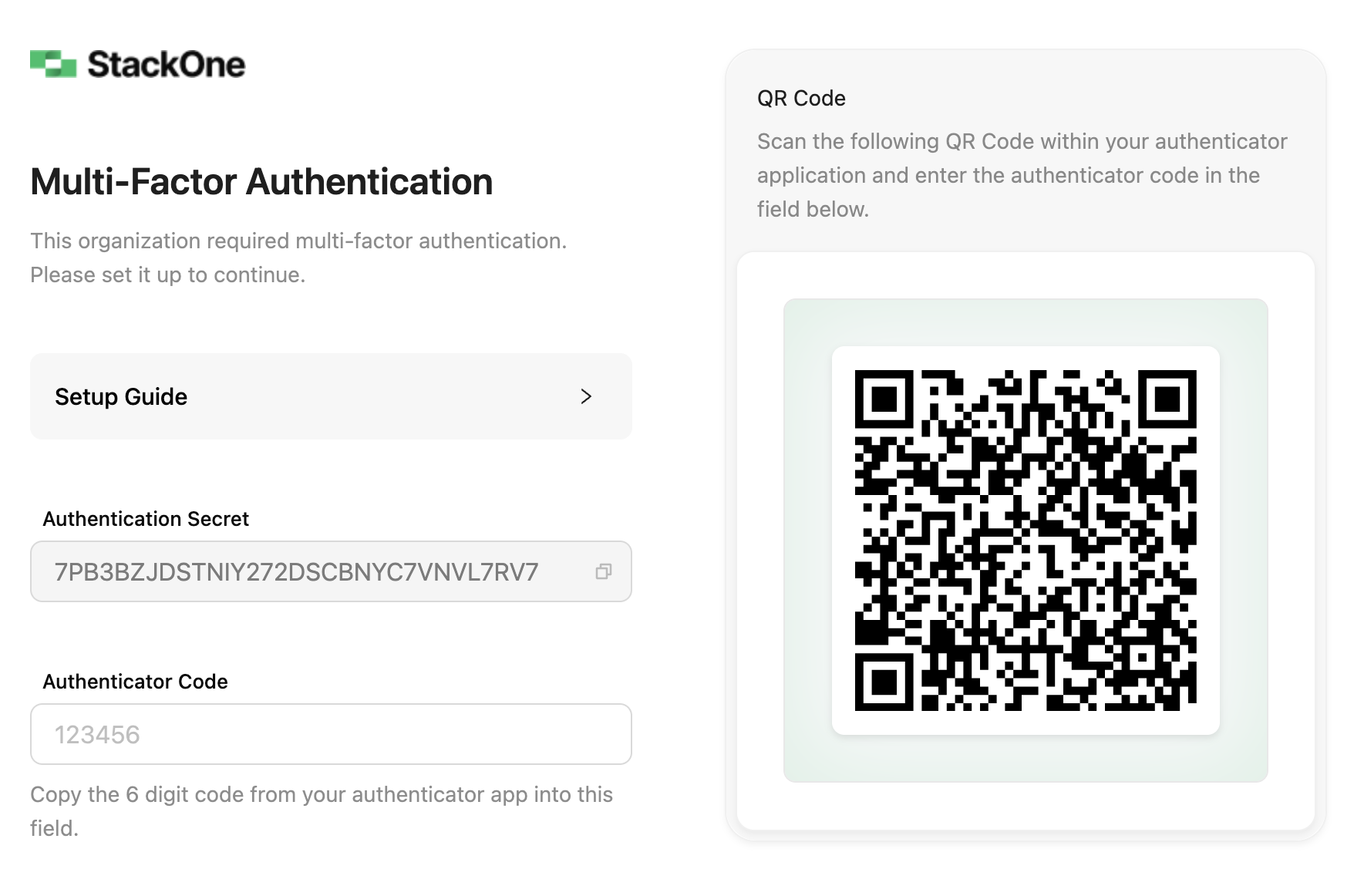
* **Enable Multi-Factor Authentication** — click **Enable Multi-Factor Authentication**, scan the QR code with your authenticator app (Google Authenticator, Microsoft Authenticator, 1Password, etc.), and confirm with the 6-digit code.
To enforce MFA for the whole organization, see [Organization security](#organization-security) below.
## Change a role
Change a member's org role from the Members list. Project-level access is assigned separately — see [Project members](#project-members).
## Project members
Project access is managed from **Project Settings → Team Members**, separately from org membership. Add or remove members per project and assign one of two roles:
| Resource | Project Admin | Viewer |
| ---------------------------------------------------------- | ---------------------------------------------------------------------------------- | -------------------------------------------- |
| [Linked accounts](/gateway/concepts/linked-accounts) | Link, edit, re-authenticate, suspend, delete, and run requests against any account | View status and details |
| [Connector profiles](/gateway/concepts/connector-profiles) | Create, configure, scope actions and events, and delete | View authentication type and enabled actions |
| [Request logs](/connect/troubleshooting) | View | View |
| [API keys](/embed/api-keys) | Create, scope, and revoke | No access |
| [Webhooks](/connect/webhooks) | Create, route events, and delete | No access |
| Project settings | Manage all settings | No access |
## Enable, disable, or delete a user
* **Disable** revokes access while keeping the account, so you can re-enable it later.
* **Delete** removes the user from the organization permanently.
From the Members list you can also unlock accounts locked by failed logins and reset another user's MFA.
## Passwords and MFA
Members manage their own credentials from their personal settings — click your name in the bottom-left corner of the dashboard:
* **Change password** — open **Account** settings and click **Change Password**: enter your current password, then enter and confirm the new one, and save.
* **Enable Multi-Factor Authentication** — click **Enable Multi-Factor Authentication**, scan the QR code with your authenticator app (Google Authenticator, Microsoft Authenticator, 1Password, etc.), and confirm with the 6-digit code.
To enforce MFA for the whole organization, see [Organization security](#organization-security) below.
 ## Organization security
Open the **Security** page from your user menu to manage these org-wide settings:
| Setting | What it does |
| -------------------------------------------------------------------- | --------------------------------------------------------------------------------------------------------------------------------------------------------------------------------------------------------------------------------------------- |
| MFA | Enforce time-based one-time-password MFA for all current and future members. Members without it are prompted on next login — scan the QR code (or enter the secret) into any TOTP app, such as Google Authenticator, 1Password, or Bitwarden. |
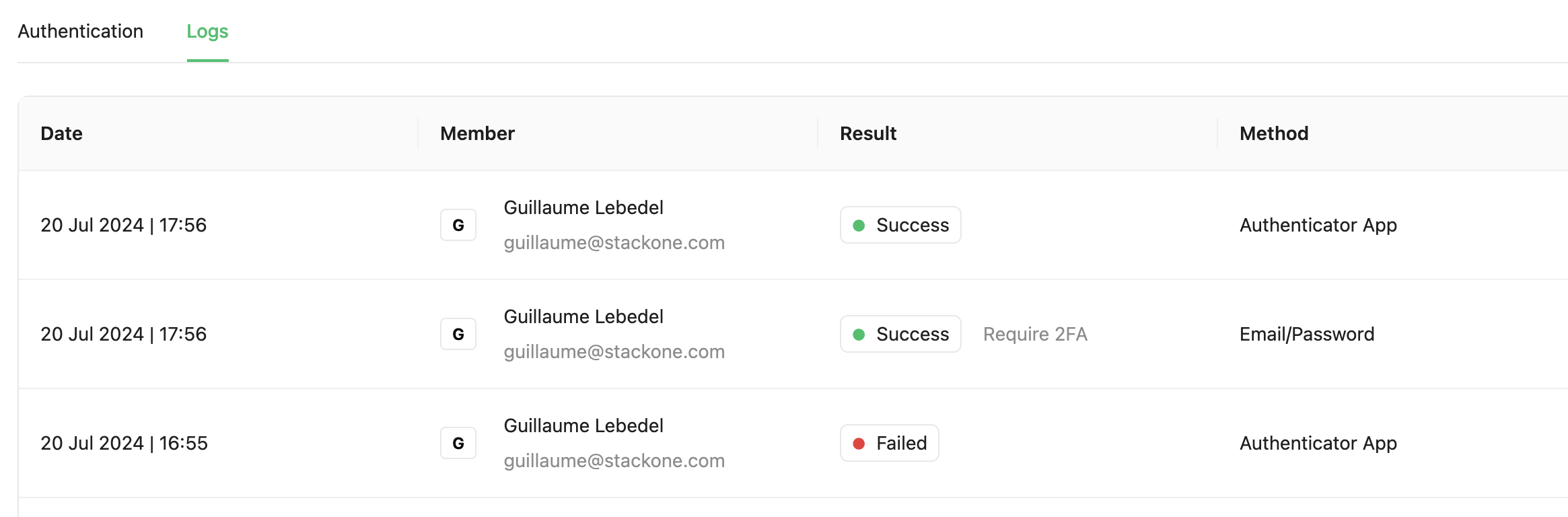
| [Security logs](https://app.stackone.com/organization/security_logs) | A record of every login attempt, success or failure, for monitoring and audit. |
| SSO | Configure SAML 2.0 single sign-on with your identity provider — see [SSO Setup](/secure/sso-setup). |
## Organization security
Open the **Security** page from your user menu to manage these org-wide settings:
| Setting | What it does |
| -------------------------------------------------------------------- | --------------------------------------------------------------------------------------------------------------------------------------------------------------------------------------------------------------------------------------------- |
| MFA | Enforce time-based one-time-password MFA for all current and future members. Members without it are prompted on next login — scan the QR code (or enter the secret) into any TOTP app, such as Google Authenticator, 1Password, or Bitwarden. |
| [Security logs](https://app.stackone.com/organization/security_logs) | A record of every login attempt, success or failure, for monitoring and audit. |
| SSO | Configure SAML 2.0 single sign-on with your identity provider — see [SSO Setup](/secure/sso-setup). |