> ## Documentation Index
> Fetch the complete documentation index at: https://docs.stackone.com/llms.txt
> Use this file to discover all available pages before exploring further.
# Sharing Connector Profiles
> Choose who can link accounts through each connector profile: anyone in the project who can link, or only the members and groups you grant access.
A [connector profile](/gateway/concepts/connector-profiles) is either **Shared** or **Restricted**:
| Access | Who can link accounts through the profile |
| -------------- | ----------------------------------------------------------------------------------------------------------------------------------------- |
| **Shared** | Anyone in the [project](/gateway/concepts/organizations-and-projects) who can link accounts (the profile adds no restriction of its own). |
| **Restricted** | Only the members and [groups](/identity/groups/overview) granted access on the profile. |
Restricting a profile controls who can **use** it: link an account through it, and see it offered when linking. Managing the profile is separate. [Project admins](/secure/team-management#project-members) keep governance of every profile in the project, restricted or not. Restrict a profile when only specific people should connect through it, for example one that holds privileged credentials or reaches a sensitive system.
 Sharing and restricting connector profiles is enabled per organization. If you don't see the **Access** tab on a connector profile, or the **Access** column in the [Connector Profiles](https://app.stackone.com/connector_profiles) list, even as an Org Admin, contact StackOne support to turn it on for your organization.
## Who can do what on a restricted profile
Access on a restricted profile comes from two places: your project role, and a grant on the profile itself. A grant carries one of two roles:
| Profile role | Grants |
| ------------ | ---------------------------------------- |
| **Admin** | Use the profile and manage who else can. |
| **Member** | Use the profile. |
Put together, on a restricted profile:
| Capability | Project or Org Admin without a grant | Granted Member | Granted Admin |
| -------------------------------------- | :----------------------------------: | :------------: | :-----------: |
| View the profile and its configuration | Yes | Yes | Yes |
| Use it to link accounts | No | Yes | Yes |
| Edit its configuration | Yes | No | No |
| Delete it | Yes | No | No |
| Manage its access | No | No | Yes |
Your access is the sum of both: every capability your project role grants, plus every capability your profile grant adds. Neither subsumes the other, so a **Project Admin** who is also granted **Admin** on the profile combines both sets and can do everything in the table. Viewing follows your project role and doesn't change when a profile is restricted.
An ungranted **Project Admin** or **Org Admin** keeps governance of the profile. They can still view, edit, and delete it, but they can't link accounts through it or change who can.
On a **Shared** profile there is nothing to grant: anyone in the project who can link accounts may use it (the profile adds no restriction), and project admins fully manage it, including its access setting.
If your organization uses **explicit account access**, this model will feel familiar: admins keep governance of a resource without automatically being able to use it. See [How access resolves](/identity/groups/assigning-access#how-access-resolves) for the account version.
## Restrict a profile
Go to [Connector Profiles](https://app.stackone.com/connector_profiles) and open the profile, then open its **Access** tab. The **Access** column in the profiles list shows each profile's current setting.
Sharing and restricting connector profiles is enabled per organization. If you don't see the **Access** tab on a connector profile, or the **Access** column in the [Connector Profiles](https://app.stackone.com/connector_profiles) list, even as an Org Admin, contact StackOne support to turn it on for your organization.
## Who can do what on a restricted profile
Access on a restricted profile comes from two places: your project role, and a grant on the profile itself. A grant carries one of two roles:
| Profile role | Grants |
| ------------ | ---------------------------------------- |
| **Admin** | Use the profile and manage who else can. |
| **Member** | Use the profile. |
Put together, on a restricted profile:
| Capability | Project or Org Admin without a grant | Granted Member | Granted Admin |
| -------------------------------------- | :----------------------------------: | :------------: | :-----------: |
| View the profile and its configuration | Yes | Yes | Yes |
| Use it to link accounts | No | Yes | Yes |
| Edit its configuration | Yes | No | No |
| Delete it | Yes | No | No |
| Manage its access | No | No | Yes |
Your access is the sum of both: every capability your project role grants, plus every capability your profile grant adds. Neither subsumes the other, so a **Project Admin** who is also granted **Admin** on the profile combines both sets and can do everything in the table. Viewing follows your project role and doesn't change when a profile is restricted.
An ungranted **Project Admin** or **Org Admin** keeps governance of the profile. They can still view, edit, and delete it, but they can't link accounts through it or change who can.
On a **Shared** profile there is nothing to grant: anyone in the project who can link accounts may use it (the profile adds no restriction), and project admins fully manage it, including its access setting.
If your organization uses **explicit account access**, this model will feel familiar: admins keep governance of a resource without automatically being able to use it. See [How access resolves](/identity/groups/assigning-access#how-access-resolves) for the account version.
## Restrict a profile
Go to [Connector Profiles](https://app.stackone.com/connector_profiles) and open the profile, then open its **Access** tab. The **Access** column in the profiles list shows each profile's current setting.
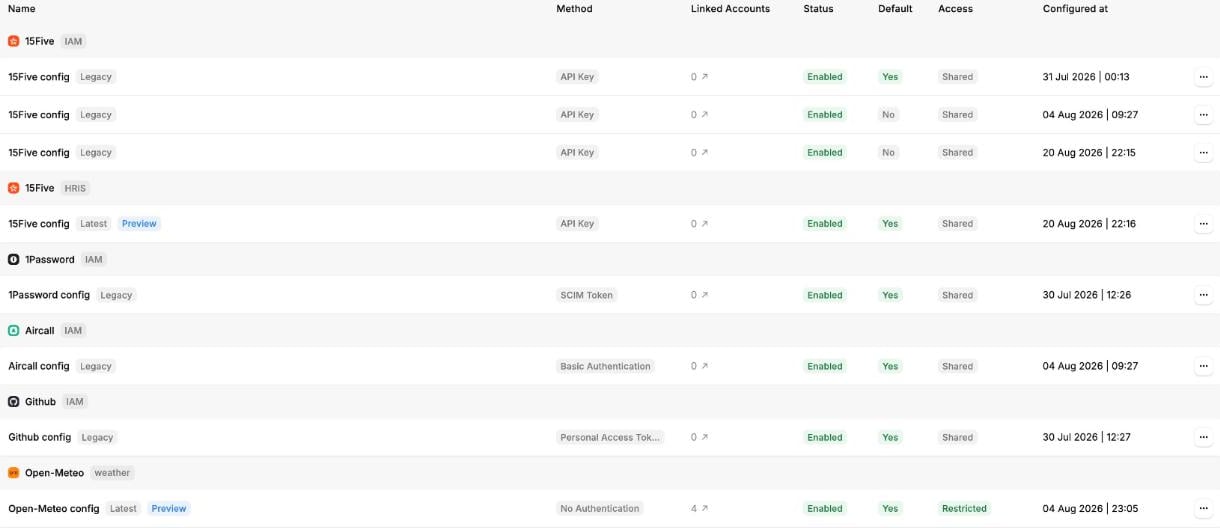 Change the selector from **Shared** to **Restricted**. You're added as a profile **Admin** automatically, so restricting a profile never locks you out of it. Restricting only gates **future** account links — accounts already connected through the profile stay connected and keep working.
Add each member or group who should keep using the profile, and pick **Admin** or **Member** on their row.
Change the selector from **Shared** to **Restricted**. You're added as a profile **Admin** automatically, so restricting a profile never locks you out of it. Restricting only gates **future** account links — accounts already connected through the profile stay connected and keep working.
Add each member or group who should keep using the profile, and pick **Admin** or **Member** on their row.
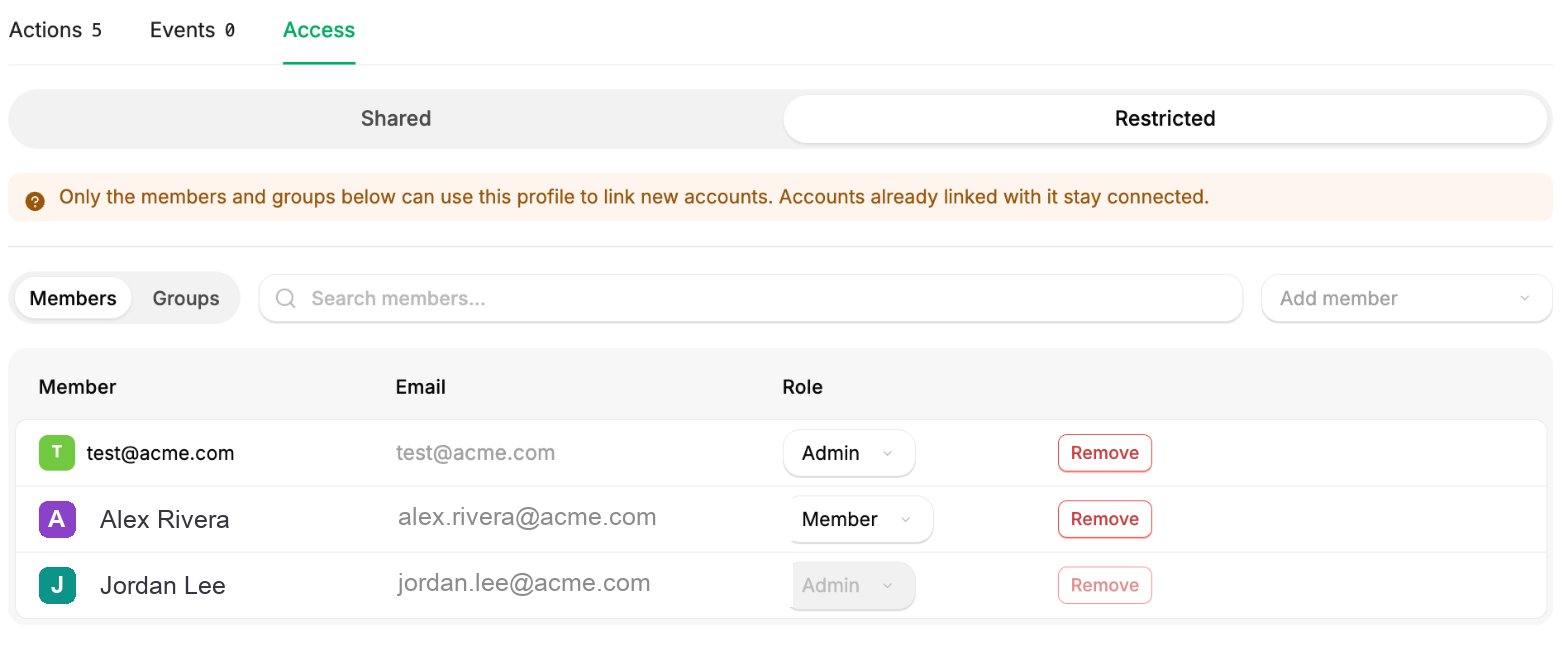 Granting a group grants every member of the group, and the grant tracks the group's membership: people who join the group gain access, and people who leave lose it. Groups is enabled per organization. See [Groups](/identity/groups/overview).
To change access later, anyone granted **Admin** on the profile adds or removes rows on the same **Access** tab. A restricted profile always keeps at least one **Admin**: a save that would remove the last one is rejected, so hand the profile to another admin in the same save, or switch it back to **Shared** to clear the roster entirely.
## The default for new profiles
A new profile starts with its project's default access. In organizations where your own team links its accounts through StackOne, the default is **Restricted**. In organizations that embed StackOne so their customers link accounts, it is **Shared**.
The default only sets the starting value of the selector; whoever manages a profile can change its access later (a project admin on a shared profile, or a granted admin on a restricted one). Existing profiles aren't changed retroactively. A profile stays **Shared** until someone restricts it.
## Hidden from the linking flow
When someone links an account, from the dashboard's **Link Account** flow or through the StackOne Hub, the profile picker only offers profiles they can use. A restricted profile is invisible to anyone without a grant, which also keeps it from cluttering the linking flow for people it doesn't concern. Re-authenticating an existing account through the profile it already uses stays possible without a grant — that use was authorized when the account was linked; only moving the account to a *different* restricted profile needs one. See [Linking Accounts](/connect/managing-connectors/linking-accounts).
## Next steps
Choose which of a profile's actions and events are exposed.
Grant many users the same access at once with reusable groups.
Connect the provider accounts your agents act on.
Invite members and assign org and project roles.
Granting a group grants every member of the group, and the grant tracks the group's membership: people who join the group gain access, and people who leave lose it. Groups is enabled per organization. See [Groups](/identity/groups/overview).
To change access later, anyone granted **Admin** on the profile adds or removes rows on the same **Access** tab. A restricted profile always keeps at least one **Admin**: a save that would remove the last one is rejected, so hand the profile to another admin in the same save, or switch it back to **Shared** to clear the roster entirely.
## The default for new profiles
A new profile starts with its project's default access. In organizations where your own team links its accounts through StackOne, the default is **Restricted**. In organizations that embed StackOne so their customers link accounts, it is **Shared**.
The default only sets the starting value of the selector; whoever manages a profile can change its access later (a project admin on a shared profile, or a granted admin on a restricted one). Existing profiles aren't changed retroactively. A profile stays **Shared** until someone restricts it.
## Hidden from the linking flow
When someone links an account, from the dashboard's **Link Account** flow or through the StackOne Hub, the profile picker only offers profiles they can use. A restricted profile is invisible to anyone without a grant, which also keeps it from cluttering the linking flow for people it doesn't concern. Re-authenticating an existing account through the profile it already uses stays possible without a grant — that use was authorized when the account was linked; only moving the account to a *different* restricted profile needs one. See [Linking Accounts](/connect/managing-connectors/linking-accounts).
## Next steps
Choose which of a profile's actions and events are exposed.
Grant many users the same access at once with reusable groups.
Connect the provider accounts your agents act on.
Invite members and assign org and project roles.