> ## Documentation Index
> Fetch the complete documentation index at: https://docs.stackone.com/llms.txt
> Use this file to discover all available pages before exploring further.
# Scoping Connectors
> Scope what each connector can do: which of its actions and events are available.
A [Connector Profile](/gateway/concepts/connector-profiles) holds the credentials and config for one connector in a [project](/gateway/concepts/organizations-and-projects). It's how you control which actions a connector exposes and how end-users link their accounts.
This assumes you already have a connector profile. To create one, follow the [Quickstart](/gateway/quickstart) or pick a connector in [Connectors](/connectors/introduction), then return here.
## Enable or disable actions
Scope a profile to just the actions your app uses — this limits what every linked account on the profile can do and keeps the OAuth consent screen focused.
Go to [Connector Profiles](https://app.stackone.com/connector_profiles) and open the profile you want to scope.
Each action has a toggle showing whether it's enabled for this profile.
Enable only the actions your app calls and disable the rest. We recommend starting with a few read actions, then enabling more as you need them.
Save the profile. Changes apply to every linked account on it.
## Enable or disable events
The **Events** tab lists every event this connector can emit. Toggle the events you want, and pick which webhook each one fires to from the dropdown alongside it. Create the webhook first — see [Webhooks](/connect/webhooks) for the model and the difference between programmatic and manual events.
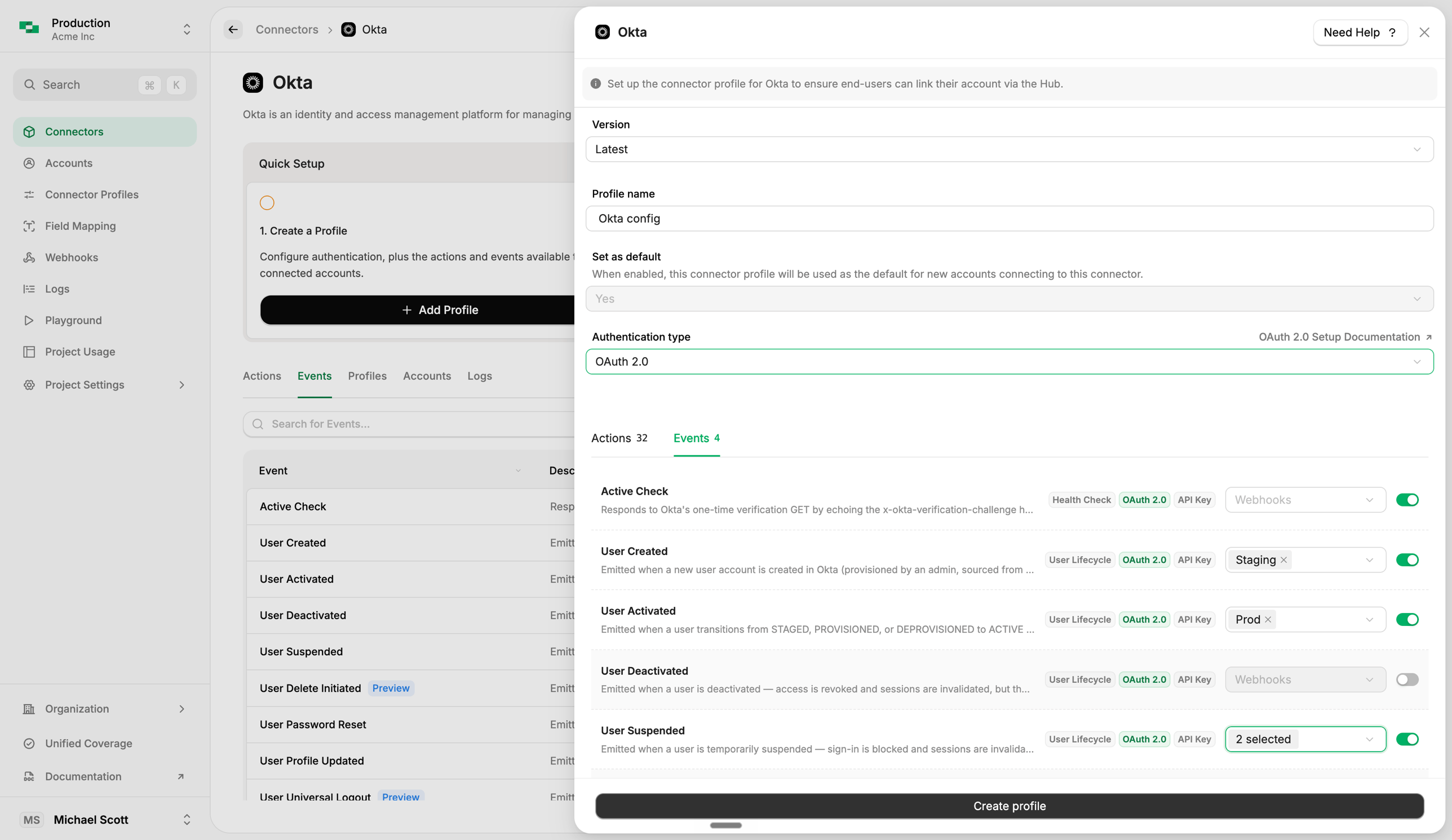 For connectors that use a single app-level webhook, a **Native Webhook URL** appears at the top of the form. Paste it into the connector's app configuration to start receiving events.
The Native Webhook URL is only generated **after the profile is saved**. Save, close, then reopen the profile from the list — the field will be populated.
For connectors that use a single app-level webhook, a **Native Webhook URL** appears at the top of the form. Paste it into the connector's app configuration to start receiving events.
The Native Webhook URL is only generated **after the profile is saved**. Save, close, then reopen the profile from the list — the field will be populated.