> ## Documentation Index
> Fetch the complete documentation index at: https://docs.stackone.com/llms.txt
> Use this file to discover all available pages before exploring further.
# Policies
> Decide which tools your organization's AI agents may use, for everyone, selected users, or groups, and enforce it on every call.
Policies decide what an agent may do with a project's connected accounts, on behalf of the member it acts for. StackOne checks the active policies that apply to that member before a tool call reaches the provider, and refuses the call when an enforced policy denies it.
Policies live in **Project Settings > Policies** and need the **Org Admin** role.
Policies are enabled per organization. If the page reports that Policies are not enabled, contact StackOne support to turn them on.
## How a policy is evaluated
A policy has four parts. The builder walks through them in this order.
| Part | Options | What it means |
| --------------------- | --------------------------------------------------------------------------------------------- | --------------------------------------------------------------------------------------------------------------------- |
| **Who it applies to** | **Everyone**, **Users**, **Groups** | The members whose agents the rule governs. Groups come from [Manage Groups](/identity/groups/managing-groups). |
| **What it does** | **Allow**, **Deny** | A deny rule refuses exactly what it covers for that audience. An allow rule restricts nothing and cannot undo a deny. |
| **Capability** | **Use a tool** | The operation the rule covers. See the note below on the other capabilities in the builder. |
| **Applies to** | **Everything**, **A connector category**, **A connector**, **An account**, **Specific tools** | Where the capability is covered. **Tools matching** narrows any target with a name pattern. |
Three rules hold across every policy:
* **A deny always wins.** When policies overlap, a matching deny refuses the call whatever any allow says. Put exceptions inside the deny rule, under **Exempt from this rule**, rather than in a separate allow.
* **Policies narrow access.** They never grant a tool the member could not already reach. [Connector Profile scoping](/secure/scoping-connectors) and [account access](/secure/sharing-connector-profiles) still apply.
* **Policies follow the member.** A call is governed when it carries the identity of an organization member, which is the case for sessions created when a member connects an [AI platform](/connect/overview). A call made with a project API key alone carries no member identity, so member policies do not apply to it. Keep Connector Profile scoping in place for that traffic.
Each policy also has a **Status** and an **Enforcement** mode:
| Status and mode | Result |
| ---------------------------- | ---------------------------------------------------------------------- |
| **Inactive** | Stored and never consulted. |
| **Active**, **Monitor only** | The policy is evaluated and the call goes through. Nothing is refused. |
| **Active**, **Enforce** | A denied call is refused before it reaches the provider. |
The builder also lists **Use a tool without approval**, **Read a field**, and **Write a field** as capabilities. StackOne stores and previews rules built on them, but does not act on them when a call runs yet. Only **Use a tool** changes what a call does today.
## Create a policy
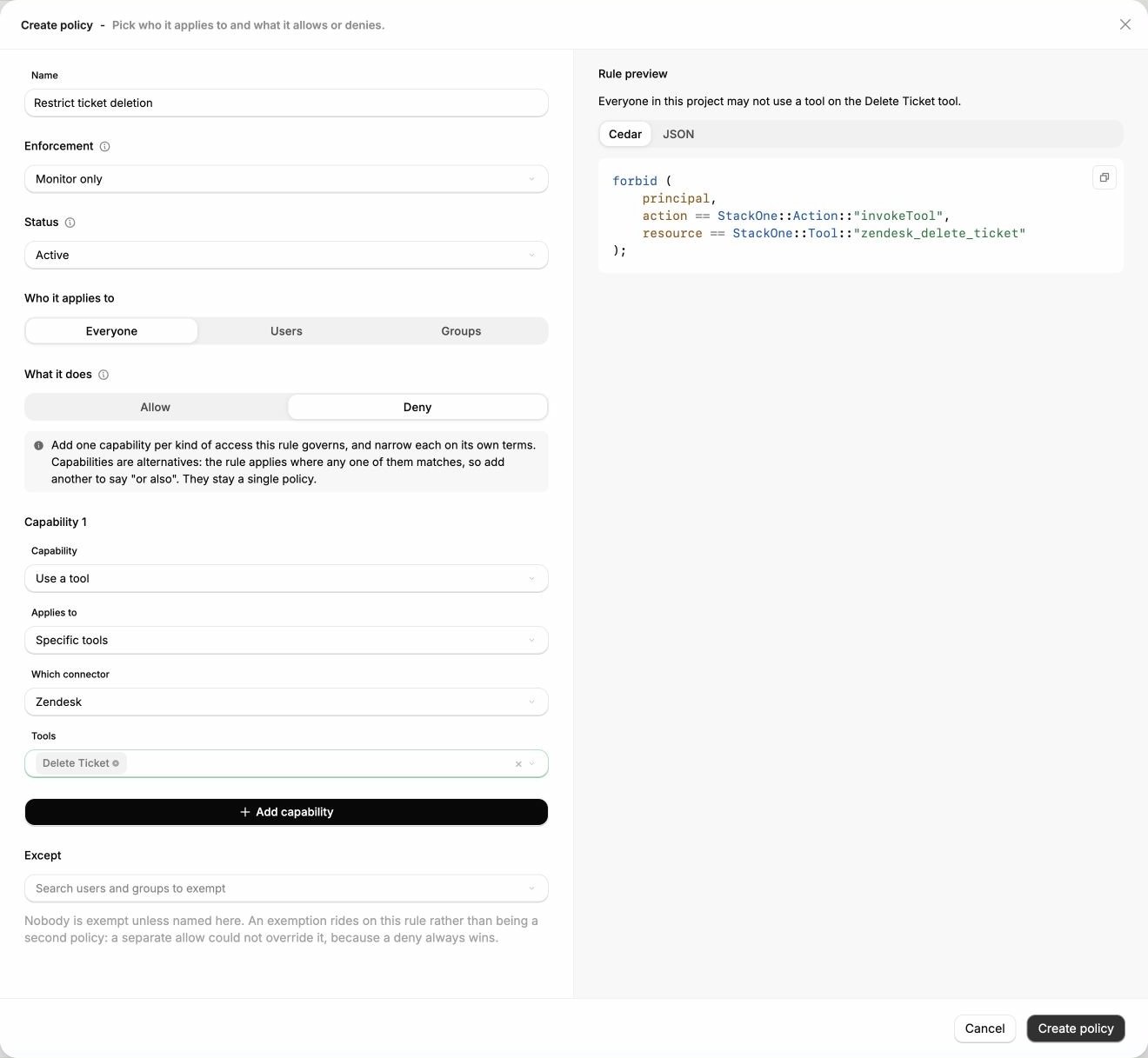
Select the project, open **Project Settings > Policies**, and choose **Create policy**. Give the policy a name that says what it restricts, such as `Contractors cannot delete records`.
Under **Enforcement**, choose **Monitor only** to record decisions without refusing anything, or **Enforce** to act on them. Under **Status**, choose **Active** to consult the policy from the project's next call, or **Inactive** to store it for later.
Start new deny rules in **Monitor only**, and switch to **Enforce** once the preview reads the way you intend.
Select **Everyone**, **Users**, or **Groups**, then search for the users or groups the rule covers.
Select **Deny** to refuse the capability for that audience, or **Allow** to state permitted use without restricting anything.
Choose **Use a tool** as the capability, then choose where it applies:
* **Everything** covers every tool in the project.
* **A connector category** or **A connector** covers every tool on the connectors you pick, including connectors added later in that category.
* **An account** covers the tools of specific Linked Accounts. Search accounts by name or owner.
* **Specific tools** lets you pick a connector, then the tools on it by name.
To match tools by name instead, enter a pattern under **Tools matching**, such as `*delete*`. A capability takes either specific tools or a pattern, not both. Choose **Add capability** to cover another operation or a second selection.
For a deny rule, use **Exempt from this rule** to name users or groups the rule should skip. An exemption skips this policy only. Another applicable deny can still refuse the call.
**Rule preview** restates the policy as a sentence, for example *Everyone in this project may not use a tool matching `*delete*` on Workday, except Finance (Group).* Switch between **Cedar** and **JSON** to read the rule the engine will evaluate, then choose **Create policy**.
 ## Manage policies
The Policies list shows each policy's **Applies to** audience, **Mode** (**Enforce**, **Monitor** for a policy in Monitor only, or **Mixed** when different audiences run in different modes), **Scope** (**Organization** or **This project**), and **Status**.
From a policy's menu you can:
* **View and edit** the rule. Saving a change writes a new version and keeps the previous one in the policy's history.
* **Enforce** or **Stop enforcing** to switch mode for every audience it is assigned to.
* **Activate** or **Deactivate** to start or stop consulting it.
* **Delete** it, which also removes its version history. To stop a policy from acting without losing it, switch it to **Monitor only** or deactivate it instead.
Deactivating or deleting a deny rule widens access from the next call. The confirmation says so before you proceed.
## What a denied call returns
When an enforced policy refuses a tool call, the request fails with HTTP `403` before anything reaches the provider. The body names the level that refused it, not the rule:
```json theme={null}
{
"message": "Action 'workday_delete_worker' is not permitted by project policy",
"errorType": "POLICY_DENIED_ERROR",
"level": "project"
}
```
An AI platform surfaces that message to the person using the agent. An `org` level means the refusal comes from an organization-wide policy, which a project member cannot change.
## Troubleshooting
A pattern under **Tools matching** must cover the whole tool name and is case-sensitive. `*` is the only wildcard.
| Pattern | Matches |
| -------------------- | ------------------------------------------------ |
| `*delete*` | Any tool name containing `delete`. |
| `salesforce_*` | Every tool whose name starts with `salesforce_`. |
| `workday_get_worker` | That exact tool only. |
Characters such as `?` and `[a-z]` are literal. A pattern describes names, so `*delete*` matches tools named that way rather than every tool that deletes something.
Check, in order: the policy is **Active**; its mode is **Enforce**; the acting member is in its audience and not exempt; the call is made in the same project, or the policy is organization-wide; and the tool name or pattern matches exactly, including case.
Then check the caller. A call made with a project API key and no member identity is not governed by member policies. Connect through an AI platform as the member you are testing, and test with a read-only tool and test data first.
Not yet. Request logs do not carry policy decisions today. A refused call shows as a `403` response. Use **Monitor only** on a small audience to try a rule before enforcing it more widely.
The preview shows one [Cedar](https://docs.cedarpolicy.com/) statement per policy. A deny rule is a `forbid` on the `invokeTool` action, with `when` conditions for the targets and pattern and `unless` conditions for exemptions. **JSON** shows the same statement in Cedar's JSON form. You cannot edit the statement directly; change the form and the preview follows.
## Next steps
Set which actions each Connector Profile exposes.
Maintain the groups your policies apply to.
Control who can link accounts on a profile.
Configure request logging and retention.
## Manage policies
The Policies list shows each policy's **Applies to** audience, **Mode** (**Enforce**, **Monitor** for a policy in Monitor only, or **Mixed** when different audiences run in different modes), **Scope** (**Organization** or **This project**), and **Status**.
From a policy's menu you can:
* **View and edit** the rule. Saving a change writes a new version and keeps the previous one in the policy's history.
* **Enforce** or **Stop enforcing** to switch mode for every audience it is assigned to.
* **Activate** or **Deactivate** to start or stop consulting it.
* **Delete** it, which also removes its version history. To stop a policy from acting without losing it, switch it to **Monitor only** or deactivate it instead.
Deactivating or deleting a deny rule widens access from the next call. The confirmation says so before you proceed.
## What a denied call returns
When an enforced policy refuses a tool call, the request fails with HTTP `403` before anything reaches the provider. The body names the level that refused it, not the rule:
```json theme={null}
{
"message": "Action 'workday_delete_worker' is not permitted by project policy",
"errorType": "POLICY_DENIED_ERROR",
"level": "project"
}
```
An AI platform surfaces that message to the person using the agent. An `org` level means the refusal comes from an organization-wide policy, which a project member cannot change.
## Troubleshooting
A pattern under **Tools matching** must cover the whole tool name and is case-sensitive. `*` is the only wildcard.
| Pattern | Matches |
| -------------------- | ------------------------------------------------ |
| `*delete*` | Any tool name containing `delete`. |
| `salesforce_*` | Every tool whose name starts with `salesforce_`. |
| `workday_get_worker` | That exact tool only. |
Characters such as `?` and `[a-z]` are literal. A pattern describes names, so `*delete*` matches tools named that way rather than every tool that deletes something.
Check, in order: the policy is **Active**; its mode is **Enforce**; the acting member is in its audience and not exempt; the call is made in the same project, or the policy is organization-wide; and the tool name or pattern matches exactly, including case.
Then check the caller. A call made with a project API key and no member identity is not governed by member policies. Connect through an AI platform as the member you are testing, and test with a read-only tool and test data first.
Not yet. Request logs do not carry policy decisions today. A refused call shows as a `403` response. Use **Monitor only** on a small audience to try a rule before enforcing it more widely.
The preview shows one [Cedar](https://docs.cedarpolicy.com/) statement per policy. A deny rule is a `forbid` on the `invokeTool` action, with `when` conditions for the targets and pattern and `unless` conditions for exemptions. **JSON** shows the same statement in Cedar's JSON form. You cannot edit the statement directly; change the form and the preview follows.
## Next steps
Set which actions each Connector Profile exposes.
Maintain the groups your policies apply to.
Control who can link accounts on a profile.
Configure request logging and retention.